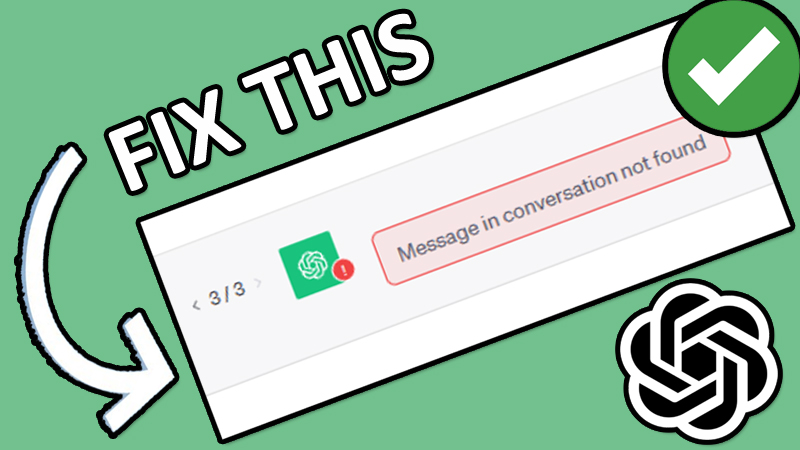
Are you staring at a frustrating “Message in conversation not found” or “Conversation not found” error in ChatGPT? If so, you are definitely not alone. Thousands of users face these disruptive glitches daily.
While these errors can pop up due to server maintenance, browser bugs, or network drops, they frequently strike when you ask ChatGPT – or a Custom GPT – to process highly complex, in-depth queries. When the database fails to link your deep prompt back to the main chat history, the connection snaps.
In this updated guide, we will break down exactly why these database hiccups happen and show you the step-by-step fixes to resolve both error messages so you can rescue your lost chats immediately.
14 Ways to Resolve ChatGPT “Conversation Not Found” & “Message in Conversation Not Found” Bugs
Resolving these disruptive bugs depends entirely on which version of the error you are currently facing. Because one error breaks the connection inside an open chat page while the other locks you out of your entire history sidebar, we have broken our troubleshooting guide down into three clear zones.
First, we will look at how to rebuild broken conversation trees within an active chat box. Next, we will cover how to force your sidebar panel to sync correctly with OpenAI’s account databases. Finally, if you are experiencing a persistent platform-wide lock, we will run through essential browser, application, and network optimizations to restore your workspace access.
Follow these solutions step-by-step to isolate the root cause and get your ChatGPT engine running smoothly again.
Part 1: How to Fix “Message in Conversation Not Found” (In-Chat Error)
This error typically strikes while you are in an active chat thread – especially when asking long, complex questions or using Custom GPTs. It means a specific prompt node has desynced from the main conversation tree.
Fix 1. Fork a New Branch via the Edit Feature
Instead of repeatedly clicking “Regenerate” on a broken response, you should force the chat window to create a clean message branch.
- Scroll up slightly to your last sent prompt.
- Click the Pencil (Edit) icon next to it.
- Make a minor tweak (or leave the text as is) and click Save & Submit.
- Why this works: Doing this forces ChatGPT to build an entirely new branch on its data tree. This completely bypasses the broken message node that was causing the sync error.
Fix 2. Toggle the Response Iteration Arrows (Branch Switching)
When you click “Regenerate” multiple times, the web interface can lose track of which specific response version index (2/3, 3/3, etc.) it is trying to read.
- Look directly beneath the broken ChatGPT response block.
- Locate the navigation arrows (e.g., < 2 / 2 >).
- Click the Left Arrow to move back to an older response branch, wait 2 seconds, and then click the Right Arrow to return.
- Why this works: Toggling these arrows forces the frontend interface to re-request that exact variation ID from the server. This instantly snaps a confused UI back into alignment with the backend database.
Fix 3. Start a Fresh Chat Thread
If a single conversation becomes excessively long or contains too many nested edits, ChatGPT’s memory context can hit a token indexing limit.
- Select and copy your most recent context, prompt text, or code block.
- Navigate to the sidebar and click New Chat.
- Paste your text into the fresh window to continue your work.
- Why this works: Starting fresh drops the heavy history load from the server’s immediate memory. Keeping threads shorter avoids database time-outs and keeps your responses fast.
Fix 4. Use a Keyboard “Hard Refresh”
A basic browser refresh often just reloads a broken, cached page state. You need to force your browser to pull a fresh session directly from OpenAI’s servers.
- Windows/Linux: Press Ctrl + F5 or Ctrl + Shift + R.
- Mac: Press Cmd + Shift + R.
- Why this works: A hard refresh completely bypasses your local browser cache. It forces a clean, non-cached download of the entire script file running the chat app.
Fix 5. Open ChatGPT in a Web Browser
If you are encountering this error on the ChatGPT desktop app, the local application environment might be experiencing a rendering lag.
- Close the desktop app completely.
- Open a standard web browser (like Google Chrome, Brave, Safari, or Firefox).
- Navigate directly to chatgpt.com and run your query.
- Why this works: Web browsers receive direct updates and have robust resource allocations. This makes them much more resilient to UI script errors than standalone desktop wrappers.
Part 2: How to Fix “Conversation Not Found” (Sidebar Loading Error)
This error happens when you try to open an old chat from your history panel, but the page returns a blank screen or a popup error.
Fix 6. Verify Your Active Workspace
ChatGPT allows users to toggle between multiple profiles like Personal, Work, and Team spaces. Opening a direct link or bookmark while logged into the wrong profile will trigger a database block.
- Look at your profile icon or workspace switcher in the lower-left (or top-left) corner.
- Click it to view your active workspaces.
- Switch back to the specific workspace where the chat thread was originally created.
- Why this works: Conversations are strictly sandboxed within their respective workspace databases for privacy. You must be authenticated in the correct workspace to view them.
Fix 7. Use the Global Search Shortcut (Ctrl + K or Cmd + K)
Sometimes ChatGPT archives or hides older threads from your visible sidebar history to optimize the initial page loading speeds.
- Click anywhere on the ChatGPT window.
- Press Ctrl + K (Windows) or Cmd + K (Mac) to trigger the deep search bar.
- Type a unique keyword from your missing chat and click it from the results.
- Why this works: The global search tool queries OpenAI’s deep archives directly. Accessing the thread from here forces the system to rebuild the missing sidebar navigation link.
Fix 8. Force a Sidebar Sync via the Settings Panel
If your history panel becomes unresponsive or corrupts a navigation link, you can force the app to drop its stuck local memory and pull a fresh layout index.
- Click on your Profile icon and select Settings.
- Navigate to the Data Controls or Privacy section.
- Turn the toggle labeled Chat History & Training to OFF. (Your sidebar will temporarily go blank).
- Wait 15 seconds, then turn the toggle back ON.
- Why this works: Toggling this setting resets the live data-stream connection. When turned back on, the application performs a complete “cold sync” of your profile data, repairing broken index links.
Fix 9. Log Out and Re-Authenticate
Your active browser session tokens can become desynchronized, especially if you use ChatGPT on multiple devices at the same time.
- Open your profile menu and click Log Out.
- Close your browser tab completely.
- Open a new window, navigate to chatgpt.com, and log back in.
- Why this works: Logging out completely destroys your temporary browser session token. Logging back in forces a clean, verified handshake with OpenAI’s authentication servers.
Part 3: General System & Network Fixes
If you are seeing either error message continuously across all chats, apply these foundational fixes.
Fix 10. Clear Browser Cache and Site Cookies
Corrupted local storage data and tracking cookies can prevent ChatGPT from verifying your active connection tokens.
- Click the three vertical dots in the top-right corner of Chrome.
- Select Clear browsing data.
- Set the time range to “All time,” check Cookies and Cached images, then click Clear Data.
- Why this works: Clearing this data deletes stale files that might be clashing with ChatGPT’s updated web scripts, allowing the site to load without errors.
Fix 11. Switch to Mobile UI (App or Web)
If regional web distribution servers are experiencing latency, mobile network infrastructures often remain perfectly functional.
- Grab your mobile phone and open the official ChatGPT App (or your mobile browser).
- Log in to your account and open the conversation history.
- Tip: If the chat opens, type a simple period (.) and send it. This forces the thread to update and reappear on your desktop.
- Why this works: Mobile applications communicate through different data pipelines and API endpoints, allowing you to bypass localized computer browser glitches.
Fix 12. Toggle Your VPN Connection
A sudden micro-disconnect in your network right as a request goes out can save a “ghost” message ID that doesn’t exist on OpenAI’s servers.
- If using a VPN: Disconnect it and try running ChatGPT on a standard local Wi-Fi or cellular connection.
- If not using a VPN: Enable a reliable VPN to route your internet traffic through a different geographic region.
- Why this works: Changing your connection profile alters your IP routing path. This successfully bypasses localized network throttling, ISP blocks, or bad server nodes.
Fix 13. Check the Official OpenAI Status Page
Before assuming your data is permanently lost, ensure OpenAI isn’t experiencing a widespread system outage.
- Visit openai.com in your browser.
- Scroll down to check components like Conversations or ChatGPT.
- Look for statements showing active maintenance or high latency. If you see issues, wait for the engineers to deploy a fix.
- Why this works: If the issue is server-side, local troubleshooting will not help. Checking the official board saves you time by confirming when it’s time to wait out a patch.
Fix 14. Contact OpenAI Support
If you have tried every step and your critical data remains completely locked out, reach out to customer care for backend assistance.
- Go to openai.com.
- Click the Chat bubble icon in the bottom right corner.
- Select Send us a message, choose the relevant topic, and describe the exact error text you are seeing.
- Why this works: If your specific account profile has a deep database corruption error, OpenAI’s support team can manually refresh your account state from the backend.
Wrap Up
Encountering a “Message in conversation not found” or “Conversation not found” roadblock in ChatGPT can completely derail your workflow. Fortunately, out of these fourteen practical steps, one of these solutions should get your chat engine running smoothly again.
If you found this updated troubleshooting guide helpful, feel free to share it with your fellow creators and developers who might be battling the same ChatGPT glitches today!

Max Field is a founder of Recover Android Data. He is an Android lover and loves to write tips, tricks, fixes for errors, data recovery solutions, and more related to Android. He has 13+ years of experience in this field. In his free time, he likes to travel, watch movies, and play games.