
Just after the launch of Soul Knight Prequel game, players are receiving lots of issues with the game.
They are getting “Connection error” besides other several problems.
The connection error in Soul Knight Prequel is of different types, some of them are as follows:
Connection Error
“Server error encountered – error code: 102011. Please try again in a bit”
“The server is unstable. Please retry later”
“Service is busy. Please retry later”
“Server error encountered – error code: 100. Please try again in a bit”
So, if you are also getting such an error then this article is for you.
In this article, you will learn how to fix “Connection Error” in Soul Knight Prequel on iPhone or Android.
How To Fix “Connection Error” in Soul Knight Prequel
To fix “Connection Error” in Soul Knight Prequel, you have to first check the server status of the game.
If it is down, then you can’t do anything instead you have to wait until the server issue is fixed by the Soul Knight Prequel team.
If the server is up and you are still getting connection errors, then follow the other solutions mentioned in this article.
Fix 1: Check Soul Knight Prequel Server Status
Go to official Soul Knight Prequel Facebook page: https://www.facebook.com/chillyroomsoulknightprequel
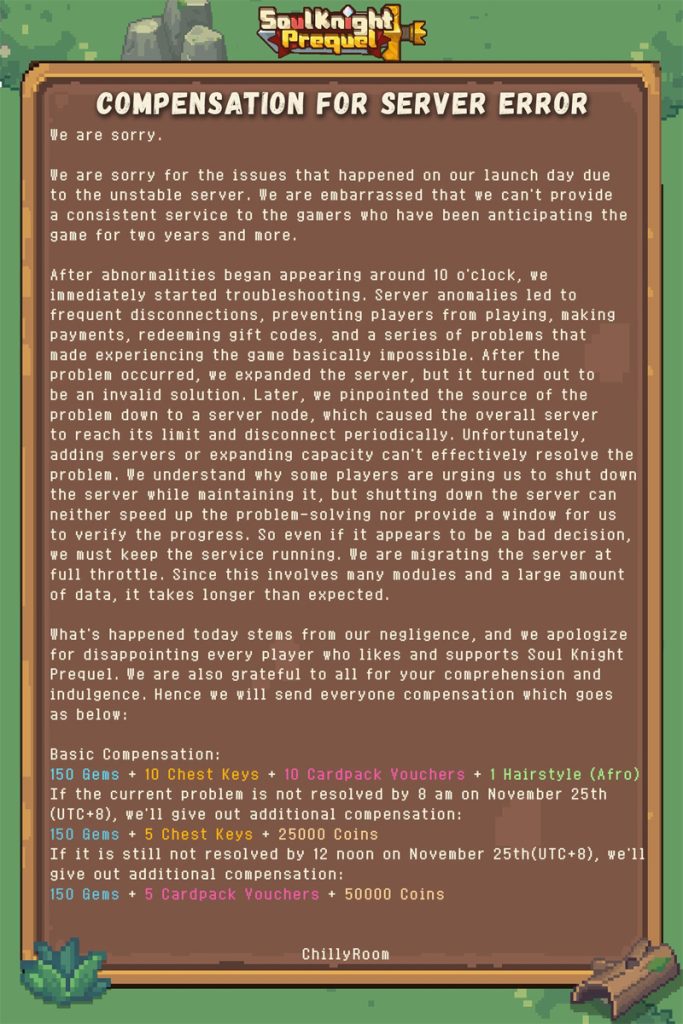
(Pic Credit: Soul Knight Prequel Facebook Page)
And look for any official announcement related to server status.
If you find that server is down, having outage issues or under maintenance, then wait until it is fixed by the Soul Knight Prequel team.
Fix 2: Check Internet Connection
Ensure that you are connected to properly working internet.
If you are using mobile data, then switch to Wi-Fi.
If you are connected to Wi-Fi, then switch to mobile data.
Fix 3: Exit and Enter Soul Knight Prequel
It is noticed that when we open treasure chest or card packs, it gets disconnected.
So, to avoid item loss, exit and re-enter the game.
However, if you get error message or “Retry button” appears then do not click on “Retry” button, instead Return to Main Menu.
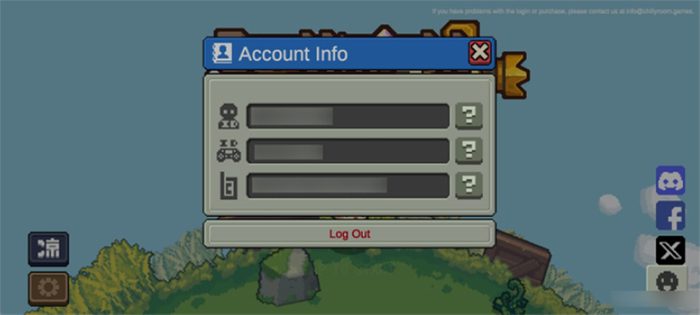
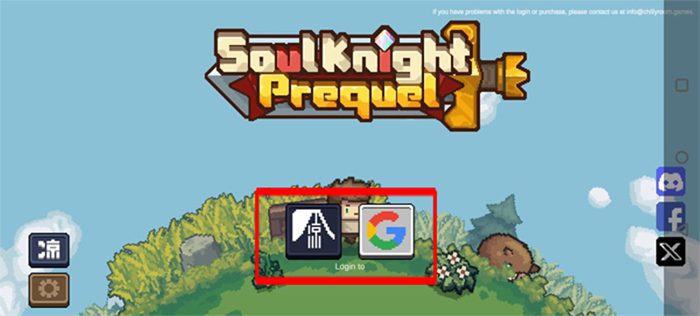
Fix 4: Logout and Login
If you are not able to enter the game due to Connection Error, then simply logout of the game.
Restart your device.
Launch the game, login and then try to enter the game.
Fix 5: Wait For 1 – 2 Hours
If you have purchased any items and haven’t received it, then logout of the game and wait for 1-2 hours and then login back to game and check.
Fix 6: Update Soul Knight Prequel
- Go to Google Play Store (for Android) or App Store (for iOS).
- Search for Soul Knight Prequel.
- If update is available then tap on “Update” button.
Fix 7: Clear Soul Knight Prequel Cache and Data
On Android: Go to Settings > Apps > All apps > look for Soul Knight Prequel and tap on it > Tap Storage > Tap “Clear Cache” and “Clear Data”.
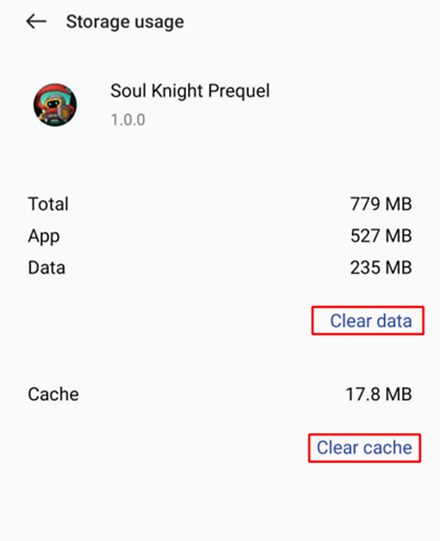
On iOS: Go to Settings > General > iPhone Storage > Select Soul Knight Prequel > Tap on “Offload App” and select “Reinstall App”.
Fix 8: Connect/Disconnect VPN
If you are not connected to any VPN then install one from Google Play Store (for Android) or App Store (for iOS) and connect to VPN (e.g. India) and then try to launch and enter the game.
If you are already connected to VPN, then disconnect it and then try entering the game.
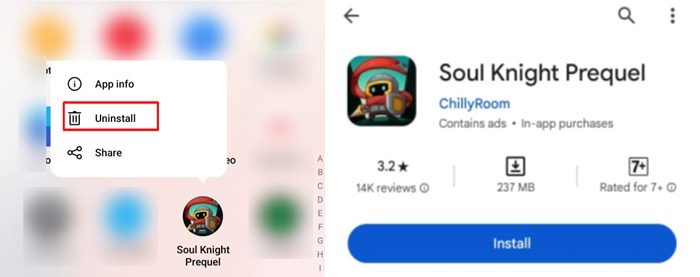
Fix 9: Uninstall and Re-Install The App
Tap and hold Soul Knight Prequel app icon and select “Uninstall/Delete” option.
Now, open Google Play Store (for Android) or App Store (for iOS).
Search for Soul Knight Prequel and tap on “Install”.
Now, launch and try to login to game and see if it fixed the issue.
Fix 10: Contact Soul Knight Prequel Support
If none of the solutions work, then contact Soul Knight Prequel support: https://www.chillyroom.com/en/support
Describe your problem to them.
Wait for their response and follow their instructions to solve the problem.
Wrap Up
Getting connection error while you are playing the game can really frustrate and irritate you.
Hopefully, after following the solutions mentioned in this post has helped you to fix the connection errors in Soul Knight Prequel.
If you have found this article helpful, then please share it as it can help other users!
Please support us by subscribing to our YouTube Channel.
You May Also Like:

Max Field is a founder of Recover Android Data. He is an Android lover and loves to write tips, tricks, fixes for errors, data recovery solutions and more related to Android. Provide Gaming Tips, Tricks, Game Error/Issues Solutions (PC/Xbox/PlayStation/Mobile). He is now also interested in solving LinkedIn Puzzles. He has 12+ years of experience in this field.