

Samsung S24 series phones have many great features including battery life. But still, some Galaxy S24 users wants to improve the battery life of their phone.
If you also want to boost the cell power of your device then this guide will help you in the same. Here, we have shared some quick and easy tips on how to optimize battery life on the Samsung Galaxy S24, S24 Plus, or S24 Ultra.
How To Improve Battery Life On Samsung Galaxy S24 (Plus) (Ultra)
All smartphone users want their phone’s battery to last long. If you also want to do this then you need to follow the below tips.
Tip 1: Keep The Screen Brightness Low
Your phone’s screen uses a lot of battery power which consumes more battery. That’s why you should keep the screen brightness dim.
Follow the below steps to do the same:
- Open the Settings app on your Galaxy S24 phone.
- Scroll down and tap on Display.
- Now, make the screen brightness to 30%-40%.
Tip 2: Enable the Battery Protection Option on the Samsung
The Samsung S24 series phone has provided a new battery protection option that helps in improving battery life.
Below, learn how to turn on the battery protection feature on Samsung S24:
1. Navigate to Settings > Battery.
2. Then tap on Battery protection.
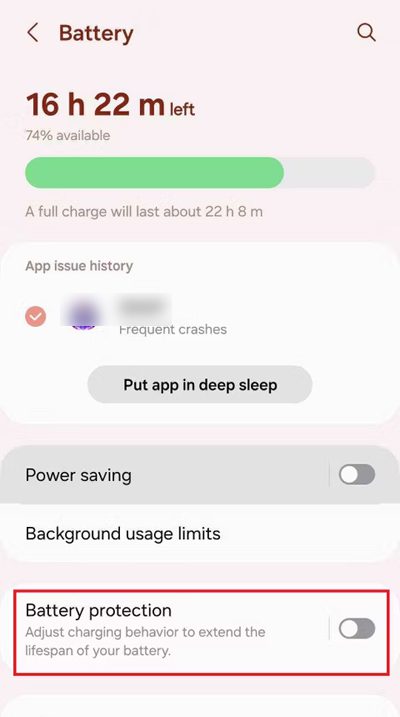
3. Now, you can select from Basic, Adaptive, and Maximum.
- Select Maximum to improve the battery life. This will stop charging your phone when the battery level reaches 80%.
- Select Adaptive if you want to charge your phone overnight.
- Select Basic mode to stop charging your phone when its battery level is 100% and resume when it drops to 95%.
Tip 3: Lower The Refresh Rate
Samsung S24 series phone’s screen refreshes very fast at 120Hz. Though it looks nice but, it consumes more battery. Hence, you need to lower the refresh rate to 60Hz.
Here, follow the steps to lower the refresh rate on the Galaxy S24 series phone:
- Open the Settings app on your phone.
- Then tap on Display.
- Next, select Motion Smoothness and lower it to 60Hz.
Tip 4: Enable Dark Mode on Samsung
Another way to save battery on the Samsung S24 Ultra/S24 Plus/S24 is by turning on the dark mode feature. This will make your phone screen darker which will save the battery.
Here, learn how to switch on dark mode:
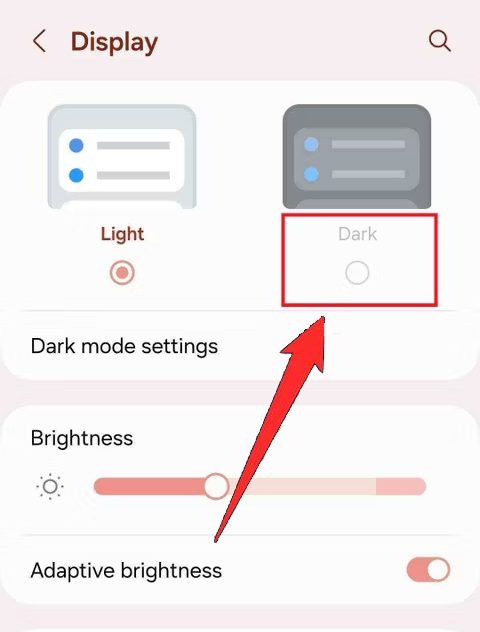
- Navigate to Settings.
- Then tap on Display.
- After this, choose Dark.
Tip 5: Turn Off Always On Display
You can disable the Always on Display (AOD) feature on your Galaxy S24 series phone to extend the battery life.
To disable the AOD feature follow the below steps:
- Open the Settings app on your phone.
- Then go to Lock Screen and AOD.
- After this, toggle off Always On Display.
Tip 6: Enable Power Saving Mode on Samsung
You can also boot the Samsung S24 series phone’s battery by using the Power Saving Mode feature. This will save the battery life by reducing performance a little.
Below, follow the steps to enable this feature:
- Go to Settings.
- Scroll down and tap on Battery.
- Now, toggle on the Power saving mode feature.
Alternatively, you can disable it by going to the quick settings menu and tapping on the Power Saving icon to enable it if it is disabled.
Tip 7: Turn Off GPS When Not In Use
You should disable the GPS feature on your phone when you don’t need it. As the Satellite or standalone GPS services need more power which reduces the battery life very quickly.
Below, follow the steps to turn off GPS On Galaxy S24:
- Go to Settings > Location.
- Then tap on Location Switch in the upper right corner.
- Next, toggle it off. If you find the Location consent disclaimer then tap on Agree.
- If you want to turn off Locations services, tap on “Bluetooth scanning” or “Wi-Fi scanning” to disable it.
Tip 8: Limit Background App Use
All the apps that run in the background use the battery. So, you should turn it off.
Here are the steps to do the same:
- Open the Settings app.
- Then tap on Battery.
- Now, tap on Background usage limits.
- You can toggle on Put unused apps to sleep to stop it from running in the background.
- You can also select which app you want to put in sleep.
Tip 9: Uninstall Unnecessary Apps
Enabling sleep mode for unused apps is a good option to prevent them from consuming your phone’s battery.
But it is better if you uninstall the apps that you don’t use.
To uninstall an app, you need to press and hold the app on the home screen. Then tap on Uninstall option and then on OK.
Tip 10: Disable Nearby Device Scanning
If you have pared your accessories to your phone like Bluetooth speakers, earbuds, and smartwatches then you should disable them to optimize the battery life.
Here learn the steps to do it:
- Head to Settings > Connections.
- Hit on More Connection Settings.
- Now, toggle off Nearby device scanning.
Tip 11: Disable 5G
As you know 5G uses more battery life than the 4G. Therefore, you can disable the 5G in the mobile network settings to save the battery.
Tip 12: Reduce Home Screen Widgets
You can remove the widgets that update a lot or animate. They use your phone’s battery in the background.
Tip 13: Reduce the Screen Timeout
You can reduce the screen timeout of your phone by booting the battery of your Galaxy S24 series phone. You can turn off the screen sooner by going to your phone’s Display settings.
Tip 14: Update Your Samsung Phone OS
You should always keep your Galaxy S24 series operating system updated as the latest update brings battery life improvements along with many new features.
To update your Samsung S24/S24+/S24 Ultra OS follow the below steps:
- Go to Settings.
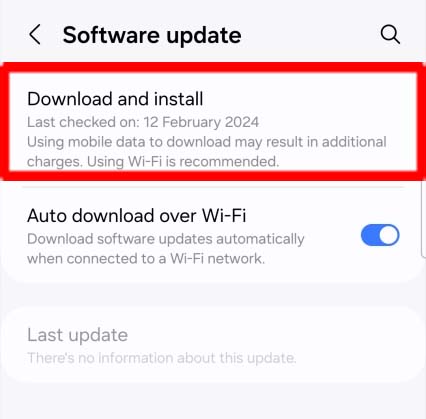
- Then tap on Software update.
- If you find the update then tap on Download and Install.
Tip 15: Use Black Wallpapers on Your Samsung Device
You can set a black wallpaper on your Home screen, Lock screen, or your theme as it reduces battery consumption.
To set a black wallpaper, you need to go to Settings > Wallpaper or you can select it from the Photos app.
Wrap Up
Every smartphone user wants to extend their phone’s battery life so that they can use it for a long time.
If you also want to boost your phone’s battery then simply follow the above-discussed 15 tips that will help you to optimize battery life of your Samsung Galaxy S24, S24 Plus, or S24 Ultra.
So, if you like this tutorial then don’t forget to share it with others.
You May Also Like:
- How To Fix Speakers Not Working on Samsung S24 Ultra/S24+/S24
- How To Fix Dead Pixels on Samsung S24/S24 Plus/S24 Ultra
- How To Fix Mic Not Working On Samsung S24, S24+, S24 Ultra
- Fix Power Button Not Working On Samsung S24/S24+/S24 Ultra

Max Field is a founder of Recover Android Data. He is an Android lover and loves to write tips, tricks, fixes for errors, data recovery solutions and more related to Android. Provide Gaming Tips, Tricks, Game Error/Issues Solutions (PC/Xbox/PlayStation/Mobile). He is now also interested in solving LinkedIn Puzzles. He has 12+ years of experience in this field.