
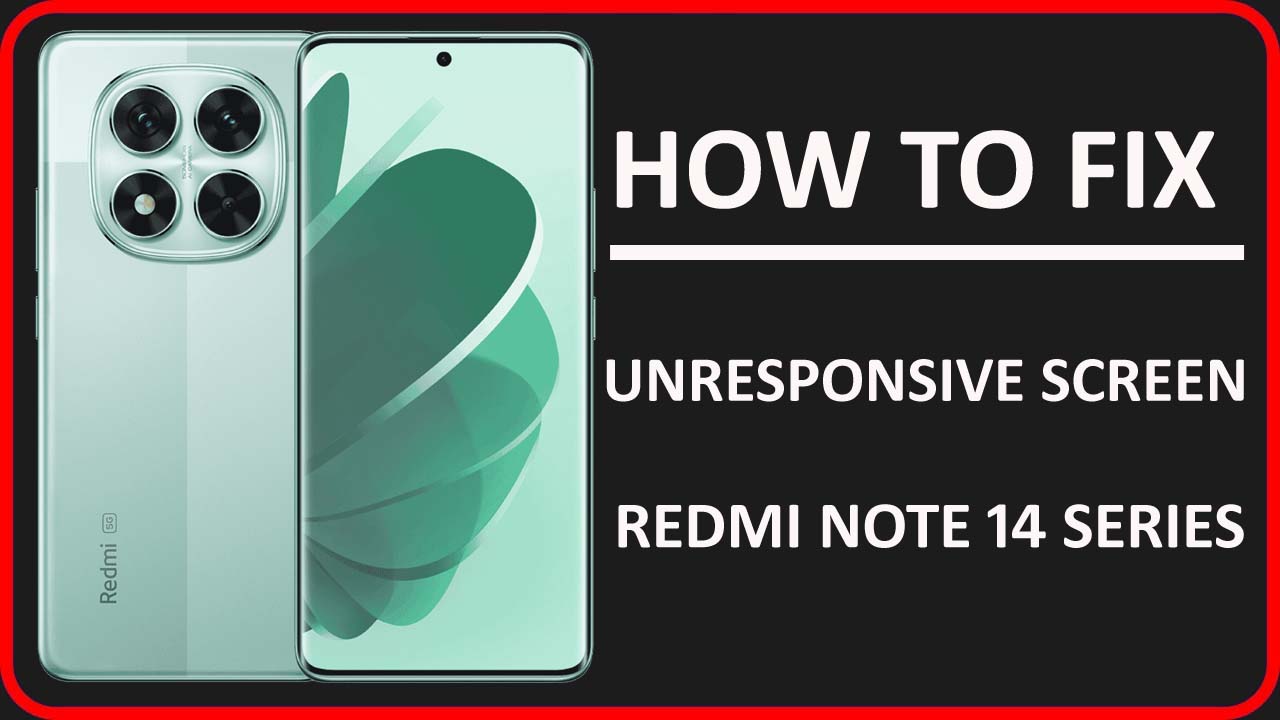
Is your Redmi phone’s screen not responding to your touches or getting stuck? The causes for this could be software related, or hardware related. Regardless of the reasons, you can fix screen gets stuck or unresponsive in Redmi Note 14, 14 Pro or 14 Pro+. This article will provide different solutions to solve the issue as well the reasons behind it.
Reasons: Why Redmi Note 14 Series Phone Display Gets Stuck Or Unresponsive?
It is important to know the exact cause to select the right solution.
Below are some possible causes for the Redmi phone screen being unresponsive:
- When your phone’s storage is almost full.
- If your phone cover is too tight.
- When so many apps run in the background.
- If your Redmi phone display is damaged.
- Outdated phone OS can also freeze the screen.
- When the screen protector is not compatible with your device.
- Hardware damage like a damaged LCD, faulty touch sensor, or loose ribbon cables can trigger this issue.
So, these are the possible reasons behind Redmi phone’s touch screen not working.
Now, without wasting time, let’s dig into the solutions to solve it.
How To Fix Unresponsive Touch Screen On Redmi Note 14/14 Pro/14 Pro+
Here, we have discussed effective ways to unfreeze your Xiaomi Redmi device.
Way 1: Restart Your Phone
Restarting your phone is an easy and quick solution to unresponsive touch screen problems.
Doing this helps to clear the temporary bugs, stop background processes, and make your device to work normally.
Way 2: Check Your Phone Case
Ensure that the phone cover you used on your device is not too tight as this can also make your device stuck.
So, check it, and if it is tight, then replace it with the new one.
Way 3: Check Your Device Has Enough Storage
As I have discussed above, full storage space on your phone can also result in a touchscreen issue.
So, simply go and check the storage space on your phone, and if you find it almost full, then delete unwanted data or uninstall unnecessary apps.
Way 4: Install Latest OS Version
If your device has a pending update for Operating System (OS) then this can also lead to touchscreen not working issue.
Therefore, you are advised to check for the latest update and install it.
Here are the steps to do the same:
- Open the Settings app on your phone.
- Then tap on About Phone > System update.
- Now, check for the latest update.
- Then, follow the on-screen instructions to download and install it.
Way 5: Boot Your Redmi Phone Into Safe Mode
Safe mode is a feature that disable all third-party apps and helps you to know if the issue is caused by the apps or not.
So simply boot your Redmi Note 14, 14 Pro or 14 Pro Plus into safe mode by following the below steps:
- First, switch off your device.
- Then Press and hold the Power button until the Xiaomi logo appears.
- Now, immediately press and hold the Volume Down button until your mobile boots into Safe Mode.
Now, check your device is responding to your touches or not. If it is working fine then you need to uninstall the recently installed apps one by one after checking the issue is fixed or not.
But if your Redmi Note 14 Pro screen is still not responding, then follow the next method.
Way 6: Enable Full-Screen Option
The full screen feature will expand the screen size so that when you touch on the screen, you will get an immediate response. So, you can enable it to solve unresponsive phone screen on Redmi Note 14, 14 Pro Plus or 14 Pro.
Here are the steps to do the same:
- Open the Settings app on your phone.
- Then tap on Display.
- Next, select Full-Screen Display.
- Tap on Screenshot icon on the right with the slider written Full-screen gestures.
Way 7: Install Display Tester App To Test Screen
The Display Tester app will test almost every aspect of your phone’s OLED/LCD screen. It will test the full screen testing.
So, you can install the Display Tester app from the Google Play Store and test your screen.
Way 8: Clear Cache Of Your Device
If you have not cleared your device’s cache files for a long time, they can get corrupted, and due to this, you may face various types of issues, including touch not working on Redmi Note 14/14 Pro/14 Pro Plus.
So, to fix it, clear the cache of your Xiaomi phone by following the below steps:
- Open the Settings app on your phone.
- Scroll down and tap on Storage.
- After this, hit Cached Data.
- Next, tap on Clear Cache.
- Confirm your choice by tapping OK.
Way 9: Factory Reset
If the above methods are not helping to fix the issue, then you can factory reset your phone. But as you know, it will wipe your device data, hence, you should create a backup if possible.
Here learn how to factory reset Redmi Note 14 series phone:
- Go to Settings > Additional Settings.
- Tap on Backup & Reset.
- Next, hit on Erase all data (factory reset).
- If asked, enter your phone’s lock screen password and confirm the process.
Way 10: Contact Service Center
If you have tried all the above methods but still your Redmi Note 14/14 Pro/14 Pro+ screen is stuck on black screen, then you need to contact an MI authorized service center for further help.
But before you contact the service center, you should first check the phone’s warranty status, as this will decide the repair or replacement option.
If your device is still under warranty, then you can replace your Xiaomi smartphone for free.
Conclusion
An unresponsive touch screen is a common problem, but with the right methods, you can quickly fix screen gets stuck or unresponsive in Redmi Note 14, 14 Pro or 14 Pro+.
We hope the above methods were helpful to you in resolving the issue, and now your phone is on normal condition.
If this guide has helped you, don’t forget to share it with others.
You Might Also Like:
- Fix Battery Drainage Problem On Redmi Note 14/14 Pro/14 Pro+
- How To Fix Unresponsive Screen On Xiaomi
- How To Fix “Don’t Cover The Earphone Area” on Redmi Phone

Max Field is a founder of Recover Android Data. He is an Android lover and loves to write tips, tricks, fixes for errors, data recovery solutions and more related to Android. Provide Gaming Tips, Tricks, Game Error/Issues Solutions (PC/Xbox/PlayStation/Mobile). He is now also interested in solving LinkedIn Puzzles. He has 12+ years of experience in this field.