
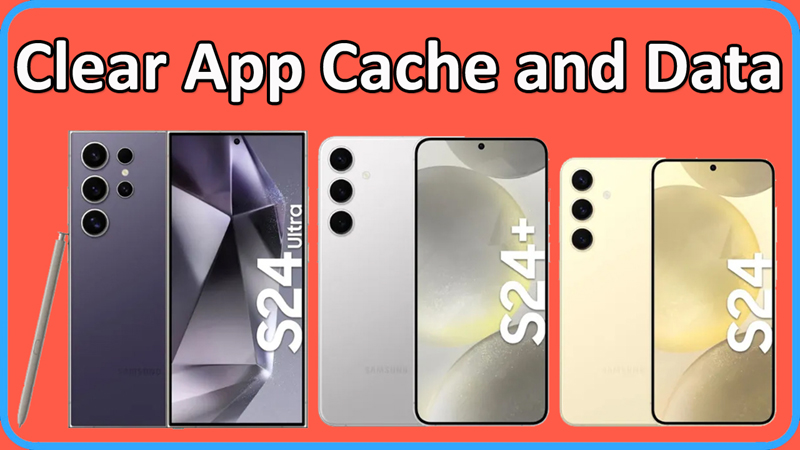
In This Article, You Will Learn How To Clear App Cache and Data on Samsung Galaxy S24, S24 Plus or S24 Ultra.
With these steps, you can easily clear cache and clear data of any app on your Samsung S24 Ultra, S24+ or S24.
Steps To Clear App Cache and Data on Samsung S24 Ultra/S24 Plus/S24
Step 1: On your S24 device, go to Settings > Apps.
Step 2: From the list of available apps, select and tap on the app for which you want to clear cache and data.
Step 3: Tap on “Storage”.
Step 4: Tap on “Clear Cache” and “Clear Data”.
That’s It!
If you have found this post helpful, then please share it as it can help other users!
Please support us by subscribing to our YouTube Channel.
You May Also Like:
- How To Recover Deleted Data From Samsung S24 Ultra/S24 Plus/S24
- How To Check Storage Space on Samsung S24 Ultra/S24 Plus/S24
- How To Share WiFi Password on Samsung S24 Ultra/S24 Plus/S24
- How To Fix WiFi Issues on Samsung S24 Ultra/S24 Plus or S24

Max Field is a founder of Recover Android Data. He is an Android lover and loves to write tips, tricks, fixes for errors, data recovery solutions and more related to Android. Provide Gaming Tips, Tricks, Game Error/Issues Solutions (PC/Xbox/PlayStation/Mobile). He is now also interested in solving LinkedIn Puzzles. He has 12+ years of experience in this field.