
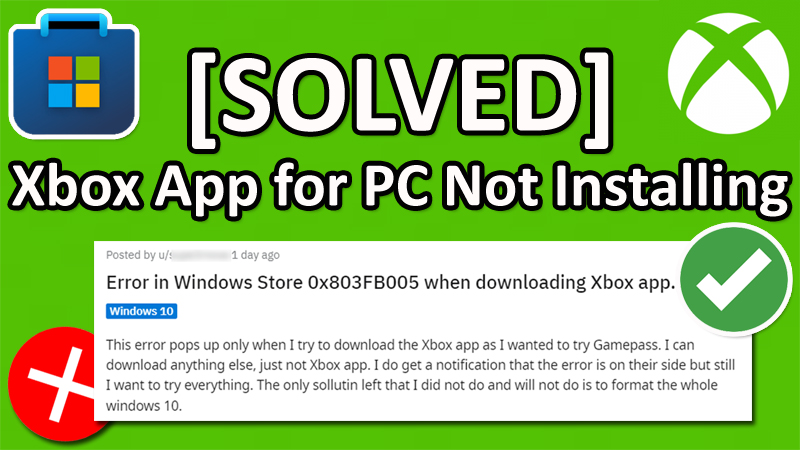
Many people out there getting error code 0x803FB005, when downloading or installing Xbox App for PC from the Microsoft Store.
They are not able to download or install Xbox app for PC on their Windows 10 or 11 PC, instead, they are getting an error message.
The full error message is displayed as follows:
“Something unexpected happened
Reporting this problem will help us understand it better. You can wait a bit and try again or restart your device. That may help”
So, if you are also not able to download and install Xbox app for PC, then do not worry, in this article, you will learn how to fix Xbox App for PC Not Installing on Windows 11 or Windows 10 PC.
How To Fix Xbox App for PC Not Installing
To fix Xbox app for PC not installing on Windows 11 or 10, you have to follow these solutions:
- Check Date and Time Is Set Correctly
- Repair and Reset Microsoft Store
- Run WSRESET Command
- Delete Cache Files of Microsoft Store
- Run a PowerShell Command
- Uninstall and Re-install Microsoft Store
- Run inetcpl.cpl Command
- Update Windows Using Media Creation Tool
Note: After following each fix, check if you can download or install the Xbox app or not.
Solution 1. Check Date and Time Is Set Correctly
- Go to Date and time settings on your PC.
- Turn on Set time zone automatically.
- Turn on Set time automatically.
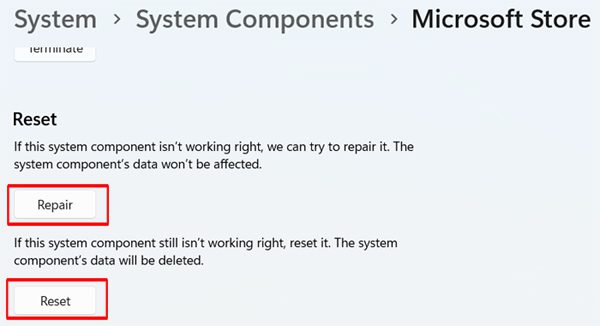
Solution 2. Repair and Reset Microsoft Store
- Using Windows Search, search for Microsoft Store.
- Right-click on Microsoft Store and select App settings.
- Scroll down and click on Repair.
- And then click on Reset.
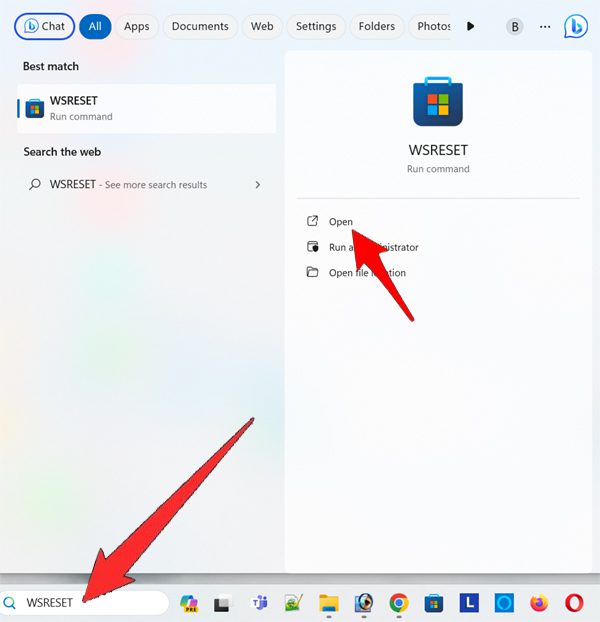
Solution 3. Run WSRESET Command
- Type WSRESET in Windows Search and run it.
- Wait until black screen go away.
- Microsoft Store will open. Try installing the app and check if the error is gone or not.
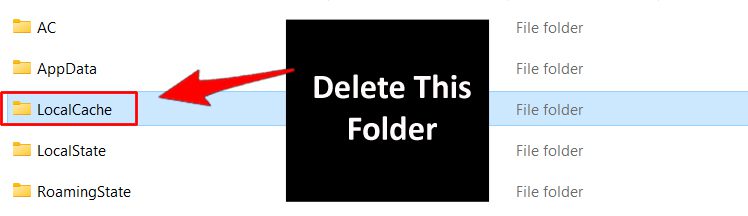
Solution 4. Delete Cache Files of Microsoft Store
- Press “Windows + R” to open RUN command box.
- Type “%localappdata%” and hit ENTER.
- In the opened folder, open Packages folder.
- Open Microsoft.WindowsStore_8wekyb3d8bbwe and then delete LocalCache folder.
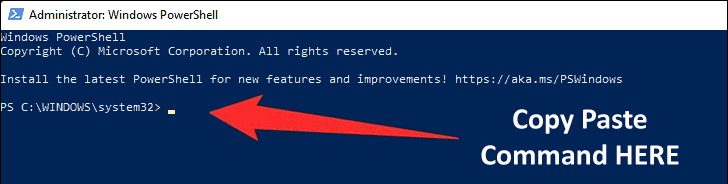
Solution 5. Run a PowerShell Command
- Using Windows Search, search for PowerShell.
- Right-click on Windows PowerShell and then click on Run as administrator.
- Type this command and hit ENTER:
Get-AppxPackage -AllUsers| Foreach {Add-AppxPackage -DisableDevelopmentMode -Register “$($_.InstallLocation)\AppXManifest.xml”}
Solution 6. Uninstall and Re-install Microsoft Store
- Using Windows Search, search for PowerShell.
- Right-click on Windows PowerShell and then click on Run as administrator.
- Type this command and hit ENTER:
Get-AppxPackage -allusers *WindowsStore* | Remove-AppxPackage
- After this restart your computer.
- Again, search for PowerShell, using Windows Search.
- Right-click on Windows PowerShell and then click on Run as administrator.
- Type this command and hit ENTER:
Get-AppxPackage -allusers WindowsStore | Foreach {Add-AppxPackage -DisableDevelopmentMode -Register “$($_.InstallLocation)\AppXManifest.xml”}
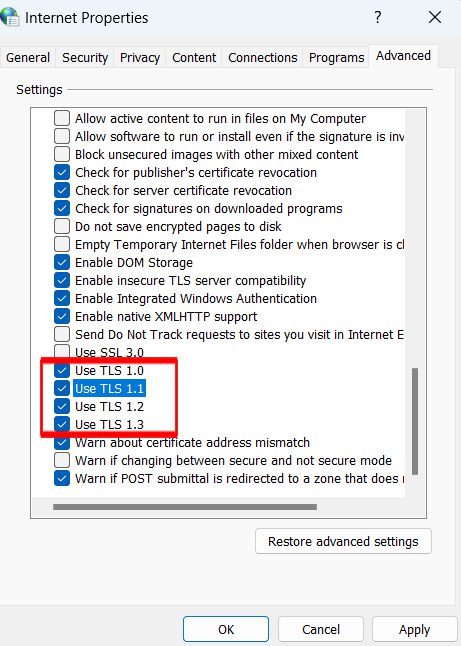
Solution 7. Run inetcpl.cpl Command
- Using Windows Search, search for inetcpl.cpl and open it.
- Select Advanced and scroll down and enable Use TSL 1.0, 1.1, 1.2, and 1.3”, then click on Apply > OK.
Solution 8. Update Windows Using Media Creation Tool
For Windows 10:
- Go to: https://www.microsoft.com/en-in/software-download/windows10
- Click on Create Windows 10 Installation Media and then click on Download now.
- Run MediaCreationTool. Click on Accept > Upgrade this PC now > Next > Install.
For Windows 11:
- Go to: https://www.microsoft.com/en-in/software-download/windows11
- Click on Create Windows 11 Installation Media and then click on Download now.
- Run MediaCreationTool. Click on Accept > Next > ISO file > Next > Desktop > Save.
- Double-click the Windows ISO file when the installation is complete > setup > Next > Install.
If you have found this post helpful, then please share it as it can help other users!
Please support us by subscribing to our YouTube Channel.
You May Also Like:
- How To Fix Microsoft Store Error Code 0x803FB005 on PC
- How To Fix Voice Chat Not Working on Modern Warfare 3 on Xbox
- How To Fix “Login Failed” Error In Fortnite on Xbox
- How To Fix Error Code 0x80D02017 on Microsoft Store (Dec 2023)

Max Field is a founder of Recover Android Data. He is an Android lover and loves to write tips, tricks, fixes for errors, data recovery solutions and more related to Android. Provide Gaming Tips, Tricks, Game Error/Issues Solutions (PC/Xbox/PlayStation/Mobile). He is now also interested in solving LinkedIn Puzzles. He has 12+ years of experience in this field.