
Fortnite is a battle royale game where 100 players fight against each other.
The gameplay is to loot, craft, team up with a squad, build up and shoot, and stand as the last man.
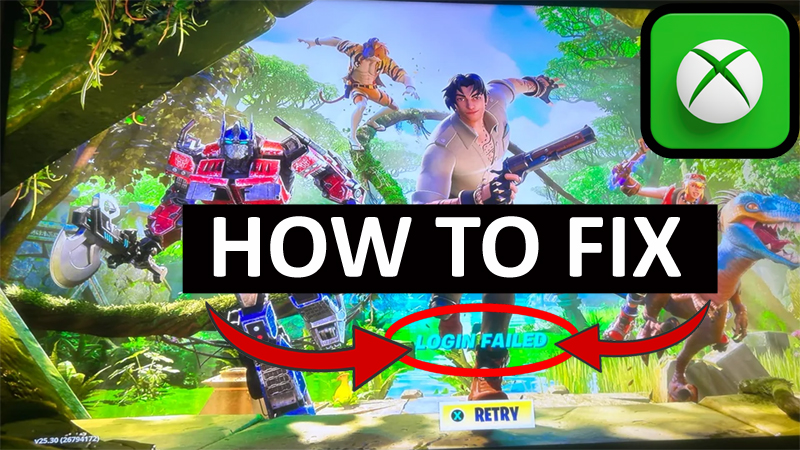
Unfortunately, some players on Xbox are encountering with “Login failed” error when they try to load Fortnite.
The game will launch, but when the player tries to select their account, they get a login failed to notice.
The full error message is as follows:
“Login Failed”
Spinning Circle (loading circle)
With a “Retry” button.
In this article, you will learn how to fix Fortnite “login failed” error on Xbox.
How To Fix “Login Failed” Problem In Fortnite on Xbox
To Fix Fortnite “Login Failed” error in Fortnite on Xbox, you have to follow these solutions:
- Update Both Fortnite and Xbox.
- Clear Cache of Xbox.
- Delete Fortnite Settings.
- Reset Mac Address.
- Delete and Re-add Your Xbox Account.
- Reset Xbox.
- Re-Install Fortnite.
Note: Follow the solutions one after one and after following each solution check login failed issue is fixed or not, only then move to the next solution.
Fix #1. Update Both Fortnite and Xbox
- To update Fortnite: From your Xbox homepage select My games & apps > Manage > Updates > Select Fortnite > Update.
- To update Xbox: Go to Xbox settings > Updates > Update.
Fix #2. Clear Cache of Xbox
- Open Xbox.
- Go to Settings > Device & connections.
- Click on Blu-ray > Persistent storage and then click on “Clear persistent storage”.
Fix #3. Delete Fortnite Settings
- From Xbox homepage, go to “My games & apps”.
- Select Games > Fortnite > More options.
- Click on Manage game and add-ons > Saved data > Delete all.
- After this, click on ‘Reserved space’ and then on ‘Clear reserved space’.
Fix #4. Reset Mac Address
- Open Xbox and go to its Settings > General > Network settings.
- Click on “Advanced settings” and then click on “Alternate Mac address”.
- Click on “Clear” and then select “Restart”.
Fix #5. Delete and Re-add Your Xbox Account
- Open Xbox and go to Settings > Account > Remove accounts.
- Select the Xbox account that you are using currently and then “Remove”.
- Then click on “Add new”.
- Log in to your Xbox account in order to re-add it.
Fix #6. Reset Xbox
- Open Xbox and go to Settings > Profile and System.
- Select “Console Info” and hit on “Reset Console”.
Fix #7. Uninstall and Then Re-Install Fortnite
- From Xbox homepage, go to “My games & apps”.
- Select Games > Fortnite > More options.
- Select “Uninstall all”.
- Now go to the Microsoft store and install Fortnite.
Wrap Up
So, these are the 7 solutions that would definitely help you to fix Fortnite login failed issue on Xbox.
If you have found this post helpful, then please share it as it can help other players!
Please support us by subscribing to our YouTube Channel.
You May Also Like:
- Fortnite Guide For Beginners: 12 Tips for Your First Match
- How To Fix Athena Crash Reporter In Fortnite
- Fix Fortnite “Out of video memory trying to allocate a rendering resource”
- How To Fix Fortnite Server Offline Error

Max Field is a founder of Recover Android Data. He is an Android lover and loves to write tips, tricks, fixes for errors, data recovery solutions and more related to Android. Provide Gaming Tips, Tricks, Game Error/Issues Solutions (PC/Xbox/PlayStation/Mobile). He is now also interested in solving LinkedIn Puzzles. He has 12+ years of experience in this field.