
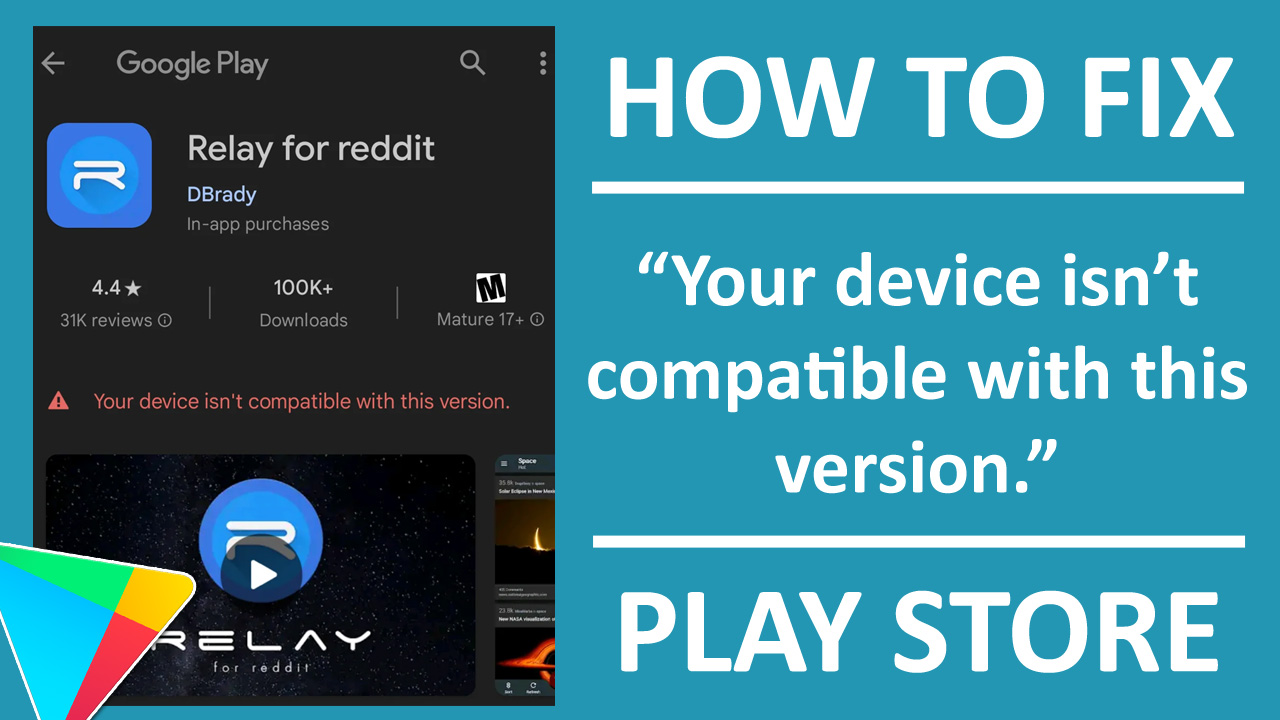
Downloading an app on Google Play Store, but suddenly got an error saying “Your device isn’t compatible with this version.”?
Don’t worry! You are not alone, people also got a similar error saying, “This app is no longer compatible with your device. Contact the developers for more info.”.
These errors prevent you from downloading that app, which can be troublesome for you if it’s important.
However, there are things that you can do to solve this. We have covered all the possible ways to fix the Google Play Store “Your device isn’t compatible with this version” error.
Please note that the solution given in this article can solve errors related to “device compatibility issues with the app version” on Play Store.
So, doesn’t matter what error message you are getting; go through this guide and fix it yourself.
But before you move further, do check out why this error occurs.
Causes: Why Is My Device Not Compatible with Some Apps on Play Store?
- Due to a corrupted Play Store cache and data.
- The device ran out of storage.
- Google account syncing issues.
- Outdated software.
- Colliding with other apps.
- The app is not available in your specific region.
These are the common reasons behind this issue. Read further to know the solution for it.
How To Fix Google Play Store Error “Your device isn’t compatible with this version”
Fix 1: Restart Your Device and Play Store
- On your Home Screen, press and hold the Play Store app icon and tap on App Info
- Tap on Force Stop > Ok.
- Restart your phone and launch the app again.
Check if this solves the problem or not.
Fix 2: Check If You Have Enough Storage
Before trying any other methods, check if you have enough storage space available to install that app.
Sometimes, lack of storage space can also lead to such a problem. So, it’s better to check it out first.
Follow these steps to check the storage on your device.
Way 1: Via Files App
- Open the Files app on your device and tap on 3 Dots > Storage.
Way 2: Via Settings
- Open Settings and tap on About phone > Storage.
Fix 3: Clear Play Store Cache and Data
Clearing play store data may log you out from your account, so make sure you remember the login details of your account.
- Go to Settings and tap on Apps or App management.
- Select Google Play Store and go to Storage.
- Tap on Clear Cache > Clear Data.
Once done, check if this fixes the issue or not.
Fix 4: Clear Google Services Framework Cache and Data
- Go to Settings and tap on Apps or App Management.
- Tap on the 3 Dots icon and select “Show System Apps” or “All Apps”.
- Look for Google Services Framework and tap on it.
- Tap on Storage or Storage and cache, then tap Clear Cache > Clear Data.
Try installing the app again and check if this works or not.
Fix 5: Update Your Device
Check for any software updates that are available for your device; if you find any, then make sure to update it.
Follow these steps to do so.
- Go to Settings and tap on Software update or System.
- Tap on Download and Install or Download.
- Follow the on-screen instructions to complete the process.
Fix 6: Remove and Re-add Google Account
Remove and re-add your Google account to fix the error. Follow the below steps to do this.
- Open Settings and head to Accounts or Users & accounts.
- Select the specific account that you are using to download the app.
- Tap on Remove account, then add it again.
Open the Play Store and check if this helps or not.
Tip: You can use a different Google account to install the app on your device if you have another one.
Fix 7: Uninstall Play Store Updates
- Go to Settings and tap on Apps or App management.
- Tap on Google Play Store.
- Tap on Uninstall updates > Ok.
Once done, try installing the app again.
Fix 8: Update Play Store
- Open Google Play Store and tap on your Profile icon at the top right corner.
- Tap on Settings > About.
- Tap on “Update Play Store”.
Once it’s done, check if this solves the problem or not.
Fix 9: Change Region
There might be chances the app that you are trying to install is not available in your region; in such cases, try changing your device region to where the app is available.
To do so, follow the below steps.
- Open Settings and go to System or Additional settings.
- Tap on Region and Language or Region.
- Change the region.
Once done, try downloading the app again.
Fix 10: Turn off VPN (If Using Before)
If you are connected to a VPN and trying to download the app, then you may get such issues.
To fix it, try disabling the VPN temporarily, then try again.
Fix 11: Use Android Repair Tool to Fix Play Store “Your device isn’t compatible with your device” Error
In case the issue is caused by some bugs or glitches in your system or Play Store, then you should use Android Repair Tool.
 |
 |
This Android Repair Tool fixes all Android system issues, such as black screen, downloading issues, apps crashing, stuck in boot loop, or any others.
It is widely used software to deal with such problems and has a high success rate, making it the best option to fix “This app isn’t compatible with your device anymore” on Play Store.
One of the major advantages of using this Android Repair Tool is that it does not erase your device’s data.
Here is the complete guide on how to use Android Repair Tool to fix Google Play Store Error “This app is no longer compatible with your device”.
Fix 12: Use Alternative Stores
If you have tried all these methods but the issue still exists, then you can use third-party stores or any other stores like “Galaxy Store” on Samsung or “GetApps” on Xiaomi.
Just simply go to these stores, search for that app, and tap on Install.
Tip: You can also download older versions of that app from third-party websites like Uptodown or others.
Conclusion
If you are struggling to download an app because you are getting the device isn’t compatible error on Play Store, then go through the above guide and follow the steps one by one to fix it.
We have provided the complete steps that you need to fix this error.
We recommend using the Android Repair Tool, mentioned in Fix 11, as it is a highly effective workaround and can fix the error quickly.
If you are facing any issues related to the Google Play Store, go through our guides to fix it.
More Like This:

Max Field is a founder of Recover Android Data. He is an Android lover and loves to write tips, tricks, fixes for errors, data recovery solutions and more related to Android. Provide Gaming Tips, Tricks, Game Error/Issues Solutions (PC/Xbox/PlayStation/Mobile). He is now also interested in solving LinkedIn Puzzles. He has 12+ years of experience in this field.