

In This Article, You Will Learn How To Enable & Disable Auto Rotate on HONOR X6a or How To Turn On and Turn OFF Orientation Lock.
Steps To Enable Auto Rotate on HONOR X6a
Step 1: From the Home screen on your HONOR X6a, swipe down to bring up the quick notification panel.
Step 2: Look for “Auto-rotate” icon and tap on it to enable it. The icon will turn blue color.
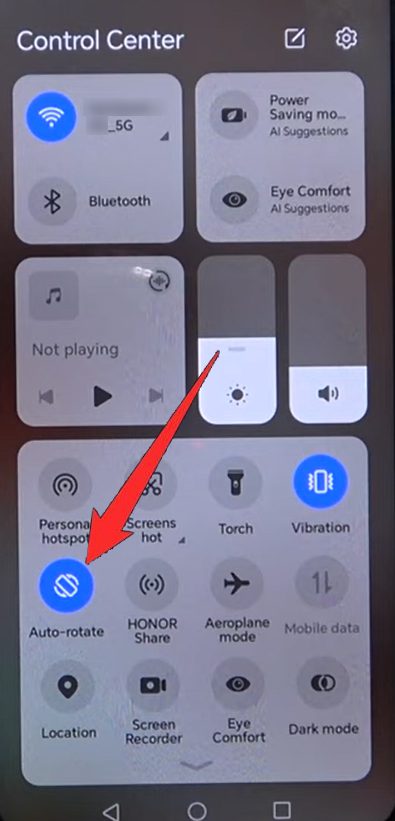
That’s It! The Auto Rotate on HONOR X6a is enabled.
Steps To Disable Auto Rotate on HONOR X6a
Follow the same steps mentioned-above and tap on “Auto-rotate” icon to disable it.
The icon will turn grey color. It means it is disabled.
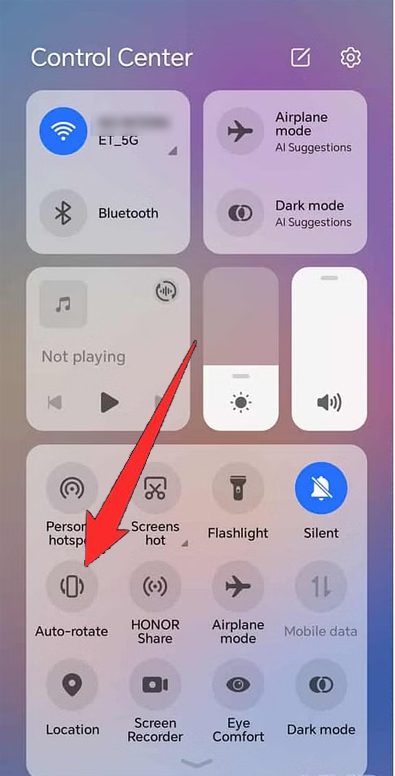
That’s It! The Auto Rotate on HONOR X6a is disabled.
If you have found this article helpful, then please share it as it can help others!
Please support us by subscribing to our YouTube Channel.
You May Also Like:
- Huawei Honor Data Recovery: Recover Deleted or Lost Data From Huawei Honor
- How To Retrieve Blocked Text Messages On Huawei Phone
- How To Fix Huawei P20/P20 Pro/P30/P30 Pro Bluetooth Issues
- 5 Solution To Fix Huawei Phone Battery Drain And Overheating Issues

Max Field is a founder of Recover Android Data. He is an Android lover and loves to write tips, tricks, fixes for errors, data recovery solutions and more related to Android. Provide Gaming Tips, Tricks, Game Error/Issues Solutions (PC/Xbox/PlayStation/Mobile). He is now also interested in solving LinkedIn Puzzles. He has 12+ years of experience in this field.