

Have you lost your data on the new iPhone 16?
Data loss is a common problem faced by many people due to various reasons like, system crashes, accidental deletion, damaged device, or others.
But the crucial part is how to recover deleted/lost data on iPhone 16/16 Pro.
There are a few methods that can help you to restore your lost data, doesn’t matter whether it has been backed up or not.
In this guide, you will learn how to recover lost/deleted data from iPhone 16, 16 Pro, 16 Pro Max, 16 Plus with or without backup.
Before we move to the solution part, let’s check out what causes the data loss problem for most of the user.
What Causes the Data Loss on iPhone 16, 16 Pro, 16 Plus?
There could be many reasons behind the data loss problem on your iOS device, the most common ones are listed below.
- Accidental Deletion.
- Factory Reset.
- Jailbreaking or ROM flashing.
- System Crash.
- Water Damage.
- Damaged Device.
You may or may not be familiar with these scenarios.
However, we have listed these circumstances to warn you about what causes the data loss problem so that you can avoid such scenarios.
The reason may be not very important to you if you have already lost the data.
Well, whatever the situation is, you can still restore your deleted data with/without backup.
To know “How?”, keep reading further.
How To Recover Lost/Deleted Data From iPhone 16, 16 Pro, 16 Plus, 16 Pro Max With/Without Backup
The below guide is divided into four parts, each method carries its own advantage and requirements.
Part 1: Recover Data from Recently Deleted Folder
If you have just lost or deleted some pictures, videos, and messages then you can easily recover it from the “Recently Deleted” folder.
The requirement of this process is the 30 days time limit. You have to recover the data within the 30 days time period otherwise it be deleted forever.
So, let’s check out the steps of data recovery (Messages, Photos and Videos) on your iPhone 16.
Get Back Deleted Photos & Videos
- Open the Photos app and go to the Albums
- Scroll down and tap on the Recently Deleted option present at the Utilities
- Choose the photos, videos that you want to restore and on the Recover
Retrieve Deleted Messages
- Open the Messages app and tap the Edit button present at the top left corner of the screen.
- Select “Show Recently Deleted”, then select the chat or conversation that you wish to retrieve.
- Lastly, tap on the Recover
Part 2: Recover Deleted Data Using iCloud Backup
Apple allows their users to keep or save their important files to iCloud backup, for restoring or recovering purposes.
So, if you have also kept a backup of your vanished data, then you can easily restore it via iCloud backup.
But there is catch, you need to reset your iPhone in order to restore your previous data.
Note: Apply the below steps only after ensuring that you have a backup otherwise you will lose your current data as well.
Follow the below steps to do so.
- Open Settings and go to General > Transfer or Reset iPhone > Erase all Content and Settings, follow the on-screen prompts to confirm the action.
- Your device will be reset after a few minutes, once it turns on and display the Hello screen, then set up your phone again.
- Once you reach the “Transfer Your Apps & Data” screen, tap on the “From iCloud Backup” option.
- Next, sign in to your iCloud account and select the backup you want to restore. Make sure you connect your device to a stable Wi-Fi.
Wait for a couple of minutes and all your erased data will be restored.
Part 3: Restore Erased/Deleted Data form iTunes Backup or Finder Backup
iTunes and Finder backup is similar to iCloud, you will lose your current data and settings once you use this method. So, make sure to backup your current data as well.
Back to the point, if you have backup your iPhone data to your computer using iTunes or Finder before the deletion of data, then restoring them is an easy process.
This is how you can do it.
- Launch iTunes or Finder on your computer.
If you are using Windows or macOS Mojave or earlier, then Launch iTunes app.
macOS Catalina 10.15 users should launch the Finder app.
- Connect your iPhone to your computer using a USB cable. Enter the passcode, if asked.
- Choose your iPhone from the top-left corner of the screen in the iTunes Window. In Finder, look under the Locations
- Scroll down until you reach the Backups section in iTunes. In Finder, go to the General
- Check “This Computer” and click on the Restore Backup
- Select a Finder or iTunes backup from the pop-up to start the restoration process.
Wait for a couple of minutes, your deleted or lost data will be restored to your iPhone.
Note: Passcode will be required before you begin the restoration, if the Finder or iTunes backup are encrypted before.
Part 4: Recover Deleted/Lost/Missing Data from iPhone 16, 16 Pro, 16 Plus, 16 Pro Max Without Backup
In case, if you don’t have any backup or don’t keep a backup before the data loss, then you need the most trusted and reliable iPhone Data Recovery Software.
 |
 |
Using iPhone Data Recovery Tool, you can restore various data such as, photos, videos, messages, documents, voicemails, Safari bookmarks, notes & attachment, contacts, Calendar & Reminder Safari history and more without backup.
No matter how you lost your data, this tool can recover the data in any kind of situation.
Steps to use iPhone Data Recovery Software to recover data from iPhone 16, 16 Pro, 16 Plus, 16 Pro Max
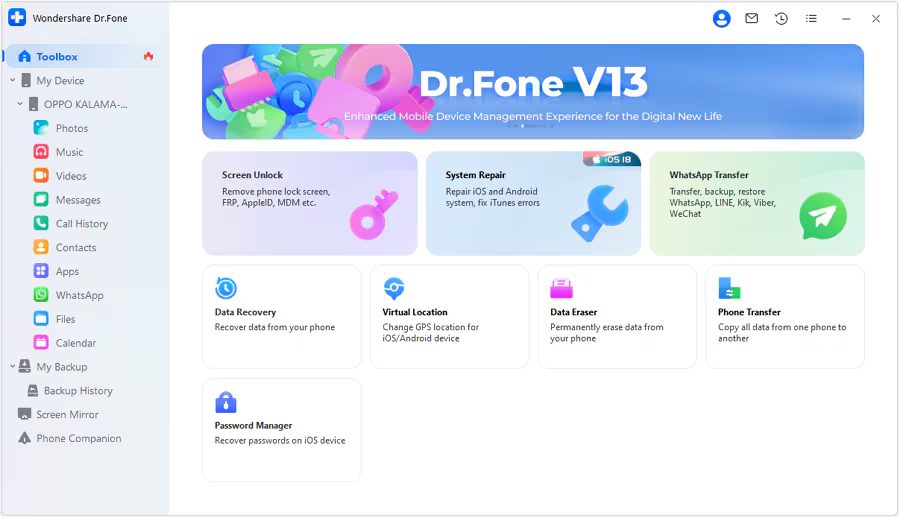
Step 1: Launch iPhone Data Recovery Tool
Download, install and launch the iPhone Data Recovery Tool. Once done, go to the Toolbox > Data Recovery option to initiate the data recovery process.
Step 2: Choose iOS as the Device Type
In the next window, you will be asked to select your device type, choose iOS to move further.

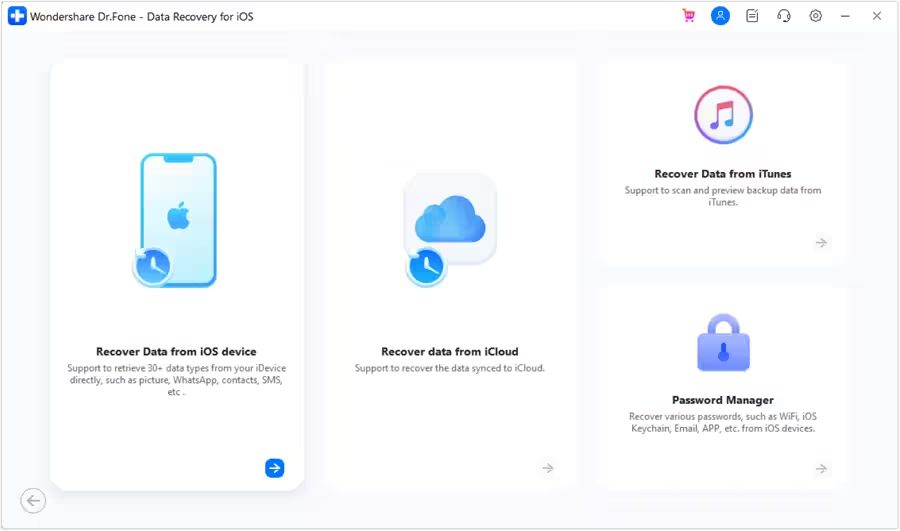
Step 3: Continue to initiate Data Recovery
Here, select the “Recover Data from an iOS device” option to initiate the recovery process.
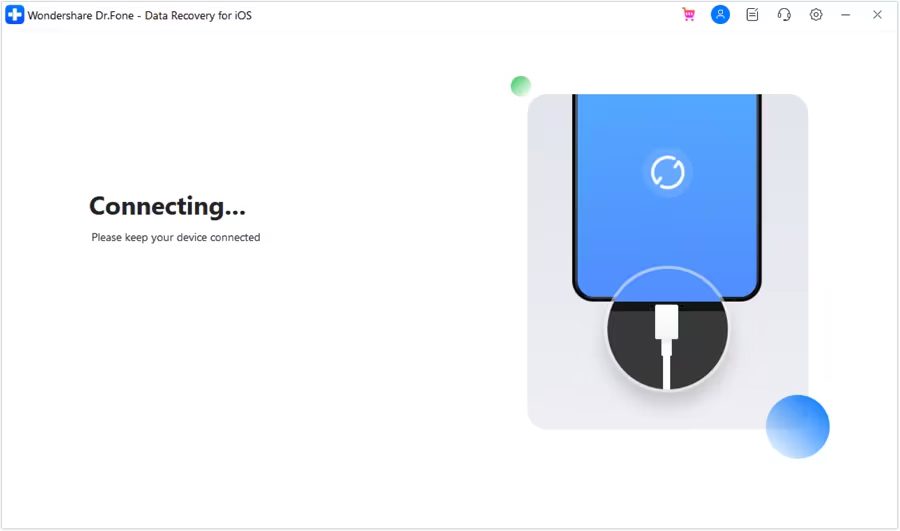
Step 4: Connect the iOS Device to Computer
In the next window, you will be asked to connect the iOS device to the computer. Connect the iOS device using a USB cable and wait for the tool to detect it.
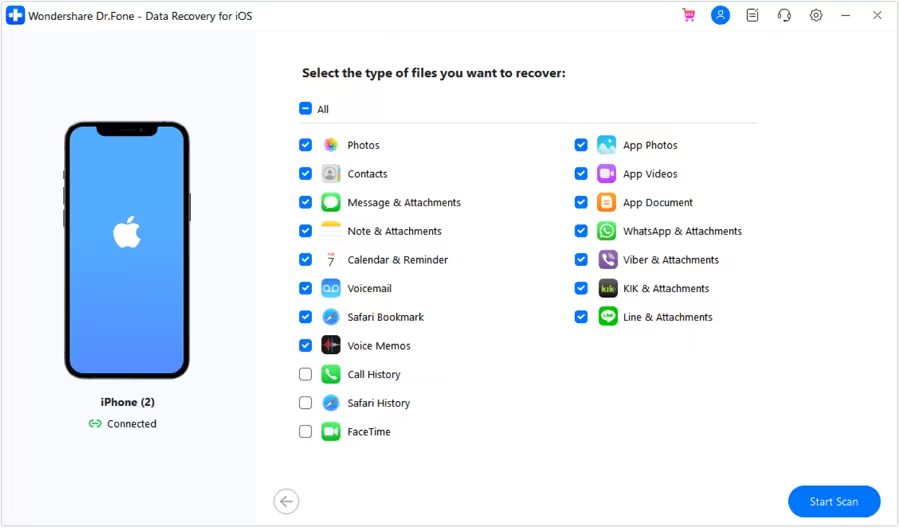
Step 5: Choose Files Types to Recover
Once it detects the device, it will display all the file types that you can recover. Here, select the desired files types that you want to recover and click the “Start Scan” option present at the bottom-right corner of the screen.
Step 6: Let the Tool Scan the Data
Now, the platform will start scanning the device data and displays it on the preview screen. Wait for it to completely scan the device, after which you can preview and select the data you wish to recover.
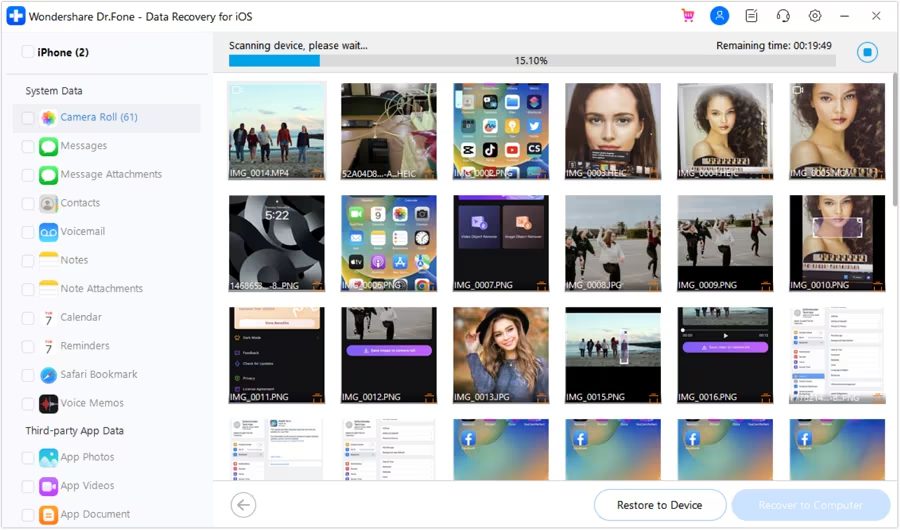
Step 7: Preview and Selectively Restore Data
Once the tool completely scans the device, you can preview and choose the data which you want to restore. In fact, you can also filter the results, to do so click on the tab present at the top and select if you want to preview all the data, existing data, or the deleted data. Once you are done selecting the desired data, click on “Restore to Device” button present at the bottom of the screen.
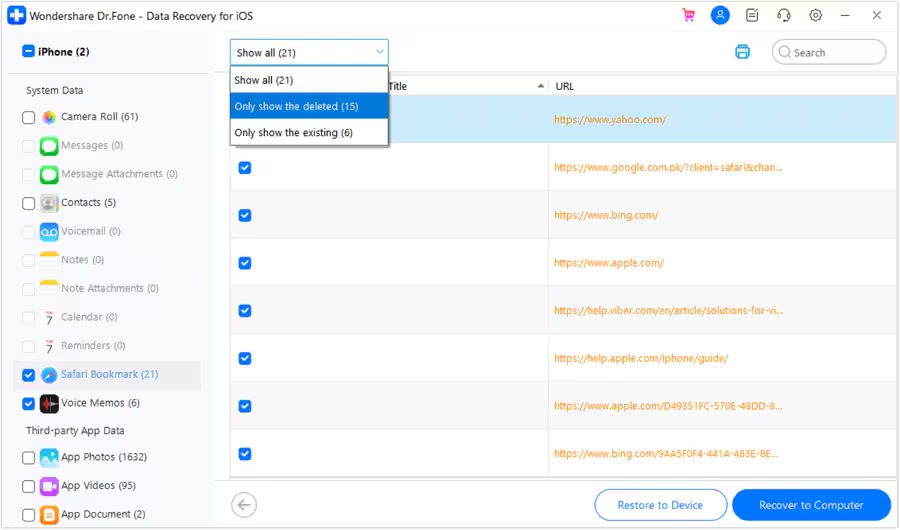
Step 8: Choose Device to Restore
In the next window, it will ask you to select the iOS Device in which you want to restore the data. Choose the iOS Device and click on the Continue button to procced further.
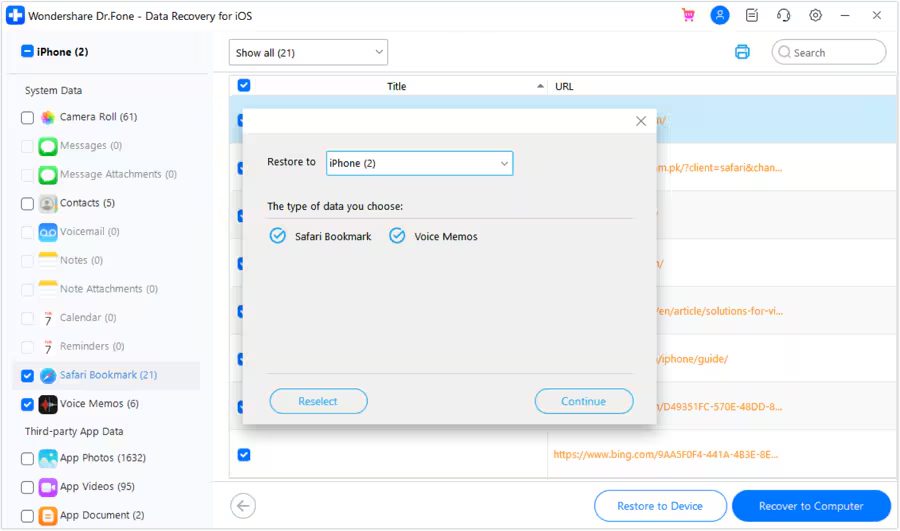
Step 9: Turn Off Find My Service
You will need to disable Find My Service from your iOS device to restore the data. Once you turn it off, click on the OK button.
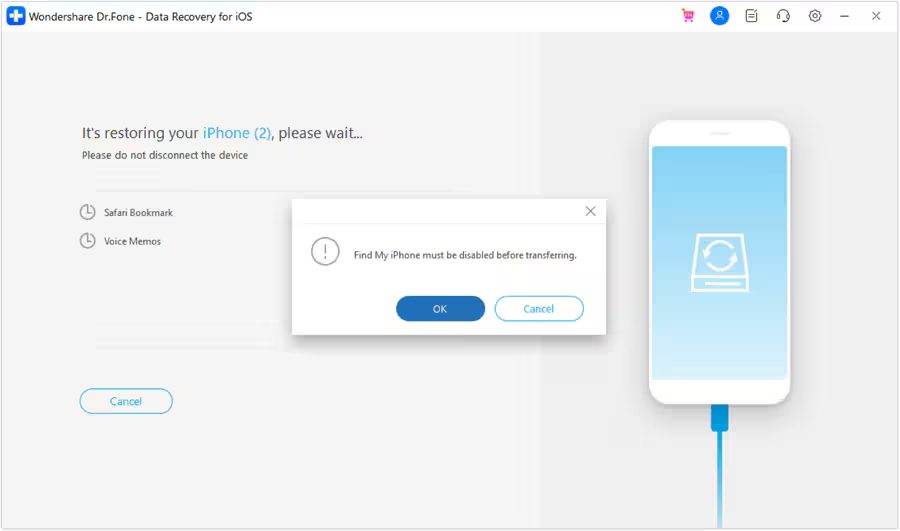
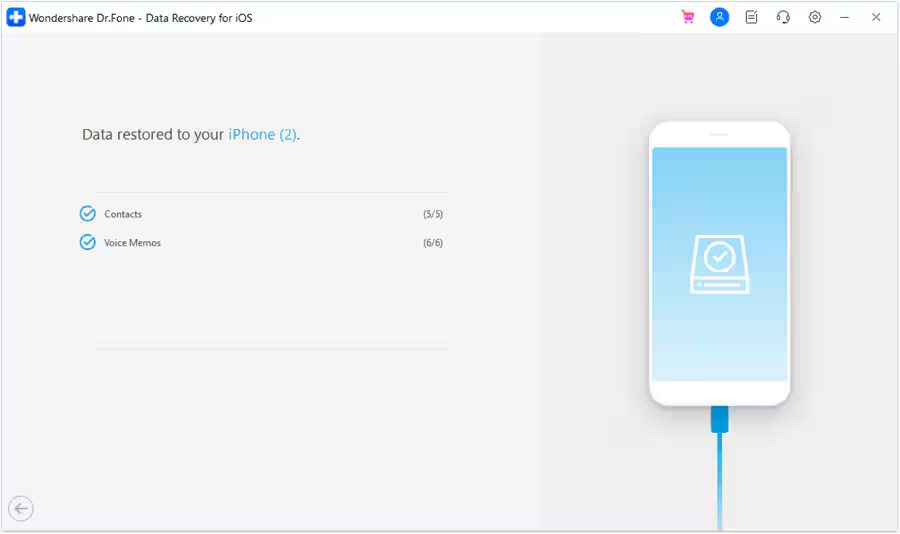
Step 10: Data Will be Restored Successfully
The data will be restored to the iOS device and will be prompted on the computer screen.
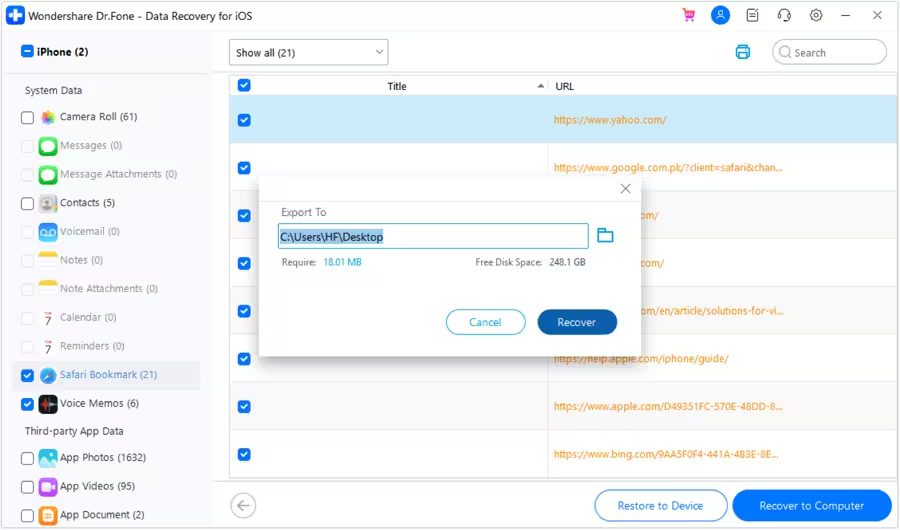
Step 11: Recover Data to Computer
If you want to recover the data on the computer, choose the desired data and click on the “Recover to Computer” button present at the bottom-right corner of the screen. Once you click on it, a prompt will appear asking for the location where the data will be extracted. Set the location and click on the “Recover” button.
|
|
Wrap Up
So, if you have lost data from your iPhone 16 series then just follow the solutions mentioned in this guide to recover deleted data from iPhone 16/16 Pro (Max)/16 Plus.
If you don’t have a backup of lost data then you can try iPhone Data Recovery Software to retrieve the deleted data from iPhone 16 series.
You May Also Like:
- How To Fix WiFi Issue On iPhone After iOS 18 Update
- How To Fix iPhone Boot Loop Issue After iOS 18 Update
- How To Fix iPhone Emails Not Working After iOS 18 Update
- How To Fix iPhone Stuck on iOS 18 Terms And Conditions

Max Field is a founder of Recover Android Data. He is an Android lover and loves to write tips, tricks, fixes for errors, data recovery solutions and more related to Android. Provide Gaming Tips, Tricks, Game Error/Issues Solutions (PC/Xbox/PlayStation/Mobile). He is now also interested in solving LinkedIn Puzzles. He has 12+ years of experience in this field.