

Is your Email not working on your iPhone after the iOS 18 update? Don’t Worry! Many users who have installed the update are facing issues with the Mail app.
This issue can be frustrating as almost every user relies on email, whether for work, daily tasks, personal communication, sending emails, etc.
In this troubleshooting guide, we’ll explore the reasons for this issue and the solutions to fix iPhone emails that don’t work after iOS 18 update.
Knowing the reasons behind this issue plays an important role in selecting the correct solutions. Hence, we will first examine the reasons and then discuss the methods for resolving them.
Common Email Issues On iPhone
There could be many types of issues regarding emails. So, here we will learn the most common email issues and the reasons behind it.
Email Not Syncing Or Loading
Just imagine that you open the email app only for messages not updating and your email starts creating loading or syncing issues.
This can happen due to some reasons which are listed below:
- Outdated Email App Or Software: If you are running an older version of the email app or iOS software on your phone then it may cause incompatibility problems, and stop the email from loading properly. So, you should update both the iOS version and the Email app.
- Unstable Wi-Fi Connection: A good internet connection is very important for using an Email app. If your mobile data or Wi-Fi connection is not stable then your emails might not sync or load. Hence, you should check that your phone is connected to a stable internet connection.
- Wrong Email Account Configurations: It is possible that the settings for synchronizing email in your email account are not correct. Therefore, check that your email client settings for incoming or outgoing servers are correct and you can discover them under Settings > Mail > Accounts on your smartphone.
Problems In Receiving/Sending Emails
The most important work for any Email application is sending or receiving emails. And you face this problem due to some reasons that are listed below:
- Email Provider Server Issues: If the email provider server is down then you can’t send or receive emails. In this situation, you need to check whether the email server is having any problem or not.
- No Space In Mailbox: You will not receive new emails if the mailbox is full. Hence, you need to make some space for new emails by deleting unwanted ones including in the spam or trash folder.
- Email Configuration Issues: Incorrect SMTP settings (outgoing mail server) can prevent you from sending your messages. If you are using incorrect POP or IMAP (incoming mail server) settings, you can’t receive new emails. So, you need to check these settings and if find them wrong, then correct them.
Email App Crashes And Performance Problems: Slow performance and app crashes can hinder the experience of emailing. These bugs might occur due to the following reasons:
- Compatibility Issues With Latest iOS Update: Sometimes the latest version of iOS update may not be compatible with the Email app and hence you face different types of issues on your Email app. Check if the email app has any new updates that could fix compatibility issues.
- Bugs In Email App: If the email app contains bugs or glitches then the email app will work slowly. Make sure you update the Email app to fix those bugs.
- Corrupted App Data: If your Email app cache data is corrupted, causing the app to crash or slow down its performance. You can fix it by clearing the cache of the email app or by uninstalling and reinstalling it again.
How To Fix iPhone Email Not Working After iOS 18 Update
Now, we will look at different types of methods to fix mail apps not loading emails on iPhones. All these solutions are simple but very powerful in fixing the problem.
So, let’s start…
Fix 1: Restart Your iPhone
Firstly, restart your iPhone to clear the cache and bugs that are available on your smartphone, causing it to misbehave.
Here are the steps to restart your iPhone:
- Press and hold the Power button (or Side button if you have a newer model) unless the “slide to power off” option appears on the screen.
- Now slide it towards the right side and wait for it to power off completely.
- Next, switch in it by pressing and holding the Power or Sleep button unless the iPhone turns on.
Fix 2: Check Internet Connection
It is obvious that if your internet connection is not stable then your email app will not work properly.
Hence, check that your Wi-Fi is on and it has a strong signal. If you are using mobile data then check that you have enough data and it has a good signal strength. You can check the connection is stable or not by searching anything on a web browser.
Fix 3: Update Email Settings
If you have incorrect settings options in the Mail app then also you will face problems in using the email application.
Hence, you should check it, and if you find it wrong, then correct it.
Below are the steps to do the same:
- On your iPhone open the Settings app.
- Then tap on Mail
- Now, select an email account on which you are facing issues.
- After this, confirm that the password, username, and server settings presented there (for incoming and outgoing mail servers) are correct. If any detail is wrong then correct it. These details can be found on their website or support documentation.
Fix 4: Install Latest iOS Update
Check if the latest update for the operating system of your iPhone is available or not. If available then download and install it.
Below are the steps to download and install the iOS update on iPhone:
- Navigate to Settings.
- Tap on General.
- Next, hit on Software Update.
- If you find the latest update, then follow the on-screen steps to complete the installation process.
Fix 5: Update Email Apps
- Open the App Store.
- Then tap on your profile picture.
- Now, scroll down from the list of available updates.
- Then find the mail app (Gmail or Yahoo mail) and tap on Update button.
Fix 6: Reset Network Settings
You can reset the network settings to fix mail app not working issue on iPhone after iOS 18 update.
Remember that doing this will erase all saved Wi-Fi passwords, Bluetooth connections, and network settings. So you can note them down first.
Now, learn how to reset network settings on your iPhone:
- Open the Settings application.
- Next, tap on General and then on Reset.
- After that, tap on Reset Network Settings.
- If asked enter the password and then confirm it.
Fix 7: Remove And Re-add Email Account
If you are facing configuration issues with your e-mail app then you can remove the email account and then add it again.
But before doing this backup your important email data. You can export your emails as many email providers allow this option. And if you are using iCloud for email syncing then you can backup your emails there.
Once you create a backup of your email, follow the below steps to remove and re-add your email account.
Steps To Remove Email Accounts:
- Open the Settings
- Then tap on Mail.
- Select the email account that you wish to delete.
- Next, tap on Delete Account.
Steps To Re-add Email Accounts:
- Again open Settings.
- Then tap on Mail > Accounts.
- Next, hit on Add Accounts.
- Now, select your respective mail provider.
- Then, follow the on-screen steps to complete re-adding your account.
Fix 8: Fix iPhone Emails Not Working After iOS 18 Update Using iOS System Repair
If you still have the emails not working issue on your iPhone after the iOS 18 update then you can try our professional iOS System Repair tool.
iPhone System Repair software fixes many iOS issues such as being stuck in the Apple logo, recovery mode, black or white screen, etc. without any data loss.
 |
 |
It is the most secure and easy-to-use software. Any user with a little bit of knowledge can use it.
Now, we will learn the steps to use iOS System Repair software to fix mail not working on iPhone after iOS 18 update.
Steps To Fix iPhone Emails Not Working After iOS 18 Update
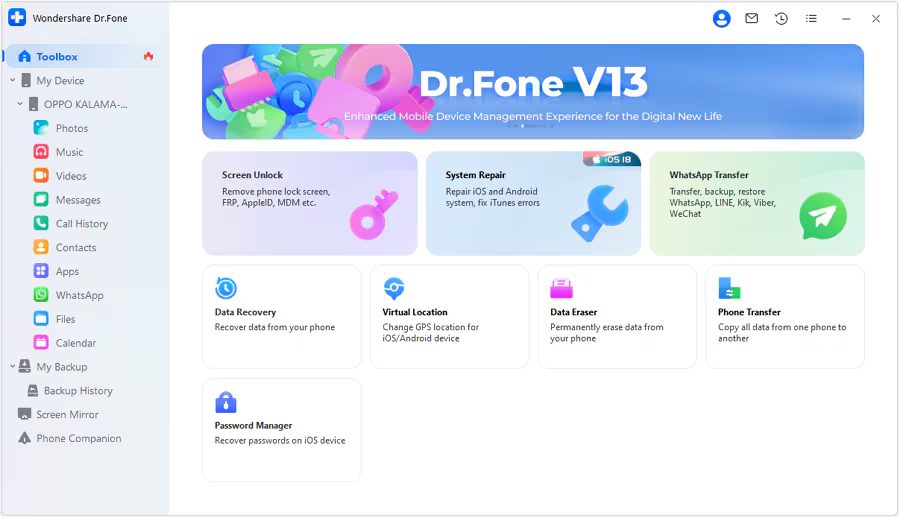
Step 1: Launch the iOS System Repair Tool after installing the tool on your computer. Go to the Toolbox section from the top left side of the screen. Now, select System Repair from the list displayed on the home screen.
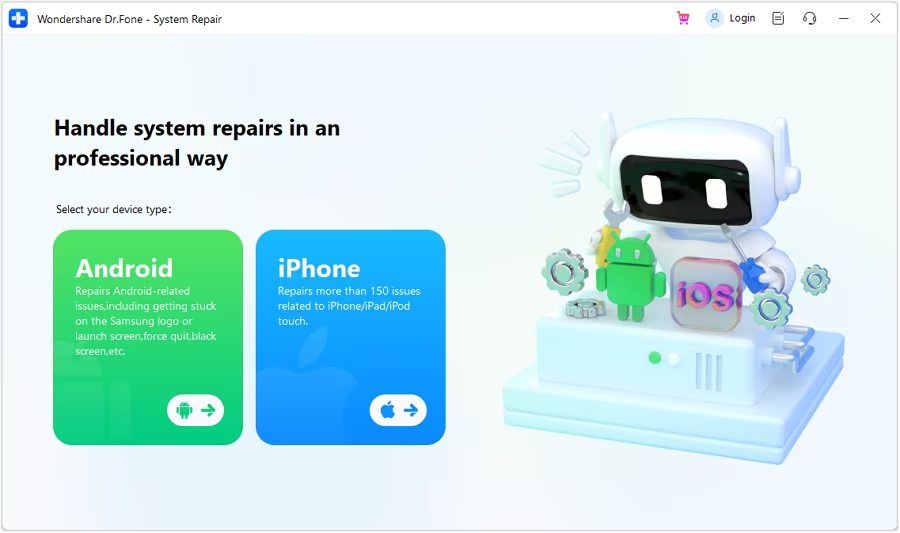
Step 2: You will be redirected to a new window as you connect your iOS device to your computer with a cable connection to select the nature of the device. So, select iPhone since we are performing iOS System Repair.
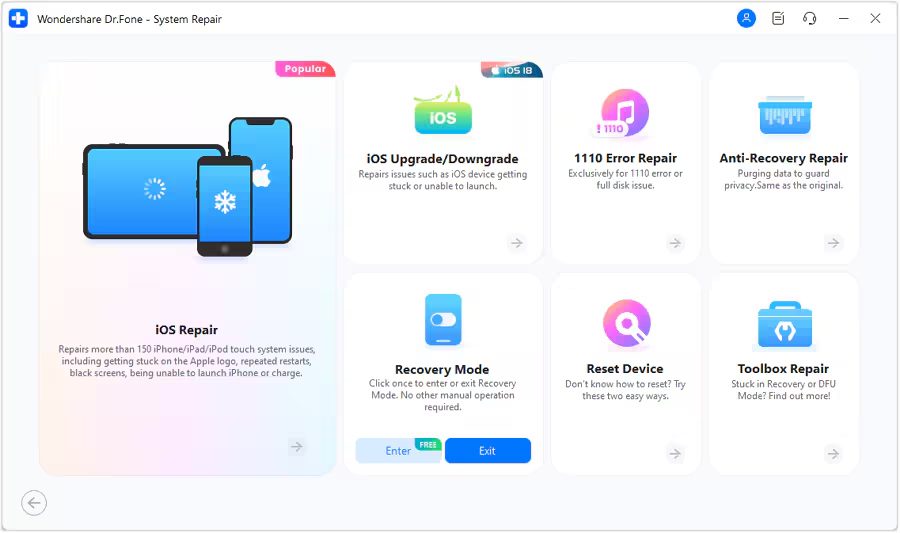
Step 3: Select iOS Repair among the set of options appeared on the screen to continue system repair.
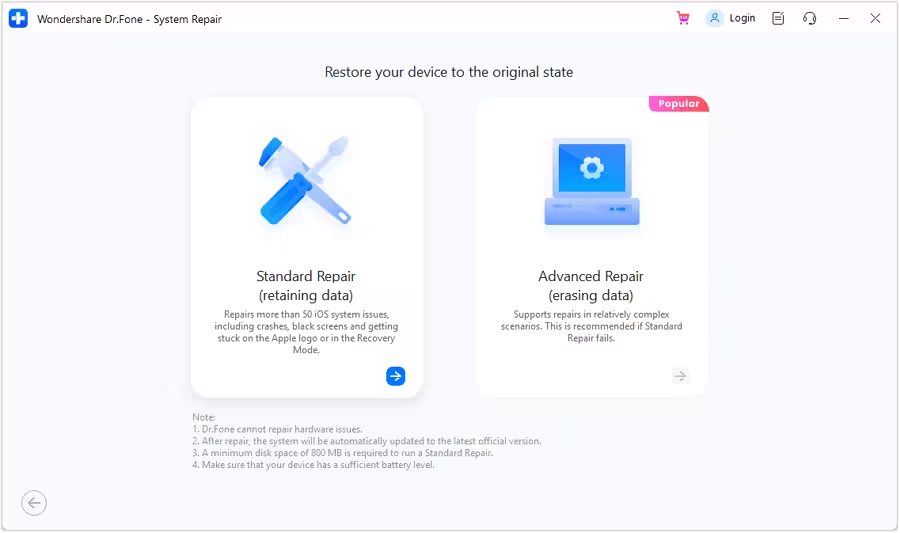
Step 4: Select Standard Repair as a mode of repairing for your iOS device.
Step 5: Next, you have to enter your iOS device into Recovery Mode by following the on-screen instructions. After that, click on Enter Recovery Mode. But if not entered your iOS device into Recovery Mode, click on Guide and follow the ongoing instructions to enter your iOS device into Recovery Mode.
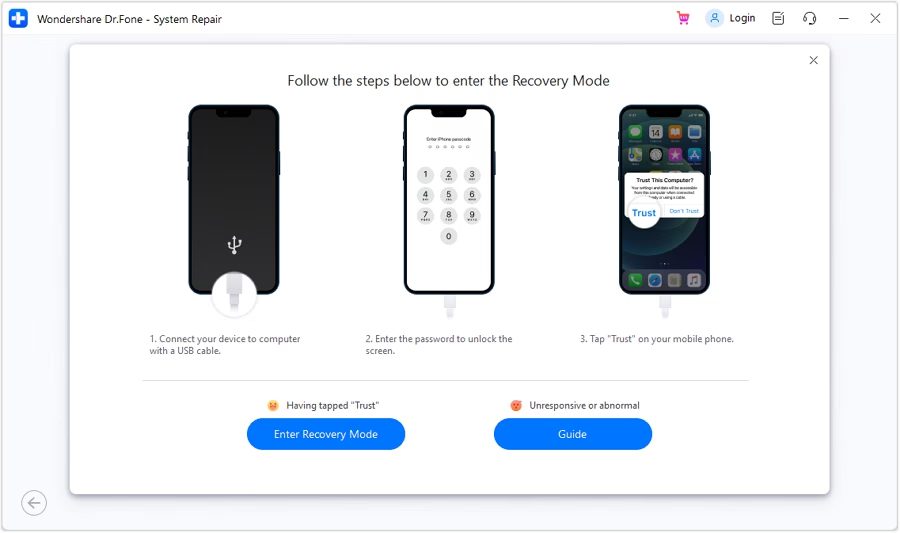
Step 6: After entering your iOS device into Recovery Mode, the platform will automatically detect the iOS firmware to be installed in the device. Click Download next to the iOS firmware you wish to install.
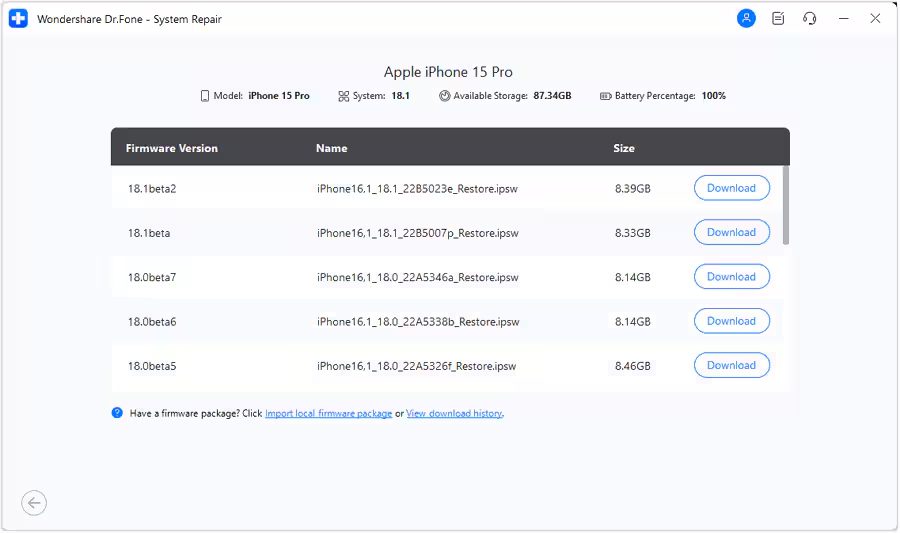
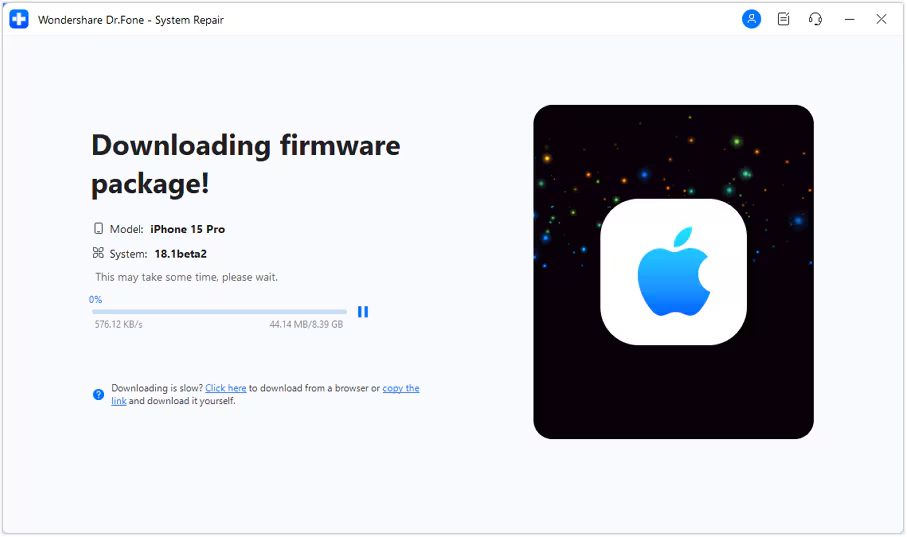
Step 7: The iOS firmware will automatically start downloading on the platform.
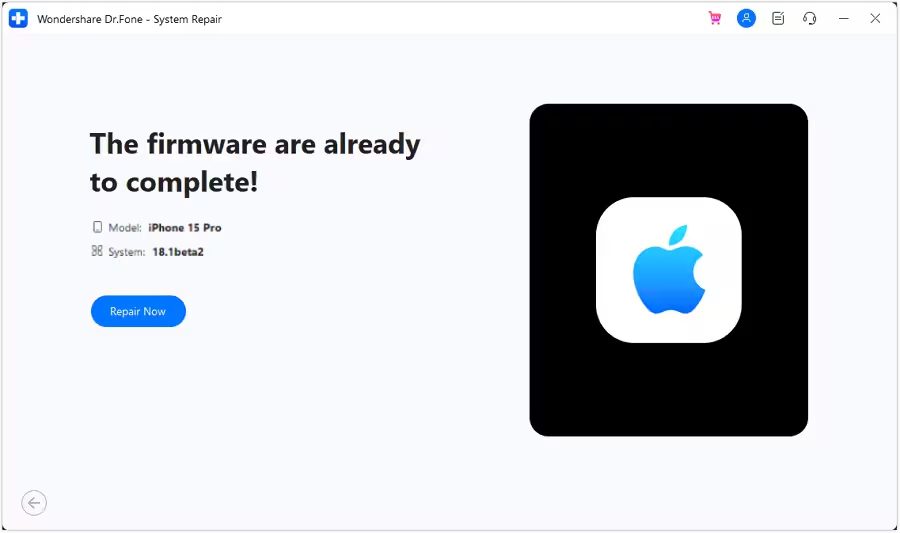
Step 8: Next, click on Repair Now to continue the repairing process.
Step 9: Now, wait for the process to complete and make sure your iOS device is connected to the computer.
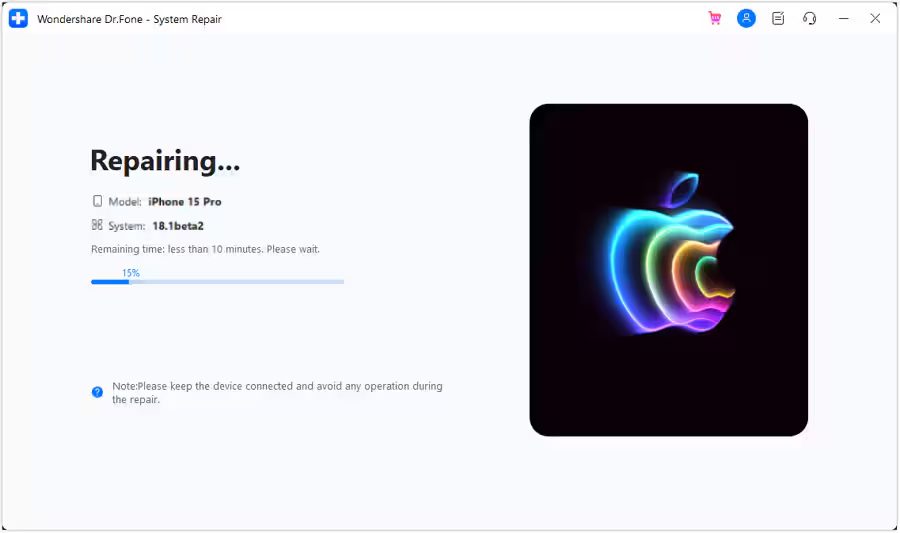
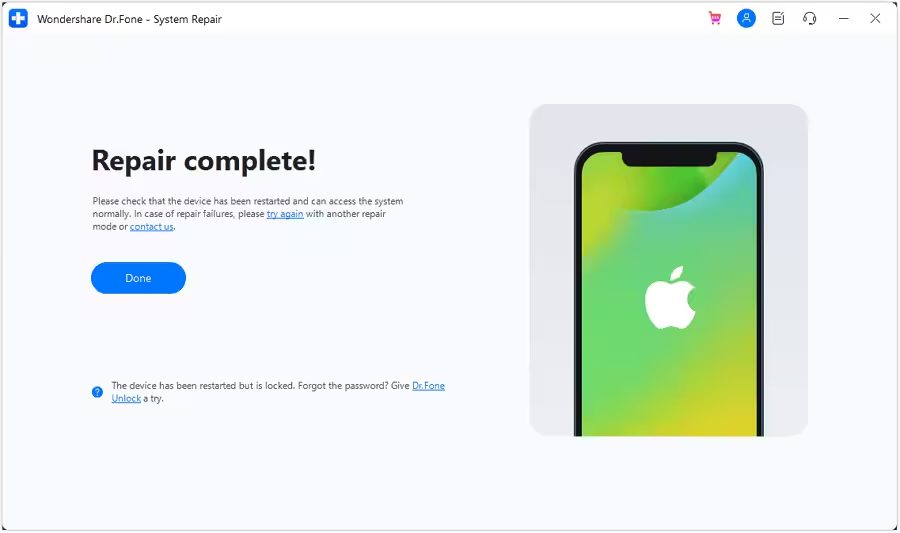
Step 10: The screen will now show the completion of the process. Select Done to complete the whole repairing process.
|
|
Wrap Up
So, now your work will not get affected by emails not working issue after iOS 18 update. The above-mentioned solutions have taught you how to fix iPhone emails not working after the iOS 18 update.
If the basic solutions don’t work then, you can use iOS System Repair software to resolve the Mail not working issue after iOS 18.
If this guide has helped you in solving the email issue then you can share it with others.
You May Also Like:
- How To Fix iOS 18 Black Screen After Update
- How To Fix iPhone Stuck on iOS 18 Terms And Conditions
- How To Fix iPhone Overheating After iOS 18 Update
- How To Fix Notifications Not Working on iOS 18

Max Field is a founder of Recover Android Data. He is an Android lover and loves to write tips, tricks, fixes for errors, data recovery solutions and more related to Android. Provide Gaming Tips, Tricks, Game Error/Issues Solutions (PC/Xbox/PlayStation/Mobile). He is now also interested in solving LinkedIn Puzzles. He has 12+ years of experience in this field.