

Have you updated your iPhone to iOS 18 and after this, your phone started overheating? And due to this your phone’s battery started draining fast and causing performance issues.
If you are facing an overheating problem after the iOS 18 update then don’t worry as here, we have gathered some effective solutions to fix iPhone overheating after iOS 18 update.
Before we move to the solutions, it is important to understand why your iPhone overheated after the iOS 18 update.
Reasons: Why iPhone Overheats After iOS 18 Update?
There can be many reasons behind the overheating problem after iOS 18 update. Here we have discussed some of them.
- Buggy apps might not be fully optimized for iOS 18 and eat more battery which leads to overheating problems.
- If your phone is overheating after updating to iOS 18 then it is possible that your smartphone is working hard and leading to battery drain.
- Once you update your iPhone your device might work hard to refresh the apps in the background and hence your smartphone heats up.
- After updating, your device reindexes data and modifies settings. While doing these tasks your phone’s processor worked hard and heat up.
So, these are some of the reasons why your iPhone overheat after the iOS 18 update.
Fix Overheating Issue On iPhone After iOS 18 Update
It is common to cause the overheating problem after iOS update. You can use the below-listed solutions to fix iPhone overheating after installing iOS 18.
Fix 1: Decrease Screen Brightness
If your phone’s brightness is high then this can consume more battery and cause your device to heat up. Therefore, you are suggested to lower the brightness of your phone to decrease heat generation or overheating issue.
Fix 2: Turn Off Location Services
You should turn off location or GPS tracking as it uses lots of battery whether you are using the phone or not.
To turn it off follow the below steps:
- Open the Settings app on your iPhone.
- Then go to Privacy & Security.
- Now, tap on Location Services to disable this service.
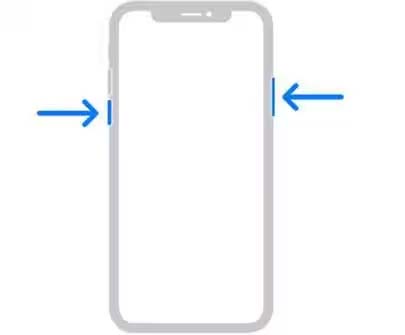
Fix 3: Force Restart iPhone
If there are bugs or glitches on your handset then this can cause the overheating issue. So, to clear these bugs you can force restart your iPhone to solve iOS 18 overheating after update.
Here, follow the steps to force restart your iPhone:
- Quickly, press and release the Volume Up key and then the Volume Down
- After this, press and hold the Side button unless the Apple logo appears.
Fix 4: Disable Background App Refresh
When the background app refresh is enabled on your device then it automatically refreshes the app content which consumes more battery. So, to preserve the battery life you should turn it off.
Below are the steps to do the same:
- Navigate to Settings.
- Then tap on General.
- Next, tap on Background app refresh to disable it.
Fix 5: Free Up iPhone Storage
Another reason for the overheating problem on iPhone after iOS 18 update is low storage space. Hence, you should check that your device storage is not low, and if you find it low then clear all unwanted data.
Here learn how to clear storage space on iPhone:
- Move to Settings > General.
- Next, tap on iPhone Storage and check how much storage space you have consumed.
- If you find the storage space low or almost full then delete all the data that is not important for you.
Fix 6: Close Unwanted Apps
When many apps run in the background then they increase battery use and cause your device to overheat. All these apps continuously uses the device resources in the background and cause the overheating problem.
Therefore, you should close unnecessary apps from the recent apps to stop the background activity of the apps.
Here, learn how to do the same:
- Open the recent apps screen by swiping up from the bottom of the screen.
- Now, close all the unnecessary apps by swiping them upward one by one.
After this, check if your phone is still getting hot or not. If yes, then follow the next solution.
Fix 7: Turn Off Automatic Downloads
If the automatically download feature is enabled on your phone then your phone will automatically install any apps purchased on other devices.
So, to disable it go to Settings > App Store > Automatic Download tab. Now disable it to avoid unnecessary battery drain.
Fix 8: Restore Default Settings
Some features or settings on your phone can also be the reason for the overheating issue. These settings force your phone to work harder, leading to battery drain.
So, to solve this problem you can reset your phone’s settings to default.
You can restore default settings without losing data. Below, learn how to do the same:
- Navigate to Settings > General.
- Tap on Reset iPhone.
- Next, select Reset All Settings.
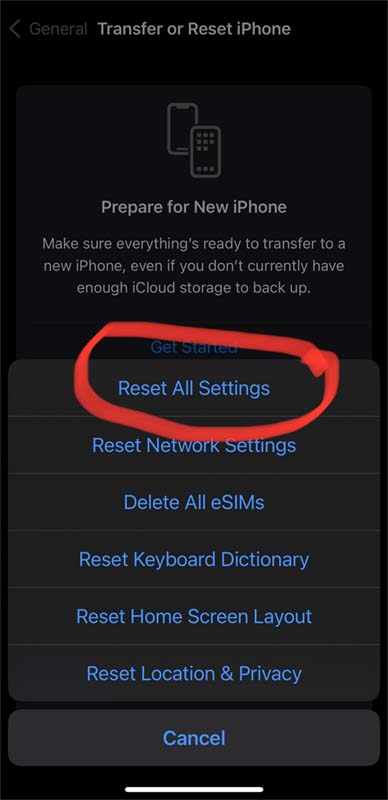
- After this, you need to enter your iPhone’s passcode and follow the on-screen steps to reset all settings.
Fix 9: Uninstall Problematic Apps
Have you recently downloaded any app on your phone from an unknown source and after the iOS 18 update? If yes then this can be the reason why your iPhone is getting too hot.
If this is the case then, you need to uninstall the problematic apps from your handset to avoid battery drain and conflict with the recently downloaded iOS.
Fix 10: Install Update For All Apps
You should update all apps on your iPhone so that they will be compatible with the latest version of iOS and the overheating problem will be solved.
To update all apps on your iPhone, open the App Store app and then tap on Update All button.
Fix 11: Wait For Next Update
If the above solutions are not working then it might be possible that the current update might have some issue due to which your iPhone is overheating.
And to fix it Apple will launch the latest update when many users complain about the same problem. So, you need to just keep your eyes on your iPhone’s settings and wait for the next update.
Fix 12: Use iOS System Repair Software To Fix iPhone Overheating After iOS 18 Update
If you have tried all the above-mentioned methods but still the overheating problem on iPhone after iOS 18 update is not solved then you are suggested to try iOS System Repair software to fix the heating issue.
 |
 |
This will fix the system issue on your iPhone as well as any problems like being stuck in boot loop/Apple logo, white/black screen, etc.
iPhone System repair software is very easy to use and 100% safe and secure.
Steps to use iOS System Repair tool to fix iPhone overheating issue after iOS 18 update
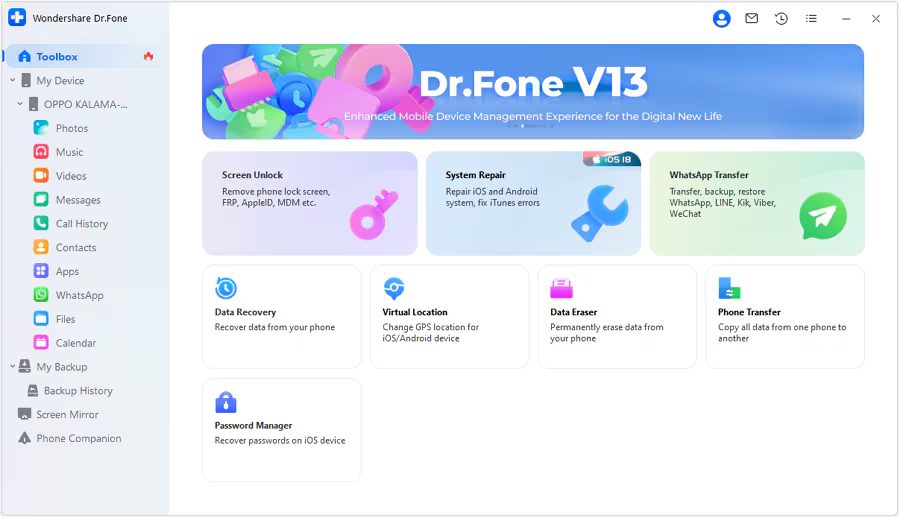
Step 1: Launch the iOS System Repair Tool after installing the tool on your computer. Go to the Toolbox section from the top left side of the screen. Now, select System Repair from the list displayed on the home screen.
Step 2: You will be redirected to a new window as you connect your iOS device to your computer with a cable connection to select the nature of the device. So, select iPhone since we are performing iOS System Repair.
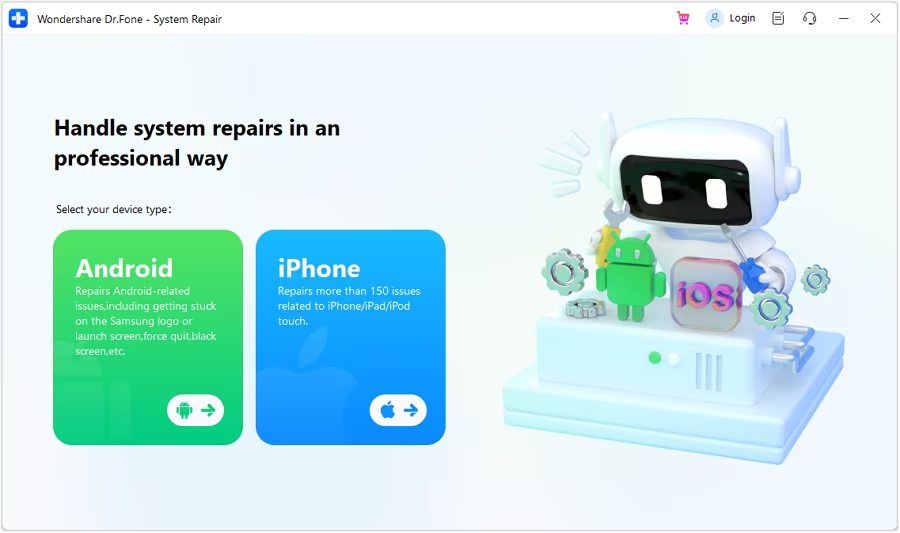
Step 3: Select iOS Repair among the set of options appeared on the screen to continue system repair.
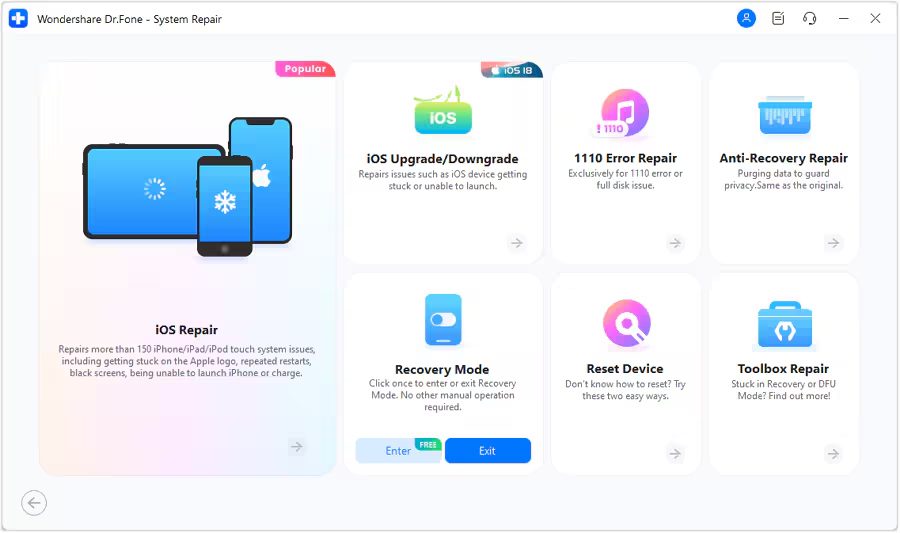
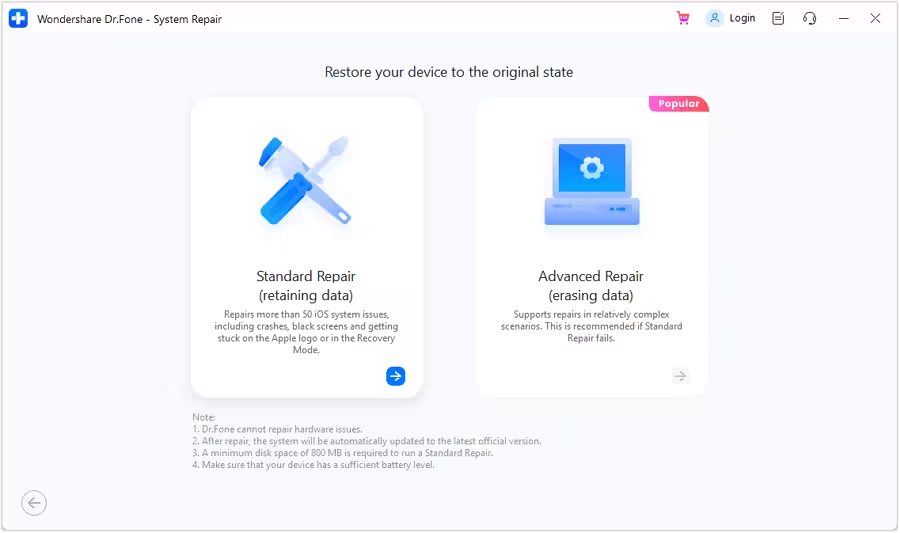
Step 4: Select Standard Repair as a mode of repairing for your iOS device.
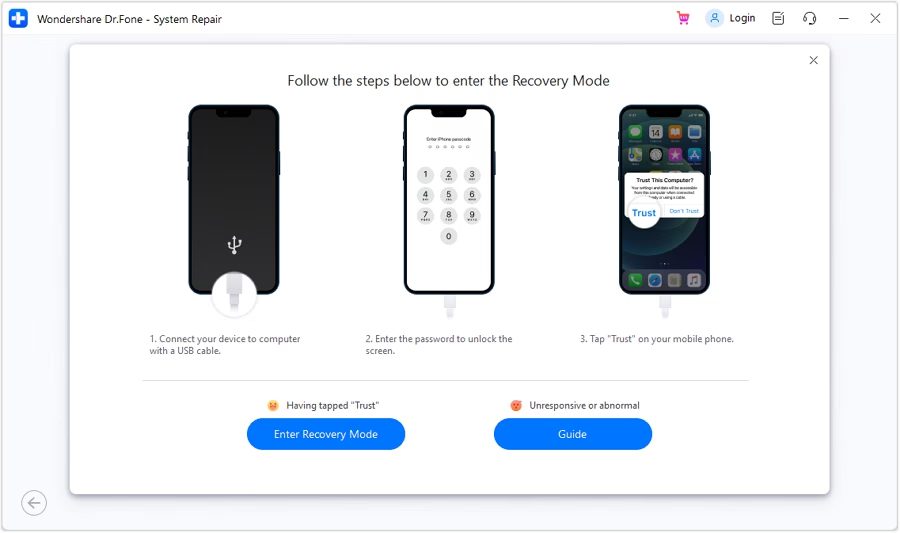
Step 5: Next, you have to enter your iOS device into Recovery Mode by following the on-screen instructions. After that, click on Enter Recovery Mode. But if not entered your iOS device into Recovery Mode, click on Guide and follow the ongoing instructions to enter your iOS device into Recovery Mode.
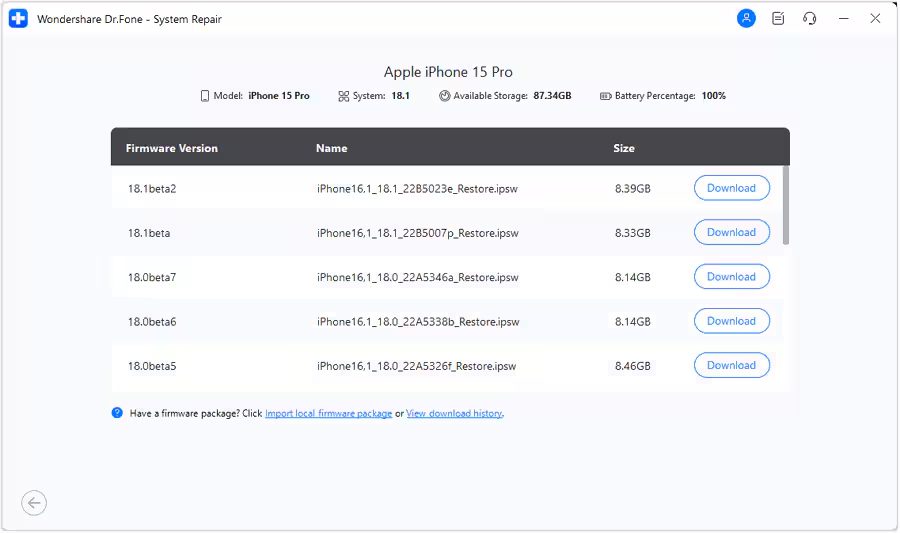
Step 6: After entering your iOS device into Recovery Mode, the platform will automatically detect the iOS firmware to be installed in the device. Click Download next to the iOS firmware you wish to install.
Step 7: The iOS firmware will automatically start downloading on the platform.
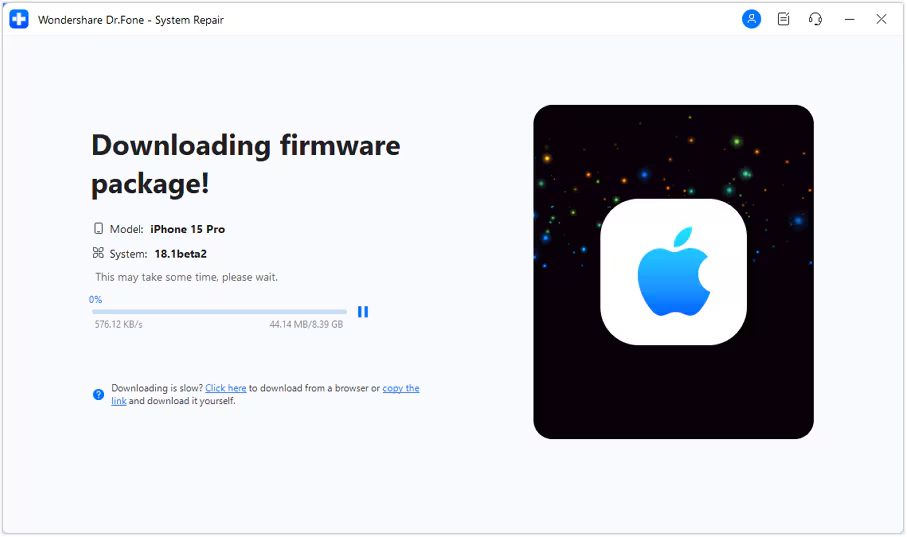
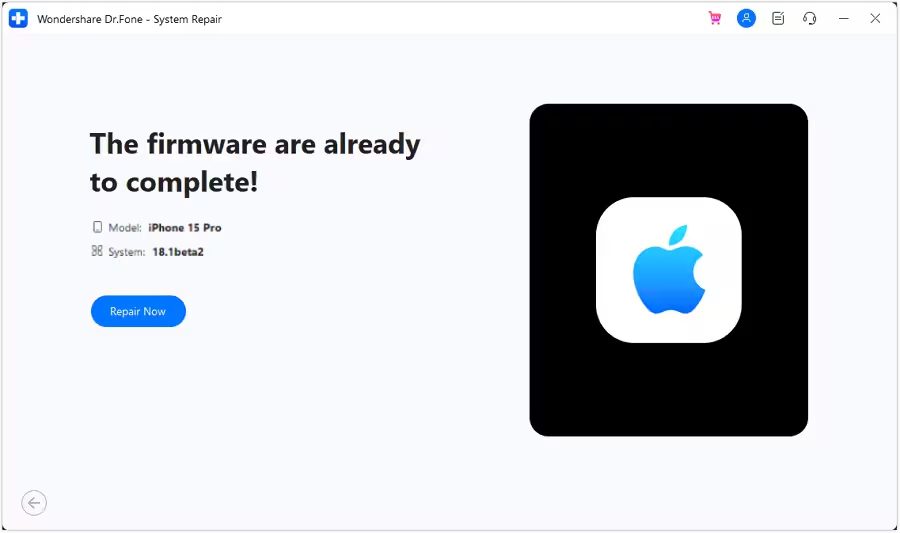
Step 8: Next, click on Repair Now to continue the repairing process.
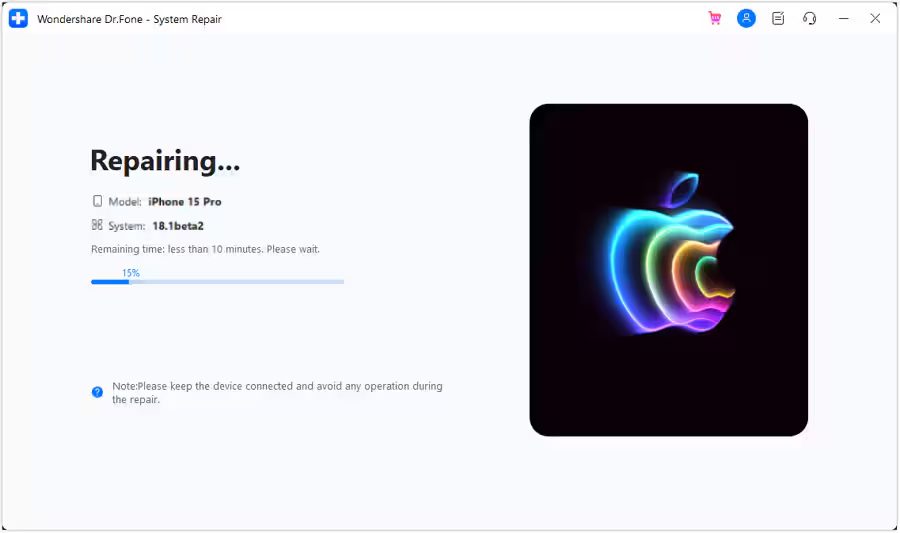
Step 9: Now, wait for the process to complete and make sure your iOS device is connected to the computer.
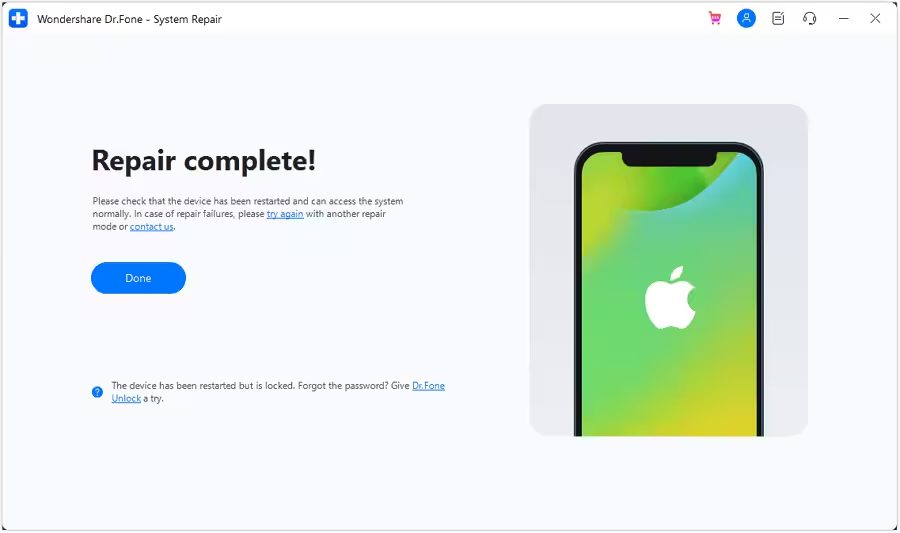
Step 10: The screen will now show the completion of the process. Select Done to complete the whole repairing process.
|
|
Wrap Up
So, in this guide, we have discussed 12 effective solutions to fix iPhone overheating after iOS 18 update.
We hope you have solved this issue and now you are using your smartphone freely.
If this guide has helped you then you can share it with others so that it then can also help them.
You May Also Like:
- How To Fix Notifications Not Working on iOS 18
- How To Fix Apps Crashing On iPhone After iOS 17 Update
- iPhone Lagging and Slow After iOS 17 Update? Here How To Fix!
- How To Fix Front Camera Not Working on iPhone (2024)

Max Field is a founder of Recover Android Data. He is an Android lover and loves to write tips, tricks, fixes for errors, data recovery solutions and more related to Android. Provide Gaming Tips, Tricks, Game Error/Issues Solutions (PC/Xbox/PlayStation/Mobile). He is now also interested in solving LinkedIn Puzzles. He has 12+ years of experience in this field.