
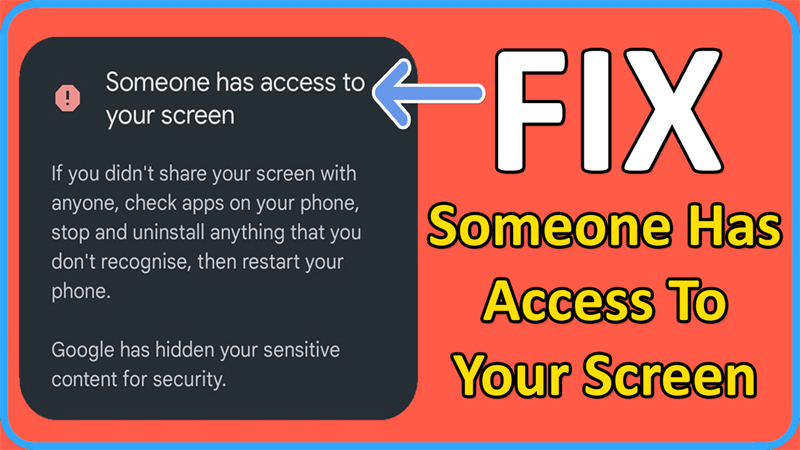
In This Article, You Will Learn How To Fix Someone Has Access To Your Screen. Also, Fix You’re Sharing Your Screen With Someone Message Problem.
How To Fix Someone Has Access To Your Screen
Fix 1. Update Your Messaging App
Whichever messaging app you are using on your phone (for e.g, – Google Message), please update it.
Fix 2. Block Messages That Seem To Be Spam
- Open your Messaging app, click on your Profile icon or 3 dots located at the top right of the screen.
- Click on “Spam and blocked” or “Block & filter”.
- Now, simply block all those messages that seem to be spam.
Fix 3. Make Some Changes To Your Message Notifications
- Open Messaging app, click on your Profile icon or 3 dots located at the top right of the screen.
- Go to Message settings.
- Tap on “Manage notification”.
- Turn off “Allow lock screen notifications”. Turn off “Hide notification details on lock screen”.
- Go to “Others” and turn off “Allow notifications”.
Fix 4. Turn off “Nothing can bubble” In Google Message
If you are using Google Messaging app, then turn off “Nothing can bubble” option.
- Open Messaging app, click on your Profile icon or located at the top right of the screen.
- Go to Message settings.
- Tap on “Bubbles” and then tap on “Nothing can bubble” to turn it off.
Fix 5. Update Your Phone Software
- On Android, go to Settings > About Device.
- Here, Check for Update.
- If any new update for your phone is available, then kindly download and install
Fix 6. Check App Permissions
On whichever app, you are getting this error “Someone Has Access To Your Screen”, check app permissions for that particular app.
Pay attention to those with authorization to overlay other apps or access notification data.
Turn off unnecessary permissions to that app.
Fix 7. Uninstall App Downloaded Out of Play Store
If you have installed any third-party app out of Play Store and that particular app is giving you such problems, then you must uninstall those apps from your phone.
It is always suggested that you install the app from Play Store as it is safe and secure.
Fix 8. Factory Reset Your Phone
Note: Please back up your valuable data before performing the steps.
- Go to Settings > System > Reset options.
- Tap on Erase all data (factory reset).
- Tap on “Erase all data”, if asked enter the password.
If you have found this guide helpful, then please share it, as it can help others!
Please support us by subscribing to our YouTube Channel.
You May Also Like:
- How To Fix “Blocked By Your IT Admin” on Android
- How To Fix Samsung Pass “Couldn’t Verify Fingerprints”
- How To Fix Android System WebView Crashing Apps
- Network Locked SIM Card Inserted: Here What To Do!

Max Field is a founder of Recover Android Data. He is an Android lover and loves to write tips, tricks, fixes for errors, data recovery solutions and more related to Android. Provide Gaming Tips, Tricks, Game Error/Issues Solutions (PC/Xbox/PlayStation/Mobile). He is now also interested in solving LinkedIn Puzzles. He has 12+ years of experience in this field.