
Is your voice-to-text not working on your Android phone?
Are facing problems with speech-to-text not working?
Well not to worry, in this article, you will learn how to fix voice to text not working on Android phones.
How To Fix Voice To Text Not Working on Android
In order to fix voice to text not working on Android, you have to follow these solutions:
- Check System Wide Microphone Permission
- Check Microphone Permission For Specific App
- Enable Voice Typing
- Clean Microphone
- Enable Voice Typing Personalization
- Force Stop The App
- Update All Apps
- Download On-Device Speech Recognition Languages
- Update Phone Software
Note: These solutions are applicable to all Android phone brands including Samsung, Google Pixel, OnePlus, Xiaomi, Sony, Huawei, Motorola, LG, and so on.
Fix 1. Check System Wide Microphone Permission
- Go to Settings > Security and Privacy.
- Select Privacy.
- Toggle on the Microphone access.
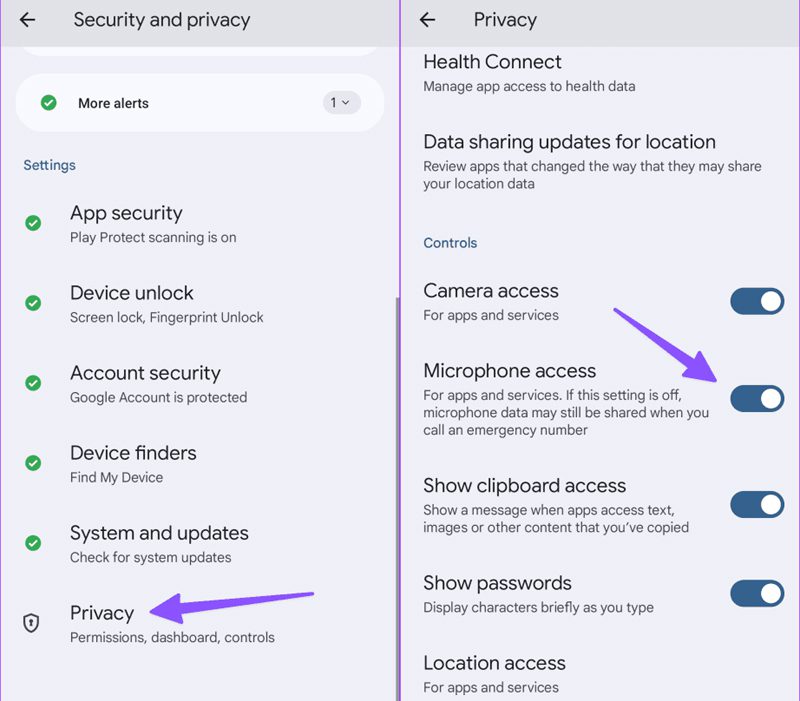
Alternatively, swipe down to bring up the quick notification panel and tap on Microphone icon to enable it.
Fix 2. Check Microphone Permission For Specific App
- Long-press on the app icon and tap on “App info” option.
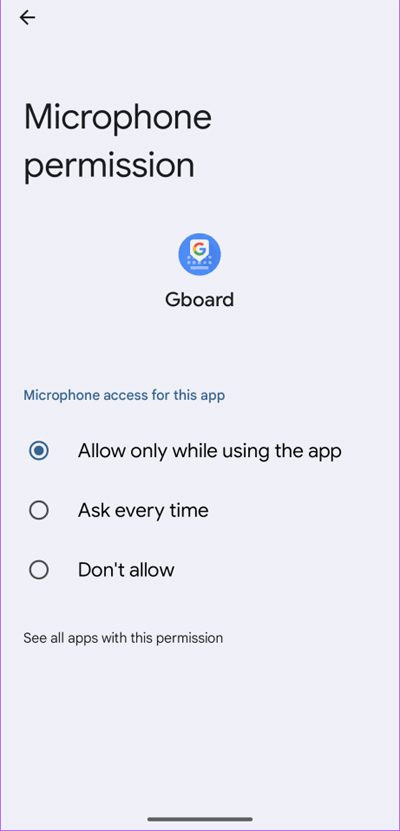
- Tap on Permission > Microphone.
- Enable “Allow only while using the app”.
- Restart the app and check voice to text is working or not.
Fix 3. Enable Voice Typing
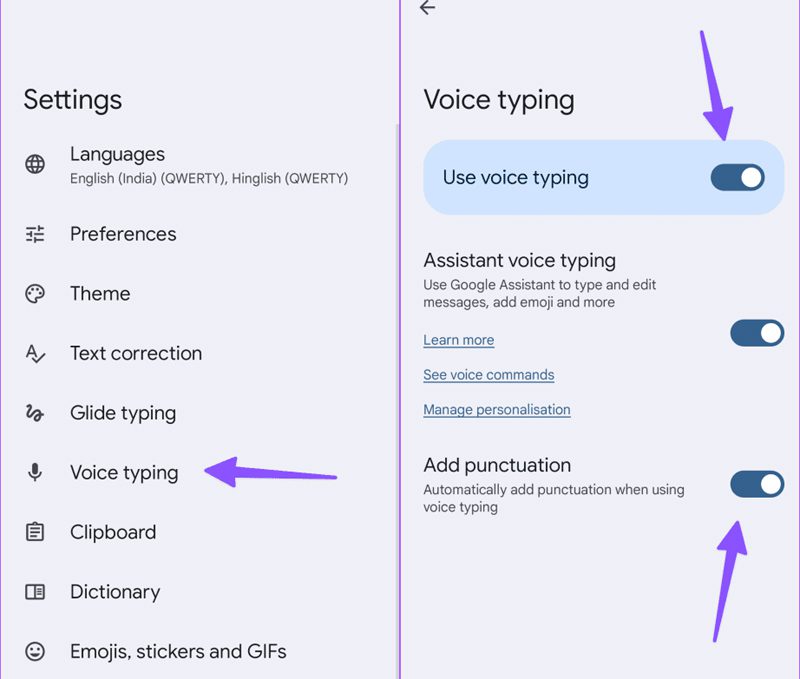
- Open Gboard and tap on Gear (settings)
- Select Voice Typing.
- Turn on “Use voice typing” and “Add punctuation”.
Fix 4. Clean Microphone
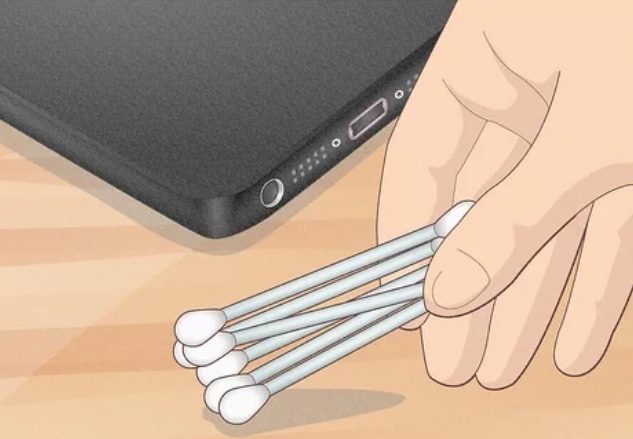
If your microphone is clogged with dust/debris, the phone might face problem in picking up your speech.
Hence, clean your phone microphone. You can use cotton buds to clean. Do not use compressed air as it may damage your device’s internal.
Fix 5. Enable Voice Typing Personalization
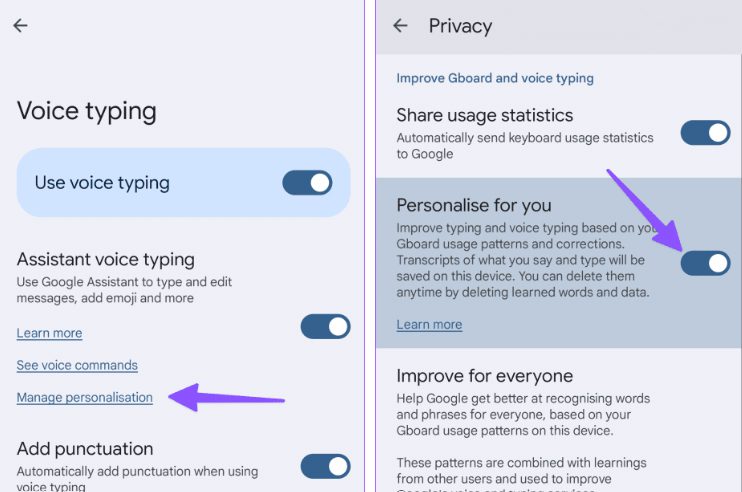
- Open Gboard and tap on Gear (settings)
- Select Voice Typing.
- Tap Manage personalization and toggle on “Personalize for you”.
Fix 6. Force Stop The App
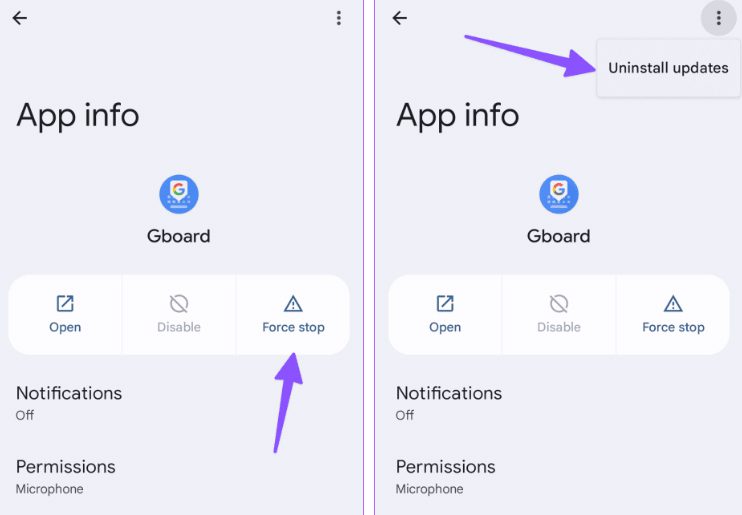
- Long-press on Gboard app icon and tap on “App info” option.
- Tap on “Force stop” and then tap on 3 vertical dots menu located at the top-right corner and select “Uninstall updates”.
Fix 7. Update All Apps
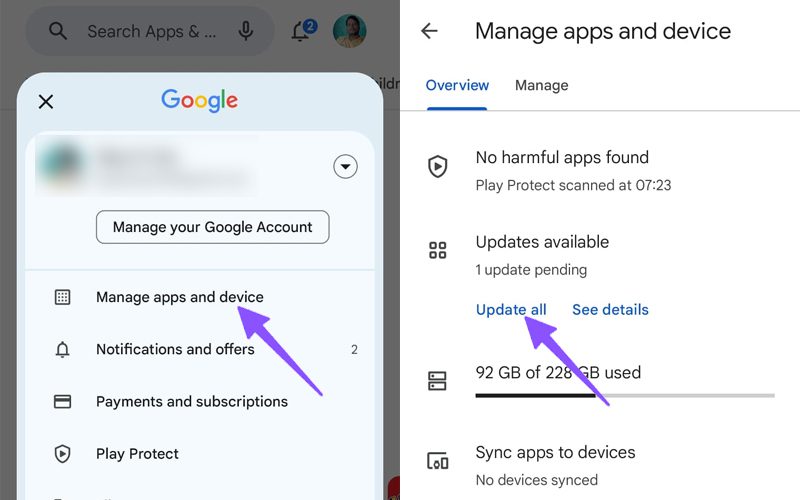
- Open Play Store.
- Tap on Profile icon > manage apps and device.
- Tap on “Update all” under Updates available.
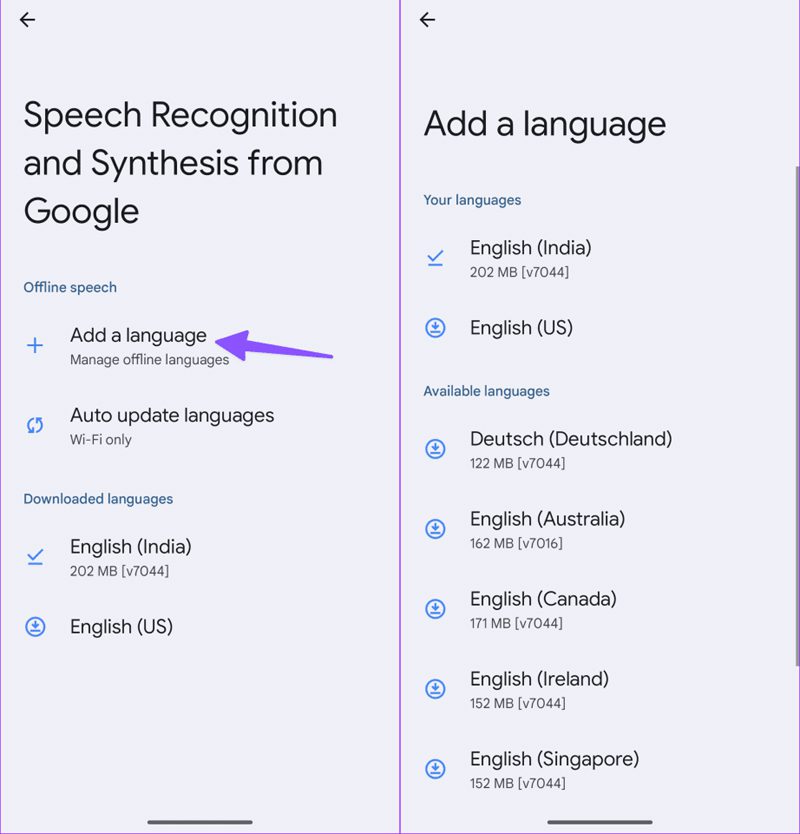
Fix 8. Download On-Device Speech Recognition Languages
- On your phone, go to Settings > System.
- Select Language.
- Next to Voice Input tap on Gear (settings) icon.
- Tap on “Add a language” and download relevant voice packs from the available menu.
Fix 9. Update Phone Software
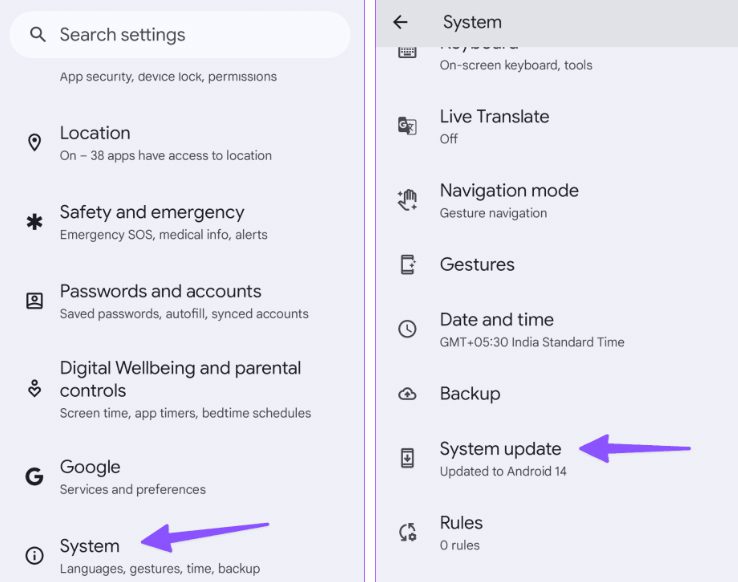
- Go to Settings > System.
- Tap on “Software update”.
- If any update is available, then download and install it.
Wrap Up
So those were the 9 solutions that you can follow and fix voice-to-text not working on Android. I hope, you manage to resolve the issue by following these solutions.
If you have found this article helpful, then please share it as it can help other users!
Please support us by subscribing to our YouTube Channel.
You May Also Like:
- How To Fix Facebook Messenger Voice Messages Not Working
- How To Fix WhatsApp Web Copy Paste Text Not Working
- Samsung Keyboard Not Working/Not Responding Properly? Here Is The Fix!
- Haptic Feedback Not Working On Android? Here’s Is The Fix!

Max Field is a founder of Recover Android Data. He is an Android lover and loves to write tips, tricks, fixes for errors, data recovery solutions and more related to Android. Provide Gaming Tips, Tricks, Game Error/Issues Solutions (PC/Xbox/PlayStation/Mobile). He is now also interested in solving LinkedIn Puzzles. He has 12+ years of experience in this field.