

Have you updated your iPhone to iOS 18 to enjoy new features, but it got stuck in boot loop screen? Don’t Fret! You are not alone in facing this problem. Many iOS users who have updated their device to iOS 18 are going through the same issue.
You can fix this issue yourself. Follow the solutions discussed below to fix the iPhone boot loop issue after iOS 18 update.
But before exploring methods to solve it, let’s examine the reasons for the iOS 18 boot loop issue.
What Causes iPhone Boot Loop After iOS 18 Update?
Here we have listed some common causes behind iPhone being stuck at boot loop after iOS 18 update.
Software Issue: The latest software versions can contain glitches or bugs, leading iOS 18 reboot loop.
Poor Internet Connection: If the internet connection you are using to download and install the iOS 18 update is not stable, you can get stuck in the boot loop screen. Hence, check that your internet connection strength is good.
Lack of Storage Space: If your smartphone’s storage space is almost full, then the latest update will not get enough space to install the iOS 18 update properly, leading to a boot loop issue. So, before installing the latest update, make sure your device has enough storage space.
Failed Update: If the latest update is interrupted while installing, it will also lead to an iOS 18 reboot loop.
Incompatible Apps: Some apps might not be compatible with the latest update. When these apps try to run, they can interfere with the system and cause an iPhone boot loop with Apple logo.
Jailbroken iPhone: If you have a jailbroken iPhone then it might have problems with the new update that can cause boot loop issues on iPhone.
How To Fix iPhone Stuck At Boot Loop After iOS 18 Update?
Here are the 4 best step-by-step solutions to get rid of iOS 18 boot loop issue.
Note: All the methods that we are going to discuss below will work on almost all iPhone models such as iPhone 16 series, iPhone 15 series, iPhone 14 series, iPhone SE (3rd generation), iPhone 13 series, iPhone XS & XS Max, iPhone XR, iPhone 11 series, iPhone SE (2nd generation), iPhone 12 series.
Fix 1: Hard Reset Your iPhone
You should first hard reset your iPhone as it has the capability to resolve minor bugs in the system, helping you fix your iPhone stuck in the startup loop.
Note: You will lose your iPhone data after doing a hard reset.
Here learn how to hard reset your iPhone to fix iPhone stuck in boot loop:
- Press and quickly release Volume Up button.
- Then press and quickly release Volume Down button.
- Now, you need to press and hold the Power button unless the Apple logo appears.
When your iPhone restarted, check whether the issue is solved or not. If not then, follow the next solution.
Fix 2: Put iPhone In DFU Mode
Another way to fix iPhone stuck-in-loop Apple logo is by putting your device into DFU (Device Firmware Update) mode and then restoring it.
Here are the steps to put your iPhone in DFU mode.
- Connect your iPhone to your computer with the help of a USB cable. Ensure that your PC has the latest version of iTunes or Finder.
- Now, you need to put your iPhone into recovery mode. For this, quickly press and release the Volume Up button and repeat the same step with the Volume Down key. Next, press and hold the Power button unless you see the Recovery Mode screen.
- If your iPhone has entered the DFU mode successfully then you will receive a pop-up notification on your PC to “Update” or “Restore” your iPhone.
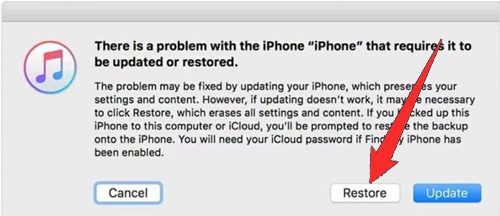
- Here click on “Restore” to restore your iPhone in DFU mode.
This will restore your device to its normal condition. But it will delete your iPhone data and settings.
Fix 3: Fix iPhone Boot Loop Issue After iOS 18 Via iTunes
If your iPhone is stuck in an endless startup loop, using iTunes to restore your iPhone can solve the issue.
But keep in mind that it will erase your iPhone data. Hence if it is possible to create a backup then do it first.
Now, follow the below steps to do the same:
- Connect your iPhone to your PC using a USB cable. Ensure that you have the latest iTunes version installed as outdated software can cause compatibility issues during the restore process.
- Launch iTunes and then click on your iPhone and then click on “Summary”.
- After this, click on the “Restore iPhone” option. Doing this, will restore your iPhone to its previous working version and fix the boot loop issue.
Fix 4: Use iOS System Repair Tool To Fix iPhone Boot Loop Issue
If you want to fix iOS 18 boot loop without data loss or if the above solutions didn’t help, then you are highly suggested to try iOS System Repair software.
iPhone System Repair tool allows you to fix almost all iOS issues like being stuck in the Apple logo/Recovery mode/white screen of death, frozen iPhone, black screen, iPhone keeps restarting, etc. without any data loss.
 |
 |
You can use the iOS Repair tool to downgrade or upgrade your iOS device without iTunes or jailbreak.
Now, follow the below steps to fix the iOS 18 boot loop issue using the iPhone System Repair tool. It works on all models of iOS devices and versions.
Steps To Fix iPhone Stuck In Loop Apple Logo Via Third-Party iOS System Repair Tool
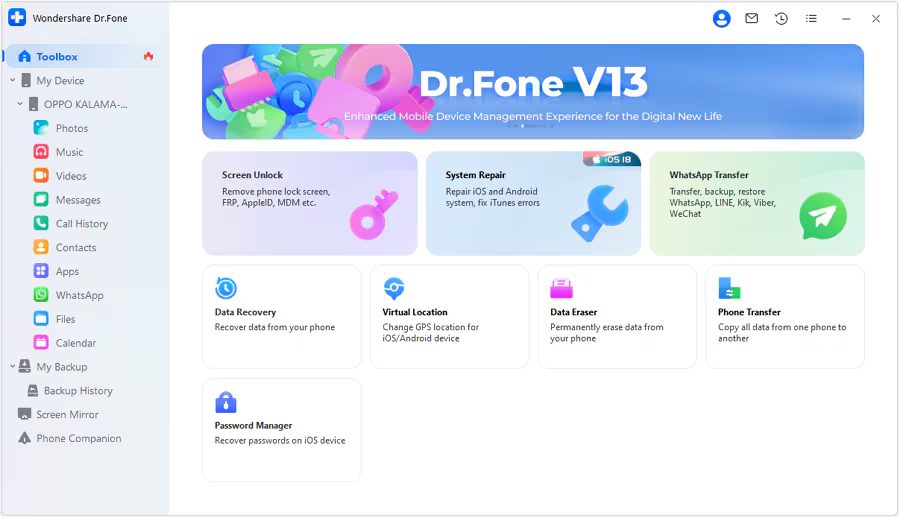
Step 1: Launch the iOS System Repair Tool after installing the tool on your computer. Go to the Toolbox section from the top left side of the screen. Now, select System Repair from the list displayed on the home screen.
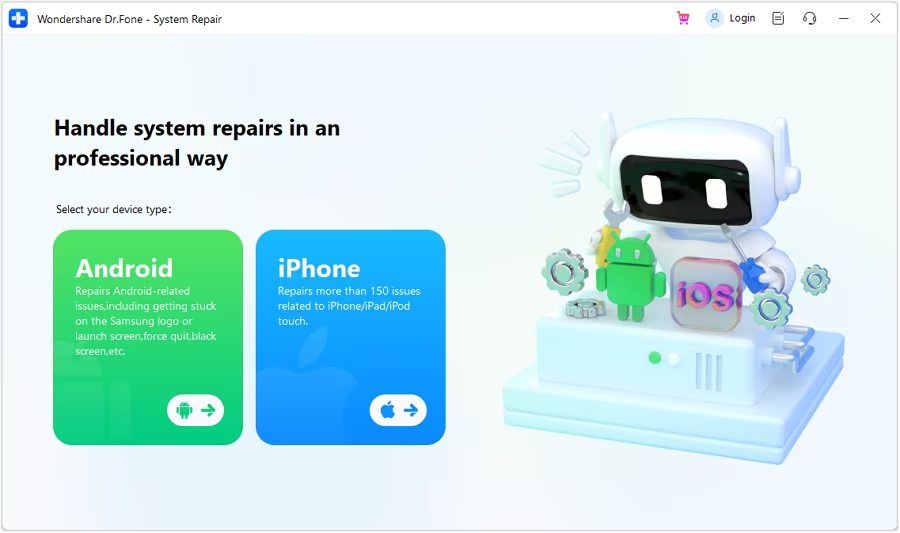
Step 2: You will be redirected to a new window as you connect your iOS device to your computer with a cable connection to select the nature of the device. So, select iPhone since we are performing iOS System Repair.
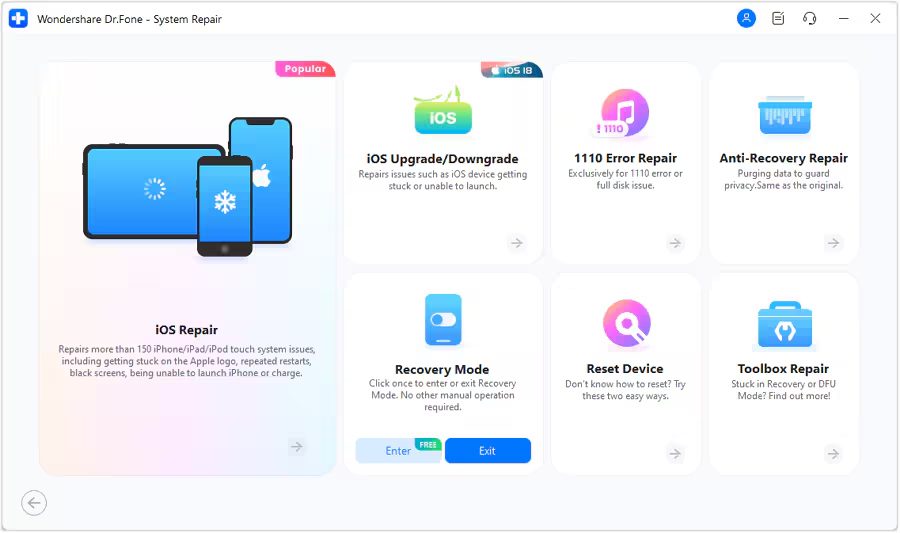
Step 3: Select iOS Repair among the set of options appeared on the screen to continue system repair.
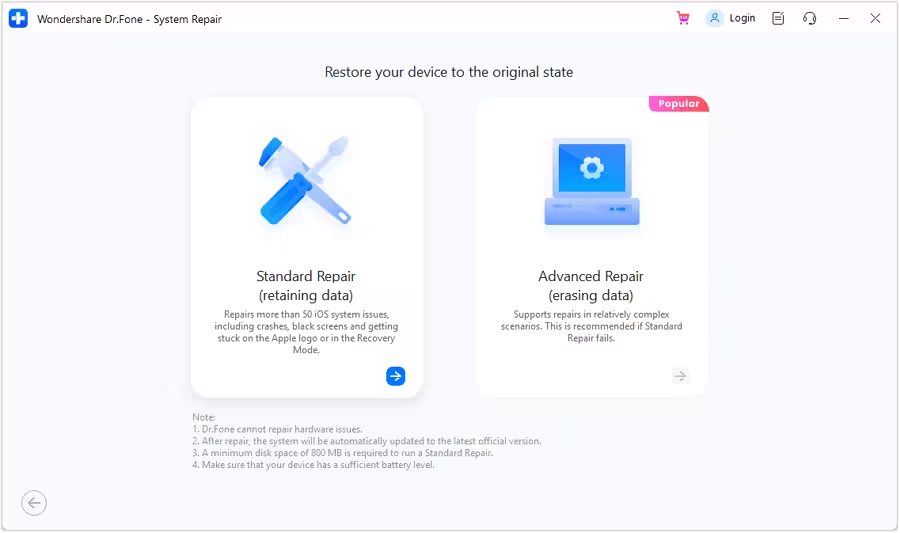
Step 4: Select Standard Repair as a mode of repairing for your iOS device.
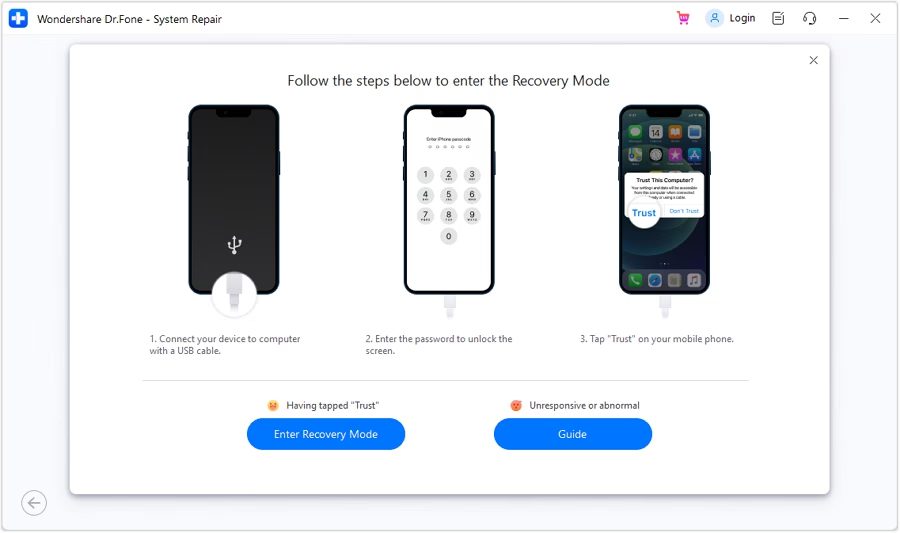
Step 5: Next, you have to enter your iOS device into Recovery Mode by following the on-screen instructions. After that, click on Enter Recovery Mode. But if not entered your iOS device into Recovery Mode, click on Guide and follow the ongoing instructions to enter your iOS device into Recovery Mode.
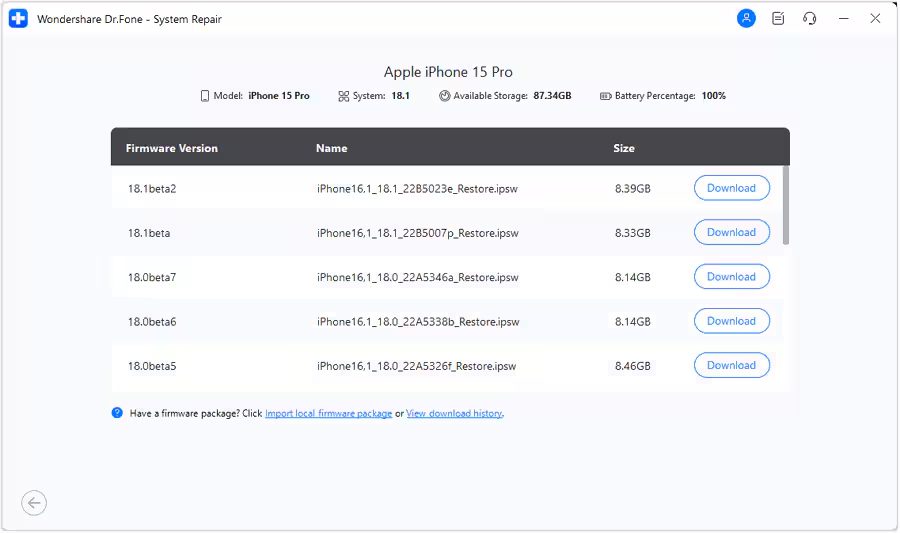
Step 6: After entering your iOS device into Recovery Mode, the platform will automatically detect the iOS firmware to be installed in the device. Click Download next to the iOS firmware you wish to install.
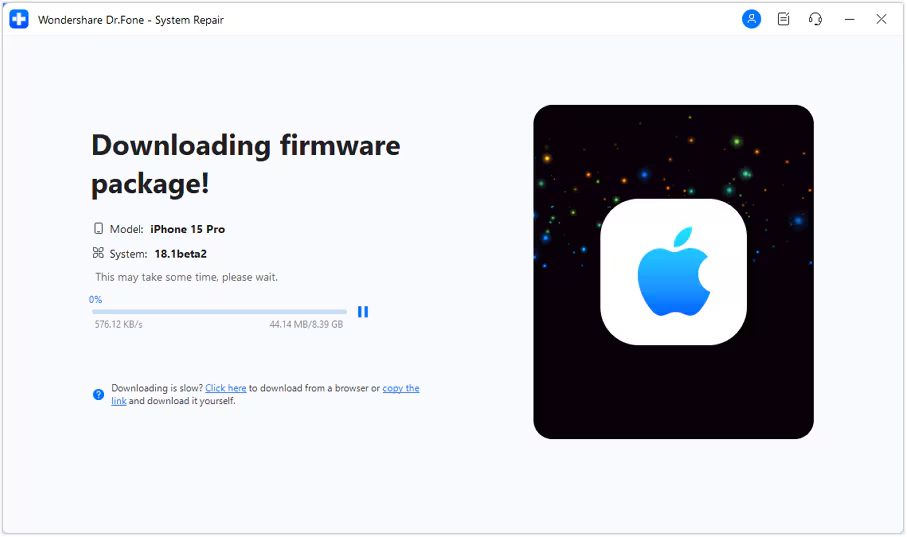
Step 7: The iOS firmware will automatically start downloading on the platform.
Step 8: Next, click on Repair Now to continue the repairing process.
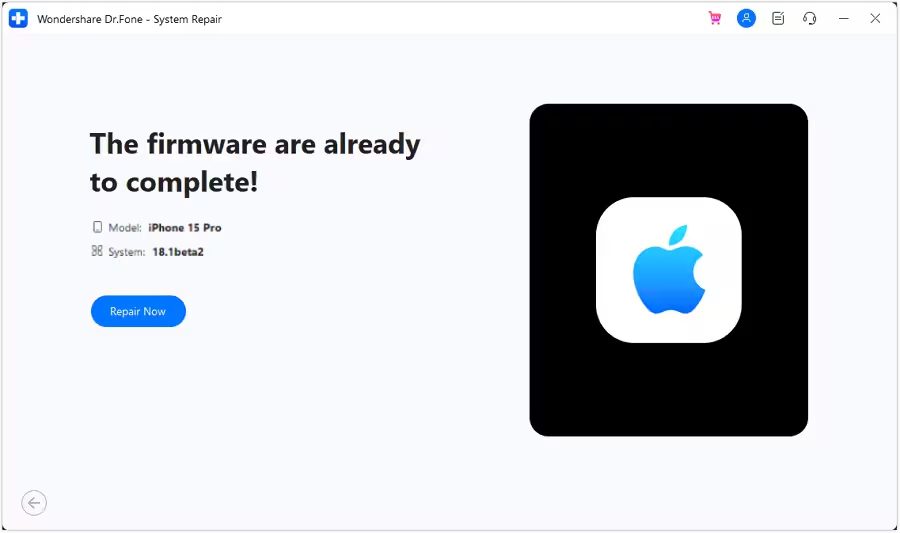
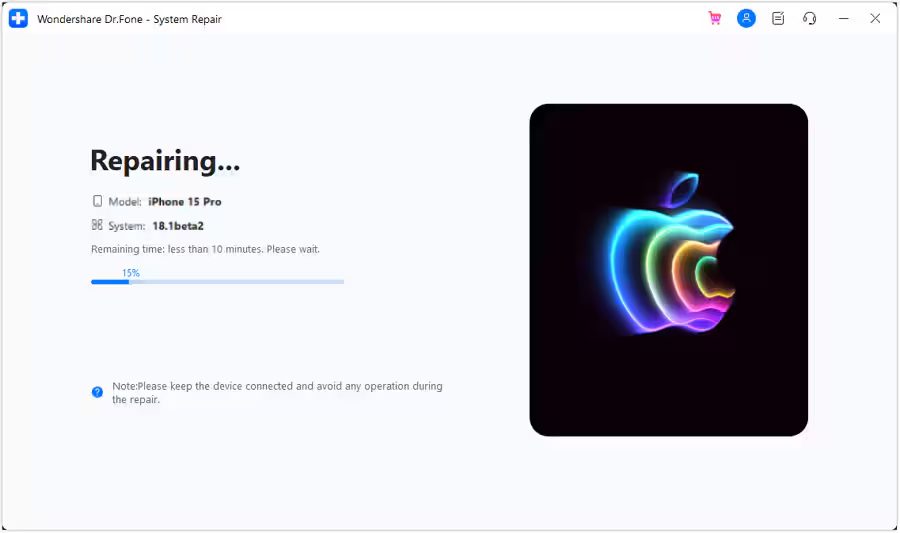
Step 9: Now, wait for the process to complete and make sure your iOS device is connected to the computer.
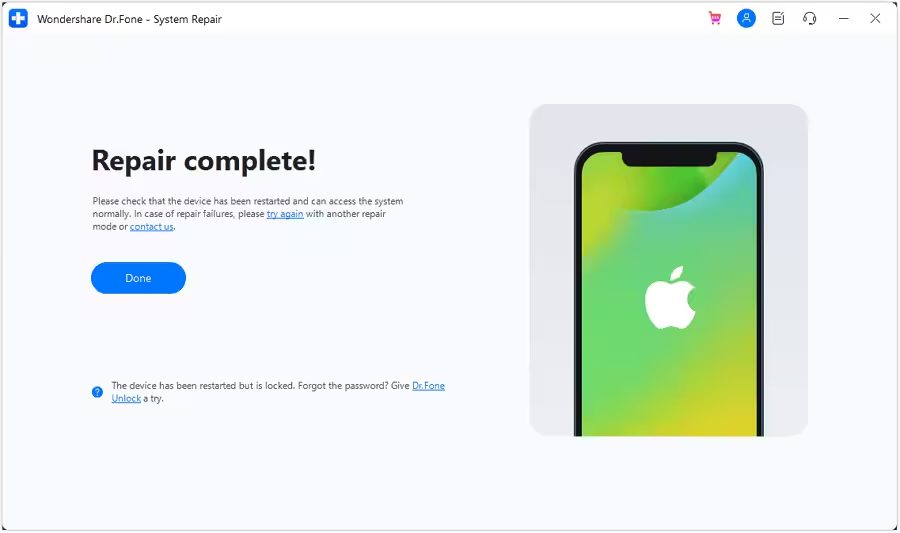
Step 10: The screen will now show the completion of the process. Select Done to complete the whole repairing process.
|
|
Wrap Up
It is a frustrating situation when your iPhone gets stuck in the boot loop. But you can get out of this by following the methods discussed above.
You can fix the iPhone boot loop issue after the iOS 18 update by using the above solutions but they will erase your device data.
So, if you don’t want to lose your smartphone data then you must try the third-party iOS System Repair tool. This software will fix iPhone stuck in boot loop in just a few clicks.
You May Also Like:
- How To Fix iPhone Overheating After iOS 18 Update
- How To Fix Notifications Not Working on iOS 18
- How To Fix iPhone Emails Not Working After iOS 18 Update
- How To Fix iPhone Stuck on iOS 18 Terms And Conditions

Max Field is a founder of Recover Android Data. He is an Android lover and loves to write tips, tricks, fixes for errors, data recovery solutions and more related to Android. Provide Gaming Tips, Tricks, Game Error/Issues Solutions (PC/Xbox/PlayStation/Mobile). He is now also interested in solving LinkedIn Puzzles. He has 12+ years of experience in this field.