
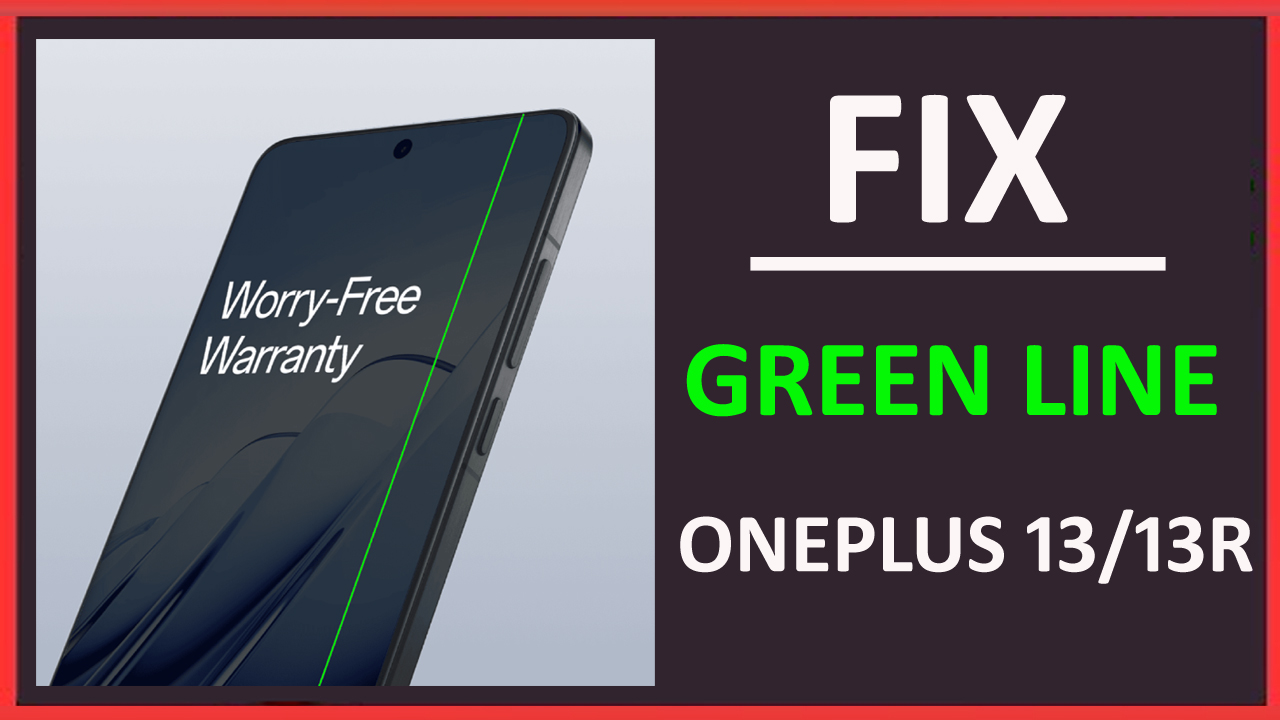
Are you struggling with the green line on your OnePlus 13 or 13R? You are not alone! The green line is a common issue, often running vertically from the top to the bottom of the phone screen. While the rest of the display may function normally, these lines disrupt viewing and reading experience.
So, in this tutorial, we’ll talk about potential causes and methods to fix green line issue on OnePlus 13/13R.
Reasons Behind Green Line Issue On OnePlus 13 or 13R?
If you’ve noticed green lines on your smartphone’s screen, you’ve probably been wondering why it occurs. So, here we are going to discuss the common reasons behind vertical/horizontal green lines on the OnePlus screen.
Physical Damage: If your phone has fallen on the surface, you put pressure on the display, or it has been exposed to liquids, then this can damage the phone’s screen, display connector, or flex cable connecting the display to the motherboard.
Software Issues: Bugs or glitches in the phone’s OS can trigger a green line on OnePlus phone’s display. Outdated OS versions or buggy apps can also lead to this issue.
Incorrect Screen Configurations: If you have set incorrect screen settings like scaling, resolution, layout, etc., then it will show this issue.
Manufacturing Defects In Display: If the OnePlus 13 series phone has manufacturing defects in the screen, then it can also result in a green line problem.
So, you are familiar with the reasons, and now it is the time to follow the step-by-step guide to fix green line on OnePlus 13 or 13R phone screen.
How Can I Fix Vertical Green Line On OnePlus 13(R) Display?
Try these troubleshooting solutions to get rid of green lines and restore your phone’s display to its normal condition.
Method 1: Restart Your Phone
Whenever any tech-related issue occurs, the first solution that comes to mind is to restart the device. This method has the power to fix temporary bugs on the phone that might be causing the error.
So, below, learn how to restart your handset:
- Press and hold the Power button for few seconds till it shows options.
- Now, tap on “Restart” option and let your device power off and power on automatically.
- You can also tap on Power Off option when it is completely off, tap and hold the Power button to turn on your handset.
Method 2: Enter Safe Mode
If you notice green lines on your phone after installing new apps, then it is time to boot your OnePlus 13R/13 phone into safe mode to identify the culprit.
If green line doesn’t occur in this mode, then it is confirmed that third-party apps are causing this issue. And to solve it, you need to uninstall recently installed apps one by one after checking if the problem is resolved or not.
Method 3: Update Your Phone’s Software
An outdated Operating System (OS) can also cause screen problems. Check for the latest update and install it if the update is available.
Here are the steps to download and install the latest OS version:
Note: Make sure your mobile is connected to stable Wi-Fi and battery is above 50%.
- Open the Settings app on your phone.
- After this, tap on System/About Device.
- Next, hit on Software Update or something similar to it.
- Select Check for Updates to view the latest update.
- If it shows the update, then hit the Download and Install button to begin the downloading process.
- Once it is completed, hit Install Now button.
- After this, your device will restart automatically.
Note: If you don’t find the update via phone’s Settings app, then you can use the Oxygen Updater app to manually update the OS.
Method 4: Check Display Settings
You can check the display settings of your mobile phone to remove green lines.
Here are the steps to do so:
- Open the Settings app.
- Tap on Display/Display & Brightness option.
- In the Display settings you will get multiple options to modify like –
- Brightness: Turn on adaptive brightness or adjust the screen brightness according to you.
- Color Settings: Change the color profile.
- Dark Mode: Turn on dark mode.
- Font and Display Size: Modify the style, font size, or screen scaling.
- Adjust the settings as you want and save them.
Method 5: Make Sure Your Device Is Not Physically Damaged
We use phone cases to protect our smartphones, but they still get damaged. This could cause screen issues, including green lines.
So, you should check for physical damage on your phone by looking at scratches or cracks on the display or the corners of the device. Ensure the buttons are working properly. Look at the speaker and check the sound of your phone by playing audios. Also, try to check if other things like camera or SIM card tray are not damaged.
To check for water damage, find an LDI (Liquid Damage Indicator) near the slot for SIM cards. If it has turned pink or red, your phone has likely been exposed to water.
Method 6: Perform Factory Reset
If your green line issue is not solved, then you should factory reset your handset and then check.
Note: This will erase all data from the device; hence, it is our advice to backup your device data first.
Now, follow the below steps to factory reset One+ 13 or OnePlus 13R:
- Navigate to Settings > Factory Reset.
- Hit on “Erase all data”.
- Type the password or PIN and hit “Erase data” to confirm the process.
Once the process completes, set up your device and then see if the green line problem has been solved or not.
Method 7: Try OnePlus Diagnostic Tools
You can also use OnePlus’s 13/13R’s Diagnostics tool to check your device. All you need to do is dail *#808# on your phone’s dialer, and you will able to access diagnostic options. Now, test the touch screen gyroscope, accelerometer, and other sensors for appropriate work.
Method 8: Rush To Service Center
If you have followed the above fixes but still the problem is not solved, then it is time to visit the service center and get it repaired.
But if your phone is under warranty period then you can replace the phone or get it repaired for free.
Frequently Asked Questions (FAQs)
Does Green Line Affect OnePlus 13 Touchscreen Functionality?
No, it doesn’t affect the touchscreen functionality.
Is It Possible To Remove Green Line Issue On OnePlus 13 (R) Without Destroying The Warranty?
Yes, it is possible to solve the issue without voiding the phone’s warranty. But it totally depends on the type of solution you follow. You can follow simple methods like restarting the phone, updating OS and apps, uninstalling problematic apps, etc.
Solving the green line display problem by ourselves is difficult. If you are repairing it, then it is recommended that you visit an authorized OnePlus service center because when you repair it from an unauthorized service center, then it will destroy phone’s warranty.
Can Overheating Problem Cause OnePlus 13 Green Line Screen?
No, overheating battery or phone can’t be the reason for a vertical green line display.
Can A Green Line On OnePlus Phone Be Fixed?
Yes, you can resolve the issue. First, try the DIY methods, and if they fail to solve the issue, then visit an authorized service center.
What Is The Time Duration To Repair OnePlus 13 or 13R From Authorized Service Center?
The time to get it repaired depends on the phone’s condition and the service center’s workload. Generally, it takes 1-2 days or sometimes 2-4 hours.
Conclusion
By following the above solutions, you can easily fix green line issue on OnePlus 13/13R by yourself.
First, try the simple solutions by yourself. But if the problem lies with the hardware, then you need to seek professional help by visiting an authorised service center.
If this guide has helped you, then you can share it with others so that it can help them.
You May Also Like:
- How To Fix Power Button Not Working On OnePlus 12 Or 12R
- How To Transfer Data From Android/iPhone To OnePlus Open
- How To Unlock OnePlus With Broken Screen
- How To Change Lock Screen Wallpaper On OnePlus

Max Field is a founder of Recover Android Data. He is an Android lover and loves to write tips, tricks, fixes for errors, data recovery solutions and more related to Android. Provide Gaming Tips, Tricks, Game Error/Issues Solutions (PC/Xbox/PlayStation/Mobile). He is now also interested in solving LinkedIn Puzzles. He has 12+ years of experience in this field.