
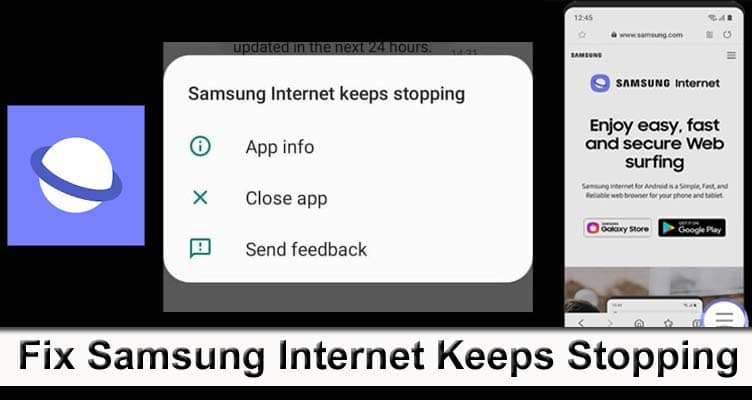
Learn 9 Different Solutions To Fix Samsung Internet Keeps Stopping Issue On Samsung Galaxy Phones And Tablets!
Samsung has its own web browser known as Samsung Internet or Internet. It is safe and fast that has modern capabilities. But many Samsung users are facing issues like Samsung Internet keeps stopping on Samsung phones. It is a very irritating problem as when the Samsung Internet stopped working then all the unsaved works gets crashed.
If you are going through the same issue then don’t worry as you can solve the issue. Simply follow the solutions that can help you to fix Samsung Internet keeps stopping.
- Solution 1: Force Stop Samsung Internet App
- Solution 2: Simple Reboot Or Force Reboot Your Samsung Phone
- Solution 3: Update Your Samsung Phone
- Solution 4: Update Samsung Internet App
- Solution 5: Clear Cache And Data Of Samsung Internet App
- Solution 6: Boot Your Phone Into Safe Mode
- Solution 7: Sign-Out of Samsung Account
- Solution 8: Wipe Cache Partition
- Solution 9: Factory Reset Your Device
Let us first look at a real user’s practical scenario then we will know the possible reasons for it.
Practical Scenario: A Samsung A51 User Is Asking For Solutions To Fix Samsung Internet Keeps Stopping Problem
I am using Samsung Galaxy A51 from more than a year. Now it’s slowing downing it’s speed and some time cause issue using browsing.
I am using Samsung Internet Browser most of time and when I browse website like best gaming laptop under 2000 dollars and it’s freeze the Browser.
What remedy should I do with my phone.
Thank you in advance
Eric
Source: Samsung Developers
That was just one example and like this, there are also other Samsung Galaxy users going through the same issue that can cause due to various reasons. So, let us first know the major reasons for Samsung Internet stopping issue.
Also Read: Mobile Data Not Working On Samsung S22 (Plus)/S22 Ultra: Fixes That Worked!
Why Does Your Samsung Internet Keeps Stopping?
You cannot stay at one reason for the Samsung Internet keeps stopping problem because there are several of them. Maybe it is caused due to signal, bad configuration of internet settings, and corrupted cache files.
These are some of the major reasons, but whatever the reason, you should find the solutions to fix them. And the solutions for solving Samsung Internet keeps stopping are listed below.
Note: All the below discussed solutions are applicable for all Samsung phone and tablet models such as Samsung S Series/A Series/M Series/Note Series/A20/S20/S10/J7/, Samsung Galaxy Tab A/A8, Samsung Galaxy Fold, and all the other Samsung models available in the market.
Video Tutorial: Fix Samsung Internet Browser Keeps Stopping
Solution 1: Force Stop Samsung Internet App
You should first restart the Samsung Internet app to fix the Samsung internet keeps stopping issue. You can restart the app in two ways.
So, follow the below steps to do the same.
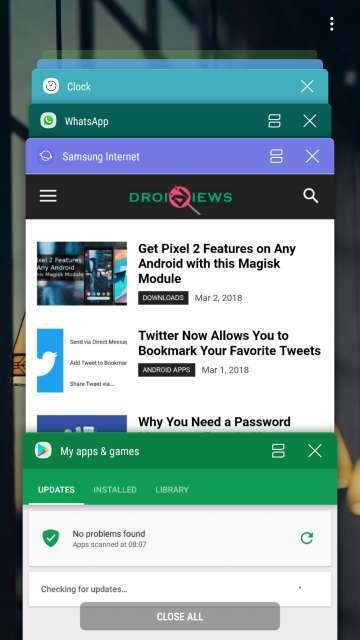
Steps To Close Samsung Internet App Using Recent Apps Key
Step 1: On your phone’s screen, hit the Recent Apps soft key (which is available on left of the Home button)
Step 2: Once you see the Recent Apps screen then, you need to swipe right or left to find the app. You will find this app here, if you have managed to ring it previously.
Step 3: Swipe up on the app to close it. Doing this will force close the app.
Step 4: If this doesn’t close the app then tap on Close All apps to restart all applications.
Steps To Close Samsung Internet App Using Settings
Step 1: On your Samsung phone, open the Settings app.
Step 2: Then hit on Apps.
Step 3: Now, tap on 3 dots or menu button.
Step 4: Next, tap on Show system apps.
Step 5: Here, you need to find Samsung Internet app and hit on it to open.
Step 6: Lastly, tap on Force Stop button.
Also Read: [Samsung] Failed To Download Attachment From Multimedia Message
Solution 2: Simple Reboot Or Force Reboot Your Samsung Phone
You can simply restart your Samsung phone to fix Samsung Internet keeps stopping issue. If this doesn’t work then force restart your device.
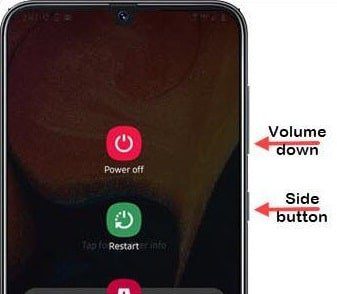
To simply restart your phone, you need to press and hold the Power button for a few seconds. Then tap on Restart/Reboot option from the screen.
Or you can force restart your smartphone by pressing and holding the Volume Down key, keep holding it and press Power key. Hold it for a few seconds and your device will automatically restart.
Solution 3: Update Your Samsung Phone
If restarting the phone doesn’t fix the issue then you should check the update for your Samsung device. Maybe the new OS version is available for your phone and that might help to fix the issue.
Here are the steps to update your Samsung phone to the latest OS version.
Step 1: Open the Settings app on your Samsung device.
Step 2: Then hit on Software Update.
Step 3: Now, tap on Download and install button.

Step 4: Then follow the on-screen steps.
Also Read: Samsung S10 Screen Rotation Not Working [Quick Fixes]
Solution 4: Update Samsung Internet App
All the apps bring their update from time to time to fix bugs and launch new features on them. Therefore, you should also check the update for the Internet app. Maybe the latest update is available which will help you to fix the issue.
You can update the Samsung app from Google Play Store or within the app settings.
Steps To Update Samsung Internet App From Google Play Store
Step 1: Open Google Play Store app on your phone.
Step 2: Then hit on your Profile icon at the top left.
Step 3: Now, tap on My apps & games option.
Step 4: Then find the update for Samsung Internet app and hit on Update button to update it. You can also tap on Update All button to update all the apps.
Steps To Update Samsung Internet App Using App’s Settings
Step 1: Open Samsung Internet app.
Step 2: Then, hit on More options icon.
Step 3: Now, hit on settings from the drop-down menu.
Step 4: Hit on About Samsung Internet.
Step 5: Next, tap on Update. If you don’t see the Update button there then it means that your app is running on the latest version.
Solution 5: Clear Cache And Data Of Samsung Internet App
If you have not deleted the cache files of the Samsung Internet app for a long time then it may get corrupted and cause Samsung Internet keeps stopping issue.
So, in order to fix it, you need to clear the cache and data of the Internet app.
Here, follow the steps to do this.
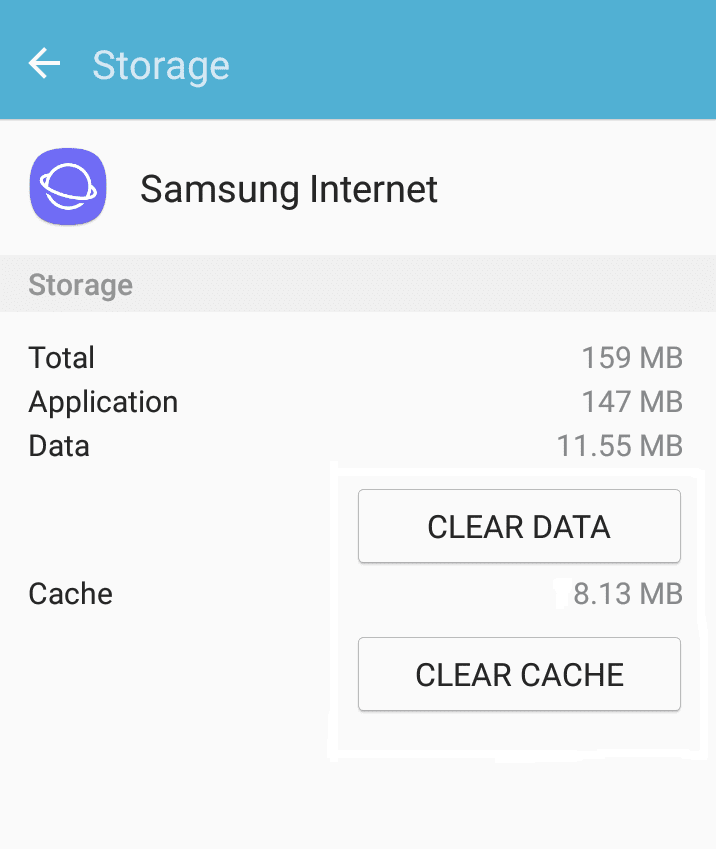
Step 1: Navigate to Settings > Apps > Application Manager.
Step 2: Now, find Samsung Internet app and tap on it.
Step 3: Then tap on Storage and then on Clear Cache and Clear Data button.
Also Read: [Extensive Guide] How To Fix Purple Screen On Samsung Phone
Solution 6: Boot Your Phone Into Safe Mode
Safe Mode disables all the apps except pre-installed apps. If the Samsung Internet app works well then it means that there is any other third-party app on your phone that is responsible for it.
Here, follow the steps to boot your phone into Safe Mode.
Step 1: Press and hold the Power button unless you see the Power off menu on the screen.
Step 2: Now, tap and hold the Power Off option unless the Safe Mode pop-up appears on the screen and then release the option.
Step 3: Now, confirm it by tapping on Ok button.

Once your device boot into Safe Mode you will be able to view Safe Mode text on the bottom of the screen. Now, check whether the issue is fixed or not. If it is fixed then it is clear that third-party apps are the culprit for it and you need to uninstall recently installed apps one by one and check problem is solved or not.
Solution 7: Sign-Out of Samsung Account
Signing out of your Samsung account can also help you to fix Internet keeps stopping issues.
Follow the below steps to log-out of your Samsung account.
Step 1: Open Settings app on your phone.
Step 2: Then hit on Accounts and backup.
Step 3: Now, tap on Accounts.
Step 4: Choose your Samsung account.
Step 5: Hit on 3 dots or More options.
Step 6: Tap on Remove account and then hit Remove to confirm it.
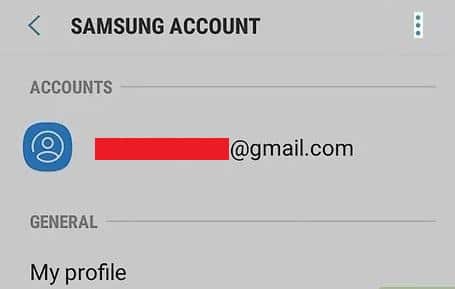
Once you have removed your Samsung account, restart your device and then add it again. Now, check whether the issue is solved or not.
Also Read: Fix Wi-Fi Calling Not Working On Samsung Galaxy S20 (Plus)/S20 Ultra
Solution 8: Wipe Cache Partition
Another way to get rid of the Samsung Internet stopped working issue is by wiping the cache partition.
Below learn the steps to wipe cache partition in recovery mode.
Step 1: Switch off your phone.
Step 2: Then press and hold the Volume Up, Power/Bixby keys together until you see the green Android logo on the screen.
Step 3: Now, release both keys (you will see the “Installing system update for a few seconds before see the Android system recovery menu options).
Step 4: Next, you will be able to see the Recovery screen menu.
Step 5: Use the Volume Down button to highlight Wipe cache partition option.
Step 6: Use Power button to select “wipe cache partition” option.

Step 7: Then again use Volume Down button to highlight Yes and Power button to confirm the process.
Step 8: Wait for a few seconds to complete the process.
Step 9: Now, use Power key to reboot your phone.
Also Read: How To Fix Microsoft Teams Keeps Stopping On Android
Solution 9: Factory Reset Your Device
If you still face Samsung Internet keeps stopping issue then lastly you should factory reset your phone. You can factory reset your phone in two ways one is using the Settings app and another is by booting your device into recovery mode (that is known as hard reset).
Note: Before you follow the steps to factory reset your phone you must backup your data because this will wipe all data from your device.
Once you have created a backup, follow the below steps to factory reset your Samsung phone.
Steps To Factory Reset Samsung Phone Using Settings
Step 1: Go to Settings > General Management.
Step 2: Then hit on Reset.
Step 3: After that, choose Factory data reset.
Step 4: Tap on Reset and then on Delete All to confirm the factory reset process.

Steps To Factory Reset Samsung Phone By Booting Your Device Into Recovery Mode
Step 1: Firstly, switch off your phone.
Step 2: Then press and hold both Power/Bixby + Volume Down buttons unless you see the Android logo on the screen.
Step 3: When you see the green Android logo then leave both buttons.
Step 4: Now, you will be able to view the Recovery screen menu.
Step 5: From there highlight “Wipe data/factory reset” option using the Volume Down button.

Step 6: Use Power key to select it.
Step 7: Then use Volume Down key to highlight Yes and press Power key to confirm the reset process.
Wrap Up
Well, in this guide you have learned all the possible solutions to fix Samsung Internet keeps stopping issue. And we hope that now you know what you need to do if Samsung Internet keeps stopping.
But if the above-mentioned solutions failed to fix the issue then it means that there is some hardware problem in your phone and you need to visit the nearest Samsung service center and check your phone.
Please support us by subscribing to our YouTube Channel.

Max Field is a founder of Recover Android Data. He is an Android lover and loves to write tips, tricks, fixes for errors, data recovery solutions and more related to Android. Provide Gaming Tips, Tricks, Game Error/Issues Solutions (PC/Xbox/PlayStation/Mobile). He is now also interested in solving LinkedIn Puzzles. He has 12+ years of experience in this field.