

Learn 11 Proven Solutions To Fix Android System WebView Won’t Update, Gets Stuck Or Android System WebView Update Pending, Or Other Update Problems!
Android System WebView is a preinstalled app on Android phones. It plays a very important role in smoothly running Google services and their apps. And all users need to keep Android System WebView updated.
If it is not updated then it will create various issues during browsing like image loading, browser crash, 3D map crashing, etc. This happens because all Google apps are connected through Android System WebView.
There are some Android users who are complaining that they can’t update Android System WebView as it gets stuck. If you are also facing the same problem then don’t panic. Simply read this guide, here you will learn how to fix Android System WebView update stuck/pending or other update problems.
- Solution 1: Restart Your Android Device
- Solution 2: Check Internet Connection
- Solution 3: Check Storage Space
- Solution 4: Clear Cache And Data Of Android System WebView
- Solution 5: Disable Auto Update
- Solution 6: Uninstall Update Of Android System WebView
- Solution 7: Force Stop Android System WebView
- Solution 8: Clear Cache And Data of Google Play Store
- Solution 9: Update Other Apps
- Solution 10: Leave Beta Testing Program
- Solution 11: Manually Download Update For Android System WebView
Before, starting the solutions to solve this problem let’s first check out a real user practical example.
Practical Example: A User Is Asking What Can Be Done To Fix WebView Update Problem
Hello,
I tried rebooting and it has been two days trying to update.
I am on December update.
Anything I can do?
Source: Android Central Forums
Now, we will directly jump to the solutions to fix Android System WebView update problem.
Video Tutorial: Fix Android System WebView Update Problem
Solution 1: Restart Your Android Device
Restarting the device fixes many issues as it restarts all of its system processes. So, you should first restart your Android to fix Android System WebView not updating problem.
To restart your Android device, you need to press and hold the Power key until you see the options on the screen. From there, tap on Power Off option to turn off your device. Once it is completed switched off, switch it on again by pressing and holding the Power key.
You can also turn off Bluetooth on your device and then try to update the app.
Solution 2: Check Internet Connection
You need a stable internet connection to update Android System WebView. So, you need to check the internet connection that you are using to update WebView.
You can check the internet connection by searching anything on the browser. If the internet connection is working there and you still face the problem then you should close all the other applications that use data connection. After this, try again to update WebView.
Solution 3: Check Storage Space
It might be possible that your device lack storage space due to which Android System WebView update is pending as it doesn’t find space to store the updated file.
Hence you need to make sure you have enough storage space in your device. If it is low then delete unnecessary data and apps. Or you can transfer some files from your phone to your computer and then delete them from your device. This is a good idea to clear storage space.
Also Read: How Do I Fix Android System Update Failed To Install?
Solution 4: Clear Cache And Data Of Android System WebView
If you have corrupted cache and data of WebView app then it can also create problems while updating Android System WebView app.
Below, learn the steps to clear cache and data of Android System WebView.
Step 1: On your Android phone, open the Settings app.
Step 2: Then tap on Apps/Apps & Notifications/Application Manager (option depends on your Android model).
Step 3: Now, find and tap on Android System WebView app.
Step 4: Next, tap on Storage under that app.
Step 5: Then, hit on Clear Data and then on Clear Cache button.

After this, restart your device and then try to update Android System Webview app. If still, it is not updating then try the next solution.
Solution 5: Disable Auto Update
If you have enabled Auto-update apps settings on “do not auto-update apps” mode then you can’t install the update for apps. Or if you have selected the settings to “Auto-update apps over Wi-Fi only” then it will be updated when you are using Wi-Fi data while updating WebView app.
So, if you have selected settings to “Auto-update apps over Wi-Fi only” and using mobile data then you need to use Wi-Fi data to update the application.
If you have selected “do not auto-update apps” then you need to turn this option to another.
Here, follow the steps to do so.
Step 1: Run Google Play Store app on your device and then hit on your profile icon.
Step 2: After this, tap on Settings.
Step 3: Then hit on “Auto-update apps”. If Auto-update is turned on, then tap on “Stop“.
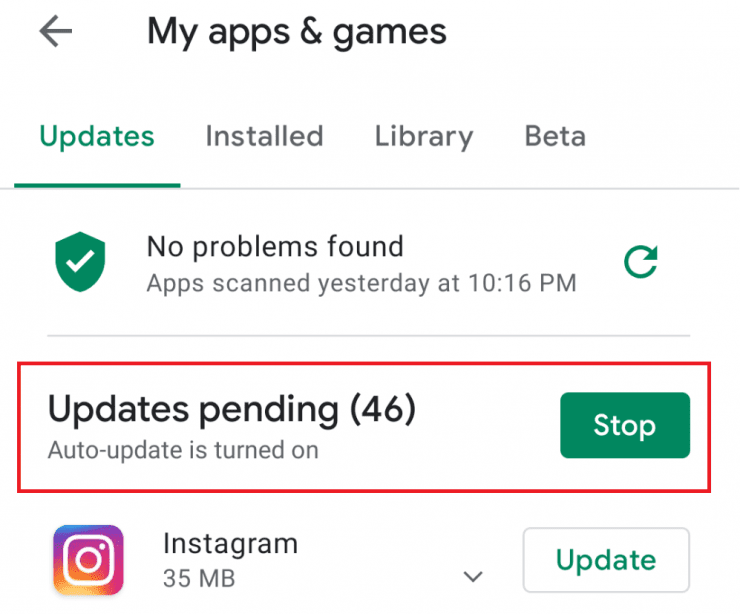
Step 4: If you have selected “Do not auto-update apps” then you need to tap on one of the below options.
- Auto-update apps at any time. Data charges may apply.
- Auto-update apps over Wi-Fi Only.
Step 5: Now, exit and then update Android System WebView app.
Also Read: [Fast Fixes] 6 Android Problems and Possible Solutions
Solution 6: Uninstall Update Of Android System WebView
If Android System WebView won’t update then you can try to uninstall the update of Android System WebView and then try again to download the update. Maybe there is some issue with the previous update and uninstalling it can fix the problem.
Below, follow the steps to uninstall update of Android System Webview.
Step 1: Go to Settings > Apps.
Step 2: After that, you will be able to view the app’s list.
Step 3: From there, choose Android System WebView app and open it.
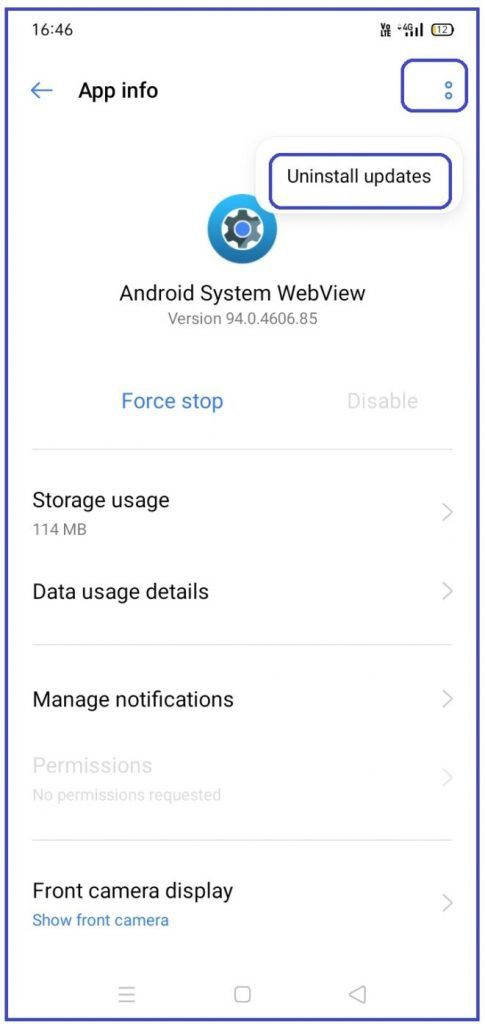
Step 4: Hit on menu option (2 dots) on to right side and then tap on Uninstall updates.
Note: Follow the same steps to uninstall updates for Google Play Store.
Also Read: How To Fix Phone Camera Making Buzzing Noise
Solution 7: Force Stop Android System WebView
Another method to fix WebView updating issue is by force stopping Android System WebView.
Here, follow the steps to do so.
Step 1: Head to Settings > Apps & Notifications.
Step 2: Then tap on All Apps to view all installed apps.
Step 3: Now, tap on 3 dots or menu button.
Step 4: Then choose “Show system” option to see all available apps.
Step 5: Now, select Android System WebView app and hit on it to open.
Step 6: Next, tap on Force Stop button.
Solution 8: Clear Cache And Data of Google Play Store
If force-stopping the app didn’t solve the problem then you can clear cache and data of Google Play Store app. Don’t Worry! It will only uninstall the installed apps but you will not lose data linked with those applications. Also, you will not lose any other personal data like files or contacts. It will only delete when you remove your Google account from your device.
When you clear data of Google Play Store then it will only reset the settings of Google Play Store like auto-update of apps, notifications settings, etc.
Now, follow the below steps to clear cache and data of Google Play Store app.
Step 1: Head to Settings > Apps > All Apps.
Step 2: Then look for Google Play Store app and open it.
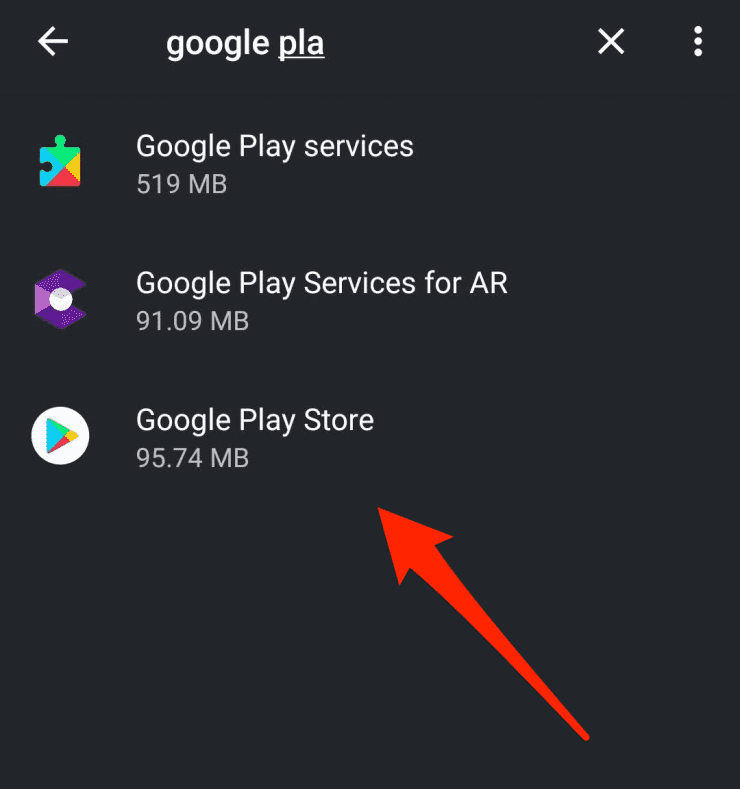
Step 3: Now, hit on Storage.
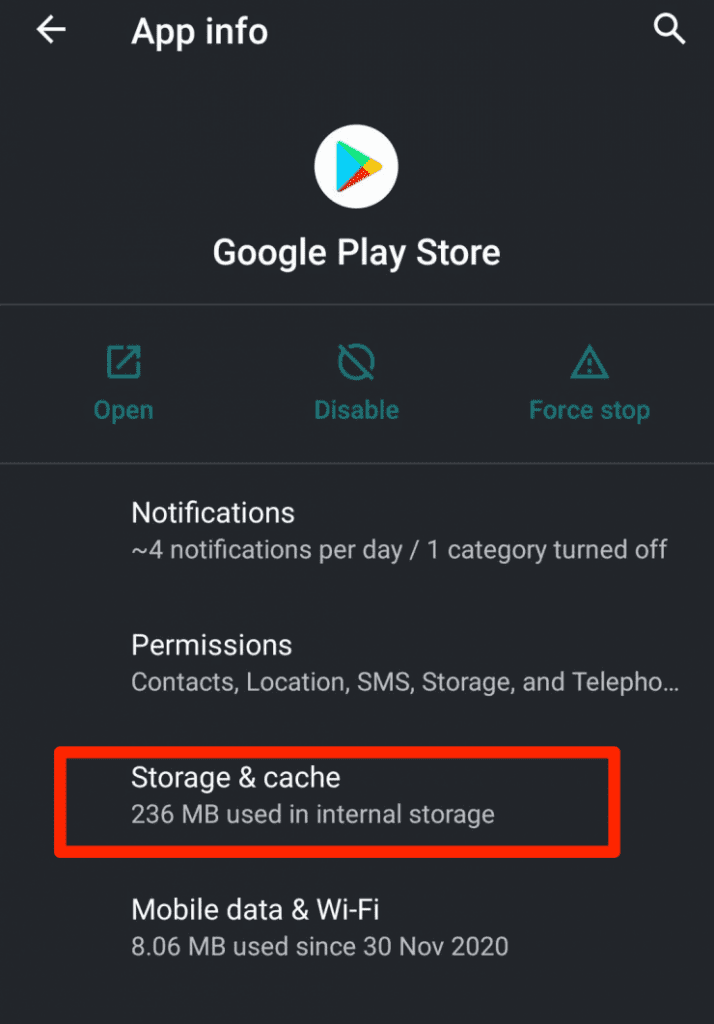
Step 4: After this, tap on Clear Cache and then on Clear Data button.
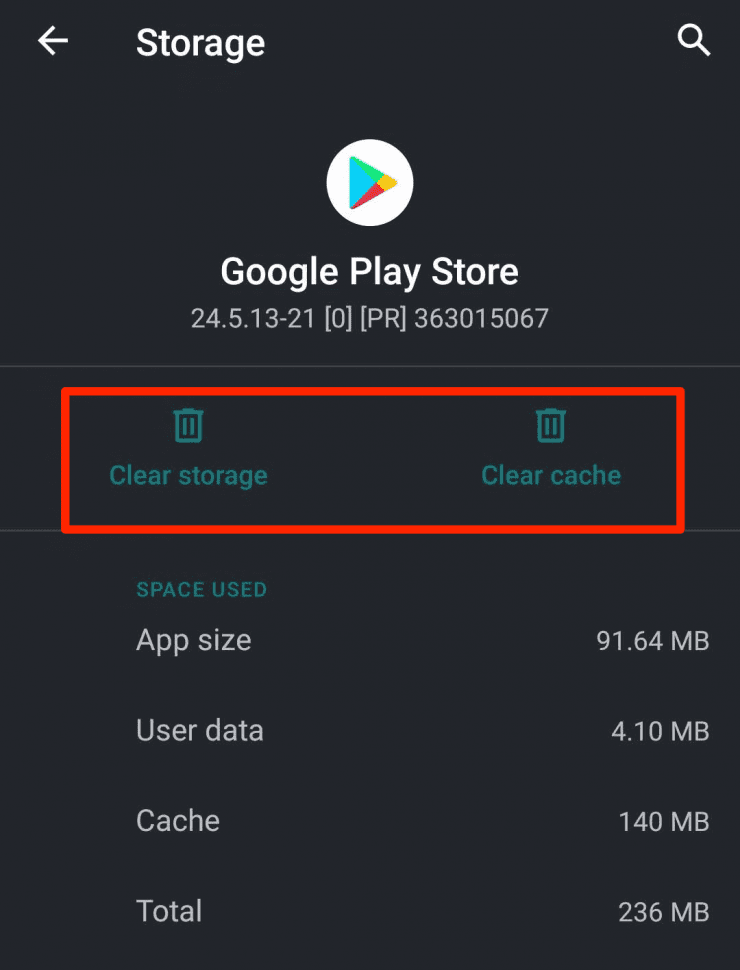
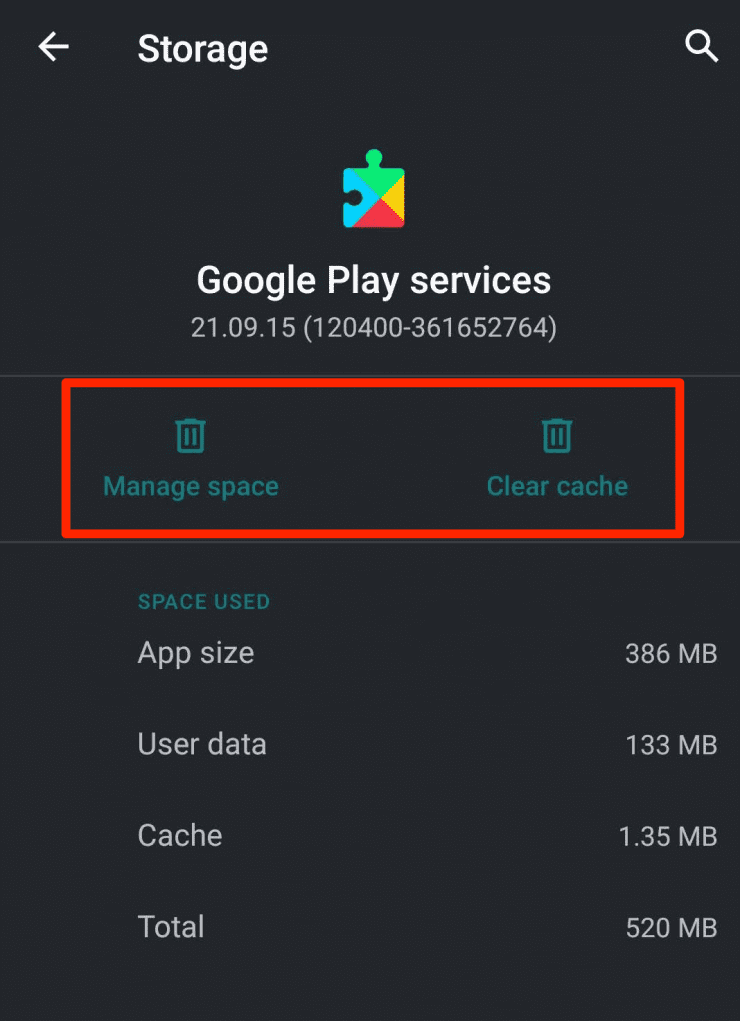
You can also clear cache and data of Google Play Services by following the same steps. This will also help you to solve WebView update problem.
Also Read: How To Fix Security Policy Prevents Use Of Camera On Android
Solution 9: Update Other Apps
If still, you are facing problem while updating the System WebView or other apps then you need to cancel all the pending updates.
To do this, either tap on X icon or on Stop button next to each app.
Once all apps’ updates get stopped then tap on Update button next to each application, except Android System WebView app. When all apps get updated, restart your device. After this, update Android System WebView.
Solution 10: Leave Beta Testing Program
The Google Play Store provides a feature known as beta testing program. This feature lets the users to access any new update before it gets released publicly. This server is for testing the new updates.
If you also use this beta program and if you have opted it mistakenly then it might be possible that you are using a beta update app and that beta updates have bugs. And due to this, you are facing problem while updating the WebView app.
To fix this, you need to leave the beta testing program.
Below, learn the steps to leave the beta testing program for the app.
Step 1: Launch Google Play Store app on your Android device.
Step 2: Then enter Android System WebView in the search box.
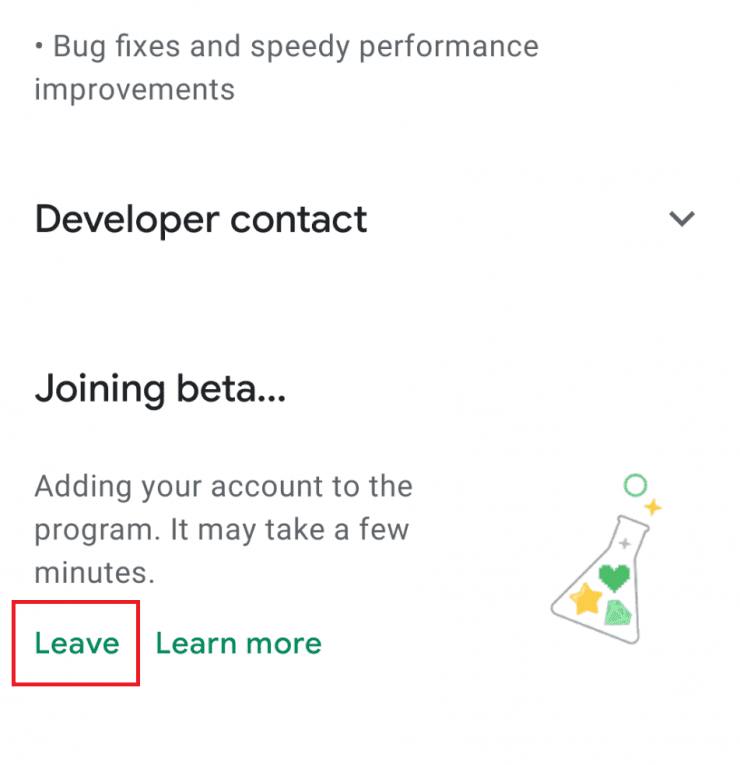
Step 3: Now, you need to keep scrolling down until you see the option shown below.
Step 4: Hit on Leave option to leave the beta program.
Solution 11: Manually Download Update For Android System WebView
Have you tried all the above mentioned solutions? If so, but they didn’t help to fix the issue then lastly you can download and install the latest update for WebView from third-party APK sites and install it manually.
Below, follow the steps to manually download the update from third party site.
Step 1: On APKmirror.com, search for Android System WebView. (You can directly download it from here).
Step 2: Scroll down unless you see the list of all versions.
Step 3: Tap on download icon on the right side.
Step 4: Now, scroll down unless you view all the downloadable app variants.
Select any variant according to your Android smartphone.
Step 5: Hit on Variant number to move further.
You can Google to know which variant is compatible with your Android device.
Step 6: Next, hit on Download button to start downloading the APK.
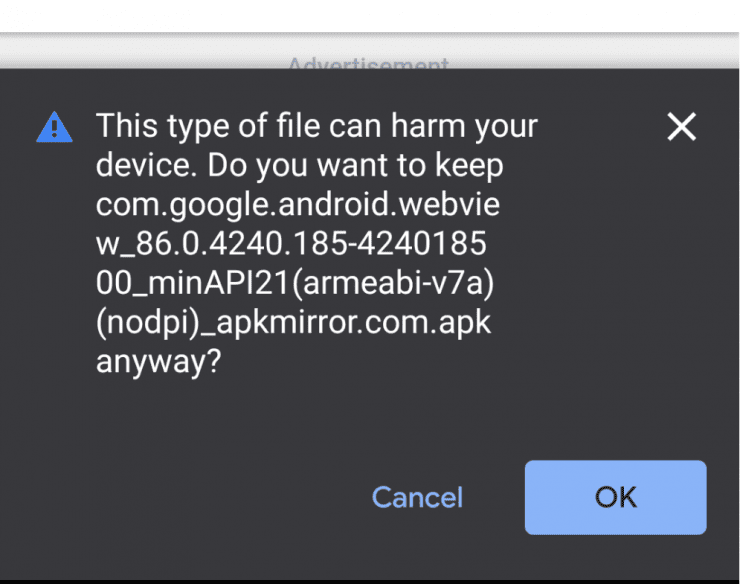
Step 7: If you get a download warning then tap on OK to allow it because it is not a threat to your phone. At last, install the APK file by hitting on it and the job is done.
Wrap Up
Now, we have come to conclusion part. I hope this tutorial was able to fix Android System WebView won’t update, gets stuck, update pending or other problems. Start following the solution one by one until the error gets fixed.
Please support us by subscribing to our YouTube Channel.

Max Field is a founder of Recover Android Data. He is an Android lover and loves to write tips, tricks, fixes for errors, data recovery solutions and more related to Android. Provide Gaming Tips, Tricks, Game Error/Issues Solutions (PC/Xbox/PlayStation/Mobile). He is now also interested in solving LinkedIn Puzzles. He has 12+ years of experience in this field.