
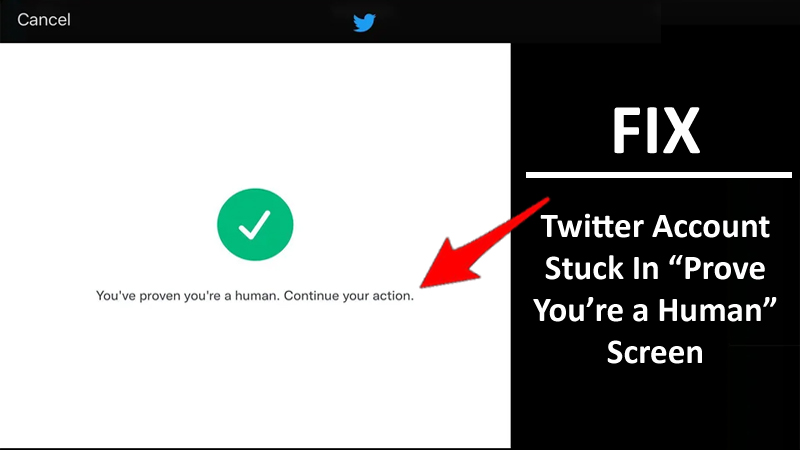
Find Out Potential Solutions To Fix/Bypass “You’ve proven you are a human. Continue your action” On Twitter!
Twitter users are reporting that their account is stuck on “You’ve proven you are a human. Continue your action” screen, even after verifying that I am human, and it just not letting pass “Continue your action”.
Many users are not able to make new Twitter account as they are stuck on “prove your human captcha” screen.
So, in this article, you are going to learn about some potential workaround that will help you to fix and get pass the “You’ve proven you are a human. Continue your action” screen on Twitter.
Let’s start with real user practical scenarios!
Practical Scenario 1: A User Not Able To Make New Account On Twitter
I’m trying to make a new twitter account, but after I verify that I’m a human it gives me this screen and doesn’t let me actually ‘continue my action’. Does anyone know why it does this? Source: Reddit
Practical Scenario 2: A User Not Able To Verify I’m a Human
I made a new account and everytime I complete it, it just says there’s an an error and I need to do it again. I’ve done the audio and photo verification but it still won’t work. Source: Reddit
Similarly, just like the above practical example, there are many users who have been facing such issues.
Also Read: Fix “Cannot retrieve Tweets at this time” Error On Twitter
How To Fix “You’ve proven you are a human. Continue your action” on Twitter
After Twitter has been taken by Elon Musk, the platform has gone through several changes.
A big change is taking away the legacy blue checkmark for public figures who have not subscribed to Twitter Blue.
As a result, many users are not able to verify their accounts.
So, follow the below-mentioned solutions and see if that help you to fix and get pass through “You’ve proven you are a human. Continue your action” on Twitter.
#1: Make Sure Your Account Is Qualified For Twitter Blue
To qualify for a blue badge, your account must be:
- Active
- Notable
- Authentic
Your account should be active and complete too!
- Your account must have a profile name and image.
- You have logged in to it in the last 6 months.
- The account has confirmed the email and phone number.
- And there must be no 7 days or 12-hour lockout for violating Twitter rules in the past 12 months.
Also Read: How To Fix “Unfortunately, Twitter Has Stopped” On Android
#2: Clear Cache
If you are using your Twitter account in web browser like Chrome/Edge/Mozilla on PC/Laptop, then clear cache of the browser.
If you are using Twitter app on your Android phone or iOS (iPhone/iPad), then clear cache of Twitter app.
Steps To Clear Twitter Cache on Android
- Go to Settings > Apps/All Apps > Look for Twitter app and tap on it > Tap Storage > Tap Clear Cache.
Steps To Clear Cache on iOS
- Go to Settings > General > Look for Twitter app and tap on it. Tap iPhone/iPad storage > tap on Offload App.
After that, open Twitter and then see if it allows you to bypass “You have proven you are human” screen.
#3: Make Sure You Are Not Using Two Or More Twitter Accounts
Please make sure that you are not using two or more Twitter account on same IP address or same device. This is normal, it is used to avoid spam.
You should always use different device and different IP to use another Twitter account.
#4: Switch Internet Connection
Switch the internet connection and see if that work.
If you are using wifi then connect to mobile data and if you are using mobile data then switch to wifi or connect to a different internet connection.
#5: Try Web Version of Twitter or Desktop App or Vice Versa
If you are using Twitter app on your phone, then try to use the web version of Twitter or Desktop app. You can also try to login from Incognito mode in the web browser.
And if you are using a desktop app or web version then switch to Twitter app on a mobile phone.
#6: Connect To A VPN
If you are in a country, where currently Twitter is restricted, then you can connect to a VPN and then try.
This might help you to get pass the stuck on human verification on Twitter.
#7: Create New Password
- Go to https://twitter.com/
- Click on Sign in. If you are already logged in then logout and then click on Sign in.
- Click on Forgot password?
- Enter Twitter username.
- Check your email.
- Generate a new password.
- Now, sign in with the new password on the web as well as in the Twitter app on your phone.
Wrap Up
So, that’s all! I hope by following the solutions mentioned in the article might have helped you to fix and lets you pass “You’ve proven you are a human. Continue your action” on Twitter.
If you have found this post helpful and useful, then please share it as it can help others as well!
Please support us by subscribing to our YouTube Channel.
You May Also Like:
- How To Fix “Pull up for precise seeking” on YouTube
- Is Your WhatsApp Not Working? Here What You Need To Do!
- TikTok Not Uploading Videos – Fix It Now!
- How To Search Someone On OnlyFans

Max Field is a founder of Recover Android Data. He is an Android lover and loves to write tips, tricks, fixes for errors, data recovery solutions and more related to Android. Provide Gaming Tips, Tricks, Game Error/Issues Solutions (PC/Xbox/PlayStation/Mobile). He is now also interested in solving LinkedIn Puzzles. He has 12+ years of experience in this field.