
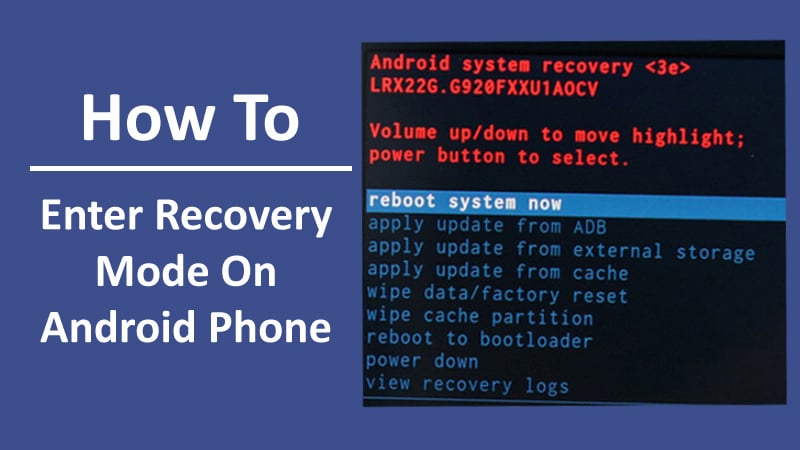
Find Out Steps To Put Android Phone Into Recovery Mode Of Different Brands!
Do you want to boot your Android device in Recovery Mode? But don’t know how to do it.
Well, just relax!
In this post, you are going to learn the steps to enter Recovery Mode on Android phones of different brands such as Samsung, Google Pixel, OnePlus, LG, Motorola, HTC, Huawei.
Before that, let us know about Recovery Mode.
What Is Recovery Mode Feature on Android?
Recovery Mode feature comes built-in on all Android phones. It is a mode that is separate from the original operating system.
In this mode, you can access different features of the phone without accessing the device’s OS.
The main purpose of the recovery mode is to troubleshoot and fix several problems and issues that cannot be dealt with any other way.
Anyway, coming back to the topic, let us find out the steps on how to enter Android Recovery Mode.
Also Read: How To Fix Samsung S21 Screen Stuck On Boot
Part 1: How To Enter Android Recovery Mode
Before you proceed, there are a few things that you must keep note of.
- In recovery mode, touch screen will not work.
- You have to use Volume buttons to navigate to different menu options.
- You have to use Power button to confirm any option from Recovery Menu.
- Wipe Data/Factory Reset option will delete personal data from the device. Hence, you must backup your device before performing this process.
Steps To Enter Recovery Mode On Most Android Phones
Note: The menu option in Recovery Mode may differ from phone make and model. But these are almost the same for most of the Android phones.
Step 1: Switch OFF your phone.
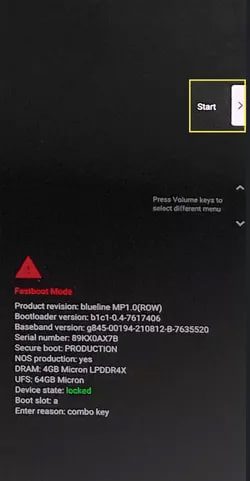
Step 2: Press and hold Power + Volume Down button until the bootloader screen appears.
Note: Don’t keep holding the buttons for too long or else the phone will reboot normally. If that happens, then start from Step 1.
Step 3: Now, with the help of Volume button choose Recovery Mode.
Step 4: Press Power button, when Recovery Mode is selected.
Step 5: When “No Command” screen appears, hold Power button and then press Volume Up button once.

Step 6: Then release the Power button and your phone will boot into Recovery Mode.
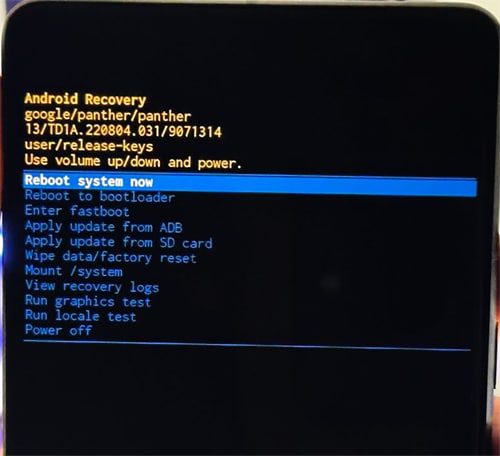
Tip: The timing for pressing Volume Up button and releasing the Power button is a little tricky. If it doesn’t work in first time then try again.
Also Read: Samsung Phone Stuck on Airplane Mode? Here Is The Real Fix!
Steps To Enter Recovery Mode On Samsung Phones
Step 1: Turn off your phone.
Step 2: Press and hold Power + Volume Up buttons (for Samsung S20, Note 20 and newer). Or Press and hold Power + Volume + Home/Bixby buttons (For Samsung S10, Note 20 and older).
Step 3: Release the Power button but keep holding the Volume Up button until Recovery Mode screen appears (for Samsung S20, Note 20 and newer). Or release the buttons when you see the Samsung logo (For Samsung S10, Note 20 and older).
Steps To Enter Recovery Mode On Google Pixel Phones
Step 1: Switch OFF your Pixel phone.
Step 2: Press and hold Power + Volume Down key for a few seconds.
Step 3: Release all the buttons as Bootloader menu appears on the screen.
Step 4: Select Recovery Mode using Volume button and confirm it by pressing the Power button.
Step 5: As and when Android Robot image appears, press and hold Power key and then press Volume Up key. Your device will enter into Recovery Mode.
Also Read: How To Fix Android System Recovery 3e Stuck Screen Issue
Steps To Boot OnePlus Phone In Recovery Mode
Step 1: Switch OFF your phone.
Step 2: Press and hold Power + Volume Down buttons together for few seconds.
Step 3: You may need to enter password/PIN or pattern.
Step 4: Select your language.
Step 5: You will then see Recovery Menu. You can now use Volume button to navigate and Power button to select them.
Steps Enter Recovery Mode On LG Phones
Step 1: Turn OFF the phone.
Step 2: Press and hold Volume Down + Power/Lock Key at the same time for 10 seconds.
Step 3: Release both the buttons as and when the System recovery screen get displayed. Your phone is now in Recovery mode.
Steps To Enter Recovery Mode On Motorola Phones
Step 1: Turn the phone off.
Step 2: Press and hold Volume Down and keep holding it, then press and hold Power button. When you see Android Robot on your screen, release the buttons.
Step 3: Now navigate the option using Volume Down button, until you get the “Recovery Mode” and press Power button to enter in Recovery mode.
Note: If you see Android robot with “No Command”, then you have to press and hold Power button and press the Volume Up button once, and then release the buttons. You should now see Recovery mode options.
Steps To Enter Recovery Mode On HTC Phones
Step 1: Go to Settings > Battery and disable Fastboot.
Step 2: Turn off the phone.
Step 3: Press and hold Volume Down + Power buttons.
Step 4: Navigate to “Reboot to Bootloader” and then press Power button to select it.
Step 5: You will then see the bootloader screen. Now use the Volume down button and navigate to “Recovery” and select it by pressing the Power button.
Steps To Enter Recovery Mode On Huawei Phones
Step 1: Switch OFF your phone.
Step 2: Press and hold Power + Volume Up button for a few seconds, until you see the Android logo on the screen.
Step 3: Now, use the Power button to select and enter into Recovery Mode.
Also Read: [Fast Fixes] 6 Android Problems and Possible Solutions
Part 2: How To Exit Recovery Mode On Android
If your phone is in Android Recovery Mode, then follow the below steps to exit Recovery Mode on Android.
It doesn’t matter which brand of phone you are having, the steps are almost the same.
Step 1: Use Volume button and navigate to “Reboot system now”.
Step 2: Press Power button to select it.
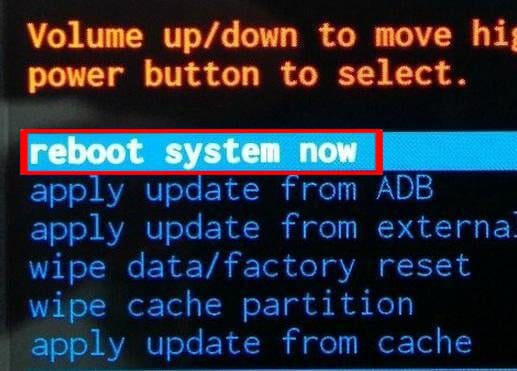
Congratulations! Your device will now reboot in normal mode and your phone is out of Recovery Mode.
Wrap Up
So, that was easy and quick steps to enter into recovery mode on Android phones.
The article shows the common steps for all Android phones as well as how to put different famous brands of mobile into Recovery Mode such as Samsung, Google Pixel, OnePlus, LG, Motorola, HTC, and Huawei.
If you have found this post useful and helpful, then please share it as it can help others!
Please support us by subscribing to our YouTube Channel.
You May Also Like:
- Fixed: ‘No Command’ Error In Recovery Mode on Android
- Fixed: Samsung Phone Stuck On Odin Mode
- Android Stuck In Fastboot Mode? Here How To Fix It!
- [Quick Tips] Enter And Exit Safe Mode On Android

Max Field is a founder of Recover Android Data. He is an Android lover and loves to write tips, tricks, fixes for errors, data recovery solutions and more related to Android. Provide Gaming Tips, Tricks, Game Error/Issues Solutions (PC/Xbox/PlayStation/Mobile). He is now also interested in solving LinkedIn Puzzles. He has 12+ years of experience in this field.