
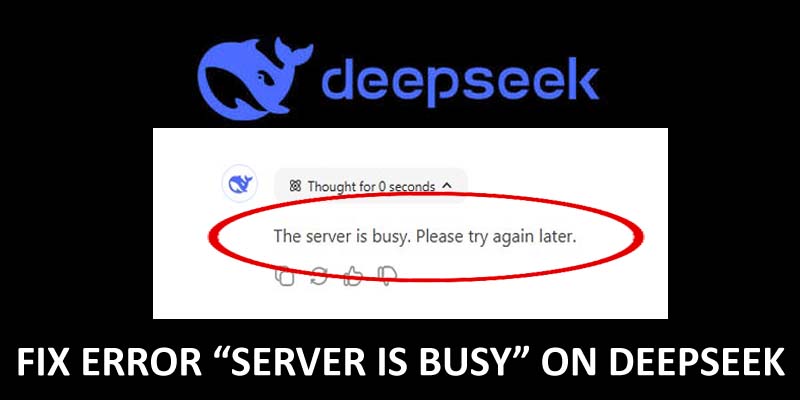
DeepSeek is an artificial intelligence (AI) assistant that helps to do various tasks like answering questions, translating texts, solving mathematics problems, etc. However, some users have reported that they are getting the error “Server Busy” on DeepSeek. If you are also facing the same issue, read this guide to learn how to fix DeepSeek “The Server is busy. Please try again later”.
Why Does Error “The server is busy. Please try again later” Occurs On DeepSeek?
There could be multiple factors that can cause “Server busy” error on DeepSeek.
Here we have discussed some of the reasons:
- Unstable network connection.
- High traffic spikes on the DeepSeek server.
- Outdated browser and cache data.
So, these were some of the important causes behind Server error message on DeepSeek.
Now, without wasting time let’s discuss the possible solutions to fix “The server is busy. Please try again later” error on DeepSeek.
How To Fix DeepSeek “The server is busy. Please try again later” Error?
Fix 1: Refresh The Page Or Restart DeepSeek App
Firstly, you should refresh the page or if you are using the Deepseek app then restart the app. Doing this will remove temporary glitches and restore the connection.
To do this, simply close the app and open it again.
Fix 2: Disable “Search” Feature
Step 1: Navigate to DeepSeek and log in to your account.
Step 2: Choose the “Search” icon to disable it.
Step 3: Now, again enter your prompt to check the the server is working fine or not.
Fix 3: Check If DeepSeek Server Is Down
You may also encounter “The Server is busy” issue due to some problem in the app server. So it is better to check the server status to confirm whether the error is causing due to this or not.
To check it, you can visit DeepSeek’s status page or visit Downdetector website.
If you find the server status red then it means that the server is down. But if it is green then it means that there is no problem in the server and the problem is causing due to another reason.
Fix 4: Clear App/Browser Cache
Android: Go to Settings > Apps > App management. Tap on DeepSeek app and then hit on Force Stop > Storage Usage > Clear data > Clear cache.
Chrome (deepseek.com): Hit on 3 dots > More tools > Clear browsing data. Next, choose the time range (for example – last 21 days) and then hit on Clear data.
iPhone: Navigate to Settings > General > iPhone Storage > DeepSeek. Then tap on Offload App > Offload App > Reinstall App.
Fix 5: Logout And Relogin DeepSeek
You can also log out from the Deepseek account and then again log in to it to solve the problem.
To do this, go to your account settings within the Deepseek app or site then tap on logout. After few minutes, log in to it again.
Sum Up
The error with the Deepseek can be irritating, but the above listed 5 methods can help you to fix DeepSeek “The server is busy. Please try again later”.
If this tutorial has helped you then don’t forget to share it with others.
You May Also Like:
- How To Create AI Images With DALL·E 3 Using ChatGPT
- How To Fix “Message in conversation not found” Error In ChatGPT
- Fix ChatGPT Error “Something went wrong. Please contact us through our help center at help.openai.com”
- How To Use ChatGPT In WhatsApp

Max Field is a founder of Recover Android Data. He is an Android lover and loves to write tips, tricks, fixes for errors, data recovery solutions and more related to Android. Provide Gaming Tips, Tricks, Game Error/Issues Solutions (PC/Xbox/PlayStation/Mobile). He is now also interested in solving LinkedIn Puzzles. He has 12+ years of experience in this field.