
Is there any issue syncing Google Account with Samsung S24/S24 Plus/S24 Ultra?
As you all know very well Samsung is one of the most widely used smartphones out in the world. All smartphone users rely on their devices very much to stay connected to one another.
As said earlier, Samsung is one of the majorly used smartphones around the world, its users must be worried about the Google Account not syncing with the Samsung S24 Ultra/S24 Plus/S24.
Recently, many users have encountered this issue that says their Google accounts are having trouble syncing with Samsung devices.
Well, this issue can be solved easily. You have to do a certain set of steps.
In this guide, we have arranged all the potential solutions that can help you fix this Google Account not syncing issue on a Samsung Galaxy device.
But, before we move into the solutions, let us also divert our attention to the factors that could be causing problems in the synchronization of Google Account with your Galaxy device.
Causes of Google Account Not Syncing with Samsung S24, S24 Plus, and S24 Ultra
These are the possible factors that could be the reason behind this problem.
- Weak internet connection
- Outdated system software
- Outdated Google Play Services
- Wrong Google account details
- Faulty synchronization settings
So, these were some of the reasons that could potentially affect the syncing process.
In addition, let us dive into the guide and discuss the fixes one after another.
Fix Google Account Not Syncing with Samsung S24/S24 Plus/S24 Ultra
Fix 1: Restart Your Samsung Device
At the beginning, you should start with a simple fix, that could include fixes like Restarting your device.
Sometimes, a small restarting process can tackle any issues that are caused due to glitches or even major issues.
This indicates that you should also give it a try.
To do so, press and hold the Power button until some options appear on the screen, and tap on the Restart option.
After completing the process, try to sync your Google Account again.
Fix 2: Update Your Device Firmware
In case, you have not updated your device’s system software then you should update it.
Here’s how you can update your Samsung Galaxy System Software.
- Open Settings and tap on Software Update.
- Tap on Download and Install, if any update is available.
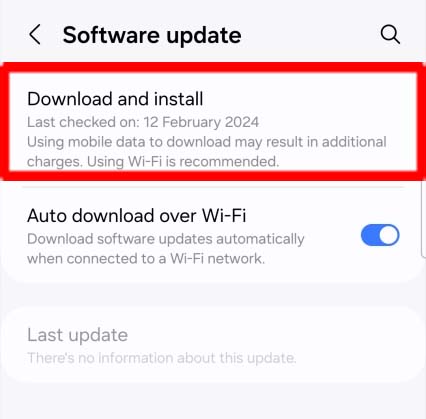
Your device’s software will be updated and you can sync your Google Account.
Fix 3: Check Your Internet Connection
When you try to sync your Google Account with a Samsung S24 device, ensure your device is connected to a strong internet connection.
A weak internet connection can cause trouble in the syncing process of Google Account.
So, ensure you have a strong internet connection, or you can toggle ON and OFF Wi-Fi/mobile data (Whichever you are using) to give your device Network connection a fresh reset.
Fix 4: Check Your Google Account Details
Perhaps you have been entering the wrong details of your account, which is why you are having issues in the synchronization process.
To make things less complicated, erase all the information you have entered and re-enter those credentials carefully without any mistakes.
Wrong details could be the reason and if that’s true then you will not face any issue related to this anymore.
Fix 5: Update Google Play Services
Google Play Services can cause trouble if it’s not updated to the latest version.
So, you need to update Google Play Services, if you haven’t.
Go to the Google Play Store and check for Google Play Services update, if available, update it.
Fix 6: Turn On Sync Settings
Another possibility could be that you are trying to sync your Google Account with Samsung S24/S24 Plus/S24 Ultra without enabling the sync settings.
Make sure you have enabled sync settings from your device’s settings, and if you have not enabled it then you may read further.
Go through the steps to enable sync settings on Samsung.
Step 1: Go to Settings > Accounts and backups > Account.
Step 2: Select your Google Account > enable Sync account.
Now, you can enable sync settings for any particular apps and services.
Fix 7: Check Sync Settings for any Specific App
If you are having an issue in syncing your Google Account for any specific app like Gmail, Contacts, or even Callender, then you should check their sync settings specifically.
And, in case, you haven’t enabled the settings for that particular app then use the above method’s steps to enable the settings.
If you are still not able to fix this issue, then clear the cache of the app that you wish to sync your Google Account with.
Fix 8: Factory Reset Your Samsung Galaxy
If you have reached here and have the same problem then unfortunately, you have no options left to fix this issue except for Factory Reset.
Note: Before opting for this method, you are advised to have a prior backup of your data as Factory Reset will delete all the data from your device.
If you already have a backup, then you may proceed and read further.
Follow the steps to do a Factory Reset on Samsung:
- Open Settings and head to General Management > Reset.
- Tap on Factory data reset > Reset.
- Enter your phone’s password, if prompted, then tap on Delete all.
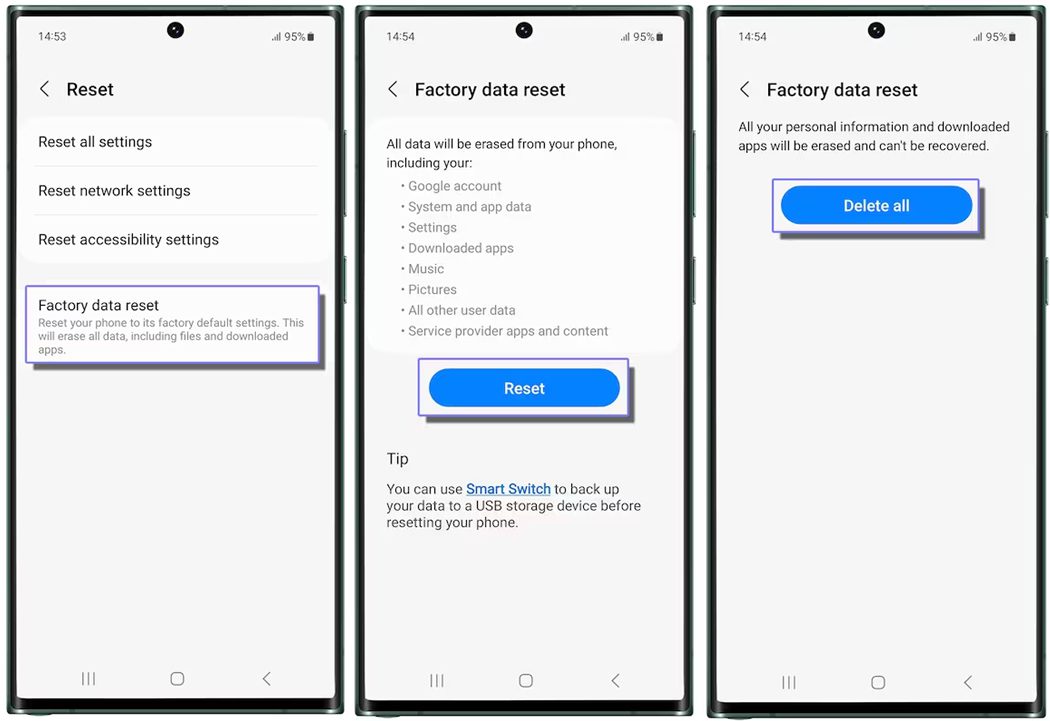
After the Factory Reset, start your device and try again to check if your Google Account is syncing with your Samsung S24 Ultra/S24 Plus/S24.
Fix 9: Contact Samsung Support
By any chance, even if the Factory Reset didn’t work, then the very last option for you is to contact Samsung Support for further help.
Contact Samsung Support and explain the whole problem properly and wait for their response. They are professional and can solve your issue in just a few days or even in one go.
Wrap Up
Synchronization of your Google Account with your device is very important to stay connected and organized.
Google Account needs to be synced with many apps like Gmail, Contacts, or even Calendar so that these apps can function properly.
But it would be very annoying if you are unable to sync your Google Account with any of these despite entering the correct details.
Say bye to your worries because, in this article, we have listed all the potential solutions through which you can learn how to fix your Google Account not syncing with Samsung S24/S24 Plus/S24 Ultra.
I hope you found this article useful and were able to fix the issue by following the steps and fixes mentioned in this guide.
You may Also Like:
- Fix Poor Signal Reception on Samsung S24, S24 Plus, S24 Ultra
- Fix Proximity Sensor Issues On Samsung S24, S24 Plus, S24 Ultra
- Fix No SIM Card Detected Error On Samsung S24 Ultra, S24 (Plus)
- Fix Voicemail Not Working on Samsung S24/S24 Plus/S24 Ultra

Max Field is a founder of Recover Android Data. He is an Android lover and loves to write tips, tricks, fixes for errors, data recovery solutions and more related to Android. Provide Gaming Tips, Tricks, Game Error/Issues Solutions (PC/Xbox/PlayStation/Mobile). He is now also interested in solving LinkedIn Puzzles. He has 12+ years of experience in this field.