
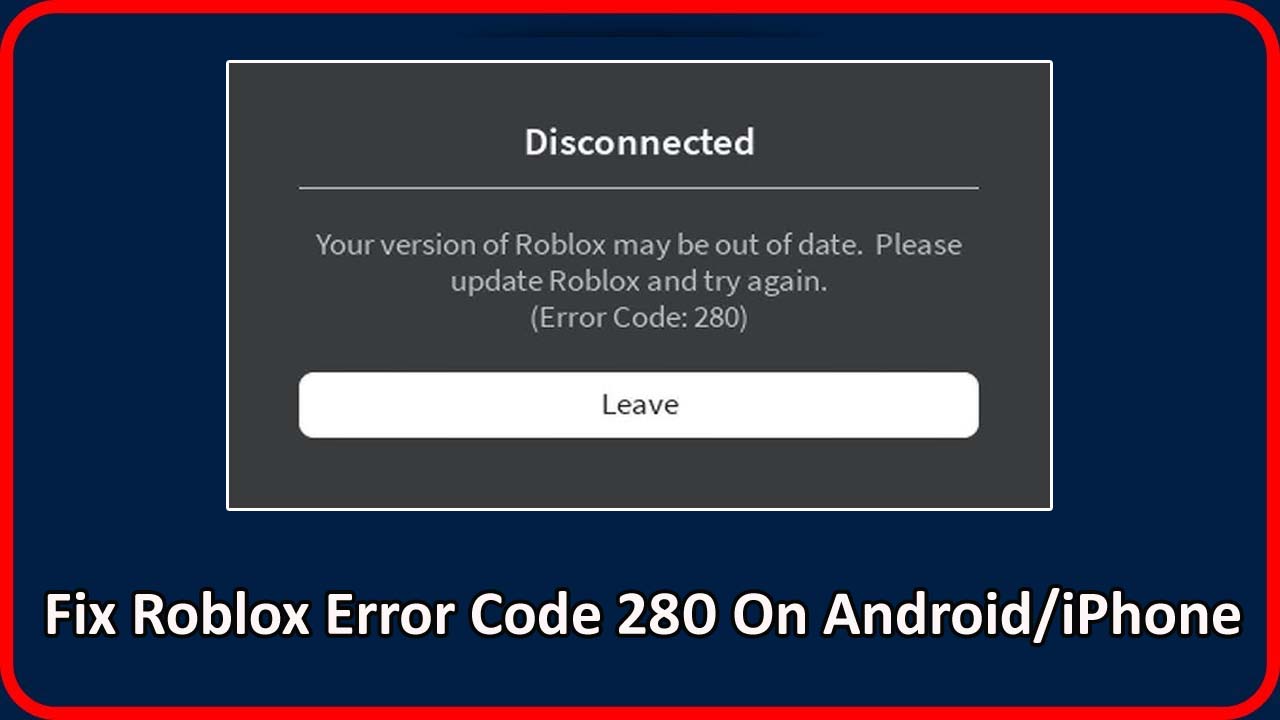
Roblox is a popular gaming platform that offers a wide range of gameplay experience. However, there are some users who are facing error “Your version of Roblox may be out of date. Please update Roblox and try again.” If you are also encountering the same problem then you have landed on a right webpage. Here you will learn how to fix Roblox error code 280 on Android/iPhone.
But before digging into the solutions let’s first know about this error code and the reasons why it occurs on your smartphone.
What Is Error Code 280 On Roblox Mobile?
Roblox error code 280 occurs when you are using the older version of Roblox. If you face this error while trying to load a game then it indicates that your phone can’t update to the latest version. This error can also occur due to network settings that blocks latest updates of Roblox. Sometimes Roblox server outage can also cause this error.
Reasons: Why I Am Receiving Error Code 280 On Roblox?
There are plenty of cause due to which you may receive 280 error code on Roblox. But here we are going to discuss some of the common reasons:
- Unstable internet connection.
- Server issue on Roblox.
- Corrupted cache of the Roblox app.
- Phone OS is outdated.
- If smartphone’s date & time zones are different from your current location.
After knowing about the error and reasons behind it, now we will move to the methods to resolve the issue that you are facing now.
How To Fix Roblox Error 280 On Android Or iPhone?
Solution 1: Restart Roblox App
As you all know that restarting the app has the power to fix minor issues. Therefore, I would suggest to close Roblox app and restart it again to solve the error.
Solution 2: Update Roblox App
An outdated Roblox may causes various issues and disturb the users while playing game. Hence, you should check the update for Roblox and if you find it the download the latest update.
Below, follow the steps to update Roblox app:
On Android: Open Google Play Store app on your phone. Hit on search tab and type of name of the app. Now, tap on Update button beside the app.
On iPhone: Open App Store on your phone. Enter the name of the app in search tab. If you find the Update beside the Roblox app then tap on it to update the app.
Now, check the error is fixed or not. If not then move forward to the next method.
Solution 3: Check Internet Connection
If the internet connection that you are using is not stable then it is pretty sure that you will face errors. Hence, make sure that your device is connected to a strong internet connection when you play the game.
If you are using cellular data then enable and disable it. You can also switch to WiFi if you are using mobile data or vice versa. You can also turn on and turn off Airplane mode to restart the connection.
Solution 4: Force Stop Roblox To Solve Roblox Error 280 On Android
- Open the Settings app on your phone.
- Scroll down and tap on Apps.
- Tap on Roblox.
- After this, hit on Force Stop
- Confirm the action by tapping on OK.
Solution 5: Fix Roblox Update Error By Clearing Roblox App Cache & Data
Having corrupted cache data, can also result Roblox Error code 281, especially when you have not cleared it for long time.
So, clear the app cache to get rid of error message “Your version of Roblox may be out of date. Please update Roblox and try again.”.
Here follow the instructions to clear cache and data of Roblox app on Android:
- Navigate to Settings > Apps/Apps & notifications/Applications/App Manager.
- Find Roblox app from the app’s list and tap on it.
- Select Storage.
- Next, tap on Clear Cache and then on Clear Data buttons.
- Now, restart your device and check if the error has gone.
Solution 6: Check Server Status Of Roblox App
Sometimes the server of the app may go down and due to this user start facing this types of issues. So, it is considered to check the status of the Roblox app server by visiting Downdetector site.
You can also check the status of the app from social media pages of Roblox app. If you find it down then you need to wait until it is fixed by the Roblox team.
Solution 7: Check Your Phone’s Date & Time To Fix Roblox Error Code3 280 On Android/iPhone
If the data and time that you have set on your phone don’t match with the current location then also you may receive update error on Roblox.
Here follow the steps to check it:
On Android
- Open Settings app on your Android phone.
- After this, hit on Additional Settings.
- The, tap on Date & Time.
- Now, toggle on “Automatic Date & Time”.
- You can also manually set the data and time according to your location.
On iPhone
- Navigate to Settings > General.
- Scroll down and tap on Date & Time.
- Now, disable Set Automatically.
- Next, tap on Time Zone.
- Then in the search section, enter the name of the location, tap in the result to change the time zone.
Solution 8: Reinstall Roblox App To Solve Error Code 280 On Roblox
If the previous solutions are not helping, consider uninstall and reinstalling Roblox.
Below, learn how to do this:
On Android
- First uninstall the app by long pressing on it and then hit on Uninstall.
- Once it gets uninstalled, open Google Play Store app.
- Then enter the name of the app and hit on Install button.
On iPhone
- To uninstall Roblox app on iPhone you need to tap and hold the app icon from App Library.
- Then hit on “Delete App”.
- Again, tap on Delete to confirm the process.
- Now, go to App Store and reinstall the Roblox app from there.
Solution 9: Contact Roblox Support
Have you tried all the above discussed methods but still error code 280 screen is stuck with the “Leave” button? In this case, contact Roblox’s support team to solve the problem.
Simply submit the detailed information on your request. If you have photo of the error then also pin it with the request and wait for the reply from the support team.
Conclusion
Roblox Error Code 280 can be frustrating because you can’t play the game anymore.
Generally, this error occurs when you ignore the update Of Roblox app.
But, the methods that I have discussed above can help you to fix Roblox error code 280 on Android/iPhone. So, simply try these methods to resolve the issue and enjoy playing the game again.
Check out more guides related to Roblox to find different errors and their solutions.
You Can Also Read:
- How to Fix Roblox Error Code 304 on Android/iOS/PC
- Fix “To access this experience, first update your content maturity setting” In Roblox
- How To Fix “Content not accessible” In Roblox
- Fix Roblox Error “Failed To Reach. Please Check Your Internet Connection”

Max Field is a founder of Recover Android Data. He is an Android lover and loves to write tips, tricks, fixes for errors, data recovery solutions and more related to Android. Provide Gaming Tips, Tricks, Game Error/Issues Solutions (PC/Xbox/PlayStation/Mobile). He is now also interested in solving LinkedIn Puzzles. He has 12+ years of experience in this field.