

Is your camera app unable to save photos on your Samsung S24/S24 Plus/S24 Ultra device?
I have found online that many users are facing the same issue regarding the Camera app on their Galaxy devices.
It would be so annoying if you want to click pictures with your device but you can’t save it on your phone gallery or storage, right?
So many memories to be captured but your Camera issue won’t let that happen! In such a case, what you should do to solve this problem?
Although, there are some troubleshooting ways through which you can fix this error these fixes need to be done carefully.
Keeping your concern in mind, we have prepared a tutorial to help you fix this issue.
To begin with, let us consider our focus on the factors that could be potentially the reason behind this problem.
Reasons: Why Camera app is unable to save photos on Samsung?
These are the possible causes that could be the reason why Camera is unable to save photos in the gallery or internal storage on a Galaxy device.
- Full internal storage
- External storage problem
- Overheated device
- Physical damage
- Unallowed permissions
So, these were some of the reasons that should be blamed for this error.
In addition, let us continue reading this article and learn how to fix this problem on Samsung S24/S24 Plus/S24 Ultra.
How To Fix Samsung S24/S24 Ultra Camera Unable to Save Photos
Fix 1: Check & Clear Up Phone Storage
As mentioned earlier, full internal storage is a major factor that can cause trouble like this.
So, you should check for your phone’s storage. If your device lacks storage then you should clear up some of the space to fix the Camera app unable to save photos on a Samsung phone.
So, delete some of the data from your device that is not important anymore.
You can also clear some of the unused apps that you don’t need daily.
Fix 2: Restart Your Samsung Device
After clearing up space, the next move you should do is restart your device. A simple restart can fix any minor issues or even major issues in one go.
So, you should Restart your Samsung device.
To do so, press and hold the Power button until some options appear on the screen, then tap on Restart and wait for the process to complete.
Then, you have to try clicking the picture again and see if your camera can save those captured photos or not.
Fix 3: Check for Software Updates
If you have outdated Software, it could cause your device troubles like this.
So, you should update your device’s software to the latest version (if you have not updated it).
To update your phone, go to Settings > Software Update > Download and install.
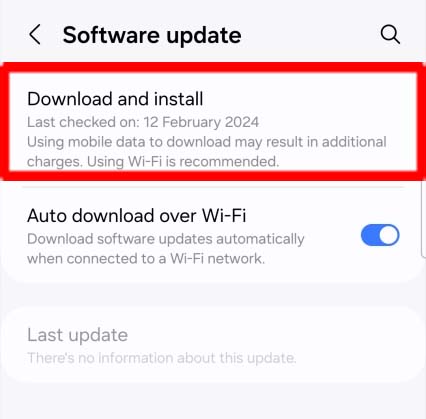
After this method, again check if you can save your picture or not.
Fix 4: Allow Media & Storage Permissions to Camera App
Perhaps you have not allowed permission for the Camera app, so you cannot save your picture to the gallery.
In such a case, you should check whether you have granted permission or not.
Go through the steps to check if you have allowed it or not.
Step 1: Go to Settings on your Samsung Galaxy device.
Step 2: Tap on the Apps.
Step 3: Now, select the Camera app.
Step 4: Tap on the Permissions and verify if you have allowed Storage permissions or not.
Step 5: If you haven’t, then allow it.
Now, open the Camera app and try again.
Fix 5: Switch Image Format
It could also be possible that this problem is occurring due to the format of the images.
So, you can switch the file format of your images and check if that works or not.
Here’s how you can switch the file format:
- Open the Camera app.
- Next, navigate to the Camera Settings from the top.
- Look for File Formats.
- Now, switch the format to another format.
After switching, try to take a picture and see if the problem is solved or not.
Fix 6: Factory Reset Your Galaxy Device
If any of the above-mentioned fixes didn’t work for you, then you can do a Factory Reset on your Samsung device.
Note: Keep a prior backup for your data because a Factory Reset will delete all the data from your phone, unfortunately.
Follow the steps to do so:
- Open Settings > General Management.
- Navigate to Reset > Factory data rest > Reset.
- Tap on Delete all.
Fix 7: Contact Samsung Support
If you are still facing the issue even after a Factory Reset, then this method will be your last option.
There must be some hardware issue on your device which is why nothing worked for you.
If that’s true, Contact Samsung Support and explain to them what your concern is. They are professional and will help you to fix this issue.
Wrap Up
Images are the only way through which we can save our precious memories. So, it’s a very sensitive matter for everyone if we are unable to save our pictures in our gallery.
This is the exact issue that almost every Samsung S24 user is facing right now. And the issue is that the users are unable to save pictures that they captured on Samsung Galaxy devices.
If you are also facing the same problem and cannot save your images on your gallery or internal storage on a Samsung Galaxy phone, then don’t worry, we got you!
In this article, we have discussed all the possible ways to help you fix the Camera unable to save photos on Samsung S24/S24 Plus/S24 Ultra.
I hope you found this article helpful and were able to fix this issue on the Samsung Galaxy S24/S24 Plus/S24 Ultra device.
You may Also Like:
- Fix Samsung S24/S24 Plus/S24 Ultra Zoom Camera Not Working
- Fix Overexposed Photos on Samsung S24/S24 Plus/S24 Ultra
- How To Fix Samsung S24/S24 Ultra Keeps Rebooting After Update
- Fix Poor Signal Reception on Samsung S24, S24 Plus, S24 Ultra

Max Field is a founder of Recover Android Data. He is an Android lover and loves to write tips, tricks, fixes for errors, data recovery solutions and more related to Android. Provide Gaming Tips, Tricks, Game Error/Issues Solutions (PC/Xbox/PlayStation/Mobile). He is now also interested in solving LinkedIn Puzzles. He has 12+ years of experience in this field.