
Google’s Gemini app has become a prominent digital assistant, but many users don’t like it and want to turn it off. If you also want to disable it then follow the steps mentioned in this guide to learn how to disable Gemini apps activity on Android, iOS, or PC.
How To Turn Off Gemini Apps Activity On Android, iOS, Or PC
If you don’t like the Gemini app activity then you can disable it. Below, I have shared the steps to turn it off on Android, iOS (iPhone), and PC.
So, let’s discuss it one by one.
How Disable Gemini Apps Activity On Android?
Step 1: Open the Gemini app on your Android smartphone.
Step 2: After this, hit on your Profile photo from the top right corner of the screen.
Step 3: Next, choose Gemini Apps Activity.
Step 4: Then tap on Gemini Apps Activity option.
Step 5: Now, tap on Turn off to disable and delete activity.
Note: If you don’t have the Gemini app on your phone then you can use a browser and go to the Gemini app page and follow the steps shown below in the PC section.
How To Turn Off Gemini Apps Activity On iOS (iPhone)
- Open the Google App on your iOS device like iPhone.
- Then tap on the Gemini icon located at the top of the screen.
- Next, hit on your Profile photo at the top right.
- After this, tap on Gemini Apps Activity.
- In the new screen, you can turn off and delete the activity.
How To Disable Gemini Apps Activity On PC?
- Open any browser on your PC and log into your Google Account.
- Then, go to the Gemini Apps Activity page.
- Click on the drop-down menu for Gemini Apps Activity. Here you will get 2 steps. One is turning off the feature and the second is turning off the feature and deleting the activity.
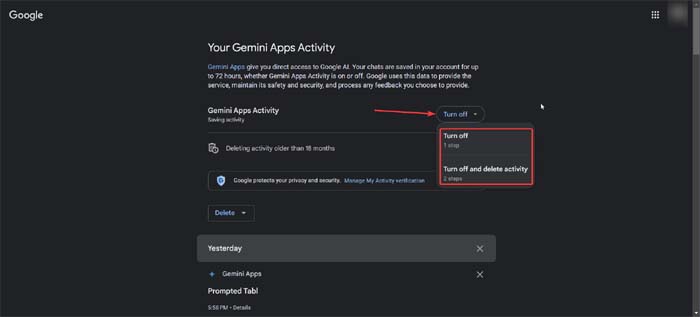
- If you select the Turn off option then you can still delete the activity from the drop-down Delete menu. You can choose the time interval or delete it for the current hour, day, or entire history.
- But if you scroll down before deleting the activity then you will find the app Gemini prompts that you are using with the current Google account.
You can also disable Gemini Apps Activity by going to the Gemini app page and then clicking on Manage Activity. You will receive the same page when you reach step 3 of the above step.
How To Change Auto Delete Gemini Apps Activity Period?
Gemini Apps deletes activities automatically that are older than 10 months. But you have the option to change that period to 3 or 36 months.
Here, follow the steps to do the same:
- Open a web browser like Chrome and go to the Gemini app page.
- Then click on Manage Activity.
- Next, click on Deleting activity older than _ months or select an auto-delete.
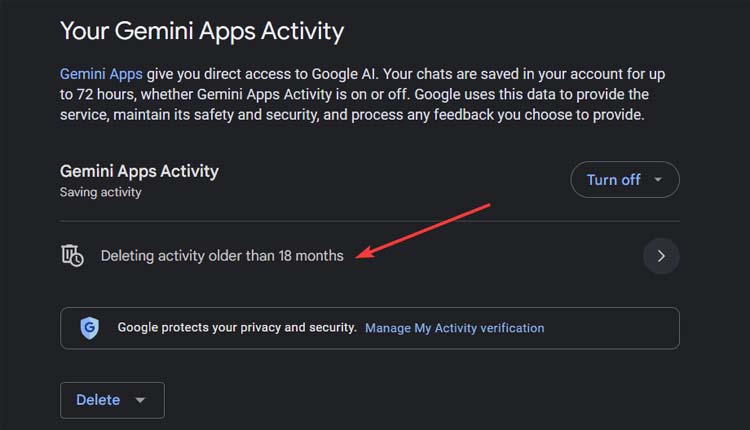
- You can select between 3, 18, or 36 months. Or you can choose Don’t auto-delete activity.
- After this, click on Next and then follow the on-screen steps.
Wrap Up
So, you have learned how to disable Gemini Apps Activity on Android, iOS, or PC. One thing you need to remember is that when you turn off the Gemini Activity on any of the devices, it will disable on all the devices you use with that Google account.
You May Also Like:
- How To Fix Your Watch History Is Off on YouTube
- How To Fix Do Not Disturb Turns On By Itself On Android
- How To Fix Character AI Not Working or Not Loading (2024)
- How To Fix JioCinema Not Working On Android, iPhone, TV

Max Field is a founder of Recover Android Data. He is an Android lover and loves to write tips, tricks, fixes for errors, data recovery solutions and more related to Android. Provide Gaming Tips, Tricks, Game Error/Issues Solutions (PC/Xbox/PlayStation/Mobile). He is now also interested in solving LinkedIn Puzzles. He has 12+ years of experience in this field.