

Find Out 8 Solutions To Fix Google Play Store Error DF-DFERH-01 On Android!
Google Play Store app plays a very important role and this app is pre-installed on every Android phone. Users use it to download and update applications. But sometimes Google Play Store shows errors while trying to install or update the applications from it. One such error is “retrieving information from server” DF-DFERH-01”.
If you are also receiving this error then this guide will help you to fix it. Here, we have provided some solutions to fix Google Play Store error DF-DFERH-01.
- Solution 1: Restart Your Android Device
- Solution 2: Clear Cache And Data Of Google Play Store App And Google Play Services
- Solution 3: Remove And Add Google Account
- Solution 4: Update Your Android Phone
- Solution 5: Turn On Google Play Store & Services
- Solution 6: Uninstall Google Play Store Update
- Solution 7: Reset App Preferences
- Solution 8: Install New Version Of Google Play Store From APK
So, let’s directly move to the solutions to fix Google Play Store Error DF-DFERH-01.
Note: All the solutions that I have discussed below will work on all Android phone models such as Samsung, Kindle Fire, LG, Sony, OnePlus, Realme, Xiaomi, Asus, Huawei, Nokia, Motorola, Google Pixel, all other Android models available in the market.
Solution 1: Restart Your Android Device
The first solution you should follow the fix this error is to restart your Android device. Doing this will fix bugs and glitches in your Android and it may help to fix the issue.
To restart your Android device, press and hold the Power button until you see the Power menu on the screen. From there, hit on Power Off option. Now, your device will power off. After a few seconds Power it on by pressing the Power button.

Also Read: How To Recover Permanently Deleted Videos From Google Photos
Solution 2: Clear Cache And Data Of Google Play Store App And Google Play Services
Clearing cache is the option you should try. It will get rid of saved data that allows apps to load a little quicker when you launch them. Clearing it means the app will open a little slower, but your main problem might well be solved.
Follow the below steps to clear cache and data of Google Play Store to fix Google Play DF-DFERH-01 2020.
Step 1: On your Android device, open Settings then tap on Applications.
Step 2: Next, hit on All. Find Google Play Store app there and tap on it to open.
Step 3: Now, tap on Storage.
Step 4: Then hit on Clear Cache and Clear Data button.
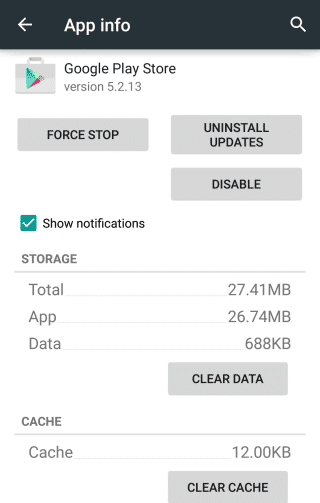
Similarly, follow the same steps to clear cache and data of Google Play Services, Download Manager, and Google Services Framework.
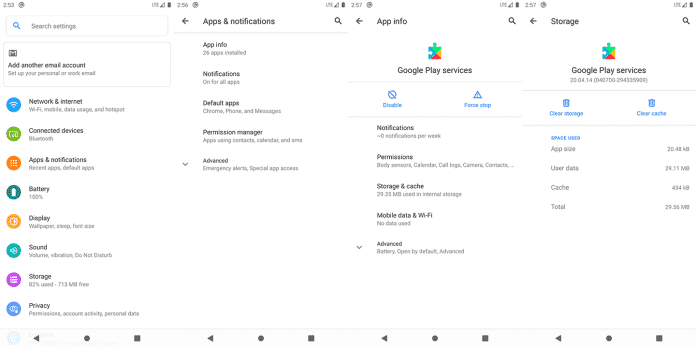
Now, check the error is fixed or not. If not, then keep following the next solution.
Also Read: Google Contacts Not Syncing On Android? Here’s How To Fix!
Solution 3: Remove And Add Google Account
You can also remove the Google Account and then add it again to fix Google Play error while retrieving information from server.
Here, follow the steps to remove and re-add Google account.
Step 1: Navigate to Settings > Account > Google.
Step 2: Next, you need to remove all your Google accounts that you have added.
Step 3: Now, restart your Android phone.
Step 4: Now, open Google Play Store app and log in with your Google credentials.
Step 5: Accept all the Google terms and then set up Google Settings.
Now, launch Google Play Store app and check the error is fixed or not.
Solution 4: Update Your Android Phone
Your Android device should be always updated to the latest version of Android OS. When it is not updated then it starts creating problems and error DF-DFERH-01 on Play Store one of them.
So, you need to check the latest update for your Android device and update it.
Follow the below steps to update Android device.
Step 1: Launch Settings app then tap on About Phone.
Step 2: After this, hit on Software Update and then if there is any new update then it will show you or tap on Check For Updates.

Step 3: Tap on Install button to install the latest version of Android OS.
Solution 5: Turn On Google Play Store & Services
Enabling Google Play Store and Services also helps you to fix DF-DFERH-01 on Play Store 2021.
Here are the steps to do the same.
Step 1: Go to Settings.
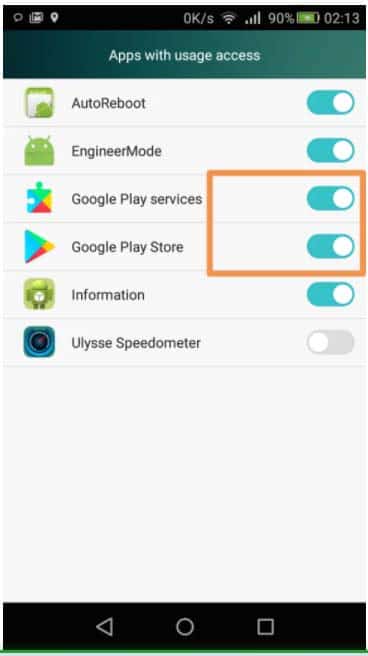
Step 2: Then, scroll down and find “Apps with usage access”.
Step 3: Now, toggle on Google Play Store and Google Play Services.
Solution 6: Uninstall Google Play Store Update
If there is a compatibility issue with the recently updated version of Google Play Store then it can also cause this error. In this case, uninstalling the update can help you to fix the issue.
Here, follow the steps to uninstall Google Play Store update.
Step 1: Head to Settings > Application Manager.
Step 2: Then tap on All > Google Play Store.
Step 3: Hit on Force Stop then Clear Data.
Step 4: After that, hit on Uninstall Updates.
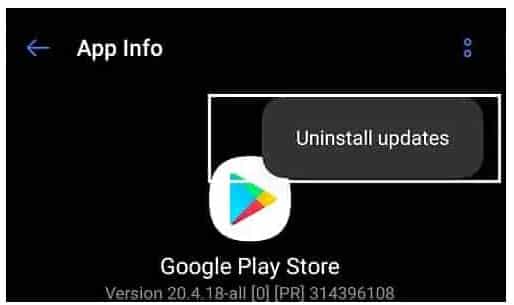
Now, restart your phone and check you can download and update applications from Google Play Store.
Solution 7: Reset App Preferences
You can also reset the app preferences to fix DF-DFERH-01 work profile. This solution has worked for some users to fix the error, may this will also work for you.
Below, learn how to reset app preferences to fix DF-DFERH 01 error.
Step 1: Tap on Settings icon.
Step 2: Then hit on Apps & notifications option.
Step 3: Now, tap on All Apps.
Step 4: Next, hit on three dots or menu button.
Step 5: Hit on reset app preferences option.
For Android 10
Step 1: Go to Settings > system > advanced option.
Step 2: Hit on reset options.
Step 3: Next, tap on reset app preferences option.
That’s It! Now check the error persist or is solved.
Solution 8: Install New Version Of Google Play Store From APKPure
If you have rooted your Android device and installed a custom ROM then you can install a new version of Google Play Store app from APK. This can help you to fix the error.
Below, follow the steps to install Google Play Store from APK.
Step 1: Firstly, download the Google Play Store APK from here.
Step 2: Once it is downloaded, hit on the APK and choose “Install”.
Note: If you are failed to install Google Play Store using this method then you can try to install it from “Lucky Patcher”.
Bottom Line
Without Google Play Store we can’t install any app and update it, therefore it is very necessary to fix Google Play Store Error. I hope whatever solutions I have mentioned above will help you to fix Google Play Store error DF-DFERH-01 on any Android phone. And now you can easily install and update the applications.
Please support us by subscribing to our YouTube Channel.

Max Field is a founder of Recover Android Data. He is an Android lover and loves to write tips, tricks, fixes for errors, data recovery solutions and more related to Android. Provide Gaming Tips, Tricks, Game Error/Issues Solutions (PC/Xbox/PlayStation/Mobile). He is now also interested in solving LinkedIn Puzzles. He has 12+ years of experience in this field.