

Learn 3 Ways To Hard Reset or Factory Reset Android Phone or Tablet From Computer!
If your Android tablet or phone is not responding, not accessible, working slowly, gets corrupted, or usually when your phone gets lost/stolen then the only way to fix it is by doing a factory reset.
The simple way to reset Android device is by doing it through the phone’s settings.
But you are unable to use this option as you have forgotten the password, your phone has stolen or due to some other reason. In this situation, you need to reset your smartphone using computer.
So, if you want to learn how to do this then simply follow this guide. Here you will know how to hard reset Android phone or tablet using PC.
But before you follow the solutions to reset your Android phone or tablet with computer, you must first backup your device if possible.
Also Read: How To Fix Black Screen After Factory Reset On Android
Firstly, Backup Your Android Phone/Tablet Before Doing Hard Reset.
As performing factory/hard reset erase all the data stored in the device, settings, and apps, hence it is very important to create a backup of the device’s data before you reset your phone.
You can backup you phone using any option which you find best and possible in your case. You can also use professional Android Data Backup & Restore tool to back up your Android phone or tablet. This program will allow you to backup various types of data to your computer.
Once you created a backup of your Android device, follow the below solutions to hard reset Android phone or tablet using PC.
Watch Video Guide: Hard Reset Android Using PC
Solution 1: Hard Reset Android Phone/Tablet Via ADM/Google Find My Device
You can use Android Device Manager (ADM) to reset your phone. It will help you to remotely erase your device data and also help you in finding your phone if it is stolen. You don’t need to install ADM because it is inbuilt on all Android devices.
To use ADM to factory reset your Android mobile, you need some requirements, if you fulfill all these requirements then only you can use this method.
Here are the requirements:
- Your device location must be enabled.
- Your phone must be powered on.
- The device must be logged in to a Google account.
- It has an active internet connection.
- The Android smartphone must be activated the phone administrator settings. For this, navigate to settings>Security>Device administrators and see if ADM is turned on as a device administrator or not.
- Your Google account must be active even if your phone doesn’t have SIM card.
Now, follow the below steps to factory reset Android tablet or phone using PC.
Step 1: On your PC, go to Google Find My Device on any web browser and sign in to your Google account.
Step 2: Login to your Google account and then select your Android phone or tablet that you wish to reset.
Step 3: You will get a notification on the selected device. At the same time, you will be able to look the location of the phone if your device location is enabled.
Step 4: Here, you will get three options – “Play Sound“, “Secure” and “Erase Device“. For example – If you think, your device is nearby, then tap the Play Sound option, it will ring your device for 5 minutes even if your phone is set to vibrate or silent.
Step 5: To reset your device, select “Erase Device” option to permanently erase your device data and settings.

You May Also Like:
- [Quick Tips] Enter And Exit Safe Mode On Android
- Android Stuck In Fastboot Mode? Here How To Fix It!
- Fixed: ‘No Command’ Error In Recovery Mode on Android
- How To Stop Phone From Overheating While Charging
Solution 2: Reset Android Phone/Tablet Using ADB
The Android Debug Bridge (ADB) is a program that is used on Android app development. It is a part of the Android SDK. You can use ADB to hard reset your phone when you can’t access the lock screen.
Note: This method will only work if you have enabled USB debugging in your Android earlier. But If you haven’t enabled this option earlier then you can enable it by going to Settings > About Phone > Build Number > tap on Build Number 7 times. Then go back and go to Settings > Developer Options > Enable USB Debugging option.

Now, follow the below steps to reset Android smartphone from computer using ADB:
Step 1: Install the Android SDK tools on your PC using the SDK manager window.

Step 2: Check that your device’s driver is installed. If not, then you can use generic Android drivers as an alternative.
Step 3: Now, connect your Android phone to your PC via USB cable. Switch on your mobile and check Windows detects your Android device in Windows Device Manager.
Step 4: Next, run Windows command prompt and visit to the ADB folder by entering C:\Users\Your username\AppData\Local\Android\android-sdk\platform-tools
Step 5: Enter “adb reboot recovery”. Now, your Android phone/tablet will restart and you will see the Android System Recovery screen.
Step 6: You can disconnect your phone and select Wipe Data/Factory Reset.

Now, wait for the process to get complete. This is how you can restore Android to factory settings.
Also Read: Samsung Phone Stuck on Airplane Mode? Here Is The Real Fix!
Solution 3: Hard Reset Android Phone/Tablet With Samsung Find My Mobile
If you are a Samsung phone or tablet user then you can use Samsung’s Find My Mobile service on your computer to hard reset your phone. You can also use it to check the location of the lost device.
Note: If your mobile has an internet connection enabled then the reset process will happen quickly. But if the internet connection is not turned on then your device data will be wiped as soon as your phone gets enabled internet connection. And to use this service, you need to log into your Samsung account.
Here, learn the steps to do the same:
Step 1: On your computer, visit Samsung Find my Mobile website and log into your Samsung account.
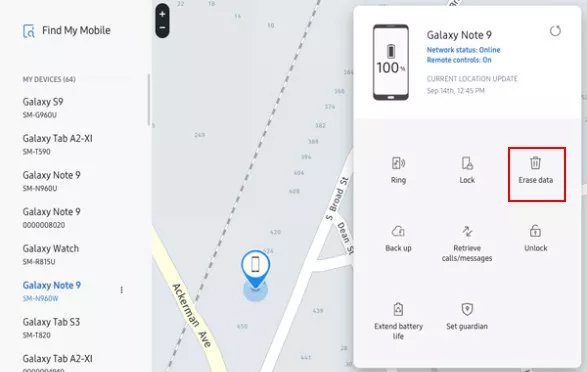
Step 2: Choose the Android device that you wish to reset. Once you see the options, select and click “Erase data”.
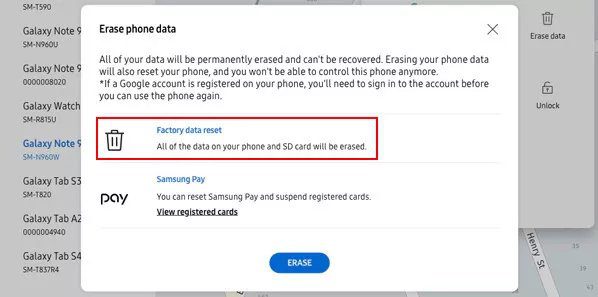
Step 3: After this, select “Factory data reset” and hit on “Erase”.
Step 4: Now, you need to enter your Samsung account password to confirm it.
Step 5: Lastly, click on “OK”.
Wrap Up
When your phone gets lost or stolen then you wish to factory reset your phone so that the person who has stolen your Android device can’t misuse your device data. That’s why you search for solutions to hard reset Android phones or tablets using PC.
You can use the above-mentioned solutions but for that, you need to fulfill each solution’s requirements, only then it is possible to reset Android device from computer.
Please support us by subscribing to our YouTube Channel.

Max Field is a founder of Recover Android Data. He is an Android lover and loves to write tips, tricks, fixes for errors, data recovery solutions and more related to Android. Provide Gaming Tips, Tricks, Game Error/Issues Solutions (PC/Xbox/PlayStation/Mobile). He is now also interested in solving LinkedIn Puzzles. He has 12+ years of experience in this field.