

Are you looking to create a WhatsApp channel?
Do you want to grow your business by creating a channel on WhatsApp?
If “Yes”, then this article is for you. Here you will learn the step-by-step guide with pictures on how to create a WhatsApp channel.
What Is WhatsApp Channel?
As per Meta, WhatsApp channel is “a private way for people to receive updates that matter to them, right within WhatsApp.”
This feature is basically the one-way broadcast tool for admins that will share text, photos, videos, stickers, links and polls in a new tab called “Updates” – where you’ll find Status and channels you choose to follow.
The main goal of this feature is that it will help companies, organisations and individuals to help them reach their target audience and grow their business.
The feature is safe, secure, and private, separate from your chats with family, friends, and communities.
Learn More About WhatsApp Channel Here – Introducing WhatsApp Channels. A Private Way to Follow What Matters
Now, let’s find out how to make a channel in WhatsApp.
Also Read: [Android] Recover Deleted WhatsApp Messages Without Backup
How To Create A WhatsApp Channel
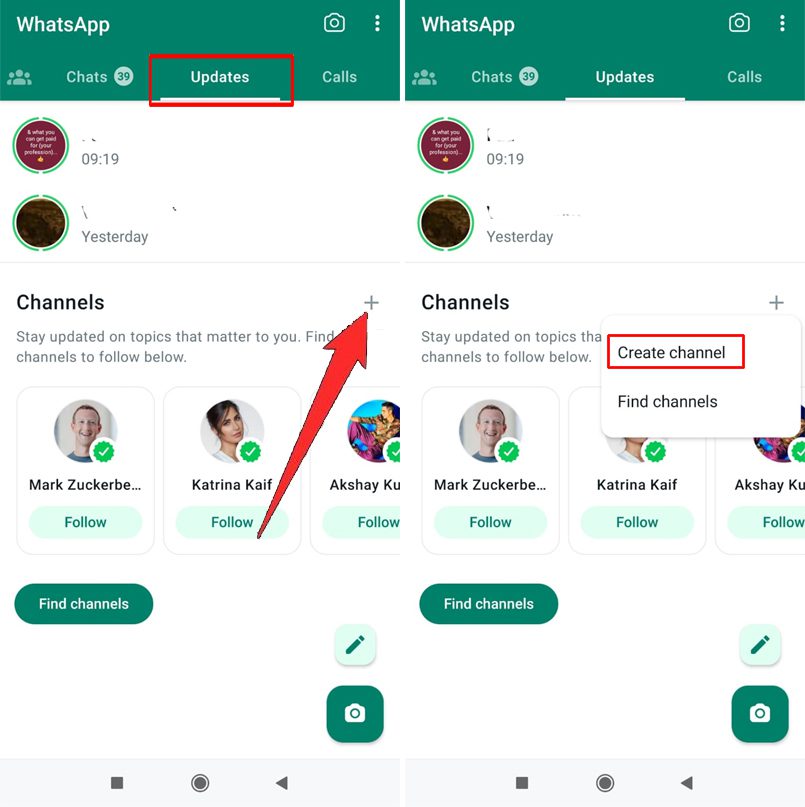
To Create WhatsApp Channel, open WhatsApp > Go to Updates tab > Click on “+” plus icon and tap on Create channel. Tap on “Agree and Continue”. Give your channel a name, icon, description and tap on “Create Channel”.
Here follow the steps to create a channel on WhatsApp on Android or iPhone with images.
Step 1: Open WhatsApp on your mobile.
Step 2: Go to “Updates” tab. Scroll down to the channels section and tap on “+” plus icon and then tap on “Create channel”.
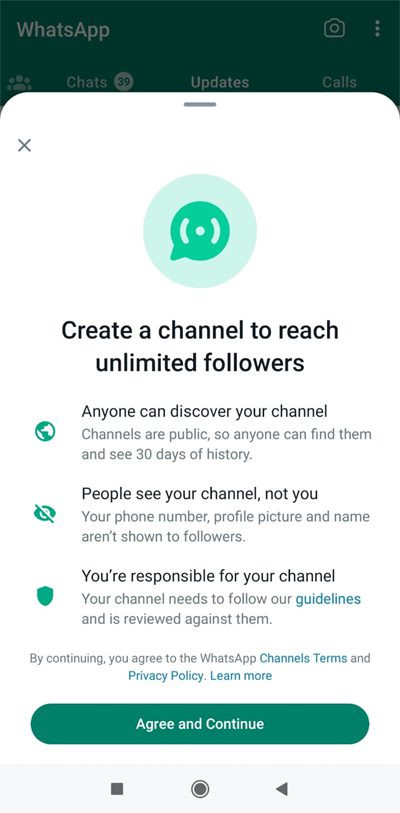
Step 3: Read the platform terms and then tap on “Agree and Continue”.
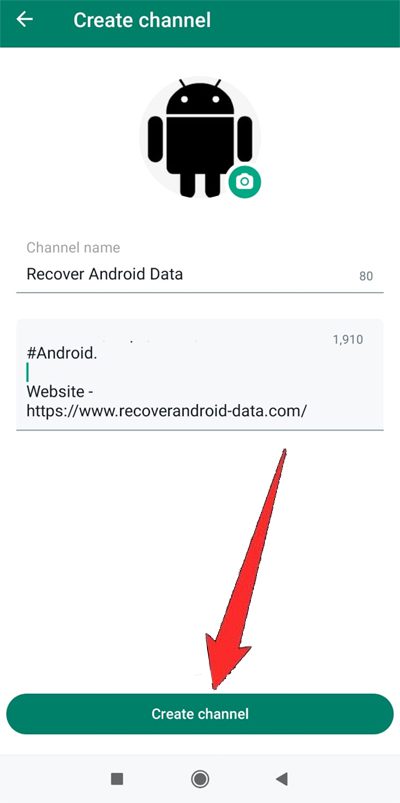
Step 4: Now give your channel a Name, add channel icon, provide channel description and then tap on “Create Channel”.
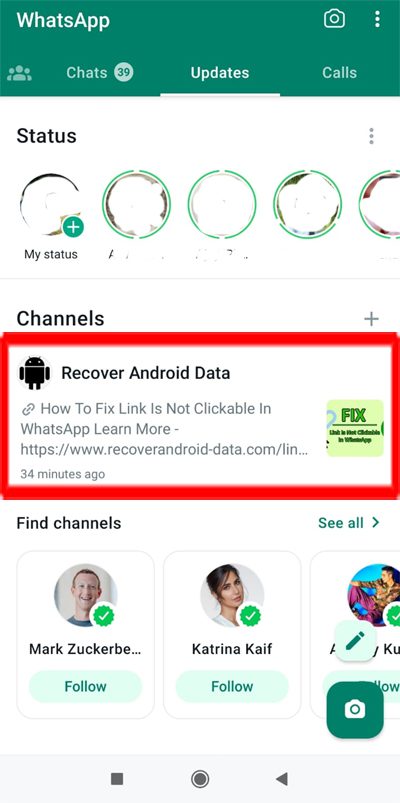
That’s All! You have created your channel in WhatsApp.
Related Frequently Asked Questions [FAQs]
How To View WhatsApp Channel Info
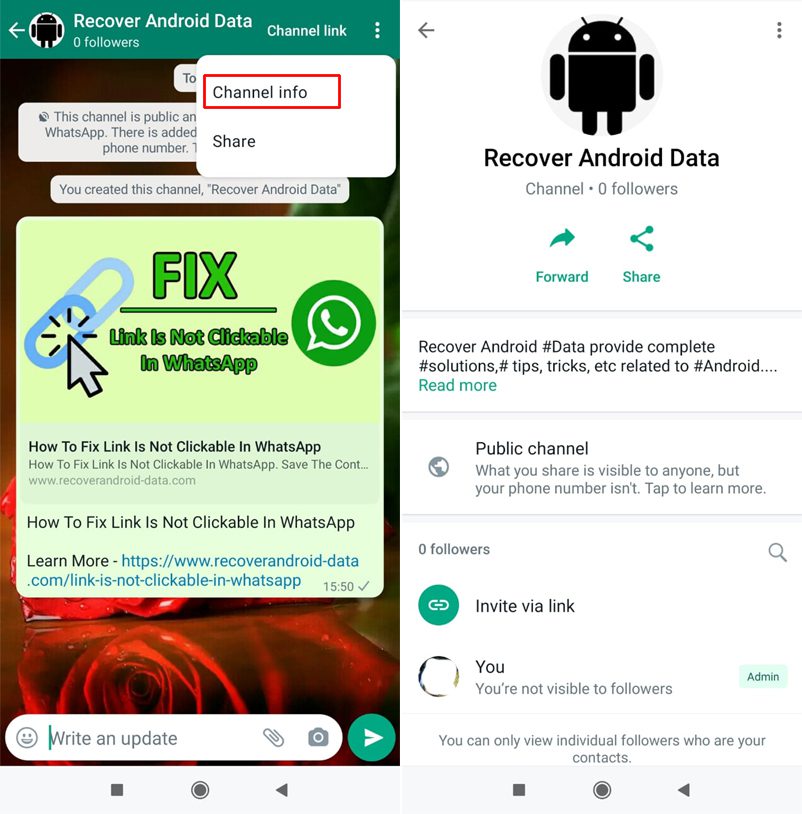
Open WhatsApp > go to “Updates” > Scroll down and tap on your Channel Name to open it.
To view channel info page, tap on “3 vertical dots” located at the top right corner and then tap on “Channel info”.
How To Share WhatsApp Channel
If you want to share your channel with your friends, family or in WhatsApp group, then here follow the steps.
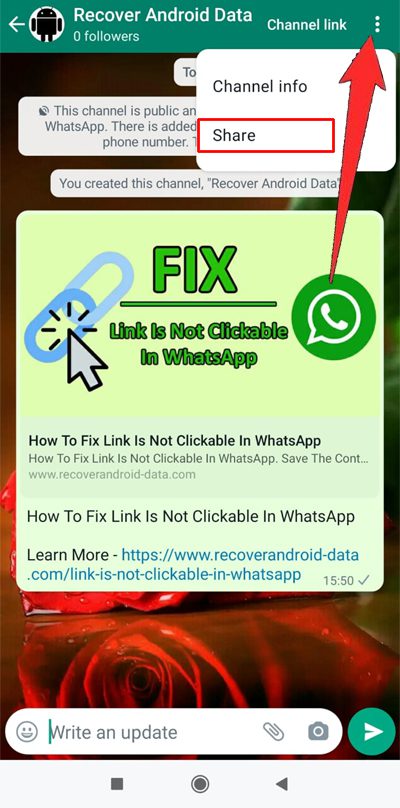
Open WhatsApp > go to “Updates” > Scroll down and tap on your Channel Name to open it.
To share your channel, tap on “3 vertical dots” located at the top right corner and then tap on “Share” option.
Also Read: How To Check WhatsApp Number and Username on Android
How To View WhatsApp Channel Link
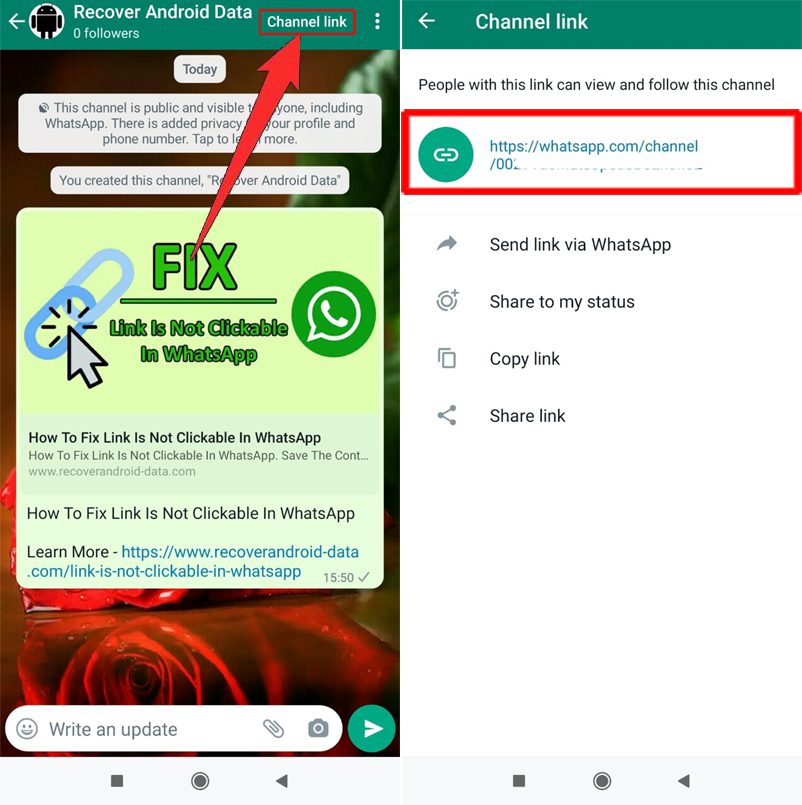
Open WhatsApp > go to “Updates” > Scroll down and tap on your Channel Name to open it.
Tap on “Channel link” to view its link.
How To Share an Update To WhatsApp Channel
You can share texts, images, videos, links, polls, sticker.
Here follow the steps:
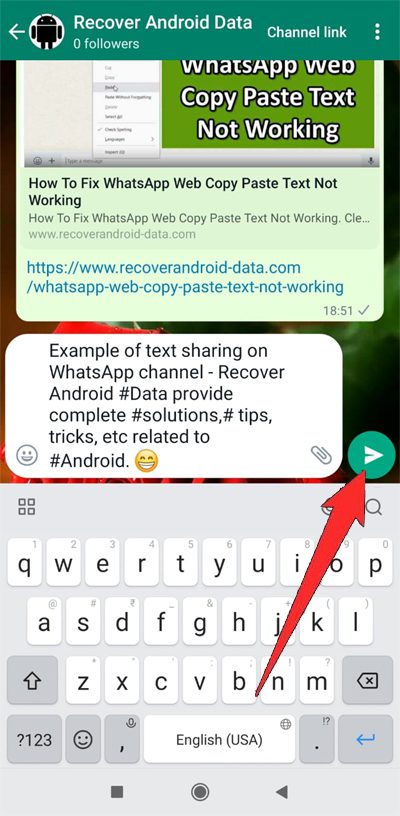
Open WhatsApp > go to “Updates” > Scroll down and tap on your Channel Name to open it.
To share text update: Type the written update. You can format the text like underline, bold, strikethrough. You can also add emojis and links. When you are ready, tap on “Send” icon.
To share photos & videos update: Tap on attachment icon, select the photos or video from the phone gallery. If you want, you can add captions. When you are ready, tap on “Send” icon.
Also Read: How To Disable WhatsApp Call (Voice/Video) On Android
How To Delete an Update From WhatsApp Channel
From updates tab, tap on your channel name to open it.
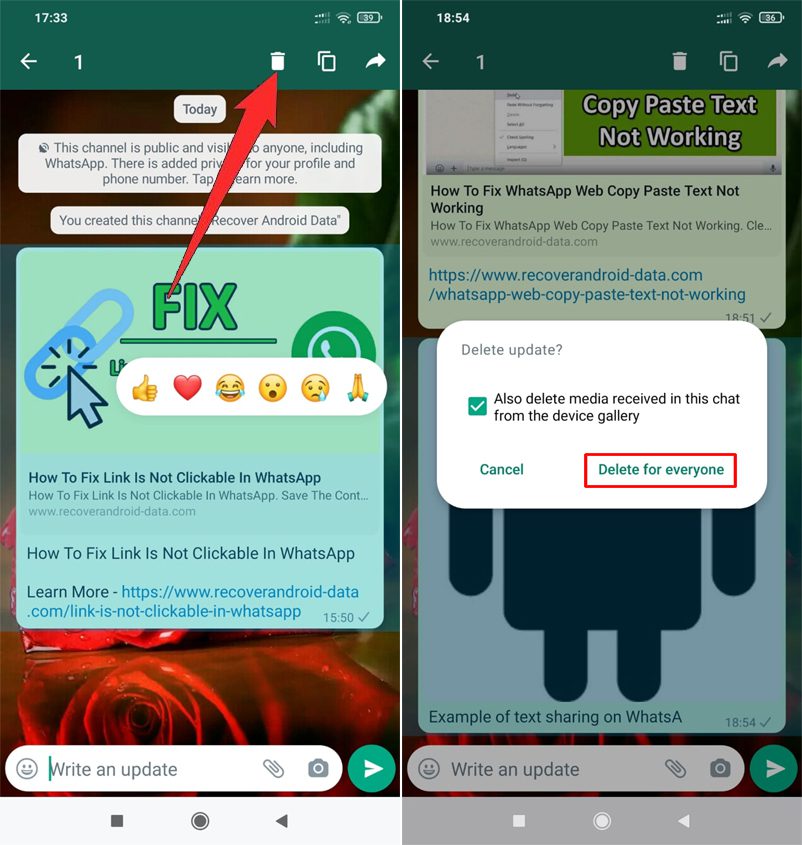
Tap and hold the update that you want to delete and tap on Delete icon > Delete for everyone.
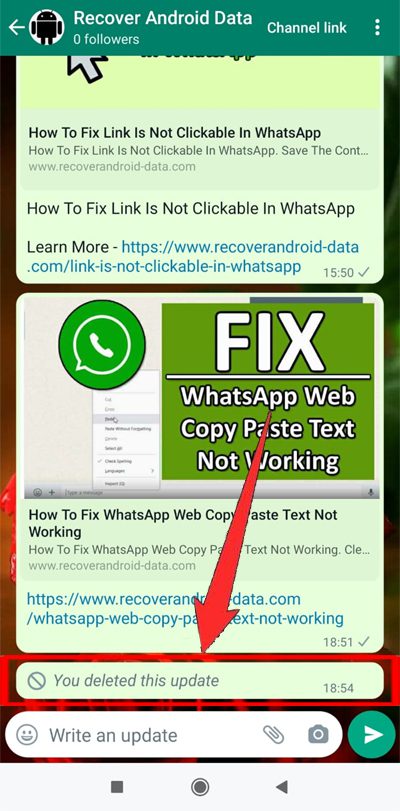
If successfully deleted, then you will see a message that says “You deleted this update”. The followers of your channel will also see the message “This update was deleted”.
How To Delete WhatsApp Channel
Open WhatsApp > go to “Updates” > Scroll down and tap on your Channel Name to open it.
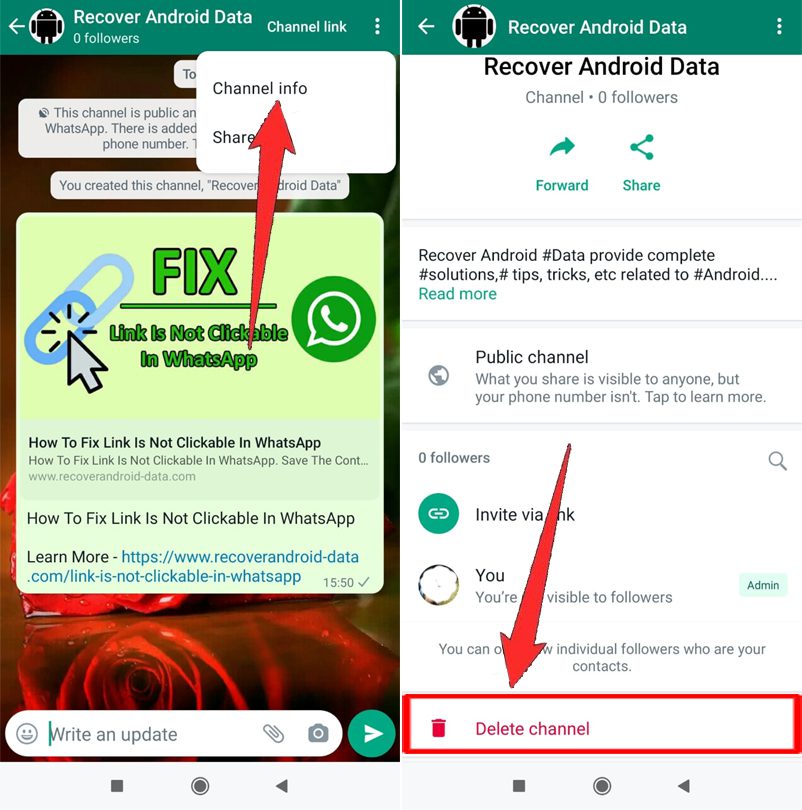
Tap on “3 vertical dots” located at the top right corner and then tap on “Channel info”.
Scroll down and tap on “Delete channel”.
Wrap Up
WhatsApp Channel is a feature of the platform that is a great opportunity for everyone to grow their business as it could be a game changer. It will help you to reach the target audience and expand your business.
Hence, you must create a WhatsApp channel as quickly as possible.
I hope the above steps mentioned in this guide have helped you to easily create a channel in WhatsApp on your Android, iOS or any mobile device.
If you have found this post helpful, then please share it as it can help others!
Please support us by subscribing to our YouTube Channel.
You May Also Like:
- How To Fix Link Is Not Clickable In WhatsApp
- How To Fix WhatsApp Web Copy Paste Text Not Working
- How To Fix WhatsApp Not Connecting
- How To Find and Follow Channels on WhatsApp

Max Field is a founder of Recover Android Data. He is an Android lover and loves to write tips, tricks, fixes for errors, data recovery solutions and more related to Android. Provide Gaming Tips, Tricks, Game Error/Issues Solutions (PC/Xbox/PlayStation/Mobile). He is now also interested in solving LinkedIn Puzzles. He has 12+ years of experience in this field.