
Have you lost your Calendar Events from your Android phone or tablet? If yes, then Don’t Worry! You can recover the Calendar events from your smartphone easily. So, simply read this tutorial to know how to restore Calendar events on Android.

Have you lost your Calendar Events from your Android phone or tablet? If yes, then Don’t Worry! You can recover the Calendar events from your smartphone easily. So, simply read this tutorial to know how to restore Calendar events on Android.

Is your phone is overheating while plugged into charger? Well, it’s common in the summer season, because the temperature is rising, that’s why the phone starts overheating. There is a lot of reason behind your phone overheating issue. So, in this article, we provided some effective solutions to stop phone from overheating while charging. You can follow the below-mentioned solutions to fix the overheating problem on your phone.
Let’s start with the practical scenario!
Hi guys so the note 9 is becoming hot while charging it has started happening the last couple of days. When I first got the phone on release it would never get hot. Any ideas?
Original Post Taken From – XDA Developers Forum
That is just one scenario there are many users facing the overheating problem while charging.
So, before moving to the solution, let us know what are the common causes of this overheating problem.
Also Read: 5 Solution To Fix Huawei Phone Battery Drain And Overheating Issues
There are some of the common causes of phone overheating while charging.
These are some of the common causes of overheating issues. Now, let’s move to the common solution to stop phone from overheating while charging.
You can try the common solution to fix it. If the basic solution didn’t help you to fix the problem, then move to the effective solution to fix the phone overheating and get rid of it.
Also Read: Tips To Extend/Improve Samsung Galaxy Battery Life
If your phone is burning hot, then it might be you are using your phone at the maximum level of brightness that’s why it starts overheating. Try to use your phone at lower brightness, it can fix the problem of overheating.
If you are charging your phone with an incompatible charger, then there are chances that the phone might cause overheat. So, it’s better to avoid using an incompatible charger and try using a compatible charger to charge the phone.
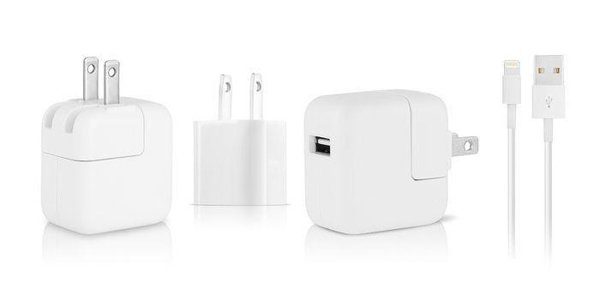
If your charger or USB cable is damaged, then it can also cause a heating issue. So, try to charge your phone with another charger or USB cable if it is damaged or broken.
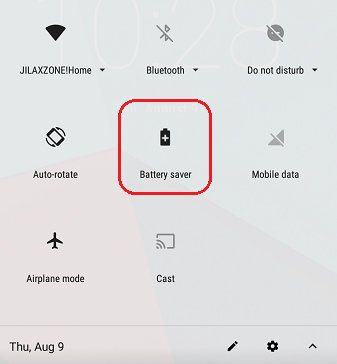
If your phone starts overheating and you don’t know what’s the reason, then you can try to enable the battery saver mode, because it can consume a minimum percentage of your battery. So, it’s better to enable the battery-saver mode, it can also extend your phone’s battery life and prevent your phone from overheating.
If you are enabling the network settings like Wi-Fi, Bluetooth, GPS etc. It can also cause the overheating issue and then your phone starts overheating. Because if you enable the network settings, then it can consume much amount of power from your phone’s battery. So, it’s better to disable these network settings when it’s not in use to avoid overheating. You can try to enable Airplane/Flight mode, because it can disable all the network settings and prevent your phone from overheating.

If your phone running on an outdated software version, then it can also cause overheating. Because an outdated software version can cause various bugs and glitches. So, there are chances that bugs and glitches are causing the overheating problem and making your phone warm. So, if any software updates are available, then you need to update the software to the latest version, it can fix the overheating problem.
If you love playing video games on your smartphone, and if you are playing games for a long period of time on your phone, then it can also cause the heating problem. Because gaming apps use your phone processor to run the game smoothly, and if you used to play games for too long, then the processor gets warm and, then it’s got warm on the back side of your phone. So, try to avoid playing games for too long.
If your phone causes overheating problem and you don’t know who’s the culprit behind it, then you should try to uninstall the unused apps, because there are chances that the unused apps cause the overheating problem. So, try to uninstall those apps that you are no longer using. Once you uninstall all the unused apps, then check whether the problem is solved or not, if not, then move to the other solution.
The camera can also cause the overheating issue, because when you are making or recording a video for a longer time, then it can make your device warm. So, if you notice that your phone starts rising the temperature of your phone, while recording a video, then stop recording and close the camera and give rest to your phone to go back to the normal temperature.
Also Read: How To Fix Samsung Galaxy Z Flip 5/Z Fold 5 Overheating Issues
Answer – If you notice that your phone gets too hot and warm when it’s plugged into the charger. Well, the most common reason is your charging port or your USB cable might be broken or damaged. Another possibility is your battery might be damaged from the start that’s why your phone gets overheated so quickly.Question 1 – Why Is My Phone Overheating While Charging?
Answer – Yes, you can use apps like AVG Cleaner (for Android) which can help you to delete the junk files that are existing in your phone and causing the overheating problem.Question 2 – Is There Are Any App To Make my Phone Cool Down?
Answer – If your device starts overheating too much, then it can face problems like battery draining and forced shutdown. And overheating damage your phone for sure, because it can cause long-term damage to your phone battery, processor, and it can also affect your battery life span.Question 3 – Does Your Phone Overheating Damage It?
Answer – You can use third-party apps to measure your phone temperature, it can also show other internal component information of your phone.Question 4 – How Can I Check My Phone Temperature?
Well, there are many reasons behind your phone overheating issues. Hence, we recommend you to keep your device safe for long-term use and also try to avoid using your phone while charging, because overheating can cause long-term damage.
So, this is the complete tutorial guide on how to stop phone from overheating while charging. I hope this guide has helped you to fix your phone from overheating when it is plugged in for a charge.
Please support us by subscribing to our YouTube Channel.

Overview: WhatsApp poll is used for opinion collection, consumer awareness, and marketing. This poll allows data collection and supports the participation of customers/users to know their decisions. If you want to know how to create and share WhatsApp poll in seconds then this guide will surely help you. So, simply keep reading this guide till the end.

Almost every Android user store important data like pictures, videos, contacts, messages, notes, documents, etc. but when their Android phone or tablet becomes dead then it becomes a big problem. Especially when you have not created a backup of those data.

There are some MeChat users who are complaining that they are unable to use the MeChat app on their Android phones as the app is crashing all the time and not loading. If you are also experiencing the same issue and wanted to know how to fix MeChat keeps crashing or not loading then read this tutorial. Here, we have provided different solutions to fix the issue.

Overview: What you should do if you accidentally delete or lost data from your Google Pixel 6a or Pixel 6/6 Pro phones? Well, this post introduces different solutions that will help you to recover deleted or lost data from Google Pixel 6a/6/6 Pro.

WhatsApp is one of the most popular messaging apps. It is used all over the world by each age group. Now, it has become an important app in everyone’s life.
There are many Android users who use dual SIMs on their phones (as their phone supports dual SIMs) and due to this, they get confused about which number they are using for WhatsApp. And that’s why they want to confirm this.

WhatsApp provides you with the feature to make voice and video calls. Most users like this feature as it allows you to make audio or video calls over the internet. This is good if you wish to save your phone bills.
But sometimes you get irritated if your friend or unknown person calls you again and again. You don’t want to block that person but only want to disable the WhatsApp voice or video call. If so, then read this guide. Here we will teach you how to disable WhatsApp voice or video calls on Android.

Summary: Have you ever lost your data from your Nothing Phone (1)? If YES, then one thing that you wish to do first is to recover those deleted data from your smartphone. This guide will teach you how to recover deleted/lost data from Nothing Phone (1).

Overview: After going through several forums and community websites, I have found that there are Android phone users out there encountering this error message “Checking connection…This can take a while”. So, if you are also facing such an error on your Android, then go through this post and follow the solutions to fix checking connection this can take a while on Android, until you switch on your Phone normally.
