
Do you want to record Minecraft with OBS for free?
Here is the full tutorial on how to record Minecraft with OBS for Free.
OBS is a free and compatible software for most devices and has plenty of features.
You can use it to record or stream.
It’s one of the best and most popular software used by podcasters, streamers, or YouTubers for content creation.
However, many users ask their doubts about “Can you use OBS to record gameplay?” or “How do I record Minecraft without lag with OBS?”
Yes, you can record your gameplay with OBS with lag free experience. Follow the below-mentioned steps to do so.
Enough with the details, let’s begin with the steps.
How To Record Minecraft Using OBS
First make sure you have installed OBS on your system, if not then Download OBS.
Once done, then right-click on it and choose Run as administrator.
Launch The Game
- Launch Minecraft on your system.
Add A Scene
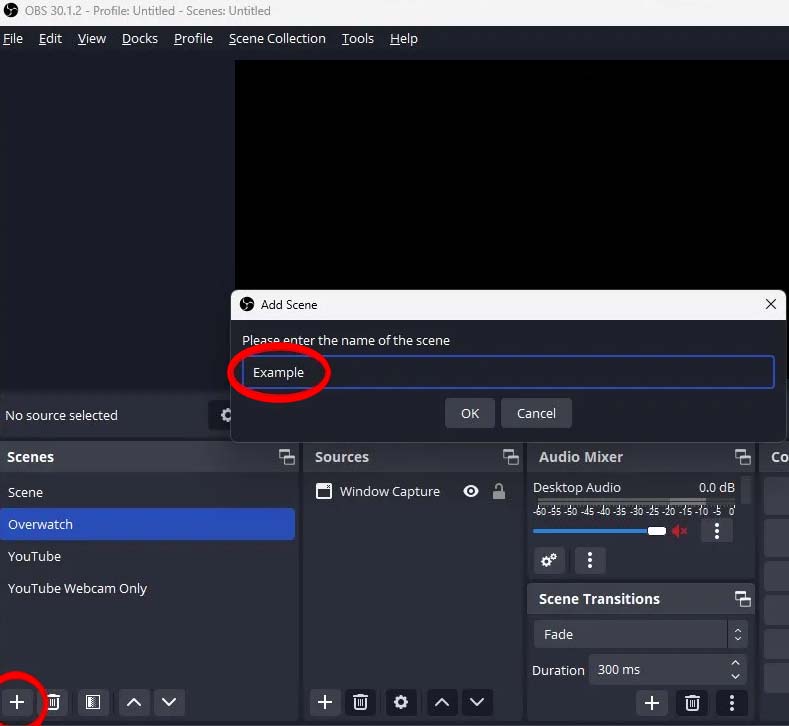
- Go back to OBS and click on the “+” icon present under Scenes.
- Now, name the scene, then click on OK.
Select A Source
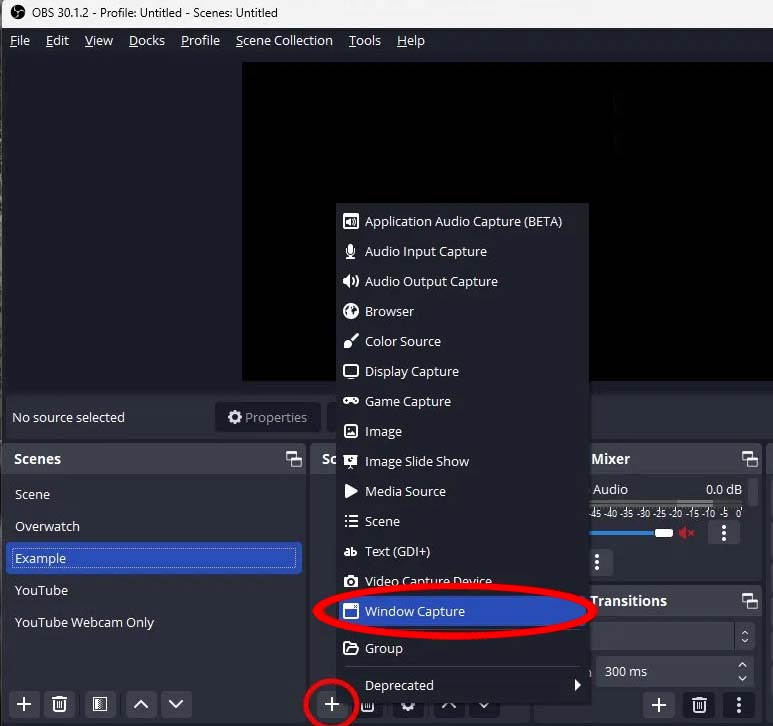
- Under Sources, click on the “+” icon, then click on Windows Capture.
- Name the display capture device and click on OK.
Select Minecraft
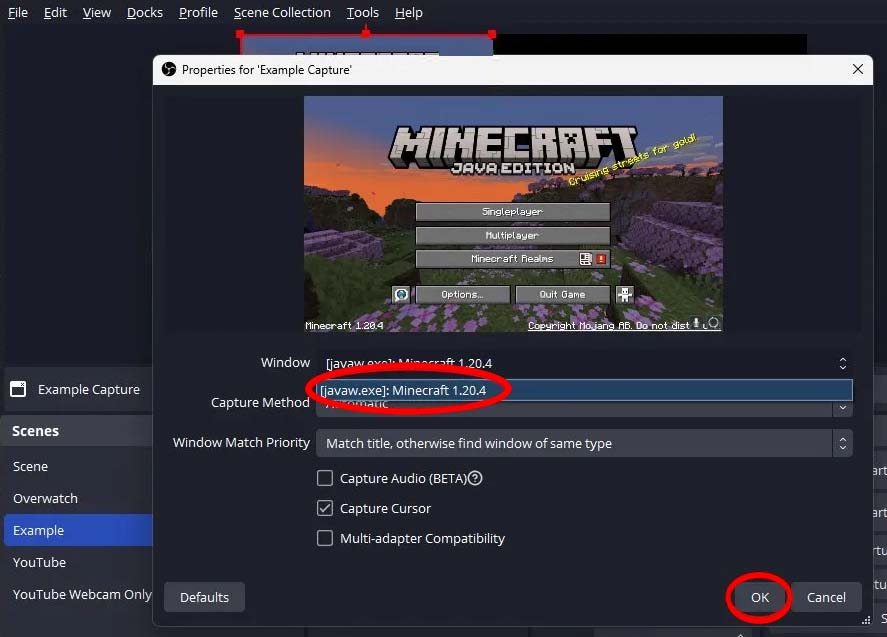
- Select Minecraft, then click on OK.
Start Recording
- At last, click on Start Recording.
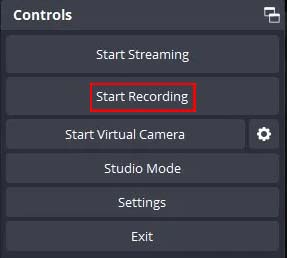
Now, it will start recording your gameplay.
Conclusion
You can use OBS to record Minecraft as well as other games.
So, if you want to record your gameplay of other games like GTA 5, Red Dead Redemption 2, and many more, then you can follow the same steps, just replace the capture window with whatever you are playing.
I hope this guide has helped you in recording your gameplay, if it does, then do share it with others.
You May Also Like:
- Fix Microphone Too Quiet In OBS – How To Make It Louder!
- Fix NVENC Error: get_encoded_packet: nv.nvEncLockBitstream on OBS
- Minecraft Pocket Edition (PE) Lagging On Mobile: Fix It Now!
- How To Fix Xbox App/Microsoft Store Error Code 0x87e0000d On PC

Max Field is a founder of Recover Android Data. He is an Android lover and loves to write tips, tricks, fixes for errors, data recovery solutions and more related to Android. Provide Gaming Tips, Tricks, Game Error/Issues Solutions (PC/Xbox/PlayStation/Mobile). He is now also interested in solving LinkedIn Puzzles. He has 12+ years of experience in this field.