
Are you facing microphone issues with OBS?
Many users ask their doubts like “Why is my mic so quiet all of a sudden on OBS?” or how to make mic louder on OBS.
Well, we have provided the solutions that can solve this problem, you just need to follow them carefully.
OBS is the most popular and powerful software for recording and streaming.
But what if the viewers can’t hear your voice?
There could be several reasons behind this issue, but we will focus on fixing the issue.
In this guide, you will learn how to fix microphone too quiet in OBS.
Now let’s move to the fixes.
How To Fix Microphone Too Quiet Or Too Soft In OBS
You have to add a compressor and increase the output gain of your microphone to fix microphone audio/voice too quiet in OBS.
If this doesn’t fix the issue, then you should increase the volume level of your microphone in the control panel.
Also Read: Fix NVENC Error: get_encoded_packet: nv.nvEncLockBitstream on OBS
Fix 1. Add A Compressor & Increase Output Gain of Microphone
In this workaround, you need to increase output gain for your microphone by adding a compressor.
1: Open OBS in your system.
2: Click on Audio Input Capture, then choose Filters.
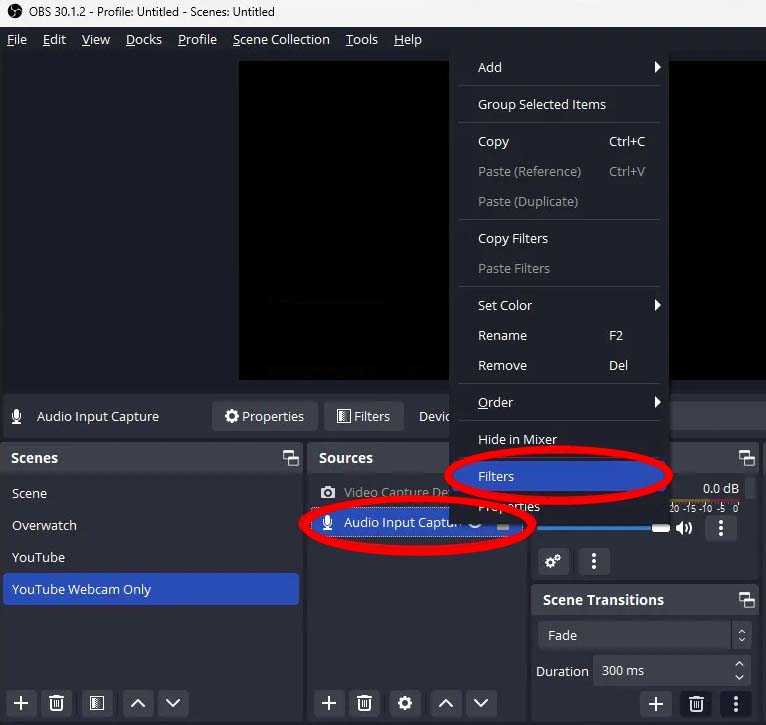
3: Now, you will see a “+” icon on the left side of the screen, simply click on it.
4: Choose Compressor.
5: Now, you can increase the output gain from here.
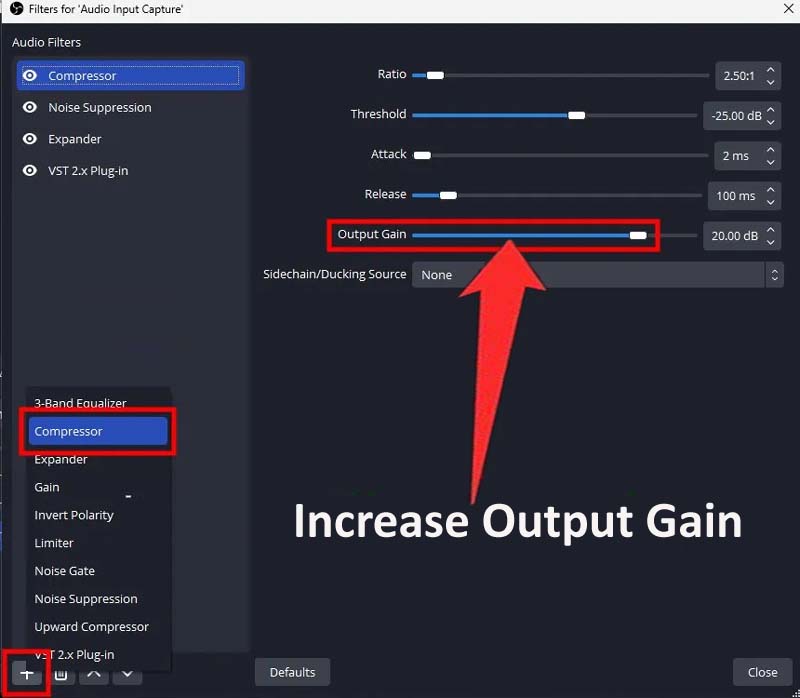
Increase it until you hear your voice clearly and properly.
You can adjust the settings until you hear your voice clearly and properly.
Also Read: Fix We Can’t Find Your Camera Error 0xA00F4244 on Windows 11/10
Fix 2. Increase Your Microphone Level
Some users report that they are facing the microphone too quietly in OBS on Windows 11/Windows 10.
This workaround will help you in fixing such an issue.
1: Open Windows Search and search for Control Panel.
2: Go to Hardware and Sound > Sound.
3: Click on Change system sounds and select Recording.
4: Select your Microphone, then click on Properties.
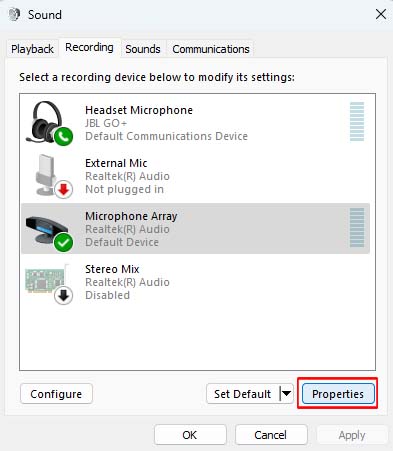
5: Go to the Levels tab, then increase the volume level of your microphone.
6: Now, click on Apply > Ok.
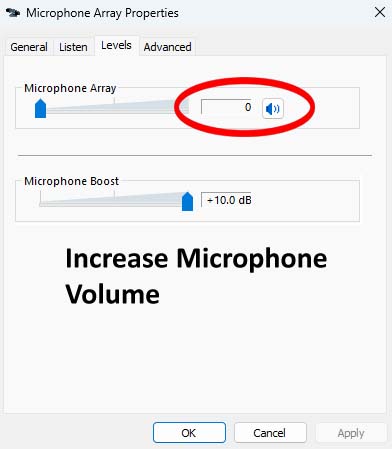
Now, check if you can hear yourself clearly or not.
Conclusion
OBS is a Powerful software used by many content creators, streamers, and podcasters for content creation.
If you are using it and facing mic issues, then you can follow the above-mentioned method to fix microphone too quiet in OBS.
I hope you have followed the steps carefully and this might have solved your issue.
Do share it with others, it will help the other users also.
You May Also Like:
- Fix “There Was A Small Problem. Please Try That Again” In YouTube Kids
- How To Fix “Oops. Couldn’t load any videos” In YouTube Kids
- How To Fix Twitter (X) Posts Aren’t Loading Right Now Error
- How To Fix Xbox App/Microsoft Store Error Code 0x87e0000d On PC

Max Field is a founder of Recover Android Data. He is an Android lover and loves to write tips, tricks, fixes for errors, data recovery solutions and more related to Android. Provide Gaming Tips, Tricks, Game Error/Issues Solutions (PC/Xbox/PlayStation/Mobile). He is now also interested in solving LinkedIn Puzzles. He has 12+ years of experience in this field.