
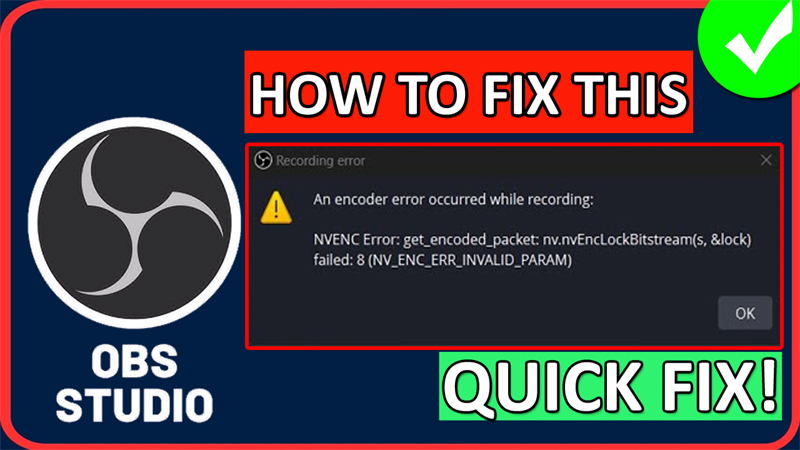
In This Article, You Will Learn How To Fix “An encoder error occurred while recording: NVENC Error: get_encoded_packet: nv.nvEncLockBitstream” on OBS.
Steps To Fix NVENC Error: get_encoded_packet: nv.nvEncLockBitstream on OBS
Install the previous (older) version of your NVIDIA graphics card.
1: In Windows Search, type “Device Manager” and open it.
2: Expand “Display adapters” and note down your NVIDIA graphics card Product name (For example – NVIDIA GeForce RTX 4070).
3: Go to – https://www.nvidia.com/en-us/geforce/drivers/
4: Enter the details of NVIDIA graphics card, such as:
- Product Type: GeForce
- Product Series: GeForce RTX 40 Series
- Product: NVIDIA GeForce RTX 4070
- Operating System: Windows 11
- Language: English
- Download Type: Studio Driver
And then click on “Start Search”.
5: Download the second driver for the search result. Note: Don’t download the latest version, download the older version.
6: Run the downloaded .exe file. Click on Yes > OK > Agree and continue > Agree and continue > Next.
7: Once the installation is done. Launch OBS and you will not get any error and you will easily able to record video.
If you have found this post helpful, then please share it as it can help other users!
Please support us by subscribing to our YouTube Channel.
You May Also Like:
- How To Fix Coinbase Wallet Something Went Wrong Error
- How To Fix “Oops. Couldn’t load any videos” In YouTube Kids
- How To Fix Peekaboo App Not Working, Crashing or Keep Stopping
- How To Fix Voice Connection Issues/Errors In Discord

Max Field is a founder of Recover Android Data. He is an Android lover and loves to write tips, tricks, fixes for errors, data recovery solutions and more related to Android. Provide Gaming Tips, Tricks, Game Error/Issues Solutions (PC/Xbox/PlayStation/Mobile). He is now also interested in solving LinkedIn Puzzles. He has 12+ years of experience in this field.