
Dead by Daylight is an online asymmetric multiplayer survival horror video game developed and published by Behaviour Interactive Inc.
This game is about Trapped forever in a realm of eldritch evil where even death is not an escape, four determined Survivors face a bloodthirsty Killer in a vicious game of nerve and wits. Pick a side and step into a world of tension and terror with horror gaming’s best asymmetrical multiplayer.
In this article, you will learn how to fix Dead by Daylight error code 8001 on Xbox console (Series X/S).
What Causes Error Code 8001 In DBD?
The error message is displayed as:
CONNECTION ERROR:
Cannot connect to online services. Please try again later.
Error code: 8001
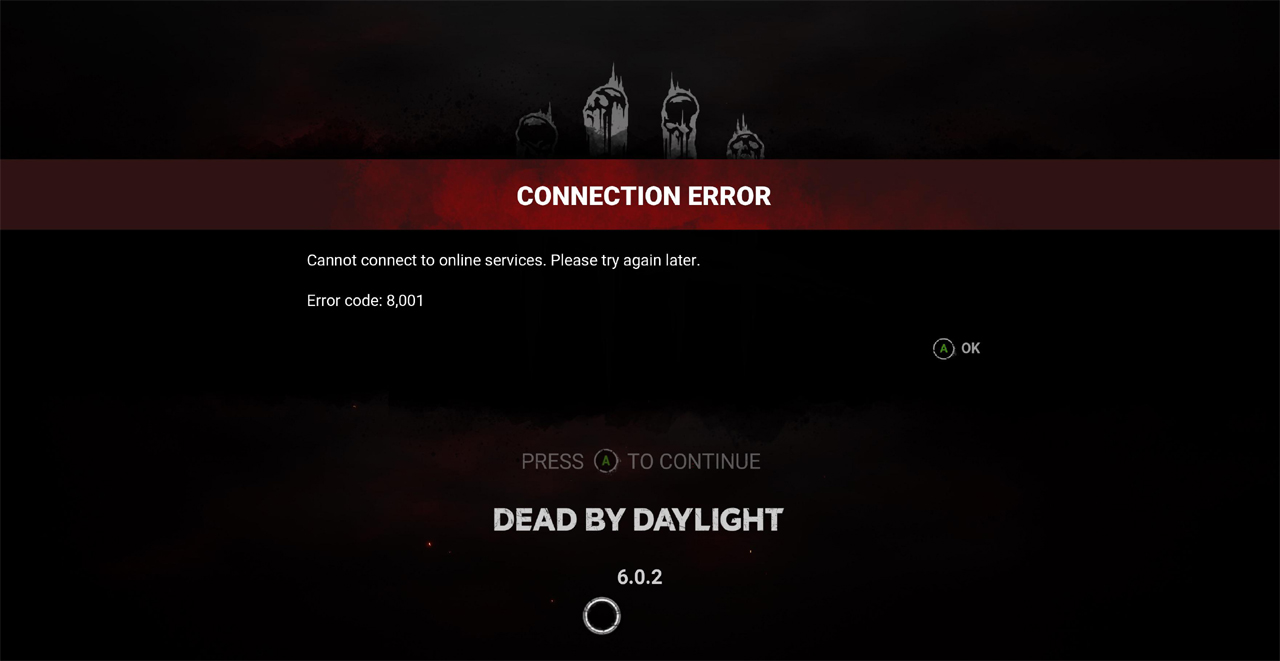
The possible causes for the DBD error code 8001 could be server outage, schedule maintenance, corrupt game cache and internet problems.
This error could arise in different platforms such as PC, Xbox (Series X/S) or PlayStation 5.
Sometime, the error disappears by itself, but it can return and create problem for players from playing the game despite multiple troubleshooting attempts. The error seems to affect players randomly, particularly after updating the game, purchasing new content or playing game at peak hours.
How To Fix Dead By Daylight Error Code 8001 on Xbox
When you encounter error code 8001 in Dead by Daylight, then you must first check the server status of the game from the following sources:
Official Dead by Daylight Twitter
Besides that, the problem could be related to Xbox Live Status. In such case, you must check the Xbox services and identify if Xbox live is creating the issue with the game. So, check the Xbox Live server status to know when the services get back online.
If the server is down or under maintenance, then wait for some time and when the server is up and running, then you can play the game.
If still, you are struggling with error code 8001, then follow the following fixes:
1. Power Cycle Your Xbox Console
Turn off your Xbox by pressing the Xbox button on the console for about 10 seconds, until your Xbox completely powers off.
Next, disconnect the power cable from back of the Xbox and the wall outlet. Wait for 10-15 seconds and then re-plug the power cable to the back of Xbox console and wall outlet.
Press the Xbox button on the console to turn it back on.
Now, launch the Day by Daylight and check error code 8001 gone or not.
2. Change DNS Settings on Xbox
This has worked for many players:
- Go to your Xbox Settings.
- In the General tab, select Network settings > Advanced settings. Go to DNS settings > Manual.
- Use Google’s public DNS – Enter 8.8.8 for Primary DNS and 8.8.4.4 for Secondary DNS.
- After changing the DNS, now launch the game and check DBD error code 8001 is fixed or not.
Note: You can also use Cloudflare (1.1.1.1 for Primary DNS and 1.0.0.1 for Secondary DNS) and check.
3. Check Internet Connection
Check and make sure your internet is working properly. You can try restarting your WIFI router.
- Switch to wired connection – If you are connected via Wi-Fi, then you can try connecting your console directly to router with an ethernet cable.
- Switch to different internet connection – If you are connected to WiFi, then try connect to mobile data via hotspot or try to connect to different Wifi network.
4. Clear Persistent Storage
- Press Xbox Guide button.
- Click on Settings in Profile & system
- Go to Devices & connections > Blu-ray.
- Click on Persistent storage and then click “Clear persistent storage”.
- Launch game and see if this helps.
5. Disconnect VPN
If you are using and connected to a VPN or Proxy service, then try to disconnect or disable it temporarily to avoid the network conflicts.
Then launch the game and check.
6. Reinstall Dead by Daylight
If above mentioned solutions didn’t work for you, then last fix is to uninstall Dead by Daylight from Xbox. Then fresh re-install it.
Sometimes, fresh re-installation fixes the corrupt game files and thereby fixes several issues, including error code 8001.
That’s all for this guide. Follow the fixes one-by-one to solve the error code 8001 in Dead by Daylight on Xbox (Series X/S) console.
For more related and latest guides, explore our articles on Gaming Section.

Max Field is a founder of Recover Android Data. He is an Android lover and loves to write tips, tricks, fixes for errors, data recovery solutions and more related to Android. Provide Gaming Tips, Tricks, Game Error/Issues Solutions (PC/Xbox/PlayStation/Mobile). He is now also interested in solving LinkedIn Puzzles. He has 12+ years of experience in this field.