

Delta Force is a definitive free-to-play modern team-based tactical shooter and featuring three distinct gameplay modes: large-scale PvP warfare, intense extraction shooter action, and a remake of the legendary Black Hawk Down campaign.
However, many players are encountering with the login error message and not able to play the game.
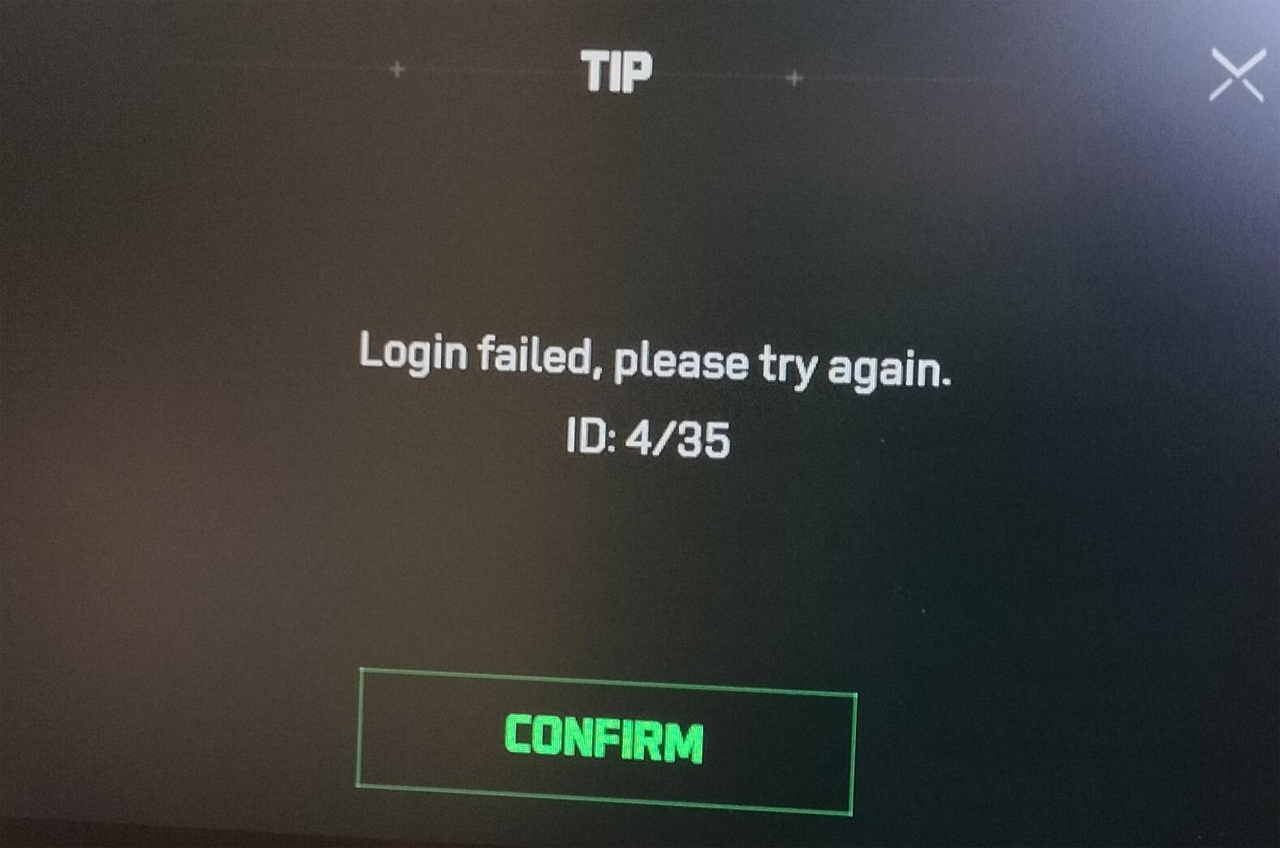
The error message is displayed as:
Login failed, please try again later.
ID: 4/35
So, in this guide you will learn to fix “Login failed Id 4/35” error in Delta Force.
Causes For The Occurrence of Login failed Id 4/35 Error
Some of the possible causes behind the Login failed Id 4/35 error in Delta Force, could be following:
- Game connection issue to the steam: If game cannot connect to steam, then login will not work. Steam not syncing right with game.
- Corrupted or broken session file: Data or cache files left over after crash report. Also, you will be locked out if your login details are wrong or compromised.
- Internet or server connection issues: The error may also occur due to poor internet connection or server outage from the game side.
- Antivirus Issues: Security software falsely flags the game.
How To Fix Delta Force Login Failed ID 4/35 Error
1. Delete The Session Files
- Navigate to game installation folder, wherever the Delta force is installed on your PC.
- Open Delta Force\Launcher\Cache\TSF4G2 folder.
- Select everything inside that folder and delete it.
- Relaunch the game and check.
2. Verify The Game Files
- Open Steam and go to Library. Right-click on Delta Force and select “Properties”.
- Go to “Installed Files” tab and click on “Verify integrity of game files”. Once the scanning completes.
- Now, check if your problem is solved or not.
If that doesn’t work, then re-install the game launcher that might solve the issue.
3. Close and Restart Steam
It could be possible that problem is not in the game but the steam itself. Sometimes, Delta force cannot get synchronized or does not simply get connected to Steam.
- So, simply close the Steam. Also, make sure that it is closed from system tray as well. Or close the Steam from Task Manager.
- Then, restart the steam client and launch the game. This will reset the connection and resolve the login failed id 4/35 problem.
4. Delete/Move/Rename session.txt File
- Open Steam and go to Library. Right click on the Delta Force and select Browse Local Files.
- In the file explorer you should see “Game” and “Launcher”, go to Launcher > Cache and look for “session.txt” in the folders.
- Now, you can delete/move or rename that file, the launcher will generate a fresh one on login.
- And after login, you can play the game.
If you encounter the same issue again, then again repeat and it will again work.
5. Turn off Your Antivirus/Firewall or Add Game Exception
Sometimes, Windows Defender Firewall or your security software create the problem. Delta Force might not be able to connect to internet due to security software.
Try to temporally turn off your antivirus program or add the game to the list of exceptions and see if that fixes the issue or not.
So, that’s all for fixing the login failed id 4/35 error in Delta Force. You can get quickly in the game by clearing session file, verifying game files, restarting steam, deleting session.txt file, disabling security software or by just making sure you login credential is correct.
For more related and latest guides, explore our articles on Gaming Section.

Max Field is a founder of Recover Android Data. He is an Android lover and loves to write tips, tricks, fixes for errors, data recovery solutions and more related to Android. Provide Gaming Tips, Tricks, Game Error/Issues Solutions (PC/Xbox/PlayStation/Mobile). He is now also interested in solving LinkedIn Puzzles. He has 12+ years of experience in this field.