

(Pic Credit: Getty Images)
Well, the Android phones allow their users to save Wi-Fi passwords on their phone. So, whenever the same network is available, then the phone will automatically get connected to it without entering the passcode, if you have saved it.
Sometimes, the users can’t able to connect to the network, because they accidentally reset the saved Wi-fi and also forget its password. But you don’t have to worry about it because you can recover it by scanning the QR code.
So, we provided the complete guide on how to see/find Wi-Fi passwords on Android. If you are also in the same situation that you can’t able to connect, then you should read this guide carefully and easily recover it.
So, lets start with the solutions.
Recover/View/Find/See Wi-Fi Password On Android Devices
We provide the solutions for different Android phone models and versions for your connivence. So, you can simply go for yours and easily recover it.
Also Read: FIXED: Wi-Fi Calling Notification Keeps Popping Up On Android
1. See Wi-Fi Password On Android 9 Or Older Version
Well, this process is quite difficult to perform compare to the phones that are running on Android 10 or higher version. Because you should root your device to find the passwords.
So, first root the device, once it’s done, then check if its rooted properly before moving to the steps. You can check it with the help of third-party apps. You can download it from the Google Play Store, because there are many tools available to check the device rooted properly or not.
Now, let’s see the steps.
- Turn on the Developer Mode. To do so, navigate to the Settings and tap on System, then select About phone, then tap on the Build Number to 7-8 times until it pop up the message that says “you are now a developer”.
- Now, select the Developer options from the System menu page.
- Now, turn on the USB Debugging.

- Now, simply install “Universal ADB Drivers” on your PC. It can help you in establishing the connection between your device and your PC.
- Then, use a USB cable and connect your device to your PC and ensure that you choose the data transfer option, if not, then simply select it.
- Open Minimal ADB and Fastboot app on PC. You need to enter the Command Prompt to access it.
- Then, enter this command “adb pull/data/misc/wifi/wpa_supplicant.conf” to access it, then simply hit “Enter”.
- Now, navigate to File Explorer and open folder.
- Now, access the “wpa_supplicant.conf” file using Notepad.
- Now, you are able to view all of the saved network’s passwords.
Also Read: How To Fix Wi-Fi Stuck On Obtaining IP Address On Android
2. How To View Wi-Fi Password On Android 10 Or Higher Version
Well, you can view it without rooting your device, but the question is how to see Wi-Fi passwords without root?
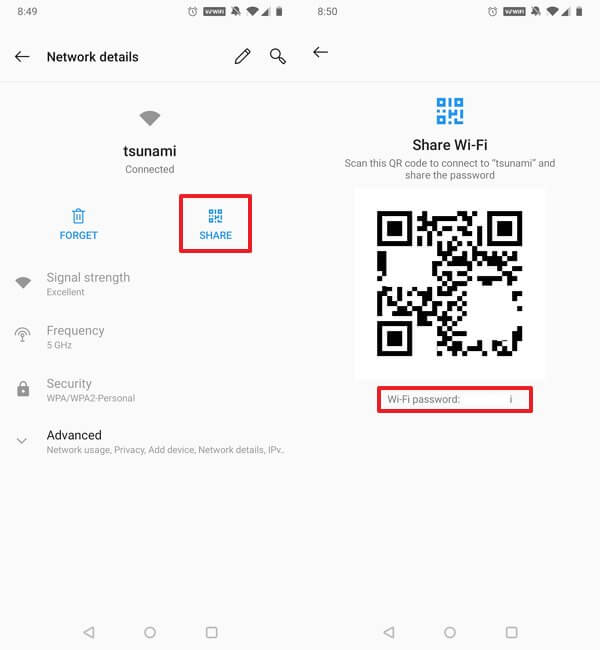
Don’t worry! You can easily find it without rooting the device. The best method to connect a smartphone to a network without entering the passcode is scanning QR code. You can easily connect to the network if you scan its QR code. These are the steps to follow.
- Navigate to the Settings and tap on Network & Internet.
- Now, select “Wi-Fi”, for those users who are using Android 10, 11 and for 12 users, they can choose “Internet”.
- Now, the available networks will be displayed on your phone screen, then simply select a desired network.
- Now, hit the Share
- Now, enter your phone lock screen password/pattern/pin/fingerprint to confirm.
- Now, you will able to view the passcode located below the QR code.
Also Read: Fix Wi-Fi Calling Not Working On Samsung Galaxy S20 (Plus)/S20 Ultra
3. View Wi-Fi Password On Samsung
If you are an owner of a Samsung phone and its running on the Android 10 or higher version, then follow the mentioned below steps.
- Navigate to the Settings and select Connections.
- Now, tap on Wi-Fi.
- Now, hit the Settings icon present beside to the available network.
- Now, simply hit QR code, then select Save as image.
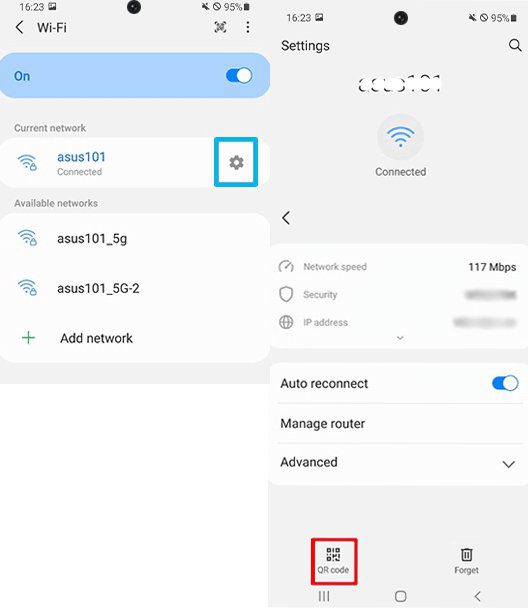
- Now, open Google lens and scan the QR code from the image, then you will able to connect to the network.
You May Also Like:
- How To Fix IMS Service Keeps Stopping On LG Phone
- How To Fix “Checking Connection This Can Take A While” On Android
- How To Fix Google Maps Keeps Rerouting on Android or iPhone
- Samsung Phone Stuck on Airplane Mode? Here Is The Real Fix!
4. See Wi-Fi Password On Google Pixel
if you have a Pixel phone and want to see the saved network passwords, then you can easily do it by following the mentioned below steps.
- Navigate to the Settings and select Network & Internet.
- Now, select Wi-Fi, then you will see the available networks, simply choose one of them.
- Now, simply hit Share.
- It may ask you for the passcode, if it does, then enter it.
- Now, you will able to see the QR code and the password will be appeared below it.
5. Use Third Party Apps To View Password
Well, you can also use the third-party apps to check the passwords, it’s not a complicated process, you can easily view it with the help of Wi-Fi passwords-revealing apps.
There are many other tools available on the Google Play Store, you can download any of them and use it. Some of the apps need the device to be rooted or some of them not need it.
So, let’s move to the solution to easily recover it with the help of third-party tools.
6. Use Wi-Fi Password Revealing App
This app will work if your device is rooted, if not, then simply root it first. Once you root your device, then follow the below mentioned steps.
- Download any Wi-Fi password revealing app and install it on your phone.
- Now, open the app and it will ask for grant root permission, simply hit Allow option.
- Now, you are able to see the list of the saved networks on your device’s home screen.
- Now, select a desired network and you will get different options to check it.
- Now, if you want to share and view the passcode, then you can go for QR code or you can tap on Copy Password to copy it.
- Now, you can paste it on the clipboard to see it.
Also Read: Can’t Share Wifi Password on Samsung Phone? Here What To Do?
7. Check Passwords Using ES File Explorer
Well, keep remember that all of the saved network’s passwords will be saved in the device’s root directory. So, you can recover them easily by using the file manager with high privileges. But it needs the device to be rooted.
First, root your device and then follow the mentioned steps.
- Navigate to ES File Explorer and simply grant the root privileges for the app.
- To do so, navigate to the Root Explorer in app.
- Now, you will able to see a prompt that asks for granting the root access. Simple hit Allow
- Now, go to the Device and select Data folder.
- Now, access the misc folder.
- Now, tap on “wpa_supplicant.conf” present below the Wi-Fi menu.
- Now, choose the HTM Viewer from the prompt.
- By doing this you can able to see the SSID & saved networks passwords.
- Now, from here you can copy it and paste it to the clipboard.
Well, you can use any file manager for recovering passwords with high privileges and root access.
Wrap Up
Nowadays, many Android users accidentally reset their saved networks and then they can’t able to connect to it, because they forgot the passcode.
So, we decided to help you in such a situation by providing a complete guide on how to see/find Wi-Fi passwords on Android. You can read the above-mentioned article carefully and easily find the passwords by doing some simple steps.
I hope this guide has helped you, if it does, then do share it with others, as it can help them also.
Please support us by subscribing to our YouTube Channel.

Max Field is a founder of Recover Android Data. He is an Android lover and loves to write tips, tricks, fixes for errors, data recovery solutions and more related to Android. Provide Gaming Tips, Tricks, Game Error/Issues Solutions (PC/Xbox/PlayStation/Mobile). He is now also interested in solving LinkedIn Puzzles. He has 12+ years of experience in this field.