
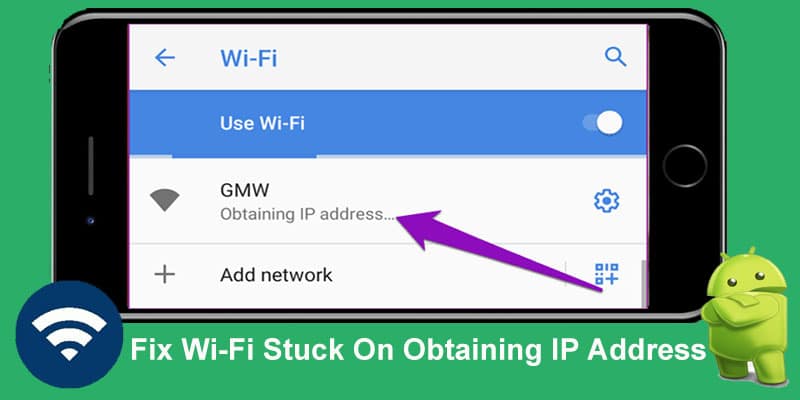
Learn 20 Different Solutions To Fix Wi-Fi Stuck On Obtaining IP Address/Failed To Obtain IP Address On Android Device!
Nowadays Wi-Fi network has become very important for doing lots of work. If your device doesn’t connect to Wi-Fi as it is stuck on “Obtaining IP address” stage then it means that there is some issue with it that you need to fix it.
So, if you are also facing the same issue on your Android device then don’t bother. Here, we will discuss some effective solutions on how to fix Wi-Fi stuck on obtaining IP address on Android.
What Is The Meaning Of “Failed To Obtain IP Address” Error On Android?
When any user tries to connect their device to the Wi-Fi network then the user gets the “failed to obtain IP address” error. Every router assigns an IP address for connecting any device to it. And to connect to this router your device must obtain this IP address.
When your Wi-Fi gets stuck on “Obtaining IP Address” then it means that there is an IP configuration failure due to which the users are not able to connect their device to the Wi-Fi network.
Now, we will look at some practical examples.
Also Read: Fix Wi-Fi Calling Not Working On Samsung Galaxy S20 (Plus)/S20 Ultra
Practical Example 1: A User Is Asking For Help To Fix Wi-Fi Stuck On Obtaining IP Address
i am having the same issue runnig cm7. can anyone help?
Source: XDA Forums
Practical Example 2: A User’s Wi-Fi Not Obtaining IP Address
hi all
this is driving me mad
got a desire from virgin, great phone
but
wifi was fine at first but now when i turn wifi back on it says
remembered secured with wps/wpa2 psk
obtaining ip address
but then after a few mins says unsucessful
this is with the phone next to my router!
also under settings – wifi settings i have no advanced tab to set my router time out? where is it?
cheers
gazbut
Source: Android Forums
So, these are the two practical examples and like this many Android users are going through it due to various reasons. Some of the common reasons are discussed below.
Also Read: FIXED: Wi-Fi Calling Notification Keeps Popping Up On Android
Why Does Your WiFi Get Stuck On Obtaining IP Address?
Here are some of the common as well as major reasons for wifi getting stuck on “obtaining IP Address” on Android.
- If you keep your Android device far away from the Wi-Fi router.
- When your phone doesn’t operate well with the set encryption way.
- If there is a configuration problem with the router.
- When you have not enabled MAC filtering. Maybe your address is not whitelisted.
- Some issues with the software or configuration of your Android phone.
Now, you have a basic understanding of the cause of this issue that will help you to fix this error easily.
So, below are some of the effective solutions to fix Wi-fi stuck on obtaining IP address error on Android.
Solution 1: Restart Your Android And Router
If there are minor glitches in your Android device or Wi-Fi router then you should first restart them.
Every router has its control interface therefore the steps to restart each router may be different. Generally, you need to type the router’s IP address in any web browser to access the control panel and restart it from there.
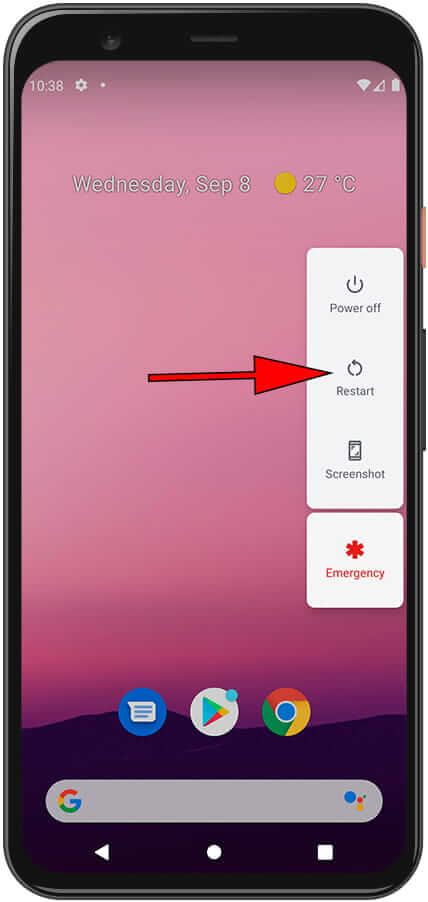
To restart your Android device, press and hold the Power key until you see the Power menu on the screen. From there, tap on Power off option. Once your device is switched off, press and hold the Power key for a few seconds to switch it on.
Solution 2: Turn Off And Turn On Wi-Fi
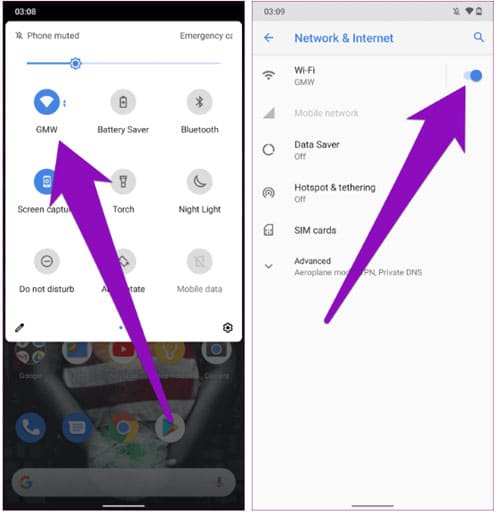
Another way that you can try to fix wi-fi stuck on obtaining IP address is by disabling and enabling Wi-Fi. For this, you need to go to Settings > Network & Internet and then turn off the WI-Fi network. After this, turn off the Wi-Fi again by following the same steps.
Solution 3: Enable And Disable Airplane/Flight Mode
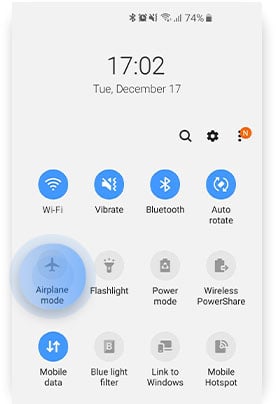
You can also turn on airplane mode and then turn it off to refresh your IP address on Android. To enable airplane mode, swipe down to go to the Quick Settings menu. Here find the airplane mode icon and tap on it to turn it on. After that, disable it by tapping on the icon.
Also Read: Can’t Share Wifi Password on Samsung Phone? Here What To Do?
Solution 4: Keep Your Android Device Near The Router
Every router has its connection range and when you keep your phone out of that range then you can get “obtaining IP address” error on your Android device. So, you should move your smartphone near to the router and check whether the issue is fixed or not.
Solution 5: Change Your Device Name
Many users have reported that after changing the device name they were able to fix “obtaining IP address” error. So, you can also try this method.
Here are the steps to do the same.
Step 1: Run the Settings app on your phone.
Step 2: Then hit on About phone.
Step 3: After that, tap on Device name option.
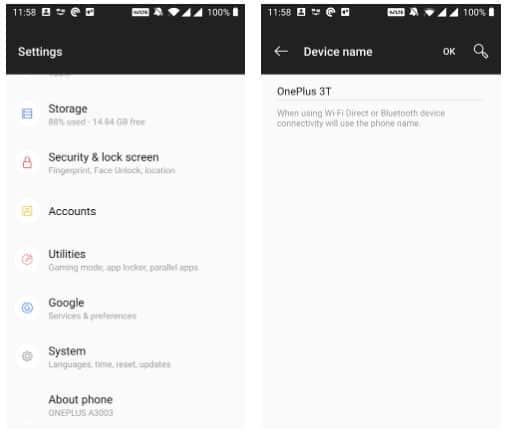
Step 4: Next, enter the new name for your Android phone, and hit on OK.
Step 5: Now, again try to connect to your Wi-Fi network.
Solution 6: Check If Your Android Device Is Blocked
It can be possible that your Android device is blocked to that specific network that you are trying to connect and due to this your Wi-Fi gets stuck on “obtaining IP address”.
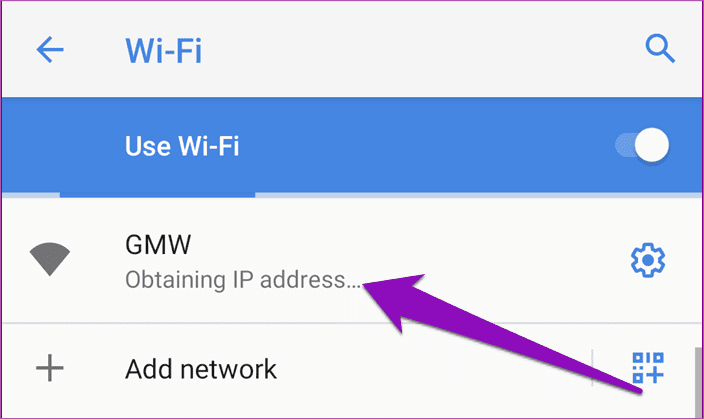
Hence, you should check that your device is not blocked, if it is blocked then unblock it. Also, check that the router has no strict Mac address configuration that is stopping your device from connecting to that wi-fi network.
Also, check that your wi-fi does not have a limit for the number of connected devices. If it has then also it will cause this error.
Also Read: [10 Quick Tips]: How To Increase Volume On Android Phone?
Solution 7: Forget Network And Reconnect
If the error is coming due to temporary interference then you should reconnect to a network. When you reconnect, then the router forgets the earlier attempts and provides a new process to assign you an IP address.
Here are the steps to do the same.
Step 1: Open Settings on your Android device.
Step 2: Then hit on Connections.
Step 3: After that, tap on Wi-Fi.
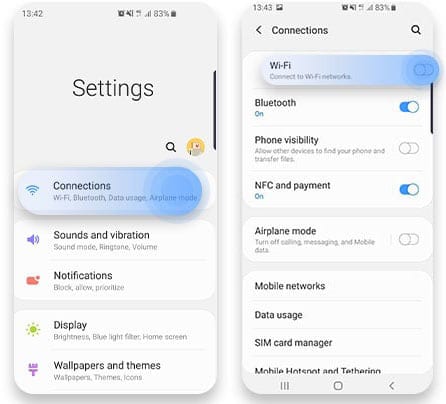
Step 4: Next, tap and hold the selected Wi-Fi network and then select Forget Network.
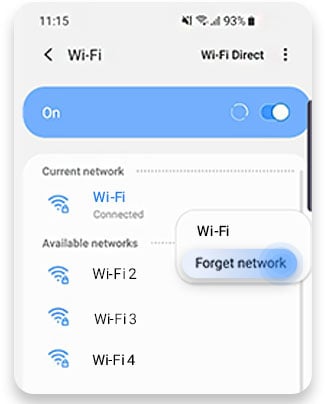
Step 5: Now, you can connect to this network as usual.
Solution 8: Give A Static IP Address To Your Android
If your Android phone is not obtaining an IP address automatically then you should try to manually give one. This method to fix the error is temporary because you will need to reconfigure the network settings manually.
Note: To use this method you must know the IP address of your Wi-Fi router.
Now, follow the below steps to give a static IP address to your Android device.
Step 1: Navigate to Settings > Connections.
Step 2: Then tap on Wi-Fi.
Step 3: Now, you need to tap and hold the selected Wi-Fi network. Next tap on Forget Network.
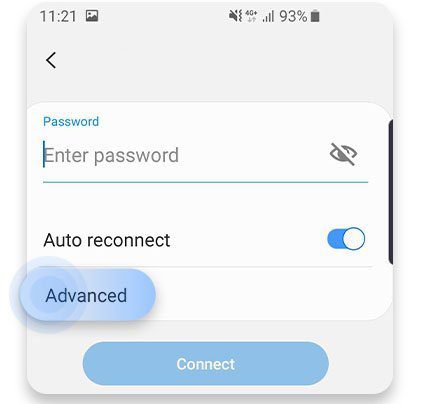
Step 4: After this, try to reconnect to a network. Then under the password field hit on Advanced.
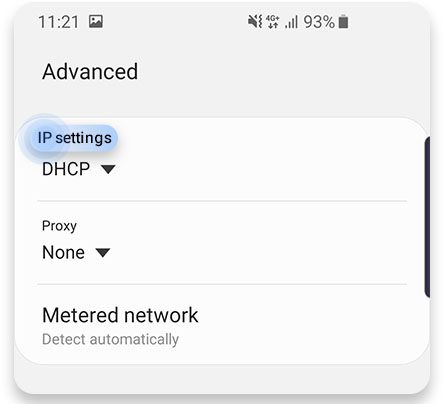
Step 5: Now, from the drop-down menu tap on IP settings.
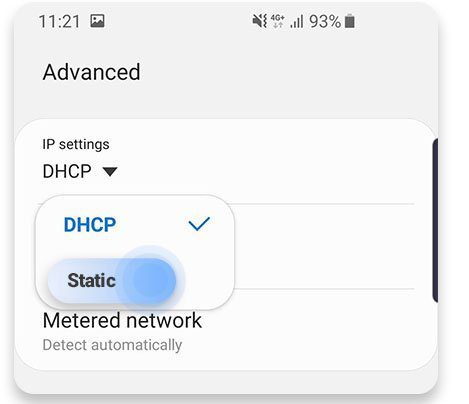
Step 6: Choose Static.
Step 7: Now, change the last digit of your IP address to any number between 1 to 225.
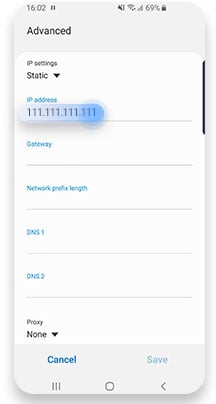
Step 8: Lastly, tap on Save and retry the connection.

Also Read: Solved: Instagram Error “Sorry, There Was A Problem With Your Request”
Solution 9: Change The Encryption Type
Sometimes WPA and AES encryption methods do not work correctly with Android smartphones. You can try to transfer between them. You will get these settings in the router’s web interface. You will get them under the security section. Find Encryption Method, Encryption Mode, or same name field and try to change it. Now, reconnect to the network.
Solution 10: Check Network Details
If you have entered an incorrect password then this can cause your wifi to stuck on “obtaining IP address” on Android. Therefore, you should check that you have entered the right password or PIN to the network. If the issue is coming on a Wi-Fi that you have connected to earlier then check with the administrator whether she/he has changed the network details such as – SSID and password.
If it SSID and password are changed then, get the new details, forget the old details on your device and then reconnect to the new network.
While connecting to a network manually, selecting an incorrect Security type might also result in the Wi-Fi network’s status causing “obtaining IP address” error on your Android.
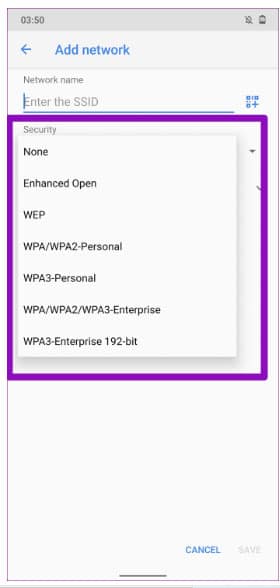
Hence, you must check that you have provided the correct information about the new network. If you can access the router’s admin panel then you should check it again and confirm the network credentials.
Solution 11: Reset Network Settings Of Android
If the above solutions are not helping you to fix wifi stuck on “obtaining IP address” then you can reset the network settings of your Android device.
When you reset the network settings of your device then all the settings on your phone including Wi-Fi network and password get reset.
Don’t Worry! Resetting the network settings didn’t erase your device data.
Now, follow the below steps to reset network settings on Android.
Step 1: Navigate to Settings > Backup and reset.
Step 2: Next, tap on Reset network settings.
Step 4: Then, tap on Reset Settings.
Step 5: If prompted, enter the passcode and then hit on Reset Settings again to confirm the process.
Solution 12: Change Your Wi-Fi’s Encryption Mode
Many wifi routers offer multiple encryption modes to use. If you have switched to a new mode then you should go back to the earlier mode just to check if this solves the IP error on your device or not.
Below, follow the steps to do the same.
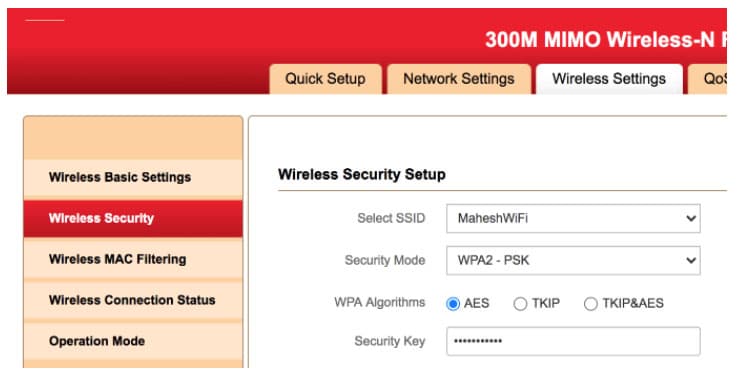
Step 1: Launch the router’s settings page and hit on Wireless Settings.
Step 2: After that, tap on Wireless Security.
Step 3: Choose WPA2-PSK from the Security Mode dropdown menu and save it.
Also Read: 5 Must To Apply Tips To Secure Android Phone or Tablet
Solution 13: Reset The Router
You can also reset the router to resolve failed to obtained IP address. Most router has a reset button. Press and hold unless the wifi router gets restarted. If there are bugs in the router then it will permit it to restart and reassign IP address to the connecting devices.
Once you have reset the router, check if the issue is fixed or not.
Solution 14: Clear Google Play Services Cache
Google Play Services play an important role in your Android device. And when the cache of Google Play Services gets corrupted then it can cause issues in the device. Thus, you should clear it and check it worked to fix the “obtaining IP address” error on your Android phone or tablet.
Follow the below steps to clear Google Play Services cache.
Step 1: Run the Settings app on your device.
Step 2: Then tap on Apps > See all apps.
Step 3: Scroll down to find Google Play Services app and hit on it.
Step 4: Choose Storage and then tap on Clear Cache.
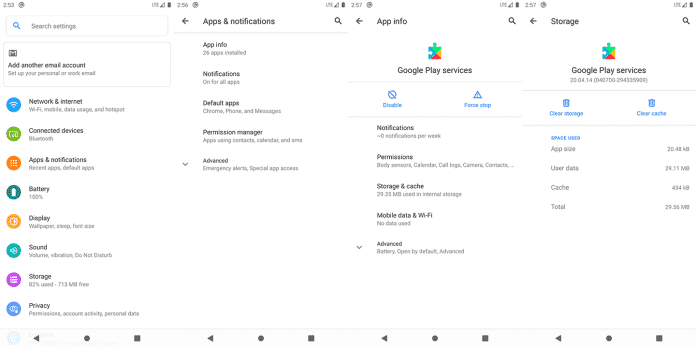
Now, try to connect to the wi-fi network.
Also Read: How To Fix Incoming Call Not Showing On Android Phone Screen
Solution 15: Turn Off Network Notification
Step 1: Head to Settings > Wi-Fi (WLAN) and then Additional settings.
Step 2: After that, turn off “Scanning always available”.
Solution 16: Change Wireless Channel
Unexpected wireless interference can also be the reason for error “obtaining IP address” on Android. So, to fix it you need to change the wireless channels or you can use Wi-Fi Analyzer app to select the best wireless channels.
Solution 17: Install Wi-Fi Fix App
You can simply download and install Wi-Fi fix app to fix “failed to obtain IP address” as this method has worked for some users. Maybe this can work for you.
So, simply open Google Play Store app on your phone and then download and install the app from there.
Solution 18: Delete Unwanted Data
If you have a rooted Android phone then you can use this method to fix this error.
Here are the steps to do the same.
Step 1: Download and install ES File Explorer on your Android device.
Step 2: When asked, permit root permissions.
Step 3: From the menu, head to Root explorer.
Step 4: Then, go to /data/misc/dhcp.
Step 5: Now, remove all files that are presented there.
Step 6: Lastly, restart your phone and check whether the error is coming or not.
Solution 19: Disable Private DNS On Android
If your Android device is running on Android 9 Pie and Android 10 then you can use this solution to fix the error. Simply turn off Private DNS and then check whether the issue persists or not.
Also Read: How To Recover Videos After Factory Reset On Android
Solution 20: Factory Reset Your Android Phone
Last but not the least resort to fix Wi-Fi stuck on obtaining IP address is by doing a factory reset. But always remember that doing a factory reset will erase all data from your device. So, you must first backup your Android phone data and then reset it.
Here, follow the simple steps to factory reset Android phone.
Step 1: On your phone, tap on Settings app icon.
Step 2: Then, choose System.
Step 3: Hit on Reset options.
Step 4: Select Erase all data (factory reset).
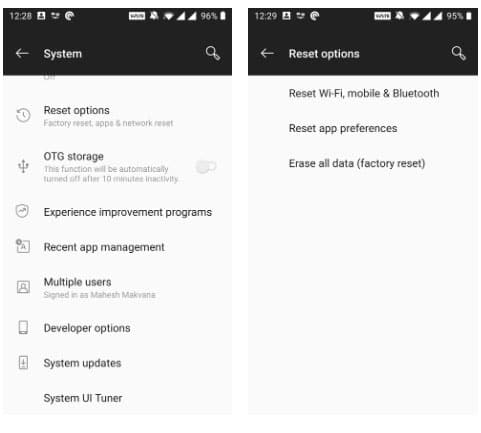
Step 5: Now, hit on Erase all data.
Step 6: Enter the passcode.
Step 7: Again tap on Erase all data to confirm the process.
Wrap Up
So, there were all 20 different solutions on how to fix Wi-Fi stuck on obtaining IP address on Android. Try the solution according to your device’s condition. Also, you have learned why this issue occurs and the meaning of this error.
Please support us by subscribing to our YouTube Channel.

Max Field is a founder of Recover Android Data. He is an Android lover and loves to write tips, tricks, fixes for errors, data recovery solutions and more related to Android. Provide Gaming Tips, Tricks, Game Error/Issues Solutions (PC/Xbox/PlayStation/Mobile). He is now also interested in solving LinkedIn Puzzles. He has 12+ years of experience in this field.