

Learn 10 Tips & Tricks To Increase Volume/Sound On Android Phone!
Overview: It is a very easy task to increase volume on your Android phone. But many users are asking how to increase Volume on their Android devices. If you have also the same question then you have visited the right web page. In this article, I am going to discuss 10 quick tips on how to increase volume on Android phones.
- Tip 1: Check Your Phone’s Sound Settings
- Tip 2: Manually Turn Up Your Media Volumes
- Tip 3: Clean Dust From Phone’s Speaker And Headphone Jack
- Tip 4: Increase The Volume Limiter
- Tip 5: Close All Open Audio-Playing Apps
- Tip 6: Use Another Headphone
- Tip 7: Install A Volume Booster App
- Tip 8: Move To A Better Music Player App
- Tip 9: Install An Equalizer App And Adjust The Equalizer Settings
- Tip 10: Use A Bluetooth Smart Speaker
Let’s start with real user practical scenarios!
Practical Scenario 1: Speakers Volume Of The Huawei Mate 20 Pro Is Low? How To Fix It!
Hello is there a way to fix my volume issue because when I’m hearing something or watching a video on my phone and I raise the volume on the phone to the maximum so the speakers of the phone singing so low like the volume is bearly there on other phones volumes are louder :crying:
Source: XDA Forums
Practical Scenario 2: Call Volume and Audio Quality Is Very Poor On Moto E4s
Before moving to the solutions, let us first check out the reasons why your phone volume is so low.
I have the volume all the way up and still have to hold the phone close to my head. Plus, the audio quality is very poor when I use the phone. The sound is muffled and I can’t understand the speaker. Is this the a problem on all Moto e4s ?
Source: Android Central Forums
So, those were two practical scenarios. Similarly, there are many Android phone users out there encountering low volume issues and looking for solutions on how to increase volume on Android phones.
Well, we will move to tips to fix low volume and increase volume on Android but before moving to the tips, let us first check out the reasons why your phone volume is so low.
Reasons: Why Your Android Phone Volume Is So Low?
There are some causes due to which your phone sound is too low. Some of the causes are mentioned below.
- When Do Not Disturb Mode is enabled or when you decrease the phone’s volume.
- When you are not keeping your Android phone in the right position. You should check that you do not block the phone’s speaker holes from where the sound comes.
- When there are some dust particles on your device speaker grille.
- If your phone’s volume button is damaged.
So, these are some of the reasons that can decrease Android phones’ volume.
Now, let us know how to increase volume on Android phones.
Video Guide: How To Increase Volume On Android Phone
Tip 1: Check Your Phone’s Sound Settings
You should first check your phone’s sound settings. Different Android phones have different approaches to manage their sounds. With that, some Android brands provide additional settings and options to boost their device’s volume. For example, some TECNO phones have Dirac, Infinix phones have DTS.
In some cases, these settings, features, or options should be in your phone’s Sound Settings or as a standalone app in your app drawer.
For a start, go to Settings > Sound and vibration. Here, you will find the basic sound settings and other features with Volume sliders. From there, you need to make sure that the media volume is loud enough. After this, scroll down to find features such as DTS, Dirac, Equalizer, and Sound Enhancement, and others.
If you are a TECNO/Infinix phone user then make sure you enabled BesLoudness that you will get under Sound Enhancement. It helps the volume of the speaker and sound quality significantly.
Also Read: How To Set Wallpaper Without Zoom In Android
Tip 2: Manually Turn Up Your Media Volumes
You need to also check that your general device volume bar is high enough so that it can be heard. Maybe you have been playing your music on a lower volume without knowing it.
So, before you follow other methods, turn up your phone’s volume using the Volume button.
Here are the steps to increase volume on Android phones.
Step 1: Find the volume key on either side of the phone’s frame.
Step 2: Now, press the Volume Up key many times to reach the highest pick of the Volume.
Step 3: You will see the volume slider on your phone’s screen while you press the volume key. If you see the volume bar high that it indicates that your phone’s volume is at the maximum.
Now, play any videos or music and check your Android phone’s volume has been increased or not. If not then move to the next tip.
Tip 3: Clean Dust From Phone’s Speaker And Headphone Jack
If dust particles have entered in the device’s speaker or headphone jack then this can also cause volume on your Android so low. So, to fix it you need to clean the speaker grille.
But before that, check that your phone cover is not blocking the speaker grille. You can also remove the phone case while playing video or music to check if it boosts the speaker’s volume. If it is working well then you need to buy another phone cover.
If this didn’t help then clean the dust particles from your phone’s speaker grilles. To do that, you can use a can of compressed air to blow out the dust particles from your phone. If you don’t have that then you can use a soft brush to take out dust particles from your phone.
If you are using headphones and it is not giving the full sound then you need to clean the headphone jack.
Also Read: Fix Wi-Fi Calling Not Working On Samsung Galaxy S20 (Plus)/S20 Ultra
Tip 4: Increase The Volume Limiter
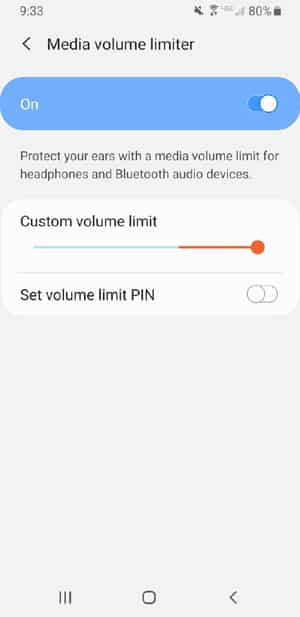
You should also check that your volume limiter is not restricting your phone to reach the full volume.
Here, follow the steps to check this.
Step 1: On your phone, open the Settings app.
Step 2: Then tap on “Sound and vibration”.
Step 3: Next, hit on “Volume”.
Step 4: Now, tap on 3 vertical dots or menu button.
Step 5: After that, tap on “Media Volume Limiter”.
Step 6: If you find the volume limiter off then toggle the switch to the right position to enable the limiter. When it is enabled, slide the circle under “Custom volume limit” to the right position.
Tip 5: Close All Open Audio-Playing Apps
Some apps that play video or audio on your phone have their own app volume settings, which can alter the volume of your system when it runs in the background. The most common culprits are buggy equalizer apps or misconfigured.
As they are designed to take precedence over the system volume, they can suppress volume if they are not correctly set up. To close them, bring up your open apps and swipe them to the side.
Note: If they are still running in the background, then you can close them by rebooting your Android phone.
Tip 6: Use Another Headphone
If still, you are unable to increase the volume on your phone then you should try another earphone. You can select wireless or wired headphones. If there is any problem with the headphone jack then you should use wireless headphone and connect them with Bluetooth.
Now, connect your earbuds using the phone’s Bluetooth feature and then check it is giving full sound or not. If not, then move to other tips.
Tip 7: Install A Volume Booster App
You can also use the volume booster app to boost your headphone’s volume on Android devices, but it is not recommended tip as any sound higher than the manufacturer recommends can damage the speaker instantly or cause sound distortion and other problems.
Although, Volume Booster apps increases the volume of your headphone. It comes with amplifiers that boost the volume of your headphone to 200% if your headphone or ear can handle it.
You will find many Volume Booster app on Google Play Store. Some of them are free and some need a small amount to buy them or are supported with ads. So, if you want to use it then you can find the best volume booster app on Google Play Store and install it from there.
Tip 8: Move To A Better Music Player App
There are chances that the music player app which you are using can affect your sound output. If you feel that your volume drops while using a specific music app then you should switch to another music player app. Simply, open the Google Play Store app on your Android phone and there you will get many music apps. Read the review and rating of the app and which you like or which fulfill your requirements, you can install it.
Tip 9: Install An Equalizer App And Adjust The Equalizer Settings
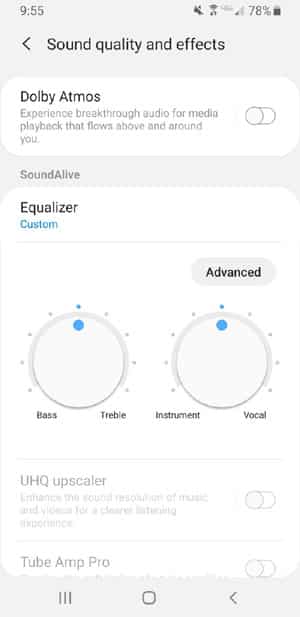
Another advanced way to increase the volume of your phone involves adjusting the equalizer settings. If you have not installed the equalizer app then install it from Google Play Store.
Now, follow the steps to adjust the equalizer settings.
Step 1: Open the Settings app.
Step 2: Then tap on Sounds and vibration > Advanced sound settings.
Step 3: After that, hit on “Sound quality and effects”.
From here, you can adjust different settings to make your volume louder. Here are some suggestions.
- If you wish to adjust the sound quality to better suit your music then tap on “Equalizer” and choose the genre that your wish.
- Tap and slide around the knob-like circles under “Equalizer” to adjust the treble, bass, vocal sounds, and instrumental.
- To increase music sound louder, turn the “Concert hall” or “Adapt sound” settings by enabling both options.
- Tap on “Advanced” button under “Equalizer” to adjust particular decibel levels.
Also Read: Solution To Fix Huawei Phone Battery Drain And Overheating Issues
Tip 10: Use A Bluetooth Smart Speaker
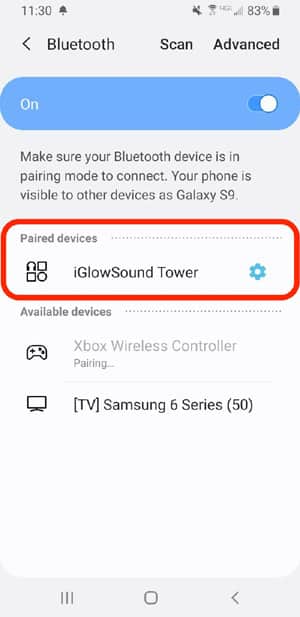
As you are not going to wear the headphone all the time or when you are at home just increase the phone’s volume. You can use a smart Bluetooth speaker to use the voice assistant to manage your daily task including entertainment like music.
Wrap Up
Well, these are the 10 tips on how to increase volume on Android phones. I hope the above tips and tricks do the work for you and now you can increase the volume on your Android phone.
Please support us by subscribing to our YouTube Channel.

Max Field is a founder of Recover Android Data. He is an Android lover and loves to write tips, tricks, fixes for errors, data recovery solutions and more related to Android. Provide Gaming Tips, Tricks, Game Error/Issues Solutions (PC/Xbox/PlayStation/Mobile). He is now also interested in solving LinkedIn Puzzles. He has 12+ years of experience in this field.