

Top 7 Solutions To Troubleshoot Incoming Call Not Showing On Android!
Android phone has provided many great features which help many users but sometimes it creates issues on the device. One such issue that is faced by Android users is that they are unable to view the notification of incoming calls on their phone’s screen.
If you are also facing the same issue then read this tutorial. Here you will know the reasons for this issue and how to fix incoming calls not showing on Android phone screen.
So, before we go to the solutions let’s first look at the causes for why your incoming calls are not displaying.
Why Incoming Calls Are Not Displaying On Android Phone’s Screen?
While there can be various causes for incoming calls not displaying on the screen. If you are having this issue then look at the below-listed reasons.
- Bugs and glitches on your phone.
- If you have enabled DND feature.
- Corrupted cache and data of Phone app.
- Call notification is not enabled.
- When special app access is disabled.
No matter whatever be the reason for it, you should look for the solutions, right?
So let us read below and know some of the best ways to fix incoming call not showing on Android phone screen.
Note: All the solutions that I am going to discuss below will be applicable for all Android phone models such as Samsung, OnePlus, Google Pixel, Realme, Moto, Asus, LG, Xiaomi, Sony, Huawei, HTC, ZTE, Oppo, Vivo, and all other Android phone models available in the market.
Also Read: How To Fix Google Pixel 6/6 Pro Screen Wakes Up Automatically/Randomly
Solution 1: Restart Your Android Phone
Firstly, you should restart your device as there may be some issue with the phone’s software which can cause incoming calls not showing on screen. Hence you first restart your device.
To restart your Android phone, press and hold the Power button until you see the Power menu on the screen. Now, from there tap on Power Off option. After that, you can switch on your phone by pressing and holding the Power key for a few seconds.

Solution 2: Turn On Call Notification
If the call notifications are disabled on your phone then it will not show you the incoming calls in the notification. Hence, you should check it, and if you find it is turned off then just enable it to fix the issue.
Follow the below steps to enable call notification.
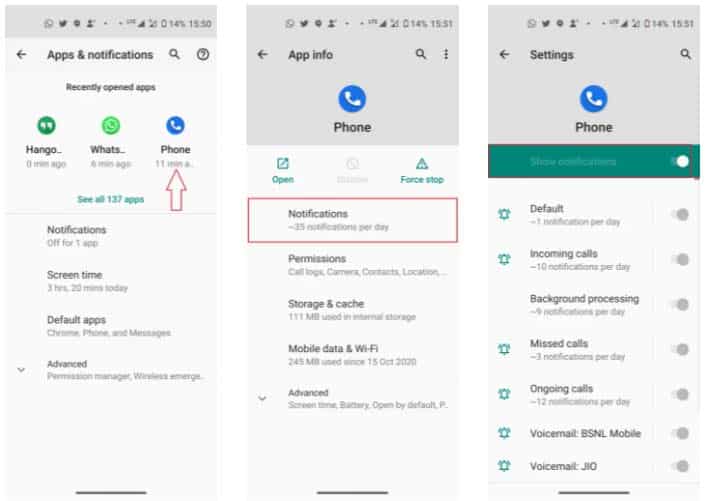
Step 1: Open Settings app on your phone.
Step 2: After that, go to Apps > Manage system apps.
Step 3: Then find default phone app and tap on it.
Step 4: Now, tap on “Notifications” and see if “Show notification” is enabled or not. If it is turned off then turn it on to enable the feature.
Also Read: Fix Wi-Fi Calling Not Working On Samsung Galaxy S20 (Plus)/S20 Ultra
Solution 3: Check DND Mode On Your Android Phone
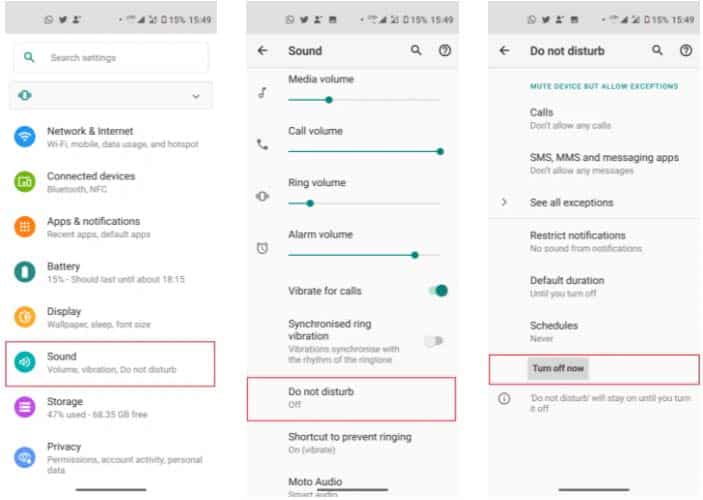
It is possible that you have enabled the DND mode in your phone and due to this, incoming call is not appearing on the phone’s screen. DND mode silences all the notifications including message notifications, incoming call notifications.
To, disable DND feature, you need to go to Settings > sounds and notifications. Then find DND option and disable it. Or you can simply disable it from the notification.
Solution 4: Enable Special App Access
If you have not enabled special call access and you are using another app during an incoming call then the incoming call cannot show on the screen, but your phone will ring. In this case, you need to turn on the special call access feature to fix it.
Here, follow the steps to do this.
Step 1: On your Android phone, launch the Settings app and then scroll down and hit on “Apps & notifications”.
Step 2: Scroll down and tap on Advanced and then tap on Special app access.
Step 3: Look for ‘Display over the other apps’ and tap on it.
Step 4:Here look for Phone app and allow “Display over other apps” for it.
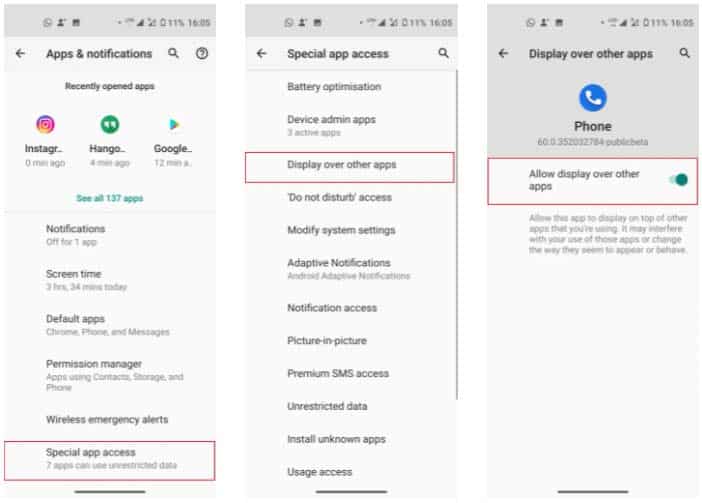
Now, you will be able to view the incoming calls on your phone’s screen.
Solution 5: Reset App Preferences
Resetting the app preferences will also help you to fix incoming calls not showing on screen.
Follow the below steps to reset app preferences.
Step 1: From Home screen tap on Settings icon.
Step 2: Then tap on Apps > Manage Apps.
Step 3: After this, tap on 3 dots and choose “reset app preferences” option and you will get a pop-up with “reset apps” option.

Step 4: Hit on it and confirm the process.
You May Also Like:
- How To Fix Phone Scrolling Problem On Android
- Why WhatsApp Photos Are Not Showing In Gallery On Android
- How To Set Wallpaper Without Zoom In Android
- How To Add Subtitles To MX Player
Solution 6: Clear Cache And Data Of Phone App
If the Phone app data gets corrupted then your incoming calls will not be visible on the screen, only it will ring. In this situation, you need to clear the cache and data of the phone app.
Below, learn the steps to clear cache and data of Phone app.
Step 1: Run Settings app on your phone then tap on Apps/Apps & notifications.
Step 2: After this, you will get all the app’s list. From there, select Phone app and tap on it.
Step 3: Now, hit on Storage.
Step 4: Then tap on Clear Cache and Clear Data button.

That’s All!
Also Read: [10 Quick Tips]: How To Increase Volume On Android Phone?
Solution 7: Set Default Phone App
If you get an incoming call but your screen is not sowing it then you should set default phone app. It can help you to fix incoming calls not appearing issues on Android phones.
Here are the steps to do the same.
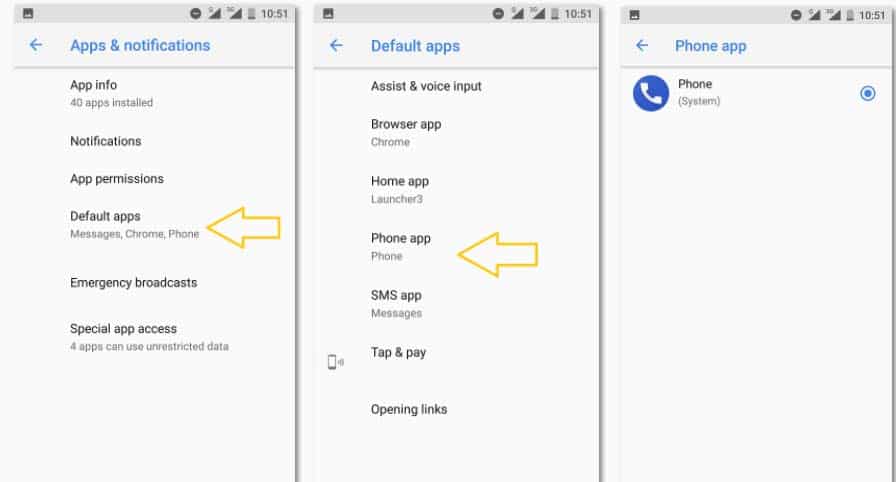
Step 1: Head to Settings > apps & notifications.
Step 2: Choose Default apps option.
Step 3: From there, choose Phone app.
Step 4: Next, choose system phone app.
Wrap Up
The incoming call not showing on your phone’s screen can happen due to some reasons that are mentioned above and also solutions to fix incoming call not showing on Android phone screen. With these solutions, you can fix the issue very easily and get incoming calls on the screen.
If this guide has really helped you to fix the issue then you can share it, so that it can help other users.
Please support us by subscribing to our YouTube Channel.

Max Field is a founder of Recover Android Data. He is an Android lover and loves to write tips, tricks, fixes for errors, data recovery solutions and more related to Android. Provide Gaming Tips, Tricks, Game Error/Issues Solutions (PC/Xbox/PlayStation/Mobile). He is now also interested in solving LinkedIn Puzzles. He has 12+ years of experience in this field.