

Earlier users/viewers were easily able to click links of YouTube Shorts, but now the links are not clickable.
But now you might wonder to observe that links are no longer clickable in the YouTube Shorts description or comments. Or you may find Shorts video links are not working.
But in this article, we have brought some tips that will help you to fix YouTube Shorts link not clickable problem.
Why Links In YouTube Shorts Are Not Clickable?
Links in YouTube Shorts description or comments are not clickable, because YouTube has changed its policy.
As per the new YouTube Policy, the links will be not clickable in the shorts description or comments section, starting on August 31, 2023. This effect will take some time to reach all users across the platform.
The decision has been taken to safeguard and avoid spammers and scammers to cheat or mislead people through links.
As per YouTube, it is important to change the policy because spammy links can lead users/viewers to unsafe information such as phishing, malware or fraud sites.
Learn More about the YouTube New Policy On Links In Shorts.
How To Fix YouTube Shorts Link Not Clickable
However, there are some tips and tricks that you can follow that can help you to fix links not clickable in YouTube shorts.
Fix 1: Add Links In Your Bio (Only For Creators)
If you are a content creator, then you can add the links in the bio and tell your visitor to navigate through it.
Also, note that you can add upto 14 links that are displayed on your YouTube channel.
Here how you can add links in bio:
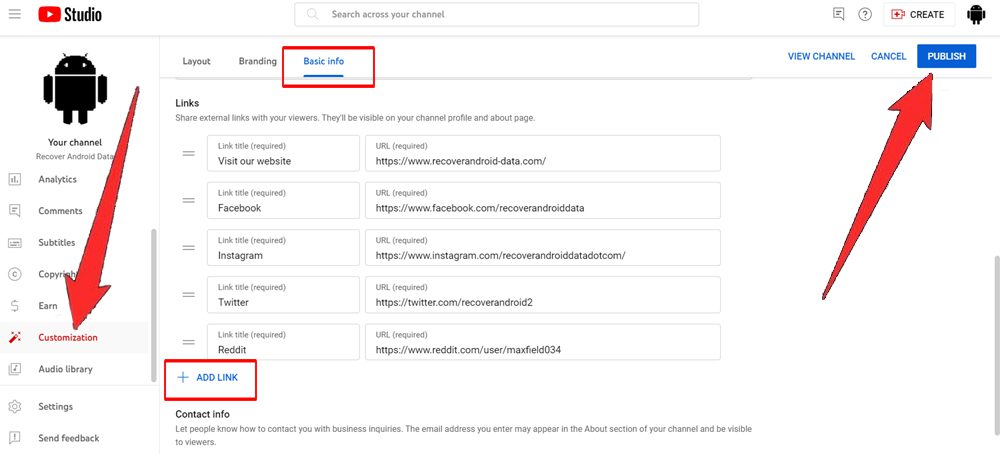
- Visit YouTube Studio in a web browser.
- On the left sidebar, scroll down and click on “Customization”.
- Go to “Basic Info” tab.
- Scroll down and click on “Add Link” option to add your links.
- After adding links click on “Publish” button to save changes.
Also Read: What Is YouTube Live Dashboard? The Guide For YouTuber
Fix 2: Use Remix Feature And Add Related Videos (Only For Creator)
If you are looking to add links of your long form video to a short video in its description or comments, then you can use the feature of YouTube remix and add related videos to link it.
Here follow the steps to do so:
- On your YouTube app, open already published video.
- Tap on Remix button, then make a remix or use a part of the video just by following the on-screen instructions.
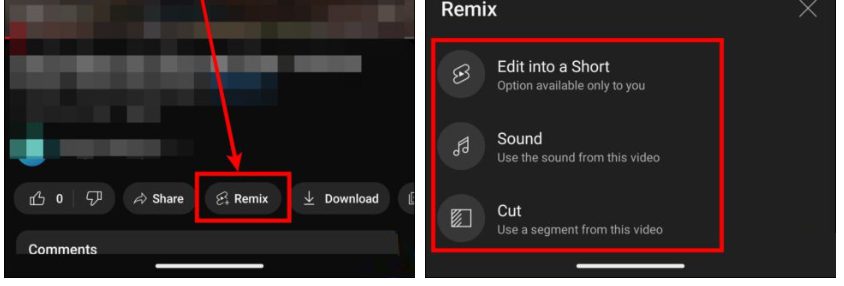
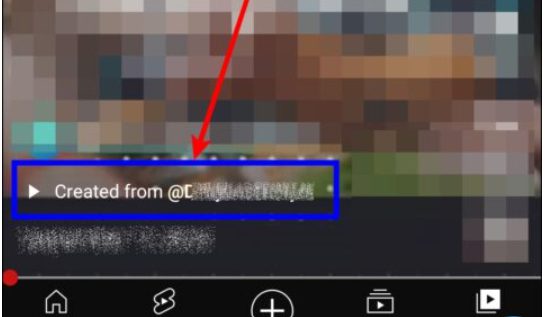
- After publishing the short, the link of the long-form video will be linked to it automatically, YouTube will show “Created from” a link on the short video which is clickable.
Tip: You can also edit your long form video from the YouTube Studio on your PC and add another video in the Related Videos section.
Also Read: [Fixed]: YouTube Vanced “Following Content Is Not Available”
Fix 3: Open Links Manually (For Viewers)
If link of the YouTube Shorts is not clickable, then you can open the link manually of the already published shorts and see its content.
Here how to do so:
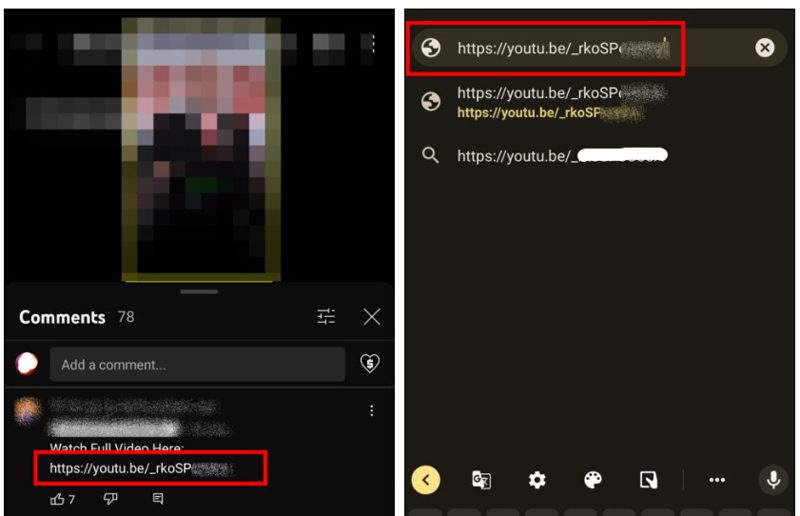
- Go to YouTube shorts and select the shorts whose link is not clickable.
- Now, just copy or note down the link and paste it into the web browser URL address bar and tap on search option.
- Once done, you will be able to see the content that creator has provided in their video.
Also Read: How Do I Play YouTube Music In Background Without Premium?
Frequently Asked Questions
Answer 1: Yes, you can add links to your YouTube Shorts description and comments, but will be non-clickable. YouTube has changed the policy and made this decision to reduce the scam and spam attempts. The links in YouTube shorts and description will be non-clickable after August 31, 2023.
Answer 2: Again, the answer is the same. The YouTube shorts links are not clickable because YouTube has changed and updated its policy – making the links non-clickable to safeguard visitors and reduce the spammy links.
Wrap Up
After going through the article, I hope by now you were able to fix YouTube Shorts link is not clickable mentioned in the description and comments section.
If you have found this article helpful, then please share it as it can help others!
Please support us by subscribing to our YouTube Channel.
You May Also Like:
- How To Fix Your Watch History Is Off on YouTube
- YouTube ReVanced Not Working? Here Is The Real Fixes!
- How To Fix “Pull up for precise seeking” on YouTube
- YouTube Reused Content and How to Avoid Duplication

Max Field is a founder of Recover Android Data. He is an Android lover and loves to write tips, tricks, fixes for errors, data recovery solutions and more related to Android. Provide Gaming Tips, Tricks, Game Error/Issues Solutions (PC/Xbox/PlayStation/Mobile). He is now also interested in solving LinkedIn Puzzles. He has 12+ years of experience in this field.