

Many users started to receive the alert message on YouTube. They have reported about it on several forums and community websites.
The alert message is as follows:
“Ad blockers are not allowed on YouTube.
It looks like you may be using an ad blocker.
Ads allow YouTube to stay free for billions of users worldwide.
You can go ad-free with YouTube Premium, and creators can still get paid from your subscription.”
So, if you are also getting this YouTube error, then in this article, you will learn how to fix “Ad blockers are not allowed on YouTube” whether you are using it on Chrome, Opera, Edge, Firefox, Brave or Safari web browsers.
Also Read: What Is YouTube Live Dashboard? The Guide For YouTuber
How To Fix “Ad blockers are not allowed on YouTube”
In order to fix “Ad blockers are not allowed on YouTube”, you can simply allow ads or subscribe to YouTube Premium.
Or you can connect to a VPN service and connect to a region/country where this error is not showing up.
Ultimately, you can download uBlock Origin extension and apply some filters.
Fix #1: Allow Ads on YouTube
This is one of the straightforward solutions to fix and get rid of Ad blockers are not allowed on YouTube error.
Hence, disable all ad blockers on your web browsers, whether you are using Chrome, Brave, Firefox, Edge, Safari, Opera or any other web browser.
And thereafter, you easily bypass Ad blockers are not allowed on YouTube and watch videos without any issue.
Fix #2: Try YouTube Premium
If you do not want to see Ads then you can subscribe to YouTube Premium and watch videos on YouTube without Ads.
After subscribing to YouTube Premium you will not see Ad blockers are not allowed on YouTube alert message.
Fix #3: Connect To a VPN
You can connect to any VPN service.
You should connect to a region or country where this alert message is not showing such as India, Russia or Israel.
After connecting to VPN, open YouTube and watch videos.
Your Ad Blocker should work. Also, you will not see the error alert.
Note: You have to connect to the countries/regions where this error is not showing or else connecting to VPN will not work.
Also Read: Global | How To Fix YouTube Keeps Crashing On Android
Fix #4: Download uBlock Origin Extension
If you do not want to allow ads, do not want to try Premium, also do not want to connect to VPN, then download uBlock Origin extension.
It is a browser extension that removes the “Ad blockers are not allowed on YouTube” error and users can watch videos on YouTube without Ads.
- Remove all existing Ad blocker extensions from your web browser.
- Add uBlock Origin extension for Chrome or Firefox.
- If on Chrome, click on “Puzzle” icon.
- Select “uBlock Origin” and click on Settings icon.
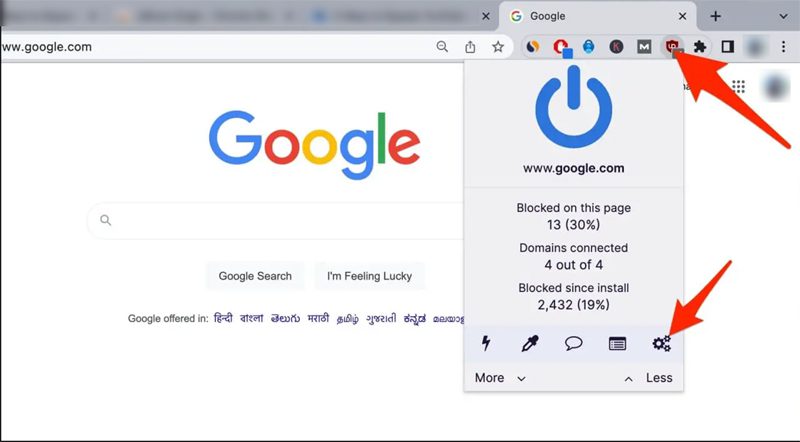
- Go to “My Filters” tab and then copy and paste the following code:
youtube.com##+js(set, yt.config_.openPopupConfig.supportedPopups.adBlockMessageViewModel, false)
youtube.com##+js(set, Object.prototype.adBlocksFound, 0)
youtube.com##+js(set, ytplayer.config.args.raw_player_response.adPlacements, [])
youtube.com##+js(set, Object.prototype.hasAllowedInstreamAd, true)
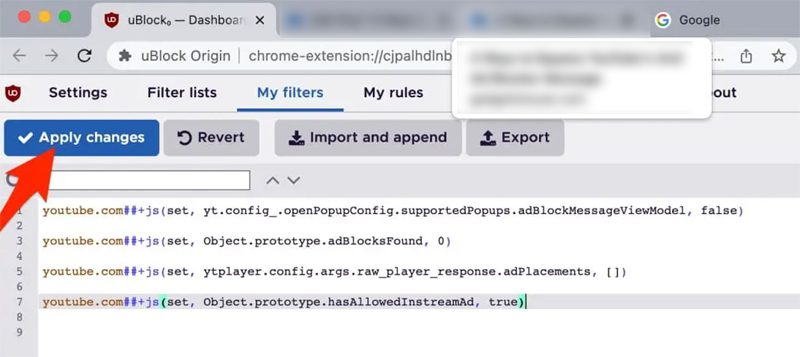
- Click on “Apply Changes” to save the code.
Now, go back to YouTube and start watching videos. I hope you will bypass Ad blockers are not allowed on YouTube error and watch videos without Ads.
Wrap Up
So, those was 4 fixes that you can follow to fix Ad blockers are not allowed on YouTube.
You can “Allow Ads”, try Premium service, connect to a VPN or download uBlock Origin extension and apply some filters.
If you have found this article helpful, then please share it as it can help others!
Please support us by subscribing to our YouTube Channel.
You May Also Like:
- How To Fix “Ad blockers violate YouTube’s Terms of Service”
- How To Fix YouTube Shorts Links Not Clickable
- How To Fix Your Watch History Is Off on YouTube
- YouTube Reused Content and How to Avoid Duplication

Max Field is a founder of Recover Android Data. He is an Android lover and loves to write tips, tricks, fixes for errors, data recovery solutions and more related to Android. Provide Gaming Tips, Tricks, Game Error/Issues Solutions (PC/Xbox/PlayStation/Mobile). He is now also interested in solving LinkedIn Puzzles. He has 12+ years of experience in this field.