
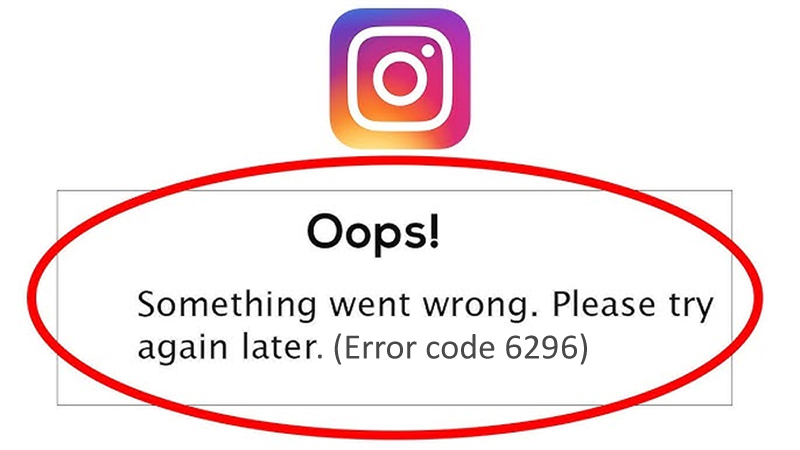
Instagram users are encountering error code 6296.
Users are getting this error message when they try to open the Instagram app and the app does not work.
The full error message is as follows:
“Oops, something went wrong”.
Followed by, “Please try again later. (Error code: 6296)”.
This error can occur on Android and iOS devices.
So, if you are also facing this issue, then read this article and follow the solution to fix error code 6296 on Instagram.
Also Read: Fix Instagram Reels Not Working On Android/iPhone
Causes: Why Does Instagram 6296 Error Occur?
The error code 6296 occurs when you try to open app and it can occur due to the following reasons.
- There could be a temporary glitch or bug in the app itself.
- You might be using an outdated version of Instagram app.
- There could be a server outage and Instagram could be down.
- The cache files of the app might get corrupted.
How To Fix Instagram Error Code 6296
To fix Instagram error code 6296, you must first check its server status.
Visit https://downdetector.com/status/instagram and check its status.
If Instagram is down, then wait until its server status is up.
If the server status is not down, then follow the solution below to fix error code 6296 on Instagram.
Also Read: Instagram DMs Stuck on Loading Screen: Fixes That Worked!
Solution #1: Update Instagram App
If your Instagram app is outdated, then there could be compatibility issues or the app might have bugs/glitches, hence update your app.
- Open Play Store or App Store.
- Search for Instagram.
- Tap on Update.

Solution #2: Clear Cache and Clear Data on Instagram App
As mentioned earlier, it could be possible that the app accumulated cache files over time might have gotten corrupted.
Hence, you should clear the app cache and data and then check if it solves the issue.
Not to worry, this will not delete any personal data or posts.
- On your Android phone go to Settings > Apps.
- Search for Instagram app and tap on it.
- Tap Storage.
- Tap on “Clear Cache” and “Clear Data”.

For iPhone users: Go to Settings > General > iPhone Storage > Instagram > Tap “Offload App”.
Also Read: How To Fix Instagram Video Stuck On Uploading/Processing/Preparing
Solution #3: Log out and Login
Sometimes this trick works surprisingly. Logging out and then logging back into the app can fix the error.
- Open Instagram
- Tap on Profile icon and then tap on 3 horizontal lines (Menu).
- Tap on Settings and privacy and then tap on Logout.
- Next, close the app, re-open it, and then log in back.
Solution #4: Try Instagram Lite (Only For Android)
Switch to Instagram lite app and get rid of the error code 6296.
- Open Play Store.
- Search for Instagram Lite.
- Tap on Install.
- Open the app and log in to your account.
I hope the error 6296 will get fixed.
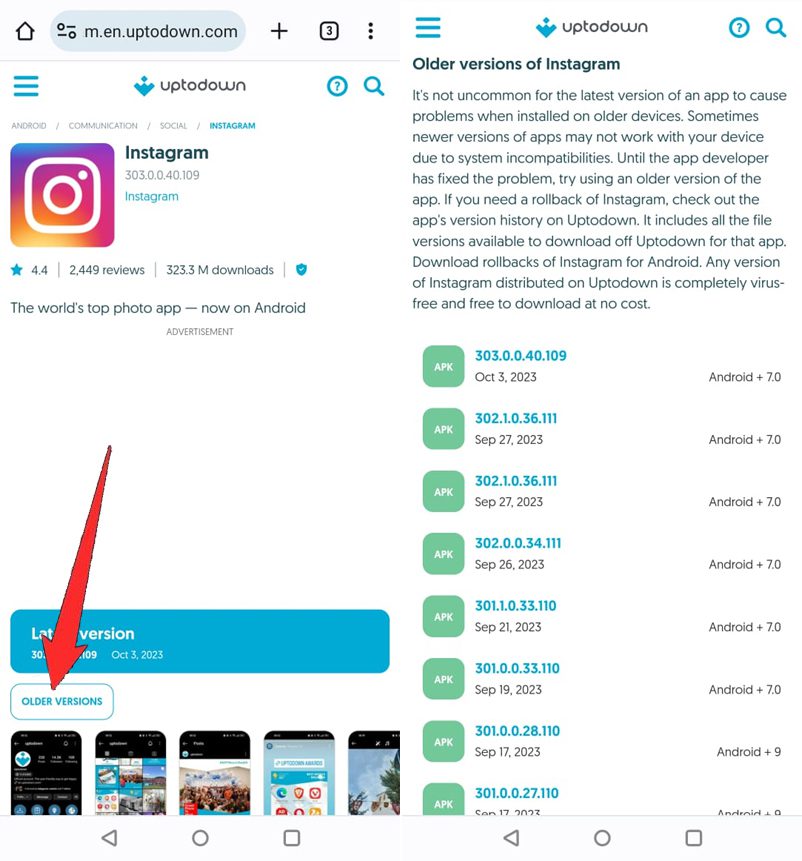
Solution #5: Download Older Version of Instagram App
If your updated Instagram app does not fix the error, then you can download and install an older version of the app to get rid of the error code 6296.
- First, uninstall Instagram app on your Android phone.
- Go to https://instagram.en.uptodown.com/android.
- Select “Older Versions” and install an older version of Instagram.
- Open the app, login to your account and check if the error code 6296 is fixed.
Also Read: How To Recover Deleted Instagram Messages On Android
Bonus Tip: Additional Fixes To Fix Error Code 6296 On Instagram
- Check your internet connection: Make sure your device is connected to working and stable internet.
- Force Close and Restart Instagram app: Swipe up from the bottom of the screen, go to Instagram card and swipe up to close it. Reopen the app and check.
- Check Your Device Date & Time Settings: Make sure your phone date and time settings are correct and are set to automatic.
- Re-install Instagram app: Tap and hold Instagram app and select “Delete” or “Uninstall” option. Open Play Store/App Store, search for Instagram and Install it.
- Contact Instagram Customer Support: If none of the solutions work for you, then it is time to contact Instagram Support and report the error.
Wrap Up
I hope by now, you know why Instagram error code 6296 occur and how to fix it.
You can follow the solutions mentioned in the article one by one and check if it fixes your problem or not.
If you have found this article helpful, then please share it as it can help others!
Please support us by subscribing to our YouTube Channel.
You May Also Like:
- Fix Instagram “The audio track in your reel is no longer available”
- Archive Stories Not Showing on Instagram? Here’s The Real Fixes!
- How To Fix “Invite Collaborator” Not Showing on Instagram
- Turn OFF “Suggested For You” Posts On Instagram

Max Field is a founder of Recover Android Data. He is an Android lover and loves to write tips, tricks, fixes for errors, data recovery solutions and more related to Android. Provide Gaming Tips, Tricks, Game Error/Issues Solutions (PC/Xbox/PlayStation/Mobile). He is now also interested in solving LinkedIn Puzzles. He has 12+ years of experience in this field.