
Are your Discord mobile streams appeared to be zoomed in?
If so, you are not alone. Many users have reported this issue on several forums and community websites. The issue has been reported by both Android and iPhone users.
When you watch a stream on Discord mobile, the video appears to be much larger than it should be which makes it very difficult to see everything on the screen.
This can be frustrating and annoying. Luckily, there are some solutions that can help you get rid of the issue and get your Discord mobile back to normal.
In this article, you will learn how to fix Discord mobile stream zoomed in error when you are having video call or watching a stream on iOS or Android.
Also Read: 6 Ways To Fix An Error Occurred and Roblox Cannot Continue
How To Fix Discord Mobile Stream Zoomed In
To fix Discord mobile stream zoomed in error, you can zoom out on your mobile to start and set zooming settings.
Or use a browser or desktop version of Discord.
You can also double-tap the stream on your mobile or minimize it by swiping down.
Also, consider changing the appearance settings in Discord app.
Lastly, check for the Discord app update and update it to the latest version.
Fix #1: Zoom Out on Your Mobile
The zoom-in error on Discord can be fixed by zooming out on the phone itself.
Here how to enable Zoom settings on Android:
- Go to Settings > Accessibility.
- Tap Magnification button and enable Magnification Shortcut.
- Tap on Accessibility Settings and then tap the Volume key.
- Now, double tap on screen to start the Zoom settings.
Here how to enable Magnifier settings on iOS:
- Go to Settings, search Accessibility and enable the settings.
- Double tap on the screen with three fingers and drag the screen.
Tip: User can also manage the Accessibility settings as per their preference on both Android and iOS.
Fix #2: Try Browser Version of Discord
Another way to get rid of the zoomed in issue on Discord mobile is to open Discord website in your mobile browser and try the web version of the app.
- Open browsers like Chrome or Safari.
- Visit https://www.discordapp.com/channels/@me.
- Login in to your account and go to the channel from where you want to watch stream from.
- Tap on “Watch Stream”. Here you have to zoom out the page.
- Tap on “Pop out” icon and then tap on user’s stream to watch in Fullscreen.
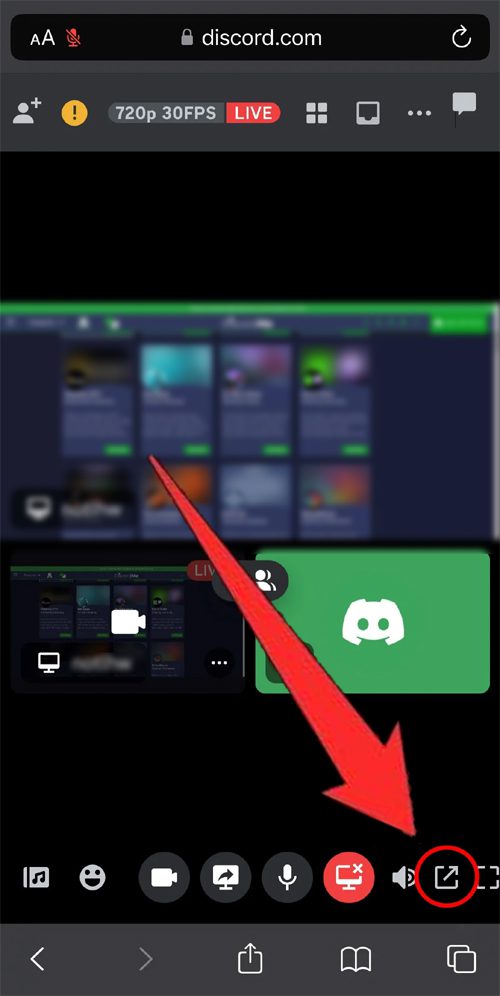
For iPhone Users: Tap on “AA” icon located at the left top corner of the URL field and then tap on the left “A” icon to zoom out.
Also Read: How To Fix For The King 2 Multiplayer Not Working
Fix #3: Try Desktop Version of Discord
Alternatively, you can use desktop version of Discord.
- On your computer, open Discord app or open Discord website in any web browser.
- Login to your Discord account.
- Go to the channel, from where you want to watch the stream from.
- Click on “Watch Stream” to watch the user’s stream.
Fix #4: Double Tap The Stream on Your Mobile
- On your phone, open Discord app.
- Make sure you are logged in to your account.
- Go to the channel from where you want to watch the stream from.
- Join the channel where the user is streaming in and select the user that is streaming currently.
- Tap on “Watch Stream”.
- Double tap on your screen to zoom out and enter split screen.
Also Read: [Problem Fixed] Among Us Crashing On Android
Fix #5: Change The Appearance Settings In Discord App
Try to change the Appearance Settings in the Discord mobile app and then check.
- Open Discord app.
- Tap on Profile icon and go to App Settings.
- Go to Appearance.
- Here adjust the Chat Font Scaling bar to adjust the font size and thereby the zoom level of the Discord app.
Fix #6: Check For Discord App Update
Many users have complained that the stream zoomed in problem started after the recent app update. There could be possibly a bug.
Hence, keep checking for the new Discord app update and if it is available then kindly update it.
Wrap Up
Discord Mobile stream zoomed in issue can actually make the user frustrated.
Fortunately, I hope following the above-mentioned solutions has helped you in fixing the stream zoomed-in issue on Discord Mobile.
If you have found this article helpful, then please share it as it can help other users!
Please support us by subscribing to our YouTube Channel.
You May Also Like:
- Solved The Error “Sorry, You Have Been Blocked” on Discord
- 4 Ways To Fix Party Play Not Showing in Pokemon Go
- How To Fix “Ad Blockers Are Not Allowed on YouTube”
- Forgot Roblox 4 Digit PIN? Here How To Reset!

Max Field is a founder of Recover Android Data. He is an Android lover and loves to write tips, tricks, fixes for errors, data recovery solutions and more related to Android. Provide Gaming Tips, Tricks, Game Error/Issues Solutions (PC/Xbox/PlayStation/Mobile). He is now also interested in solving LinkedIn Puzzles. He has 12+ years of experience in this field.