
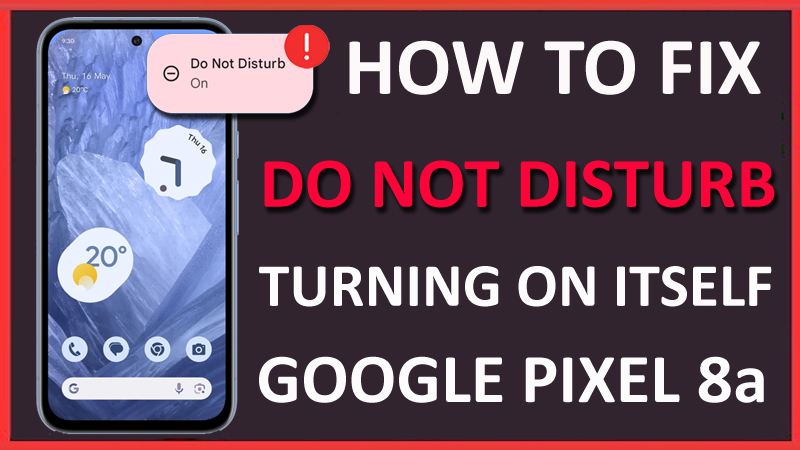
Is Do Not Disturb (DND) turning on itself on your Pixel 8a phone?
Recently, many users have reported that Do Not Disturb turned on by itself when they are driving or gaming on their phone even when they have disabled their schedules.
It is concerning because when your phone is on DND all the notifications are silent and don’t even pop up, also you cannot receive any calls.
It is a major issue with the Pixel 8a phone that needs to be fixed quickly.
To help you with this, we have dropped this guide on how to fix Do Not Disturb mode (DND) turning on itself on Google Pixel 8a phone.
Read the below steps and try them on your phone one by one and check if the problem is solved or not.
How To Fix DND (Do Not Disturb) Turning On Itself on Google Pixel 8a
You should manually disable DND during bedtime and also delete the schedules.
Fix 1. Disable Any Active Schedule
Pixel phone comes with the DND schedule feature that lets users set a schedule for when to turn on Do Not Disturb mode by itself.
You should start by disabling those schedules.
Follow the below steps to do so.
Step 1: Open Settings and select Digital Wellbeing & parental controls.
Step 2: Tap on Do Not Disturb, scroll down and select Schedules.
Step 3: If there is any active schedule, then turn it off by unchecking the box next to it.
Fix 2. Disable DND During Bedtime
If you are using Bedtime mode on your pixel phone, it can be the reason behind the issue. This feature automatically turns on DND mode and silent the calls, and notifications during bedtime.
Disable it to fix the problem.
Follow the below steps to disable it.
Step 1: Open the Clock app on your phone and navigate to the Bedtime tab.
Step 2: Tap on the Time present under Schedule Bedtime.
Step 3: After that, select the Bedtime Mode option, then disable the toggle next to ‘Do Not Disturb for Bedtime mode’.
Check if this solves the problem or not.
Fix 3. Try Deleting Driving/Gaming Schedule
As we mentioned earlier, users are still facing issues even when they disable the gaming and driving schedules. Fortunately, you can delete them from your phone to fix the problem.
This is how you can do it.
Step 1: Navigate to your phone’s Settings and select Digital Wellbeing & parental controls.
Step 2: Tap on Do Not Disturb and select Schedules.
Step 3: Tap on the 3 Dots icon preset at the top right corner and select Delete Schedules.
Step 4: Select the schedules you wish to delete and tap on the Delete option to confirm.
Check if doing this resolved the issue or not, if not then move to another fix.
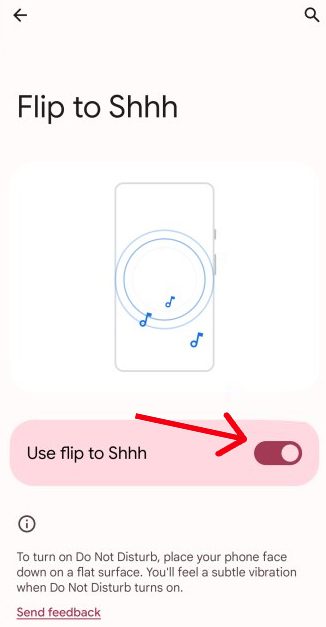
Fix 4. Turn Off “Use flip to Shhh”
Pixel phones have a feature called Use flip to Shhh which automatically turns on DND when you flip your phone downward.
It’s a unique and amazing feature that justifies its name, but if you have enabled it, then it can bother you sometimes by enabling the Do Not Disturb mode.
Simply turn it off to fix the issue.
Step 1: Open the Phone app, tap on the 3 Dots icon and select Settings.
Step 2: Scroll down to the Advanced section and tap on Flip to Shhh.
Step 3: Disable the toggle next to Use flip to Shhh.
Use your phone as you did before and check if the issue persists or not.
Fix 5. Turn Off Calendar Schedule
If you have turned on Event Schedule and facing the issue whenever you have an event, then disable it to fix the problem. Go through the below steps to disable it.
Step 1: Open the Settings app on your phone and go to Digital Wellbeing & parental controls.
Step 2: Select the Do Not Disturb option then tap on Schedules.
Step 3: Hit the Settings icon (Gear icon) next to Event.
Step 4: Check if it is the Calendar events that are enabling the mode, then tap on the Delete icon and then the Delete option.
This should fix the problem.
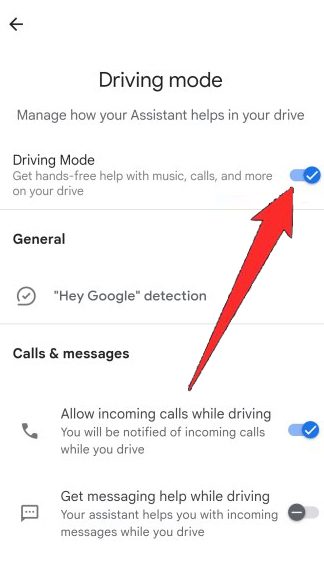
Fix 6. Turn Off Driving Mode Through Google Maps
If you often connect your Pixel phone to your car via Bluetooth and Do Not Disturb turns on, then it may be happening because of the Driving Mode that is triggered by Google Maps.
Fortunately, you can disable it manually to solve the problem.
Step 1: Open the Google Maps app and go to your Profile.
Step 2: Tap on the Settings option and select Navigation settings.
Step 3: After that, select Google Assistant settings and then disable the toggle next to Driving Mode.
Check if this solves the problem or not.
Fix 7. Try Checking Special App Access
Some apps on your phone have special access to invoke Do Not Disturb. So, whenever you open those apps, it triggers the DND and turns it on.
You can disable those special app access to solve the problem. To do so, follow the below steps.
Step 1: Open Settings and tap on Apps.
Step 2: Scroll down and select the Special app access option.
Step 3: Go to Do Not Disturb access and check if any apps are Allowed.
Step 4: If you found any, then tap on that specific app and turn off the toggle next to “Allow Do Not Disturb”.
Step 5: Lastly, hit on OK to confirm the action.
This should fix the issue.
Wrap Up
That’s all for now, I hope trying these methods has helped you in fixing the issue.
Now, you won’t miss any important calls and notifications and can enjoy it with your Google Pixel 8a phone.
This was the complete guide to solve Do Not Disturb turning on itself on Google Pixel 8a.
If you found this guide useful, then don’t forget to share it with others.
You May Also Like:

Max Field is a founder of Recover Android Data. He is an Android lover and loves to write tips, tricks, fixes for errors, data recovery solutions and more related to Android. Provide Gaming Tips, Tricks, Game Error/Issues Solutions (PC/Xbox/PlayStation/Mobile). He is now also interested in solving LinkedIn Puzzles. He has 12+ years of experience in this field.