
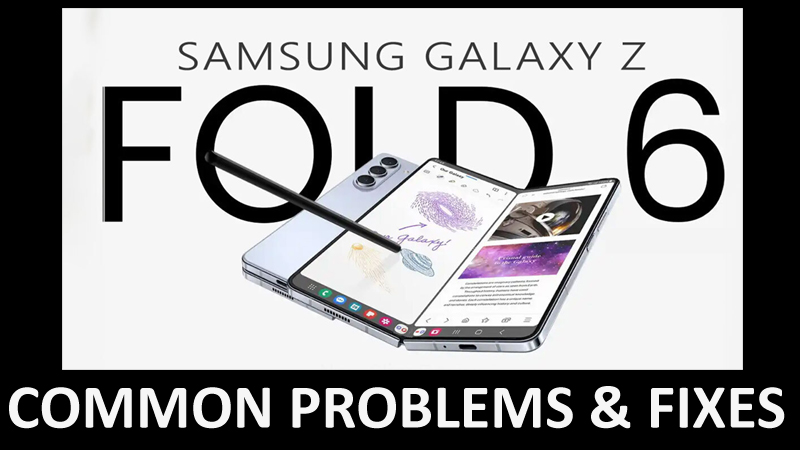
Samsung Galaxy Z Fold 6 is a newly released smartphone launched by Samsung. This phone is a great option if you want to try something exciting.
The lightest and thinnest phone with a super slim and productive screen ever. This smartphone also includes Galaxy AI.
Z Fold 6 also offers a great and efficient way to search on a smartphone. You just have to make a circle and the thing inside the circle will be searched for you. How cool, isn’t it?
Well, this smartphone is much more than we can talk about. You will get to know more about it in this article.
Despite being such a fantastic smartphone, some common yet concerning issues occur in almost every phone brand.
In this article, I am going to highlight every common issue that might occur or could be occurring on the Samsung Galaxy Z Fold 6. Also, I would give the solutions to fix these problems to help you out.
So, keep reading the article to reveal those problems and their issues.
8 Common Problems on Samsung Galaxy Z Fold 6
- Bluetooth Connection Problem
- Wi-Fi Connection Problem
- Fast Battery Drainage Issue
- Overheating Issue
- Notification Delayed
- Unresponsive Screen
- Fingerprint Sensor Not Working
- App Not Working
These are some of the most common problems that users face on their Galaxy devices.
Now, let us tackle this issue one after another.
How To Fix Common Issues on Samsung Galaxy Z Fold 6
Restart Your Galaxy Device
The first thing to do in any problem is to restart your device.
Restarting your Galaxy device or any other device can fix any minor or even major problem in one go. If any issue is caused by bugs or glitches then the Restart method is the best method to use.
So, before trying any of the solutions, kindly restart your device. Perhaps, a simple restart could completely fix your device issue.
Update Your Samsung Device Software
Outdated software could certainly be a major factor that could cause several problems on your Samsung device. I have noticed many problems occurring due to outdated software.
So, after you restart your device, you should also update your device’s software to the latest version.
These two methods applies to every problem. So, do these 2 things before trying any other advanced methods.
So, the above 2 things are a general solution for every problem but let us also solve each problem with its advanced solution one after another.
Problem 1: Bluetooth Connection Issue
Bluetooth Connection issues are one of the most common issues on any smartphone including Samsung devices.
In this issue, you won’t be able to connect your Samsung device to any Bluetooth device such as Air pods, earbuds, Bluetooth speakers, etc.
This issue could be very annoying as it won’t allow you to connect to any Bluetooth device. But there are many ways through which you can fix this issue.
Toggle Bluetooth Option
Turn OFF Bluetooth (If turned ON to connect) and wait for some time.
After waiting a couple of minutes, turn the Bluetooth option ON again.
By doing so, the interference between the connection of your device and Bluetooth will be eliminated and you can connect them without any obstacle.
Disconnect Another Bluetooth Device (If connected)
Check if you have connected to any other Bluetooth device, if that’s true, then disconnect the connected device before connecting to your desired device.
Forget and Re-connect the Bluetooth Device
- Navigate to Settings on your Samsung device.
- Go to the Connected devices > Bluetooth.
- Now, tap the Settings (Gear icon) right next to the Bluetooth device you wish to forget.
- Lastly, tap on Forget or Unpair.
After doing so, you have to wait for some time and after waiting, re-establish the connection between the two devices.
Problem 2: Wi-Fi Connection Problem
The Wi-Fi Connection issue is very similar to the Bluetooth connection issue. In this problem, you will face difficulty in connecting your device to a Wi-Fi network.
You won’t be able to use a Wi-Fi network unless you connect it to your device. As for Bluetooth connection issues, Wi-Fi Connection issue also has many solutions to fix the problem. So, let us discuss those!
Forget & Reconnect the Wi-Fi Network
- Go to Settings on your Samsung device.
- Navigate to Connections and tap on Wi-Fi > Settings
- Lastly, select Forget
After you forget the Wi-Fi Network from your device, re-connect to the network and try again.
Reset Network Settings
- Open the Settings on your Samsung device.
- Tap on General Management > Reset > Reset network settings.
- Then, tap on the Reset settings option, and lastly, tap on Reset.
Now, you have to connect the Wi-Fi again and see if it works.
Try Connecting Your Samsung Device with Another Wi-Fi Network
You should also try to connect with another Wi-Fi network. If you can connect your Samsung device with the other network then it would be clear that the problem was the Wi-Fi network.
But, if you can’t connect your phone to any other network and the network you were trying to connect with can connect with other devices, then there must be some software issue on your Samsung device.
In such a case, go to your nearby Samsung repair shop and consult them.
Problem 3: Fast Battery Drainage Issue
You can easily understand the problem by just the name itself. Fast Battery Drainage issue is a problem that causes your device’s battery to drain faster making its battery life short.
Your battery will not last long If this problem occurs on your Samsung device. So, let us tackle this issue with the troubleshooting solutions.
Turn ON Adaptive Brightness
- Navigate to the Settings app on your Samsung device.
- Tap on Display.
- Enable the toggle for Adaptive brightness.
Now, wait and check if this option worked for you.
Turn ON Power Saving Mode
- Open Settings on your device.
- Next, scroll down and tap on Battery.
- Now, tap on the Power saving option to enable it.
After this, check if this mode solved the issue.
Enable Adaptive Battery
- Go to the Settings app on your Galaxy phone.
- Scroll down and tap on Battery and Device Care.
- Tap on Battery > More Battery Settings at the bottom.
- Toggle on Adaptive battery.
Disable Always on Display (AOD) Mode
- Navigate to Settings.
- Now, look for Lock screen and AOD and tap on it.
- Lastly, turn the AOD Mode OFF by taping on the toggle button.
These above methods will help you to fix the Fast Battery Drainage issue on the Samsung Galaxy Z Fold 6.
Problem 4: Overheating Issue
Another issue is an overheating problem on Galaxy devices. In this issue, your device’s temperature increases, preventing you from using your device comfortably.
This issue occurs due to excessive use of your device. But don’t worry! You can easily fix this issue by just following the solutions given in this article. So, let us read those solutions.
Close All Background Apps
If you have too many apps in the background then that could cause the overheating issue.
Close all the apps running in the background to prevent the overheating issue on the Galaxy device.
Switch the Performance Profile to Light
- Open the Settings app on your Galaxy device.
- Scroll down, look for Device Care, and tap on it.
- Then, tap on Performance profile > select Light radio button.
Problem 5: Notifications Not Working Issue
In this issue, users aren’t getting notifications on the exact time of notifications. Users are getting delayed notifications resulting in inconvenience.
So, follow the solutions to fix this issue.
Allow App Notifications
- Go to Settings on your phone.
- Tap on Apps and select the app you want to get notified.
- Tap on the Notification option in the App info.
- Lastly, enable Allow notifications.
Manage App Permissions
- Navigate to Settings and tap on Apps.
- Now, select any app and tap on Permissions.
- Allow the required permission and do the same for every desired app.
Problem 6: Unresponsive Screen
An unresponsive screen is generally caused by third-party apps or any malware attack. In this issue, your phone screen starts lagging and behaves unresponsive.
So, here is the solution.
Boot Your Samsung Phone into Safe Mode
It could also be possible that the third-party app that you have downloaded on your phone is causing this trouble.
To verify this, you should boot your Samsung Z Fold 6 into the Safe Mode.
Here you can learn How to boot into Safe Mode.
After booting into Safe Mode, check if the problem is still there. If the issue is gone then it must be the third-party app(s) causing this problem.
So, uninstall the third-party app after exiting the Safe Mode. Restart your Samsung device to exit the Safe Mode.
Problem 7: Fingerprint Sensor Not Working
Fingerprints are also supported on Galaxy Z Fold 6 phones so, there’s a high chance of facing problems like the Fingerprint Sensor not working.
This problem occurs when the sensor doesn’t work properly and you cannot access your phone using your fingerprint.
So, here’s what you can do to fix that.
Wipe The Cache Partition
- Power OFF your device by pressing the Volume Down and Power Buttons simultaneously for a few seconds.
- Connect your device to a computer via a USB cable while pressing and holding the Volume Up + Power.
- Enter the Recovery Mode and use the volume key to select Wipe cache partition and confirm it using Power.
- Next, tap on Yes to confirm the process and select Reboot system now using the Power.
Problem 8: App Not Working On Samsung Galaxy Z Fold 6
App not working on any phone is not the fault of the phone company but in fact, the app itself is to blame.
Since the app is not working on the Samsung Galaxy Z Fold 6, this issue will also be included in this list of issues and their fixes.
Follow the solution to fix this problem.
Clear Cache of The Problematic App
- Navigate to Settings on your Samsung phone.
- Next, tap on Apps and select the problematic app.
- Tap on Storage > Clear Cache.
The app cache will be cleared and the app will start working without crashing on the Samsung Galaxy Z Fold 6.
Wrap Up
So, that was it for this article!
These were the most 8 common issues on Samsung Galaxy Z Fold 6 and their fixes. I hope you followed all the steps and solutions carefully and were able to fix all of these issues.

Max Field is a founder of Recover Android Data. He is an Android lover and loves to write tips, tricks, fixes for errors, data recovery solutions and more related to Android. Provide Gaming Tips, Tricks, Game Error/Issues Solutions (PC/Xbox/PlayStation/Mobile). He is now also interested in solving LinkedIn Puzzles. He has 12+ years of experience in this field.