
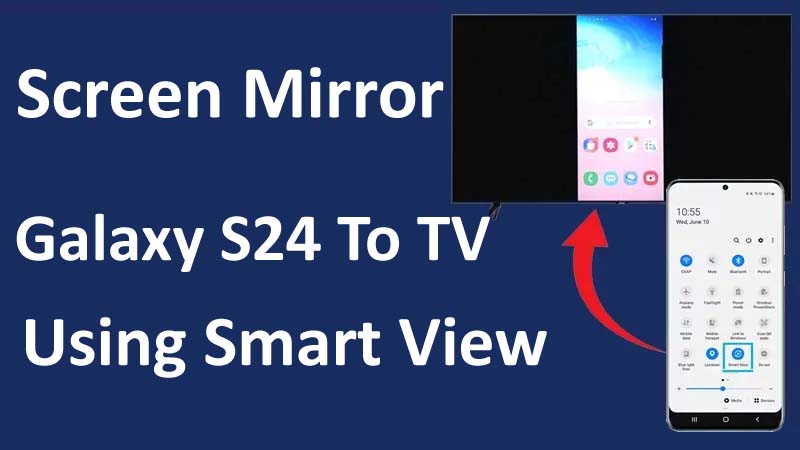
Do you want to view your photos, videos, games, etc. on a bigger screen by connecting your Samsung Galaxy S24 to a Smart TV using the Smart View feature? If yes then you can do this by using the screen mirroring feature.
In this guide, you will learn how to screen mirror Samsung S24 to TV using Smart View to enjoy your favorite content on a bigger screen easily.
What Is Smart View?
Smart View is a feature built into Samsung S24 that lets users mirror their phone screen into a compatible TV wirelessly. This means that whatever is displayed on your smartphone’s screen, like photos, videos, apps, etc. will be shown on your TV screen in real-time. Smart Views uses WiFi to build a connection between mobile and TV.
You can enjoy various benefits of it like watching recent photos, and videos from your favorite streaming apps or playing mobile games.
Things You Need For Screen Mirroring With Smart Views
There are a few things that you need for screen mirroring your Samsung Galaxy S24 to your Smart TV using Smart Views.
They include:
Wi-Fi Connection: Your Samsung S24 and TV must be connected to the same WiFi network.
A Compatible TV: Your TV must support screen mirroring. Most smart TVs coming in recent years have this feature, but you should confirm it by checking your TV’s specifications.
TV Settings: Check that the screen mirroring feature is enabled on your smart TV. The steps to enable it may vary depending on your TV brand and model. You can check your manual guide that comes along with the TV and find the options like “Smart View”, “Screen Mirroring” or “Cast” in your smart TV’s settings menu.
So, you should check that you meet all these requirements before you try to use Smart View.
How To Screen Mirror Galaxy S24 To TV Using Smart View
Once you check that you met all the needed requirements, start following the below steps to screen mirror your Galaxy S24 phone to your smart TV.
Steps To Screen Mirror Samsung S24 To TV Via Smart View
Step 1: Turn on your TV and enable the screen mirroring option. The steps to enable it depends on your TV brand:
Sony TV: Press the Input button on your remote and choose “Screen Mirroring” and then “Always”.
Samsung TV: On your remote press the Home button and go to “Source” and click on “Screen Mirroring”.
LG TV: Press the Home button on your remote and then select the “Device Connector” app and click on “Screen Share”.
Step 2: Check that your phone and Samsung TV are connected to the same Wi-Fi network by going to the phone’s Settings > Connections > Wi-Fi. Confirm that the connected wi-fi network is the same as the TV.
Step 3: Now, go to the Quick Settings menu on your phone, find the Smart View tile, and tap on it.
Step 4: Smart View will now start scanning for compatible TVs. In the available devices list you will find your TV’s name, tap on it to initiate the connection.
Step 5: Once you have chosen your TV, your Samsung S24 screen will be mirrored on your smart TV.
Now, you can navigate your phone and watch anything from your phone’s screen to a bigger TV screen.
Tips You Need to Follow For Best Screen Mirroring Experience
You need to follow some tips to make a smooth screen mirroring experience with your Samsung Galaxy S24 phone and Smart View.
The tips are as mentioned below:
Charge Your Galaxy Phone: Make sure that your phone has sufficient battery as screen mirroring consumes a significant amount of battery. If your phone has a low battery then you can keep it plugged on charging while mirroring.
Keep Both Devices Close: To Make a stable connection, your handset and TV must to close to each other so that the wifi connection will be stronger.
Adjust TV Settings: If you find the mirrored content cropped or stretched on your Smart TV then check for the screen size and aspect ratio of your TV and adjust them accordingly.
Minimize Interference: You should try to keep other devices like microwaves, and cordless phones away from both TV and mobile phone while screen mirroring as they can interfere with the Wi-Fi signal.
Use Compatible App: Most of the apps work well with screen mirroring, but some might not be fully compatible. If you face any issues with the specific app then use a different app or check for the latest update.
Final Word
Smart View is a great feature to mirror your smartphone on a bigger TV screen. I hope the steps shown above will help you to screen mirror Samsung Galaxy S24 to TV using Smart View. Besides this, you have also learned what things you need to check before connecting your phone to your smart TV and some tips for the best screen mirroring experience.
You May Also Like:
- How To Fix Can’t Mirror Samsung S24 Screen To A TV
- Fix Call Recording Option Not Showing On Samsung S24/S24+/S24 Ultra
- How To Fix Samsung S24/S24+/S24 Ultra Screen Flickering Issue
- How To Fix Samsung S24/S24 Ultra Keeps Rebooting After Update

Max Field is a founder of Recover Android Data. He is an Android lover and loves to write tips, tricks, fixes for errors, data recovery solutions and more related to Android. Provide Gaming Tips, Tricks, Game Error/Issues Solutions (PC/Xbox/PlayStation/Mobile). He is now also interested in solving LinkedIn Puzzles. He has 12+ years of experience in this field.