
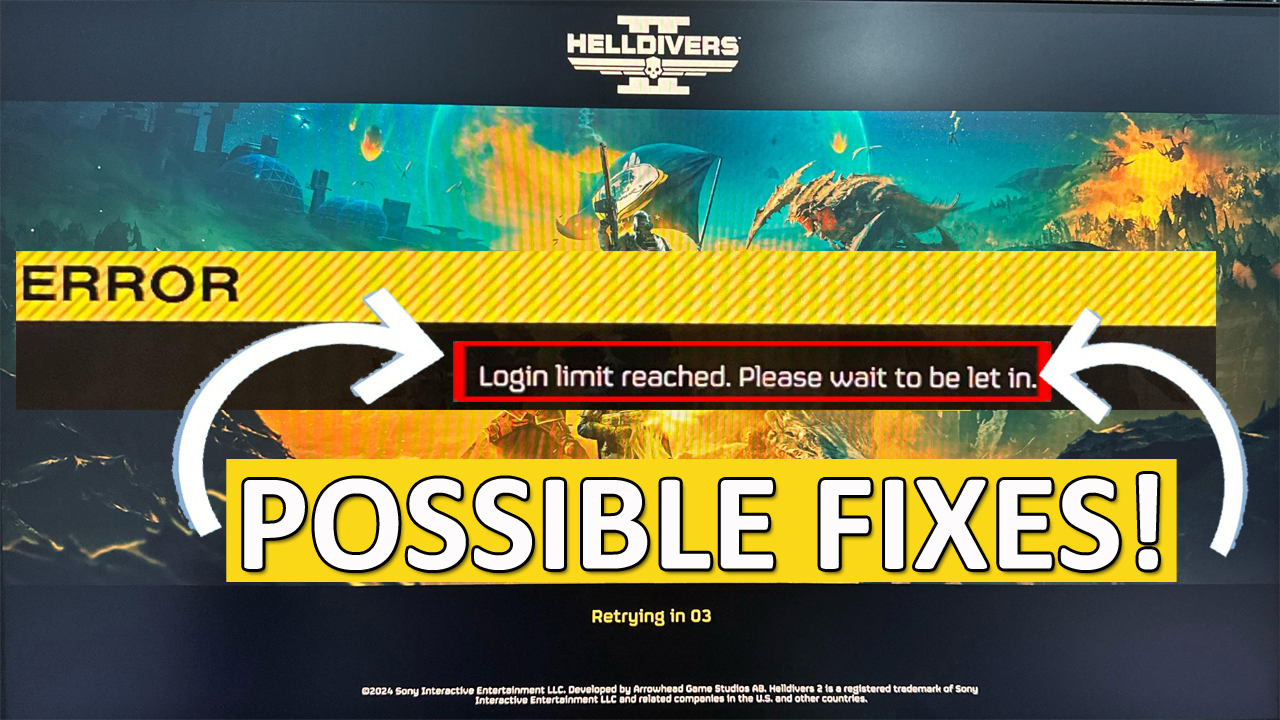
In This Article, You Will Learn How To Fix Helldivers 2 Login Limit Reached Error on PC and PS5.
How To Fix Helldivers 2 Login Limit Reached Error
Fix 1. Close The Helldivers 2 Game And Check For Game Update (PC & PS5)
One of the quick fixes is to close the game completely on PC (on PC from task manager) or PS5.
Then check for Helldivers 2 game update and if any is available then download it.
Launch the game and then check.
Fix 2. Turn Off Crossplay In Game Options (PC & PS5)
If you are able to enter into your game’s settings then disable the crossplay option.
- To do this, go to Options > Gameplay > Turn off Crossplay.
- Restart the game and then check problem is solved or not.
Fix 3. Spam Click Play Button (PC & PS5)
Since, Helldivers 2 is a newly released game and hence so many players are trying to play the game at once due to which the server is overloaded.
So, you have to keep trying and resolve it with repeated attempts.
Continue trying clicking on Play button multiple times and eventually it will work.
Fix 4. Restart The Game or Restart The Device (PC & PS5)
In some case, just closing the game and game launcher and restarting the game help to fix the issue.
It is because it refreshes the connection.
If that doesn’t help, then restart your PC or PS5 and then try.
Fix 5. Verify Integrity of Game Files [PC ONLY]
- Open Steam and go to Library. Right-click on Helldivers 2 and select “Properties”.
- Go to “Installed Files” tab and then click on “Verify integrity of game files”.
- Now, check problem fixed or not.
Fix 6. Reset Your Internet Connection [PC ONLY]
In Windows Search, type “CMD”, right-click on “Command Prompt” and select “Run as administrator”.
In the command prompt, you have to type 3 code and hit ENTER. They are as follows:
- Type “ipconfig /flushdns” and hit Enter.
- Type “netsh winsock reset” and hit Enter.
- Type “netsh int ip reset” and hit Enter.
After this, restart your PC and check if your issue is fixed or not.
Fix 7. Change DNS Server [PC ONLY]
- In Windows Search, type Control Panel and open it.
- Go to Network and Internet > Network and Sharing Center > Connections (e.g., Ethernet/Wi-Fi).
- Click on “Properties”. Double-click on “Internet Protocol Version 4 (TCP/IPv4).
- Select “Use the following DNS server addresses”.
- In the Preferred DNS server, enter “8.8.8”.
- In the Alternate DNS server, enter “8.4.4”.
- Click on “OK” and close the Windows.
- Restart your PC and then check if your problem is fixed or not.
Fix 8. Check For The Server Status Of Helldivers 2 [PC & PS5]
Go to: https://twitter.com/helldivers2
Or check Helldivers 2 Discord official channel.
Now, check if the game servers are experiencing issues.
If the Helldivers 2 server is down, under maintenance or having an outage, then in such case, you can’t do anything, but to wait, until the game developer fixes the server issue.
If you have found this post helpful, then please share it as it can help other users!
Please support us by subscribing to our YouTube Channel.
You May Also Like:
- How To Fix Helldivers 2 Not Launching or Won’t Launch on PC
- How To Fix Helldivers 2 Crashing on Launch on PC
- How To Fix Helldivers 2 Servers At Capacity Error (PC & PS5)

Max Field is a founder of Recover Android Data. He is an Android lover and loves to write tips, tricks, fixes for errors, data recovery solutions and more related to Android. Provide Gaming Tips, Tricks, Game Error/Issues Solutions (PC/Xbox/PlayStation/Mobile). He is now also interested in solving LinkedIn Puzzles. He has 12+ years of experience in this field.