
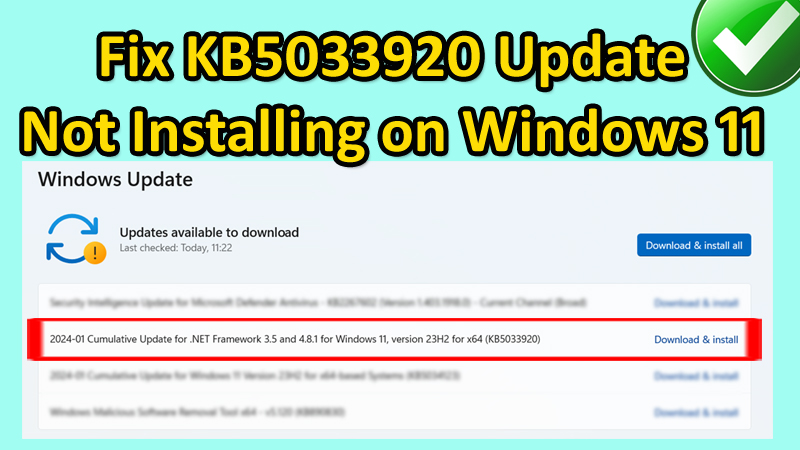
In This Article, You Will Learn How To Fix KB5033920 Update Not Installing on Windows 11.
How To Fix KB5033920 Update Not Installing on Windows 11
Fix 1. Turn on “Get the latest updates as soon as they’re available”
- Click on Windows > Settings.
- On the left side, click on “Windows update”.
- If you see update for KB5033920 is available, then download and install it.
- If you don’t see the update, then turn on “Get the latest updates as soon as they’re available” under “More options”.
- Then click on “Check for updates”.
- Click on “Download & Install” to download KB5033920 (or newer).
Fix 2. Run The Update Troubleshooter
- Click on Windows > Settings.
- On the left click on “System”. Scroll down and click on Troubleshoot > Other troubleshooters.
- Next to Windows update, click on “Run”.
- Restart your PC.
- After, your PC restart, check for Windows update and download and install the update.
Fix 3. Restart Windows Update and Background Intelligent Transfer Service
- In Windows search type “Services” and click on it to open it.
- Look for Windows Update and double-click on it.
- In Startup type select “Automatic”. Click on “Start” if clickable.
- Click on Apply and then OK.
- With Windows Update selected, click on “Restart the service”.
- After this look for Background intelligent transfer service and double click on it.
- In Startup type select “Automatic”. Click on “Start” if clickable.
- Click on Apply and then OK.
- With Background intelligent transfer service selected, click on “Restart the service”.
- Now, try to update your Windows 11.
Fix 4: Use Windows 11 Installation Assistant
- Go to: https://www.microsoft.com/software-download/windows11
- Click on “Download Now”.
- Run the .exe file > Accept and install.
Fix 5. Use Microsoft Update Catalog
- Go to: https://www.catalog.update.microsoft.com/Home.aspx
- Search for KB5033920.
- Download the correct Windows 11 KB5033920 file. Run it and install it.
- Restart your PC.
Note: To know which is the correct file, type winver in the Window search and open it (in my case it is 23H2). Then go to Windows > Settings > System > About and check the system type (in my case it is x64).
Fix 6: Reset Windows Update Components
Copy and paste the following code into the Notepad app:
net stop bits
net stop wuauserv
net stop msiserver
net stop cryptsvc
net stop appidsvc
Ren %Systemroot%\SoftwareDistribution SoftwareDistribution.old
Ren %Systemroot%\System32\catroot2 catroot2.old
regsvr32.exe /s atl.dll
regsvr32.exe /s urlmon.dll
regsvr32.exe /s mshtml.dll
netsh winsock reset
netsh winsock reset proxy
rundll32.exe pnpclean.dll,RunDLL_PnpClean /DRIVERS /MAXCLEAN
dism /Online /Cleanup-image /ScanHealth
dism /Online /Cleanup-image /CheckHealth
dism /Online /Cleanup-image /RestoreHealth
dism /Online /Cleanup-image /StartComponentCleanup
Sfc /ScanNow
net start bits
net start wuauserv
net start msiserver
net start cryptsvc
net start appidsvc
- Save the file as “FIX.bat > set the location as Desktop > All Files > Save.
- Go to the desktop and run the fix.bat file as an administrator. It will open a command prompt to restart all the Windows update services. It will take some time so, please wait.
- Once done, restart your PC and then try to update Windows 11.
Fix 7. Update Windows 11 Using Media Creation Tool
- Go to: https://www.microsoft.com/en-in/software-download/windows11
- Click on Create Windows 11 Installation Media and then click on Download now.
- Run MediaCreationTool. Click on Accept > Next > ISO file > Next > Desktop > Save.
- Double-click the Windows ISO file when the installation is complete > setup > Next > Install.
If you have found this article helpful, then please share it as it can help other users!
Please support us by subscribing to our YouTube Channel.
You May Also Like:
- How To Fix KB5034123 Update Not Installing on Windows 11
- How To Fix Xbox App for PC Not Installing
- How To Fix Microsoft Store Error Code 0x803FB005 on PC
- HOW TO FIX MICROSOFT ULTIMATE WORD GAMES NOT LOADING (2024)

Max Field is a founder of Recover Android Data. He is an Android lover and loves to write tips, tricks, fixes for errors, data recovery solutions and more related to Android. Provide Gaming Tips, Tricks, Game Error/Issues Solutions (PC/Xbox/PlayStation/Mobile). He is now also interested in solving LinkedIn Puzzles. He has 12+ years of experience in this field.