
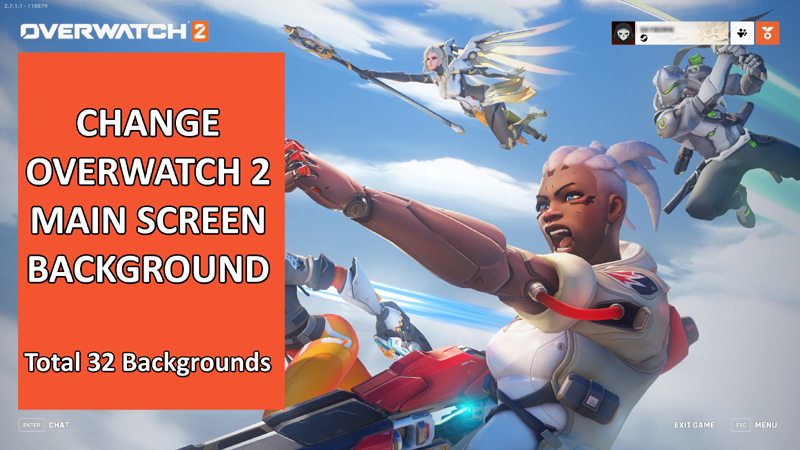
In This Article, You Will Learn How To Change Overwatch 2 Main Screen Background on Steam or Battle.net.
List of Overwatch 2 Main Screen Background Codes
You can now set a custom Menu background in Overwatch 2 on Steam or Battle.net through the OW2 main screen background codes.
Here is the list of Overwatch 2 main screen background codes that you can apply:
Heroes: --lobbyMap=0x0800000000000E77Zero Hour: --lobbyMap=0x0800000000000EFBSojourn: --lobbyMap=0x0800000000000D6CKiriko: --lobbyMap=0x0800000000000EF3Zeus Junker Queen: --lobbyMap=0x0800000000000F4ARanattra: --lobbyMap=0x0800000000000F8FShambali Monastery: --lobbyMap=0x0800000000000f31Winter Wonderland 2022: --lobbyMap=0x0800000000000D77Lunar New Year 2023: --lobbyMap=0x0800000000000DADKiriko Amaterasu: --lobbyMap=0x0800000000001003Kiriko Amaterasu Artwork: --lobbyMap=0x0800000000001045Arctic Peninsula: --lobbyMap=0x080000000000103DHanzo Cupid: --lobbyMap=0x0800000000000B6BDoomfist One Punch Man Collab: --lobbyMap=0x0800000000000EEDLifeweaver: --lobbyMap=0x0800000000001060Galactic Emperor Sigma: --lobbyMap=0x0800000000001032Starwatch Art: --lobbyMap=0x0800000000001132Questwatch Art: --lobbyMap=0x0800000000001133Summer Games: --lobbyMap=0x0800000000000BCEIllari: --lobbyMap=0x080000000000112BGothenburg Mothership: --lobbyMap=0x0800000000001104Ana A-7000 Wargod: --lobbyMap=0x08000000000010F2Hanzo Onryo: --lobbyMap=0x0800000000001150Hanzo Onryo Art: --lobbyMap=0x08000000000010ACLilith Moira: --lobbyMap=0x080000000000115COverwatch World Cup: --lobbyMap=0x0800000000000817D.VA (Lunar Busan): --lobbyMap=0x0800000000000710Overwatch League: --lobbyMap=0x0800000000000864LE SSERAFIM Collab: --lobbyMap=0x0800000000001173Mauga: --lobbyMap=0x080000000000118aOrissa Grand Beast: --lobbyMap=0x0800000000001197Winter Wonderland 2023: --lobbyMap=0x08000000000011b4
Steps To Change Overwatch 2 Main Screen Background on Steam
Step 1: Open Steam and navigate to Library.
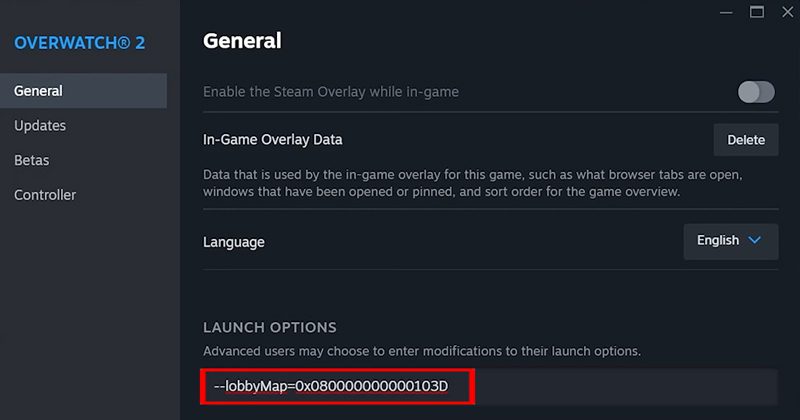
Step 2: Right-click on Overwatch 2 and select “Properties”.
Step 3: In General tab, under LAUNCH OPTIONS, enter your preferred lobby map code, for example:
--lobbyMap=0x080000000000103D
Step 4: Close this Menu and relaunch the Overwatch 2 game to see the changes.
Steps To Change Overwatch 2 Main Screen Background on Battle.net
Step 1: Open Battle.net client and go to Overwatch 2 game.
Step 2: Next to the Play button, click on “Settings” icon and then click on “Game Settings” option.
Step 3: Tick mark “Additional command line arguments” and then enter your preferred lobby map code, for example: --lobbyMap=0x080000000000103D
Step 4: Click on “Done” in order to save the changes.
Step 5: Now, click on Overwatch 2 Play button to see background has been changed.

If you have found this article helpful, then please share it as it can help others!
Please support us by subscribing to our YouTube Channel.
You May Also Like:
- GTA San Andreas Netflix All Cheat Codes and How To Use Them
- How To Create AI Images With DALL·E 3 Using ChatGPT
- How To Fix Error Code 80151015 on Xbox
- How To Fix Instagram “Add Yours” Not Working

Max Field is a founder of Recover Android Data. He is an Android lover and loves to write tips, tricks, fixes for errors, data recovery solutions and more related to Android. Provide Gaming Tips, Tricks, Game Error/Issues Solutions (PC/Xbox/PlayStation/Mobile). He is now also interested in solving LinkedIn Puzzles. He has 12+ years of experience in this field.