
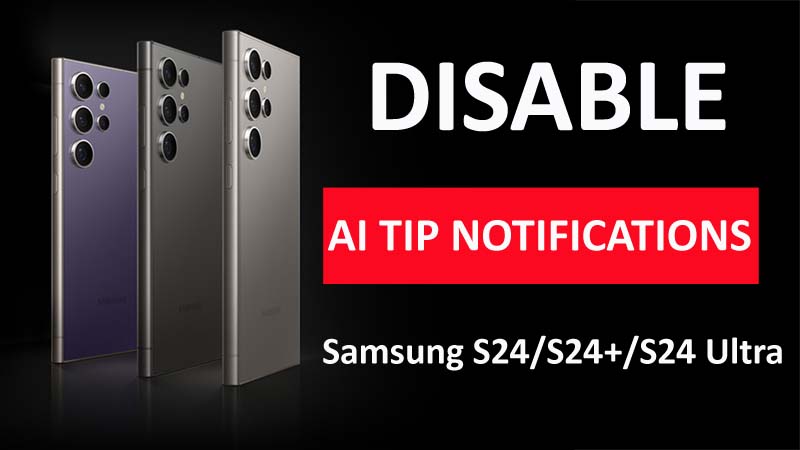
The Samsung Galaxy S24, S24 Plus, or S24 Ultra phone comes with a lot of AI-powered features to improve user experience. It also means that you will get endless tips from the AI assistant which can be annoying to you.
So, if you are annoyed or get frustrated or disturbed with the AI tip notifications and want to turn it off then this guide is for you.
Here you will learn the steps on how to disable annoying AI tip notifications on Samsung Galaxy S24/S24 Plus/S24 Ultra.
What Is AI Tip Notifications? And How Does It Work?
The AI tip notifications provide its users with suggestions and tips based on their usage patterns and the device’s AI-powered analysis.
For instance, you might receive notifications on using the camera feature or other types of notifications based on your interests.
Here are some of the common AI tip notifications on your Samsung S24, S24 Plus, or S24 Ultra:
- App recommendations.
- Battery optimization tips.
- Notifications for using the camera feature.
- Storage management suggestions.
However, these tip notifications can be useful or helpful sometimes but when you are on an important meeting or other important work then these notifications can interrupt the user concentration.
So, if you are getting disturbed with these AI notifications then follow the below steps to disable this feature.
Steps To Disable Annoying AI Tip Notifications On Samsung S24/S24 Plus/S24 Ultra
Step 1: Open Settings
- On your phone’s home screen, find the gear icon and tap on it to open the Settings app.
- Or you can say “Hey Bixby” open Settings.
Step 2: Go To The Notifications Settings
- Open the Settings app on your Galaxy device.
- Scroll down to the Apps & Notifications option and tap on it.
- Next, tap on Notifications to access the notification settings.
Step 3: Find And Select AI Tip Notifications Option
- Now, scroll down the list of app notifications until you get the “AI Tips” or “Samsung Tips” option.
Note: You may find different options depending on your Samsung S24 model and software version.
- Next, tap on the “Samsung Tips” or “AI Tips” option to open the notification settings.
Step 4: Turn Off AI Tip Notifications
- In the AI Tip notification settings, find the “Allow notifications” toggle switch.
- Then toggle the switch to the off position. Once you toggle it off then the switch will turn gray from blue. This shows that the notifications are disabled.
- If asked, then confirm your choice by tapping on “Turn off” or “OK”.
Hurry! You have successfully turned off the AI tip notifications on your Galaxy S24 series phone. And now, you will not receive these frustrating notifications again.
Alternative Ways To Turn Off AI Tip Notifications On Samsung S24 (Plus) (Ultra)
The above steps are the primary way to turn off AI tip notifications on your Samsung Galaxy S24 series phone, there could be alternative ways depending on your particular model and OS version.
Below, we have shared some of the other methods to disable this feature:
Disable AI Tip Notifications From AI Settings: If your Samsung S24, S24 Plus, or S24 Ultra has a specific AI settings menu then you can disable AI tip notifications from here.
To go to AI settings, open the Settings app and then find the option “AI” or “Bixby”. Now, find the option related to notifications or tips and disable it.
Disable AI Tip Notifications From Quick Settings Menu: Some Samsung S24 models may let you turn off AI tip notifications from the quick settings menu.
To access Quick Settings, you need to swipe down from the top of your phone’s screen. Then find the “AI Tips” or “Samsung Tips” option and hit on it to disable the AI notifications.
Use Do Not Disturb Mode Feature: You can also disable all notifications on your Galaxy S24 phone by enabling the Do Not Disturb mode feature.
To enable it, go to Quick settings menu and tap on the moon icon to enable it. Once you enable this option then all notifications will be silent for a set period of time.
If you want to fully disable all the AI-powered features on your Samsung S24, S24 Ultra, or S24 Plus phone then you can go to Settings > Notifications. Then tap on Advanced settings and toggle off the “Allow notifications” option. This will mute/disable all notifications from all apps.
Related FAQs
Is It Possible To Re-Enable AI Tip Notifications Later?
Yes, you can easily re-enable AI tip notifications later. The steps to re-enable it are the same as we discussed above to disable the AI tip notifications feature.
Where Is The AI On Samsung Galaxy S24 Ultra?
To access the AI on Samsung Galaxy S24 Ultra you need to follow the below steps:
- Go to Settings.
- Then tap on Advanced feature.
- Next, tap on Advanced intelligence.
Now, choose your desired AI feature to know more about it, and then choose your favorite option.
Does Turning Off AI Tip Notifications Also Affect Other Important Notifications?
No, when you disable the AI Tip notifications then it will only stop particular notifications related to AI-generated suggestions and tips. It will not affect other important notifications from other apps.
Can Turning Off AI Tip Notifications Impact The Performance Of Samsung S24 Series Phone?
Turning off the AI notifications will not provide a huge impact on the performance of your phone. However, it can slightly improve the performance as it reduces the number of background processes for generating those AI notifications.
Wrap Up
By following the above-mentioned steps, you can easily disable AI tip notifications on Samsung Galaxy S24, S24 Plus, Or S24 Ultra.
Always remember that turning off AI tip notifications does not mean that you will not get any other important notifications. You can re-enable these notifications if you need them in the future.
You May Also Like:
- How To Enable Dark Theme on SAMSUNG S24 Ultra/S24 Plus/S24
- How To Share WiFi Password on Samsung S24 Ultra/S24 Plus/S24
- Fix Samsung S24 Ultra/S24 Plus/S24 Notification Sound Not Working
- How To Fix Dead Pixels on Samsung S24/S24 Plus/S24 Ultra

Max Field is a founder of Recover Android Data. He is an Android lover and loves to write tips, tricks, fixes for errors, data recovery solutions and more related to Android. Provide Gaming Tips, Tricks, Game Error/Issues Solutions (PC/Xbox/PlayStation/Mobile). He is now also interested in solving LinkedIn Puzzles. He has 12+ years of experience in this field.