

Learn 7 Different Ways To Delete Data Like Photos, Videos, Contacts, Call History, Text Messages, App Data, And From Android Phone Permanently!
Overview: Have you decided to sell your Android phone or give it to your loved ones? If YES, and before selling it you want to permanently delete data from your Android phone so that your sensitive data will not fall into the wrong hands. So, this guide will teach you how to permanently delete data from Android phones/tablets.
- Solution 1: Encrypt Data On Android Phone
- Solution 2: Erase Data From Android Phone Via File Manager (Data Recoverable)
- Solution 3: Permanently Delete Data Through A File Shredder
- Solution 4: Wipe Files From SD Cards
- Solution 5: Permanently Delete Files From Android Phone
- Solution 6: Delete All Data From Android Phone By Doing Factory Reset (Data Recoverable)
- Solution 7: Permanently Delete Data From Android Phone Using Android Data Eraser Software [Recommended]
- Related Frequently Asked Questions [FAQs]
 Expert Tip: One of the secure and easy ways to permanently delete data from Android phones is to use Android Data Eraser software.
With the help of Android Data Eraser tool, one can:
- Permanently erase data from Android phone with 0% chance of recovery.
- No data recovery tool is able to recover the deleted files.
- Permanently wipe all types of data such as text SMS, contacts, call history, pictures, videos, audios, browsing history, app data, etc.
- Supports all brands of Android phones including LG, Samsung, OnePlus, Realme, Oppo, Xiaomi, Vivo, Asus, Sony, Google Pixel.
- 100% safe, secure, and easy to use.
Free Download Trial Version/Buy Now Android Data Eraser Tool To Permanently Delete Data From Android Phone
 |
 |
Every user who want to sell/donate their Android phone and before doing this they want to permanently erase data from their device. If you are also one of them then before permanently deleting files from Android device, you should first do a few things and then move to the methods to permanently delete data.
What You Need To Do Before You Permanently Delete All Data From Your Android Phone
There are a few things that you need to do before deleting all files from an Android phone.
- Create a backup of all precious data from your Android phone such as pictures, text messages, contacts, etc.
- Sign out from all social media accounts and all email services and erase all data from these.
- Remove the SIM card and SD card (if you have one).
Once you have done these things. You can move to solutions to permanently delete data from Android phones.
So, let’s jump to the solutions.
Also Read: How To Permanently Delete Deleted Photos From Android Phone
Video Guide: How To Permanently Delete Data From Android Phone
Solution 1: Encrypt Data On Android Phone
You can easily permanently delete data from your Android phone by encrypting your phone’s data. This is an in-built option and you need a PIN or password whenever you turn on your Android phone.
When you encrypt data from your smartphone then each data will be scrambled. And if anybody wants to recover those files using any data recovery app then they need to provide a password or unscramble those files first.
So, follow the below steps to permanently erase data from Android phones by encrypting them.
Step 1: Open Settings app on your phone.
Step 2: Then tap on Security.
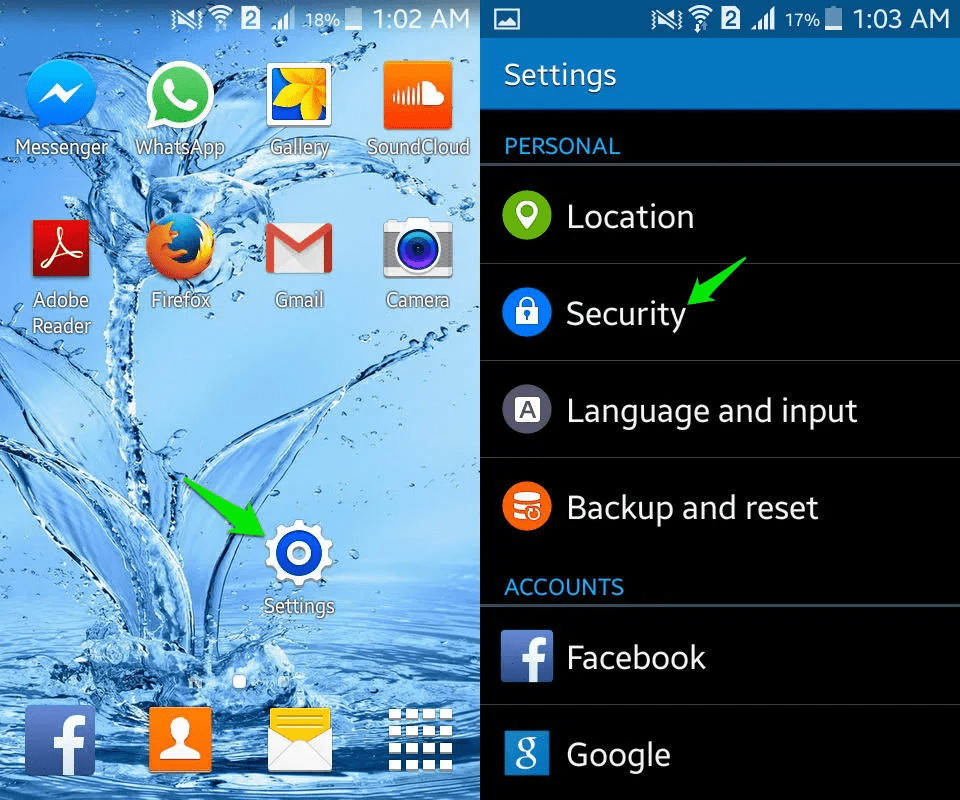
Step 3: Under Security, tap on Encrypt device/Encrypt Phone option.
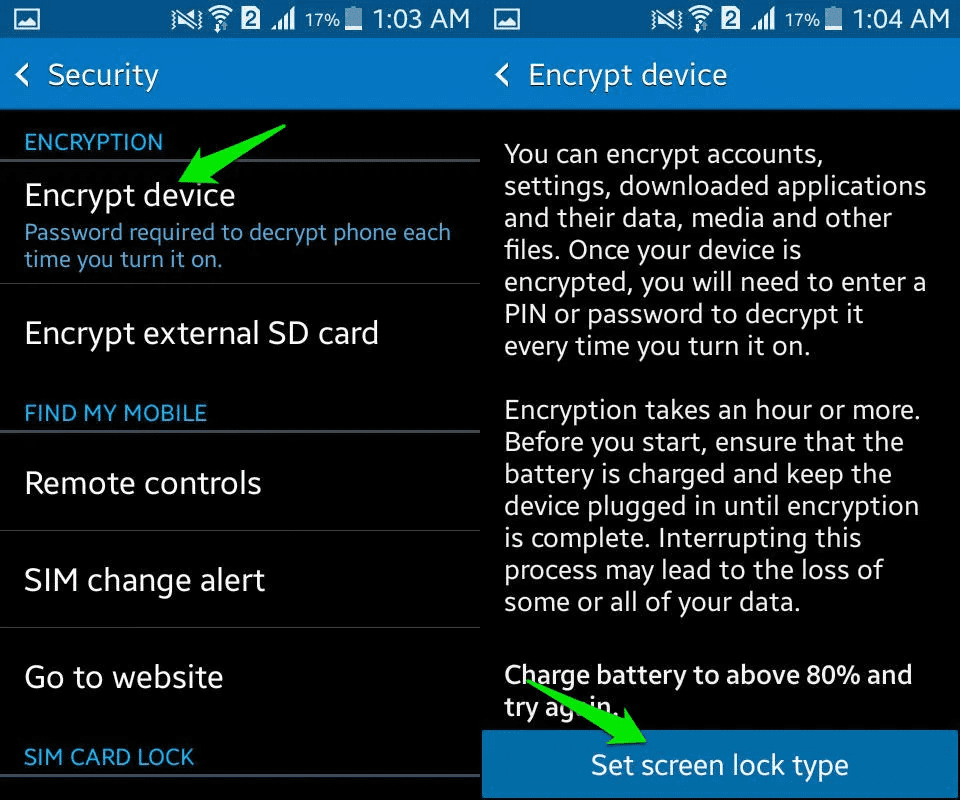
Step 4: Now, hit on Set screen lock type to set a lock.
This process will take almost an hour, so don’t use your phone during this process and keep it charged.
Also Read: How To Permanently Delete Text Messages From SIM Card On Android
Solution 2: Erase Data From Android Phone Via File Manager (Data Recoverable)
You can also use File Manager or File Explorer app to wipe data from your Android phone. There are many free file explorers for Android, including Google’s own excellent Files app.
Below, follow the steps to delete data from Android phone using File Manager.
Step 1: Open the File Explorer app on your phone.
Step 2: Then select the data and hit on trash button or you can press the 3 dots menu and tap on Delete button.
Step 3: Now, confirm the deletion process by again tapping on Delete.
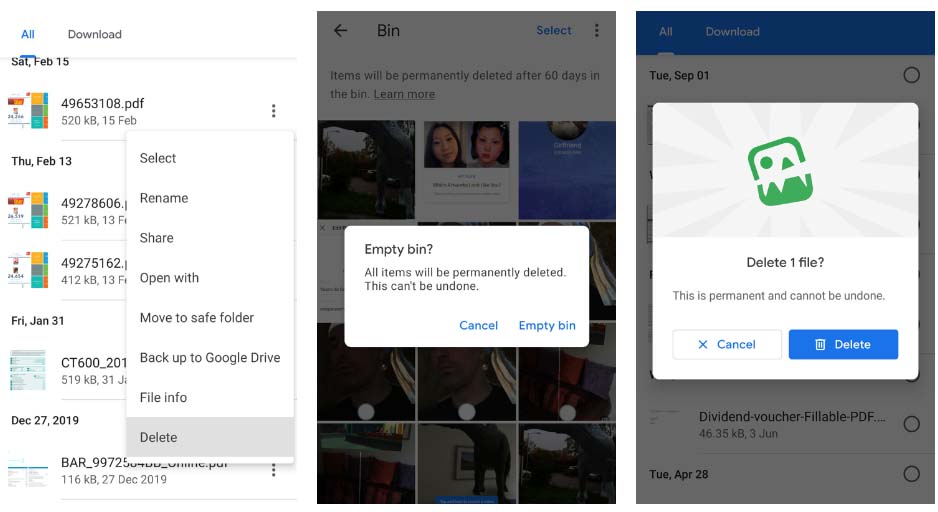
You should also delete data from Recently Deleted folder and from other apps like Google Photos trash. Or you can simply uninstall the app.
Also Read: How To Delete Call Logs Permanently From SIM Card On Android
Solution 3: Permanently Delete Data Through A File Shredder
If your Android phone’s encryption doesn’t assure you that the deleted data can’t be recovered and if your device is running on an old OS version then you should install a file shredder. This will wipe free space on your phone that may still contain deleted files.
File shredders like Shreddit, iShredder, and Data Eraser provide you with a choice of shredding algorithms. This allows you to choose how many times the files are overwritten with random characters. Each overwrites is known as “cycle” or “pass” and the more passes the less the chance of erased files can be recovered.
You will need to access these app permissions to access your data. But they will not shred any file without asking you to confirm this.
Delete Free Space Via Data Eraser App
Here, follow the below steps to make erased files unrecoverable using Data Eraser app.
Step 1: Unlock your phone and tap on Freespace on the home screen and choose Internal Storage. Then the app will count how much free space it has to delete.
Step 2: After this, hit on Continue and select a shredding algorithm. BSU TL-0342 and NATO Standard, are the most thorough that perform 8 and 7 passes respectively. But, they take more time.
Step 3: Confirm to move further and the app will delete all the free space on your phone. This ensures the deleted data can’t be retrieved.
Step 4: When this process is going on, your phone will become slow. You can check it any time by launching the notification at the top of your phone’s screen and hitting on Cancel.

The Data Eraser doesn’t charge money to delete free space on your Android device but you can only shred 100MB of specific files free per day. If you want to remove more files then you can upgrade to the paid version for $4.99.
Shreddit is totally free but its ads can disturb you and you can’t use it on Android 11.
Also Read: How To Recover Permanently Deleted Videos From Google Photos
Solution 4: Wipe Files From Android SD Card
If you wish to delete data that is stored on your SD card then there are different methods to do this.
Method 1: Erase Data From SD Card Using Settings
Step 1: Open Settings app on your phone.
Step 2: Then hit on Storage.
Step 3: After this, tap on SD card and find the file and delete it from there.
But the deleted data can be recovered. So, to make it unrecoverable you can format the SD card. Doing this will completely erase its data. So, you should transfer the data to another device to keep them safe.
Here are the steps to format SD card.
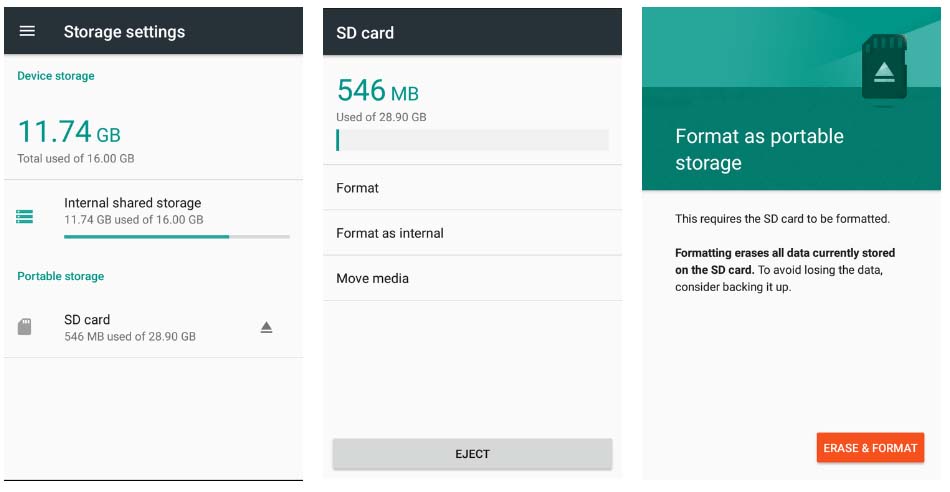
Step 1: Hit on 3 dot menu in the top-right corner and select Storage settings.
Step 2: Then choose Format.
Step 3: After this, hit on Format SD Card/Erase & Format.
Method 2: Erase Data From SD Card Using Computer
Step 1: Connect your Android phone to your computer using USB cable or you can insert the SD card into the card reader and insert into your computer’s USB port.
Step 2: You need to “unmount” the SD memory card by selecting Eject/Unmount before removing it from your device.
Step 3: Browser the SD card data in File Explorer. Find the file, right-click on it and then select Delete.
Also, there are some Android file shredder apps that can wipe and overwrite data saved on your external SD card including Data Eraser app.
Also Read: How To Recover Permanently Deleted Photos On Android
Solution 5: Permanently Delete Files From Android Phone Using PC
You can also use your computer to permanently delete files from Android phone.
Below follow the steps to do the same.
Step 1: With the help of USB cable connect your Android phone to your computer and select Open device to view files from the AutoPlay options. Or you can open File Explorer and then click This PC > double click on your phone’s icon.
Step 2: If you find the drive empty then pull down your notification tray and hit USB charging this device to select File transfer/Transfer files. Or you can head to Settings > Connected devices > USB and enable the option there.
Step 3: Now, browse the folders on your smartphone to find the file that you wish to delete. If the data is video or photo then it will be in the DCIM > Camera folder.

Step 4: Right-click on the data that you wish to delete permanently and then click on Delete and confirm your choice. The deleted data will not move to Windows Recycle Bin.
Also Read: Learn To Wipe Data On Stolen Phone
Solution 6: Delete All Data From Android Phone By Doing Factory Reset (Data Recoverable)
The simplest way to delete all data from Android phones is by doing a factory reset. But the deleted data can be recovered using data recovery software.
However, follow the below steps to delete all data, apps, and settings on Android.
Step 1: Navigate to Settings > Backup and Reset option.
Step 2: After this, tap on Factory data reset.
Step 3: Next, hit on Reset, to reset the phone.
Some other Android device (Pixel and Samsung phone) has the following steps:
Step 1: On your Android phone, go to Settings > System > Advanced.
Step 2: Tap Reset options.
Step 3: Tap on Erase all data (factory reset), and finally tap on Delete all data.
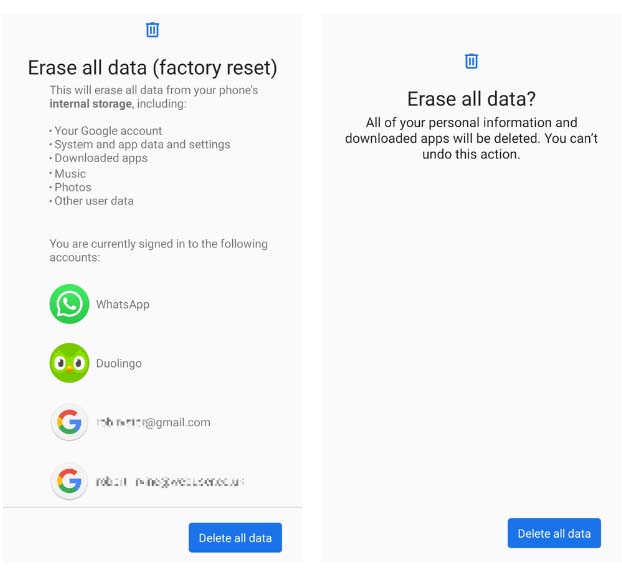
Note: Different phone models have different steps to factory reset their devices.
Also Read: How To Fix Phone Camera Making Buzzing Noise
Solution 7: Permanently Delete Data From Android Phone Using Android Data Eraser Software [Recommended]
If you want to secure the privacy of your device data then you are highly recommended to try Android Data Eraser software. It will permanently delete all data from your Android phone. And no data recovery tool will be able to recover it.
|
|
This software will erase all types of data such as images, text messages, videos, notes, calendar, caches, call history, WhatsApp conversations, app’s data, audio, and more.
It provides full security to your deleted files as no data is leaked during the process and it is very easy to use.
Supports all brands of Android phones such as Samsung, LG, Sony, Huawei, HTC, Vivo, Oppo, Realme, OnePlus, Google Pixel, and all other brands available in the market.
Below, follow the steps to permanently delete data from Android phones using Android Data Eraser tool.
Steps To Permanently Delete Data From Android Phone
Step 1: Connect Your Android Phone To Computer
First of all download, install and launch Android Data Eraser on your computer and select “Erase” among the available options.

Now connect your Android phone to your computer with the help of data cable. Make sure you have enabled USB debugging on your Android device.
If your phone is running above Android OS version 4.2.2, then there will be a pop-up message on your Android phone asking you to allow USB debugging. Simply tap on “OK” to proceed further.

Step 2: Start To Erase Your Android Phone Permanently
After this, the software will automatically detect and connect your Android device. Now click on “Erase All Data” button to start wiping all data from your device.

Note: Since data deleted are gone forever and are not recoverable. So, it is suggested that you must backup all important data that you need, before you proceed further.
Now type “delete” in to the box to confirm the erase process.

Now, Android Data Erase will start erasing all data from your Android device. Just wait for few minutes and all data on your Android phone will get erased permanently. Make sure that your device is connected to your computer until and unless the process complete.

Step 3: Factory Data Reset Your Android
After all data such as photos, app data and personal data have been deleted permanently, Android Data Eraser will ask you to perform factory data reset on your phone. So, simply tap on “Factory Data Reset” or “Erase All Data” on the phone. This will erase all the settings on the phone.

Well, now all data on your Android phone has been wiped permanently and it’s just like a brand new phone. You can now sell or donate your phone to anyone as device does not have any kind of data of yours.

|
|
You May Also Like:
- How To Fix Security Policy Prevents Use Of Camera On Android
- How To Fix Wi-Fi Stuck On Obtaining IP Address On Android
- How To Fix Phone Scrolling Problem On Android
- How To Unlock OnePlus With Broken Screen
Related Frequently Asked Questions [FAQs]
Answer 1 – Yes, data can be deleted permanently. For this, you can use Android Data Eraser software or you need to encrypt the data.
Answer 2 – No, factory reset doesn’t remove all data permanently. The erased data can be recovered using a data recovery tool.
Answer 3 – You can encrypt the data to prevent the recovery of deleted files on Android. But the best way for preventing the recovery of deleted files is to use Android Data Eraser tool for deleting data from the device.
Wrap Up
These are some of the ways to permanently delete data from Android phones/tablets. All the solutions are good in their place. But if you want 100% security of deleted data then I would highly recommend you to try Android Data Eraser software. It will completely and permanently delete all data from your Android device which can’t be recovered by any means not even by data recovery software.
Please support us by subscribing to our YouTube Channel.

Max Field is a founder of Recover Android Data. He is an Android lover and loves to write tips, tricks, fixes for errors, data recovery solutions and more related to Android. Provide Gaming Tips, Tricks, Game Error/Issues Solutions (PC/Xbox/PlayStation/Mobile). He is now also interested in solving LinkedIn Puzzles. He has 12+ years of experience in this field.